# Table grid
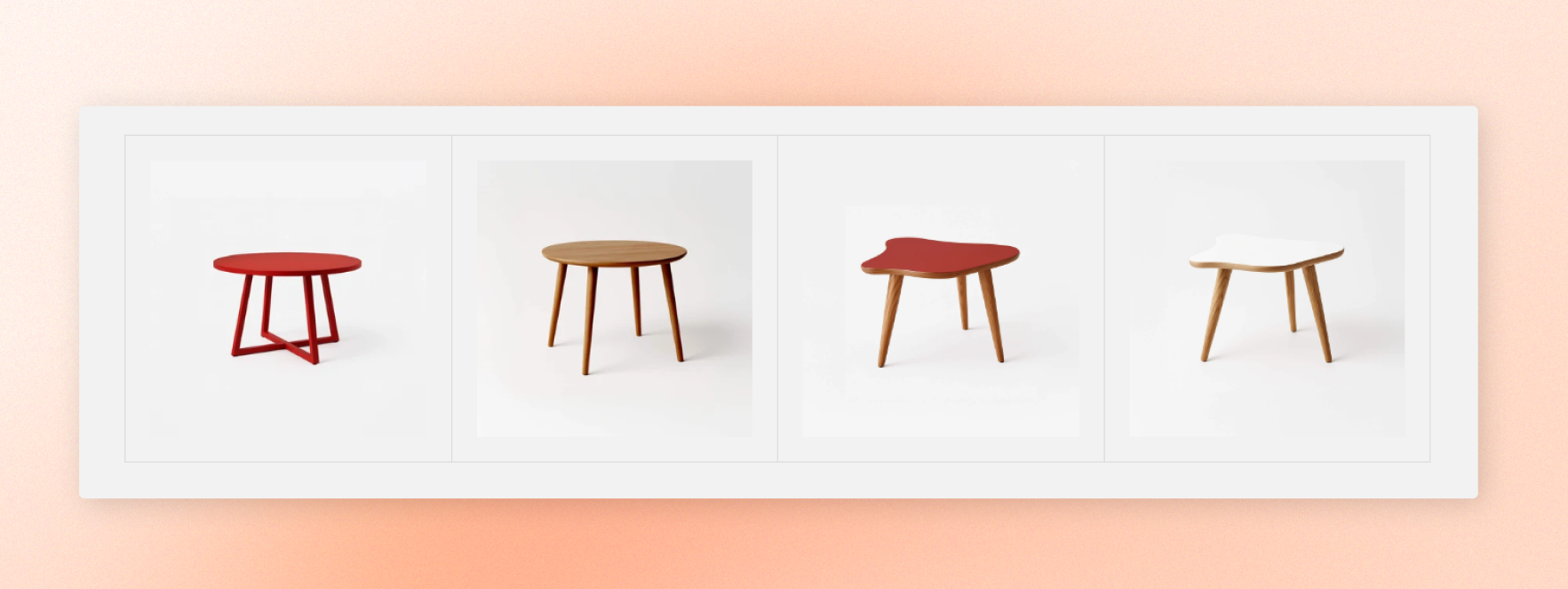
Arrange blocks in a ruled table with lines between every cell and around the outer edge. Each block fills one cell, so you can combine images, icons, text, or counters into a structured grid.
Add it to any section that accepts blocks, such as a **Custom section** or **Group**.
## Layout
| Setting | Description | Options |
| ------------------ | -------------------------------------------------------------------------------------------------- | ------- |
| **Columns** | Set the number of columns on large screens. The layout adjusts automatically between screen sizes. | 1–12 |
| **Mobile columns** | Set the number of columns on phones. | 1–3 |
## Cell
To align content left, center, or right inside a cell, use the alignment setting of the block placed in that cell.
| Setting | Description | Options |
| ----------------------- | --------------------------------------------------- | --------------------- |
| **Cell padding** | Set the space inside each cell on desktop. | 0px - 80px |
| **Cell padding mobile** | Set the space inside each cell on phones. | 0px - 80px |
| **Position** | Set where content sits vertically inside each cell. | Top / Middle / Bottom |
## Appearance
| Setting | Description | Options |
| ------------------------ | --------------------------------------------------------------------------------------------------------------------- | ------------------- |
| **Inherit color scheme** | Use the colors from the section containing the table. | On / Off |
| **Color scheme** | Set a color scheme for the table. Appears when Inherit color scheme is off. | Select color scheme |
| **Border color** | Set the color of the outer frame and inner lines. Leave empty to use the border color from the selected color scheme. | Select color |
| **Thickness** | Set the thickness of the outer frame and inner lines. | 1px - 5px |
| **Corner radius** | Round the corners of the outer frame. | 0px - 32px |
## Padding
Set the space around the outside of the table. Choose **Desktop** or **Mobile** under **Devices**, then adjust the spacing for each side.
| Setting | Description | Options |
| ----------- | ---------------------------------------- | ---------------- |
| **Devices** | Choose which screen size to edit. | Desktop / Mobile |
| **Top** | Set the space above the table. | 0px - 100px |
| **Bottom** | Set the space below the table. | 0px - 100px |
| **Left** | Set the space to the left of the table. | 0px - 100px |
| **Right** | Set the space to the right of the table. | 0px - 100px |
## Advanced
| Setting | Description | Options |
| ------------------ | -------------------------------------------------------------------------------------------------------------------------------------------------------------------------------- | ---------- |
| **Custom columns** | Set an exact column count for each screen size when the automatic responsive layout doesn't fit your needs.
Use comma-separated values, such as mb:1,md:2,lg:3,xl:4,xxl:5. | Enter text |
## Blocks
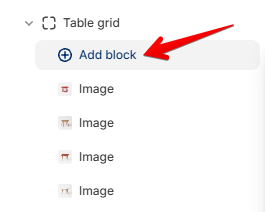
Add any theme block to the table. Each block fills one cell.
The default layout includes four **Image** blocks.
## Tips
* Keep at least one block in the table. Removing every block hides the table from the storefront, although it remains available in the theme editor.
* Blocks fill cells from left to right. An incomplete final row displays fewer cells.