# Product specifications
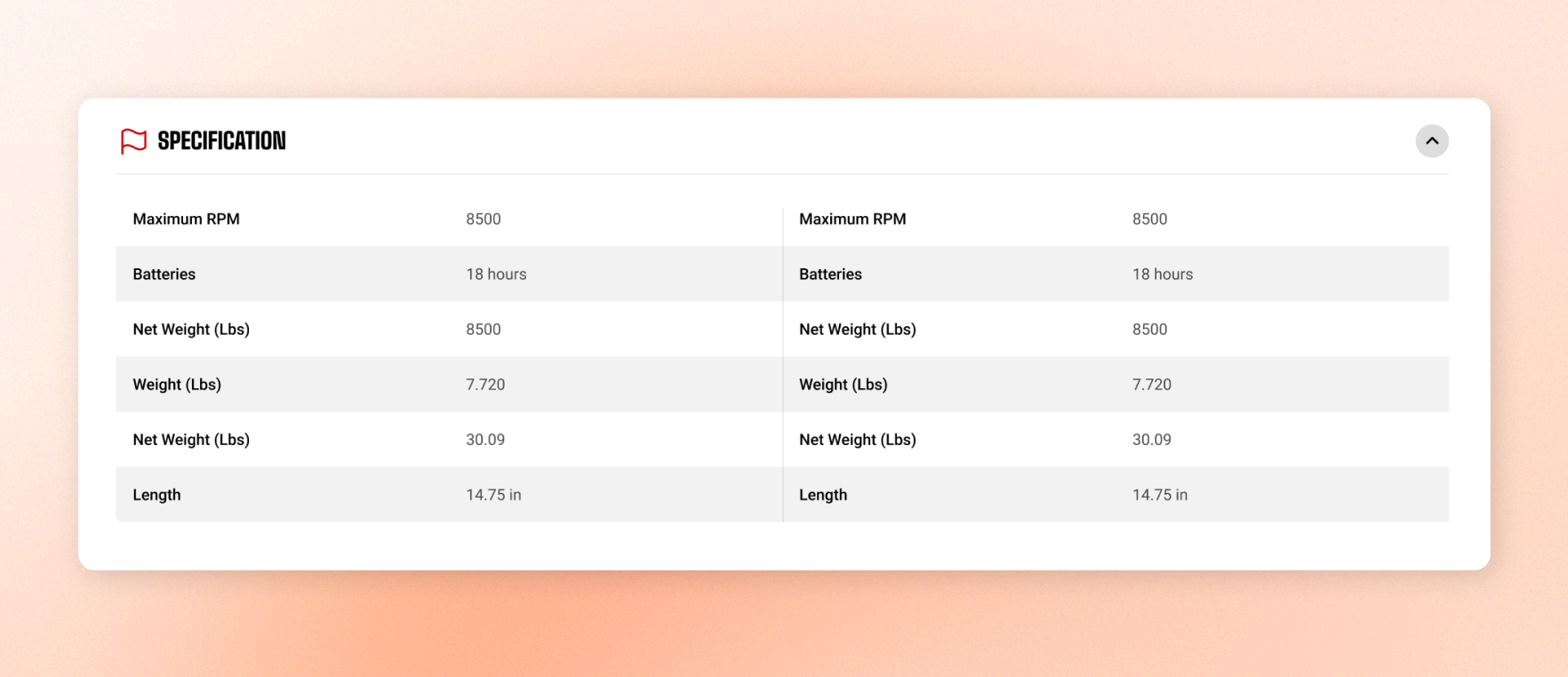
Display a product's specifications as a clean, zebra-striped list of label-and-value rows.
Use this block on a product page to show each product's own specifications. The specs come from metafield data saved on each product, so set them up once and let the block display them automatically.
## Set up a metafield to show custom data for product specifications
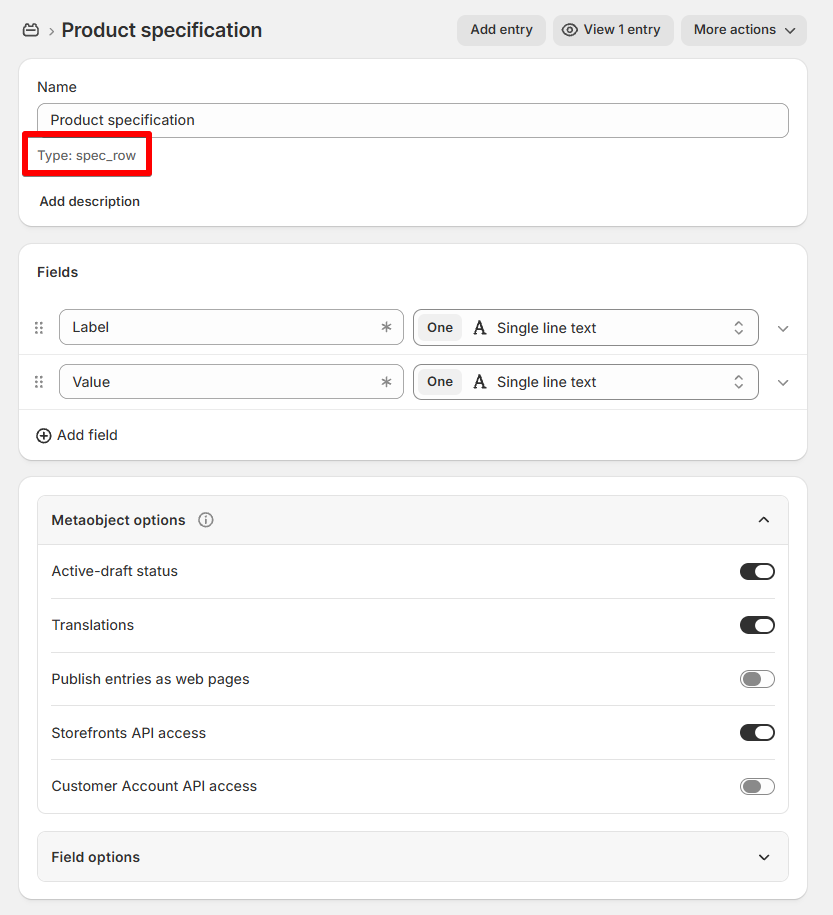
1. Go to **Shopify Admin > Settings > Metafields and Metaobjects**
2. In **Metaobject definitions > Add definition**
3. Enter a **Name.** Such as: Product specifications
4. Set **Metaobject type** to `spec_row`.
5. Add two **Single line text** fields:
* **Label** — the specification name, such as *Material* or *Weight*.
* **Value** — the specification value, such as *Leather* or *1.2 kg*.
 1. Click **Save**
1. Go to **Settings > Metafields and Metaobjects** > **Products** > Add definition.
2. Enter Name
3. Enter **Namespace and key is `foxtheme.specifications`**
4. Connect the metafield **Type** to **the `spec_row` metaobject you created in the previous step**.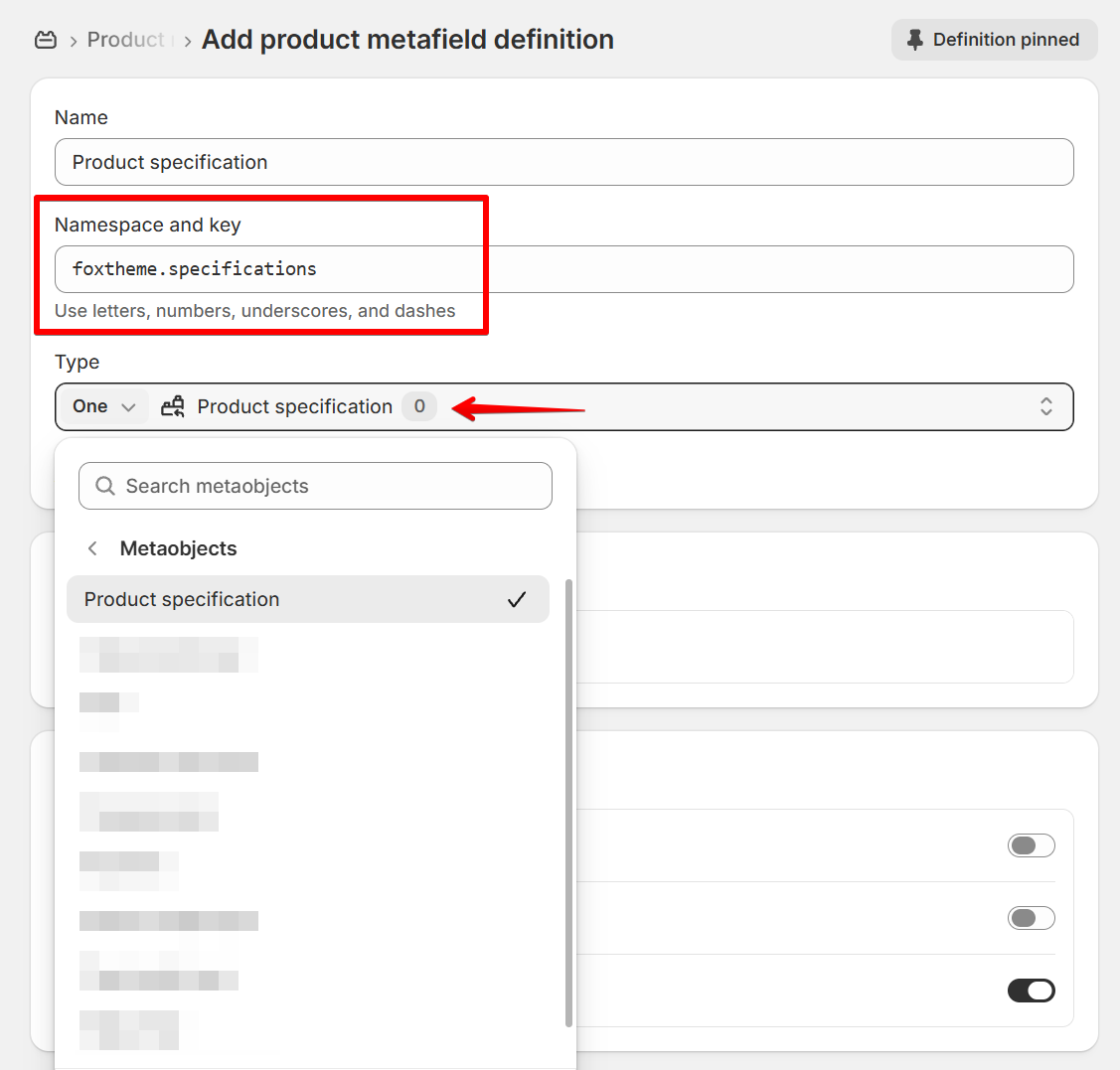
5. **Save** the metafield definition.
1. Go to **Content > Metaobjects** > **Select** the **product specifications metaobject** you created > **Add Entry**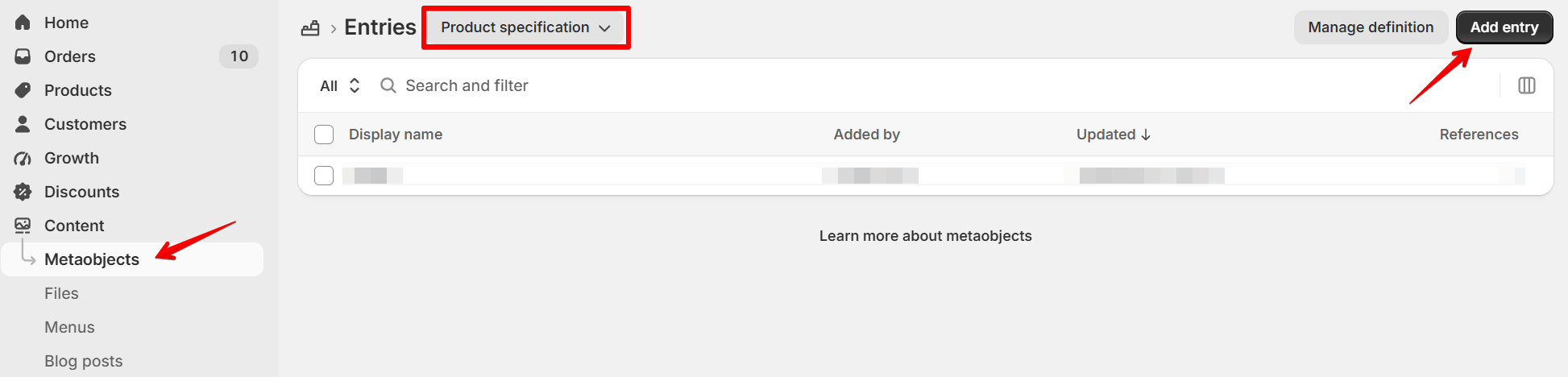
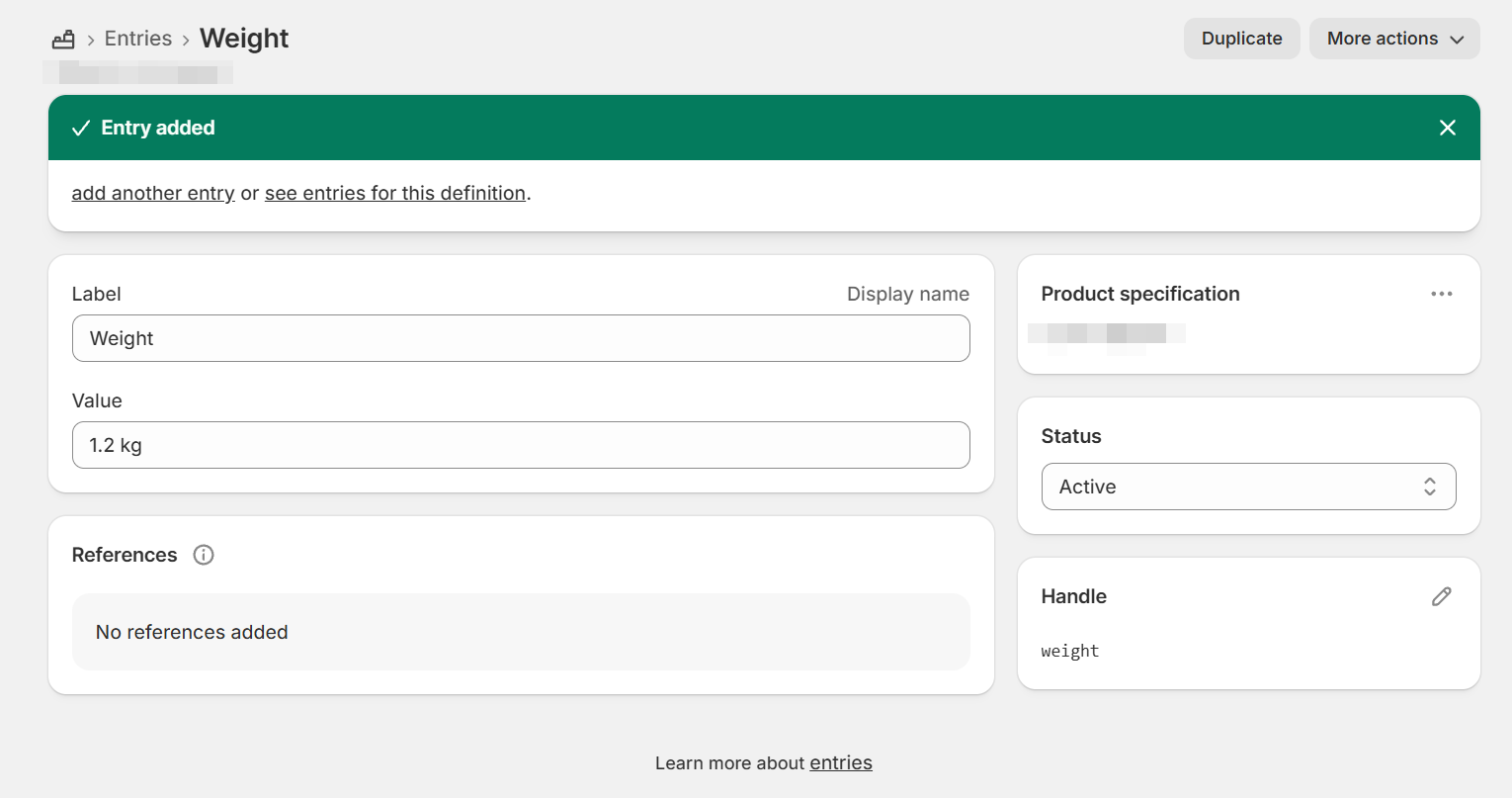
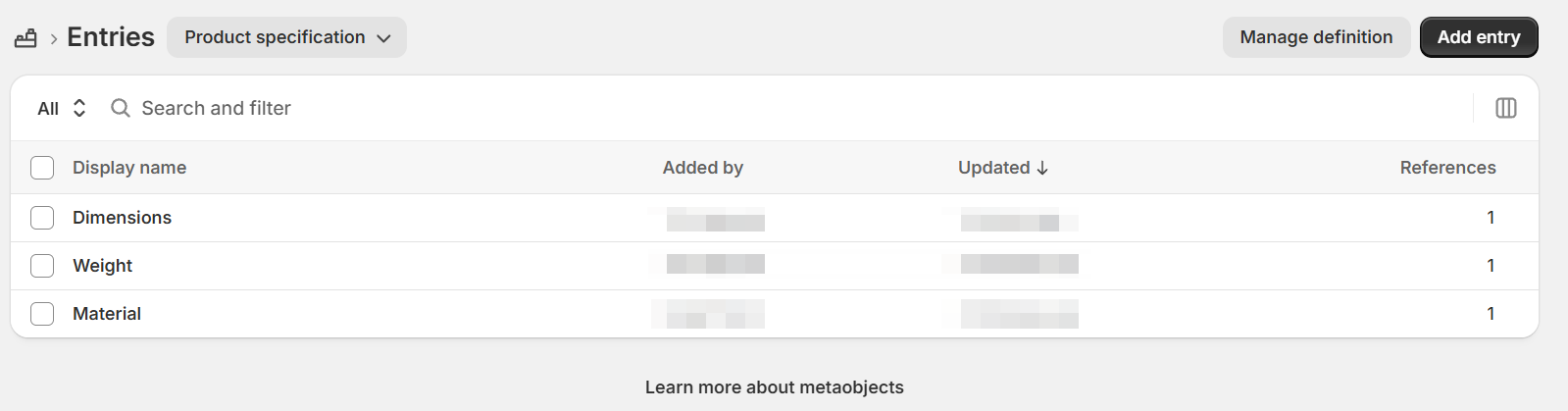
2. Fill in the **Label** and **Value**. You can add multiple entries, with a **Label** and **Value** for each specification you want to display. Each entry becomes one row in the specifications table.
For example:
1. Click **Save**
1. Go to the product you want to show the specifications for
2. Scroll to **Product metafields > Product specifications >** **Select the entries** you want to connect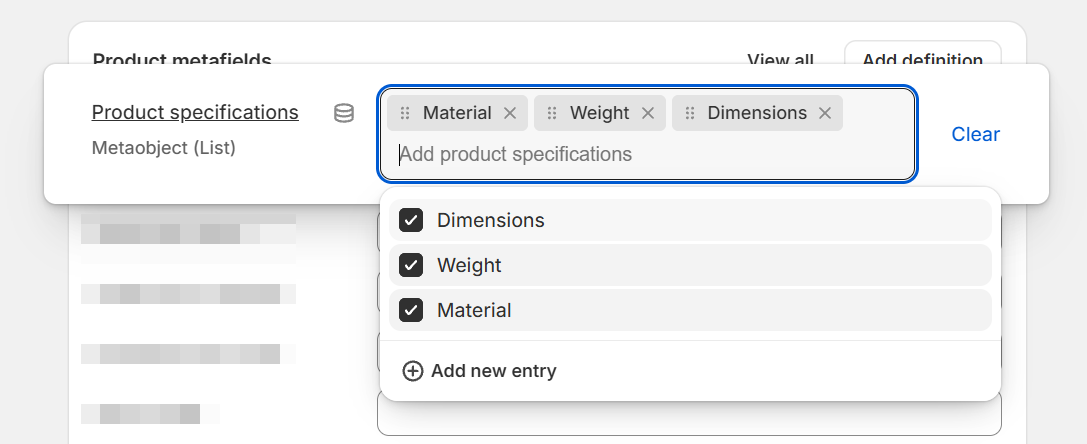
3. Click **Save**.
1. Go to **Theme editor** > Select the page template - default product
2. Add a **Custom section > Add block > Product specifications**
3. Make the necessary changes.
4. **Save** the settings.
A product without saved specifications won't display any rows.
## Block settings
### Layout
1. Click **Save**
1. Go to **Settings > Metafields and Metaobjects** > **Products** > Add definition.
2. Enter Name
3. Enter **Namespace and key is `foxtheme.specifications`**
4. Connect the metafield **Type** to **the `spec_row` metaobject you created in the previous step**.
5. **Save** the metafield definition.
1. Go to **Content > Metaobjects** > **Select** the **product specifications metaobject** you created > **Add Entry**
2. Fill in the **Label** and **Value**. You can add multiple entries, with a **Label** and **Value** for each specification you want to display. Each entry becomes one row in the specifications table.
For example:


1. Click **Save**
1. Go to the product you want to show the specifications for
2. Scroll to **Product metafields > Product specifications >** **Select the entries** you want to connect
3. Click **Save**.
1. Go to **Theme editor** > Select the page template - default product
2. Add a **Custom section > Add block > Product specifications**
3. Make the necessary changes.
4. **Save** the settings.
A product without saved specifications won't display any rows.
## Block settings
### Layout
| Settings | Description | Options |
| -------------------------------- | ------------------------------------------------------------- | ------------------- |
| **Width** | Controls the block width | Fit, Fill, Custom |
| **Width mobile** | Controls the block width on phones | Fit, Fill, Custom |
| **Custom width** | Sets the width as a percentage. | 0% - 100% |
| **Number of columns on desktop** | Displays the specification rows in 1 or 2 columns on desktop. | 1 column - 2 column |


Use **2 columns** for longer specification lists on desktop. Choose **1 column** for shorter lists or a simpler layout.
### Content
| Setting | Description | Option |
| ----------- | -------------------------------------------------------------------------------------------------------------------------------- | -------------- |
| **Product** | Selects the product whose specifications to display. Leave empty to use the product where the block is placed (on product page). | Select product |
### Appearance
| Setting | Description | Option |
| ------------------ | ------------------------------------------------------------------ | ------------------- |
| **Color scheme** | Sets the block's colors. | Choose color scheme |
| **Border** | Adds a solid outline around the block, or removes it with None. | None/Solid |
| **Border width** | Appears when Border \= Solid. Sets the outline thickness. | 0px - 10px |
| **Border opacity** | Appears when Border \= Solid. Controls how visible the outline is. | 0% - 100% |
| **Corner radius** | Rounds the block's corners. | 0px - 32px |
### Padding
Add space inside the block.
Choose **Devices** (**Desktop** or **Mobile**), then set the **Top**, **Bottom**, **Left**, and **Right** padding for that device.
| Setting | Description | Options |
| ----------- | ------------------------------------------ | ---------------- |
| **Devices** | Choose which screen size to edit. | Desktop / Mobile |
| **Top** | Set the space above the content. | 0px - 100px |
| **Bottom** | Set the space below the content. | 0px - 100px |
| **Left** | Set the space on the left of the content. | 0px - 100px |
| **Right** | Set the space on the right of the content. | 0px - 100px |