# Marquee
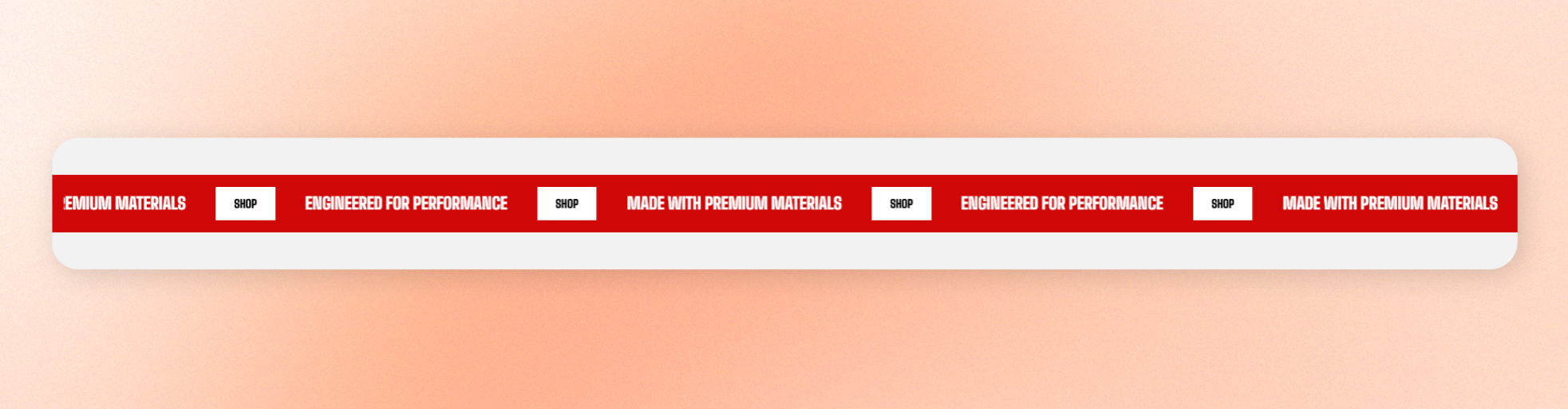
Create a scrolling content bar to highlight announcements, promotions, product messages, or other short content. Add text, icons, images, buttons, or other theme blocks to create a continuous visual message across the page.
## General settings
### Content
| Setting | Description | Options |
| ------------------- | ---------------------------------------------------------------------------------------------------------------------------- | ---------------------------------------------------------------------------------------------------- |
| **Direction** | Choose the direction in which the marquee content moves. | **Forward**: content move from right to left
**Reverse**: content move from left to right |
| **Speed** | Control how quickly the marquee content scrolls. | 0.1x - 3x |
| **Rotate** | Rotate the marquee content. | -5deg to 5deg |
| **Pause on hover** | Pause the marquee animation when customers hover over it. | On / Off |
| **Show edge fade** | Add a fade effect at the edges of the marquee to create a smoother transition as content enters and leaves the visible area. | On / Off |
| **Enable parallax** | Add a parallax effect to the marquee content as customers scroll the page. | On / Off |
Rotate marquee


Use a moderate **Speed** for longer messages so customers have enough time to read the content.
Turn on **Pause on hover** when the marquee contains important information or links.
### Layout
| Setting | Description | Options |
| -------------- | ---------------------------------------------------- | ----------- |
| **Column gap** | Set the space between content blocks in the marquee. | 0px - 100px |
### Mobile layout
| Setting | Description | Options |
| -------------- | ------------------------------------------------------- | ----------- |
| **Column gap** | Set the space between content blocks on mobile devices. | 0px - 100px |
### Appearance
| Setting | Description | Options |
| ----------------- | -------------------------------------------------------------------------------------------------- | --------------------- |
| **Color scheme** | Choose the [color scheme](https://docs.foxecom.com/motrix-theme/theme-settings/colors) used for the Marquee block. | Select a color scheme |
| **Corner radius** | Set how rounded the Marquee block corners appear. | 0px - 32px |
### Padding
| Setting | Description | Options |
| ----------- | ------------------------------------------------------- | ---------------- |
| **Devices** | Choose the device where you want to adjust the padding. | Desktop / Mobile |
| **Top** | Set the space above the Marquee block content. | 0px - 100px |
| **Bottom** | Set the space below the Marquee block content. | 0px - 100px |
## Additional marquee blocks
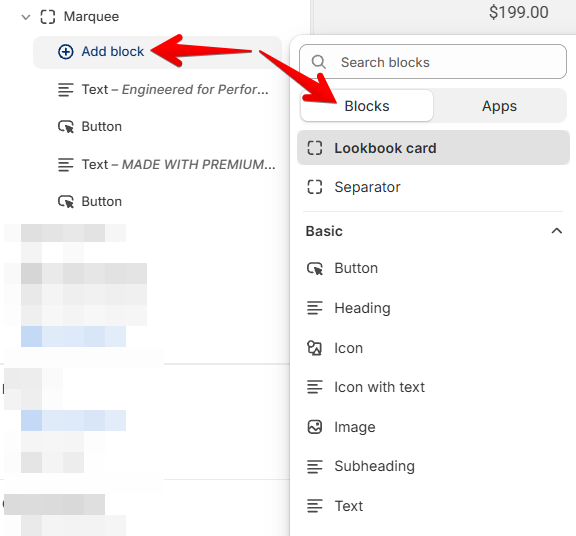
Add blocks to build the content displayed in the marquee. You can combine different blocks to create announcements, promotional messages, or visual content.
* [**Text** ](https://docs.foxecom.com/motrix-theme/theme-blocks/text)— Display a short message, announcement, or promotional copy.
* [**Button** ](https://docs.foxecom.com/motrix-theme/theme-blocks/button)— Add a button that directs customers to another page.
* [**Icon** ](https://docs.foxecom.com/motrix-theme/theme-blocks/icon)— Add a visual icon to highlight or support the marquee content.
* **Icon with text** — Combine an icon with a short text label.
* [**Image** ](https://docs.foxecom.com/motrix-theme/theme-blocks/image)— Add an image to make the marquee more visual.
* **Lookbook card** — Add a lookbook card to showcase products through visual content.
* **Separator** — Add a visual separator (**Dot** or **Line**) between marquee items.
Keep marquee content short and easy to scan. Combine a **Text** block with an **Icon** or **Separator** for simple announcements, or add a **Button** when you want customers to take action.

 Add blocks to build the content displayed in the marquee. You can combine different blocks to create announcements, promotional messages, or visual content.
* [**Text** ](https://docs.foxecom.com/motrix-theme/theme-blocks/text)— Display a short message, announcement, or promotional copy.
* [**Button** ](https://docs.foxecom.com/motrix-theme/theme-blocks/button)— Add a button that directs customers to another page.
* [**Icon** ](https://docs.foxecom.com/motrix-theme/theme-blocks/icon)— Add a visual icon to highlight or support the marquee content.
* **Icon with text** — Combine an icon with a short text label.
* [**Image** ](https://docs.foxecom.com/motrix-theme/theme-blocks/image)— Add an image to make the marquee more visual.
* **Lookbook card** — Add a lookbook card to showcase products through visual content.
* **Separator** — Add a visual separator (**Dot** or **Line**) between marquee items.
Add blocks to build the content displayed in the marquee. You can combine different blocks to create announcements, promotional messages, or visual content.
* [**Text** ](https://docs.foxecom.com/motrix-theme/theme-blocks/text)— Display a short message, announcement, or promotional copy.
* [**Button** ](https://docs.foxecom.com/motrix-theme/theme-blocks/button)— Add a button that directs customers to another page.
* [**Icon** ](https://docs.foxecom.com/motrix-theme/theme-blocks/icon)— Add a visual icon to highlight or support the marquee content.
* **Icon with text** — Combine an icon with a short text label.
* [**Image** ](https://docs.foxecom.com/motrix-theme/theme-blocks/image)— Add an image to make the marquee more visual.
* **Lookbook card** — Add a lookbook card to showcase products through visual content.
* **Separator** — Add a visual separator (**Dot** or **Line**) between marquee items.