# Map
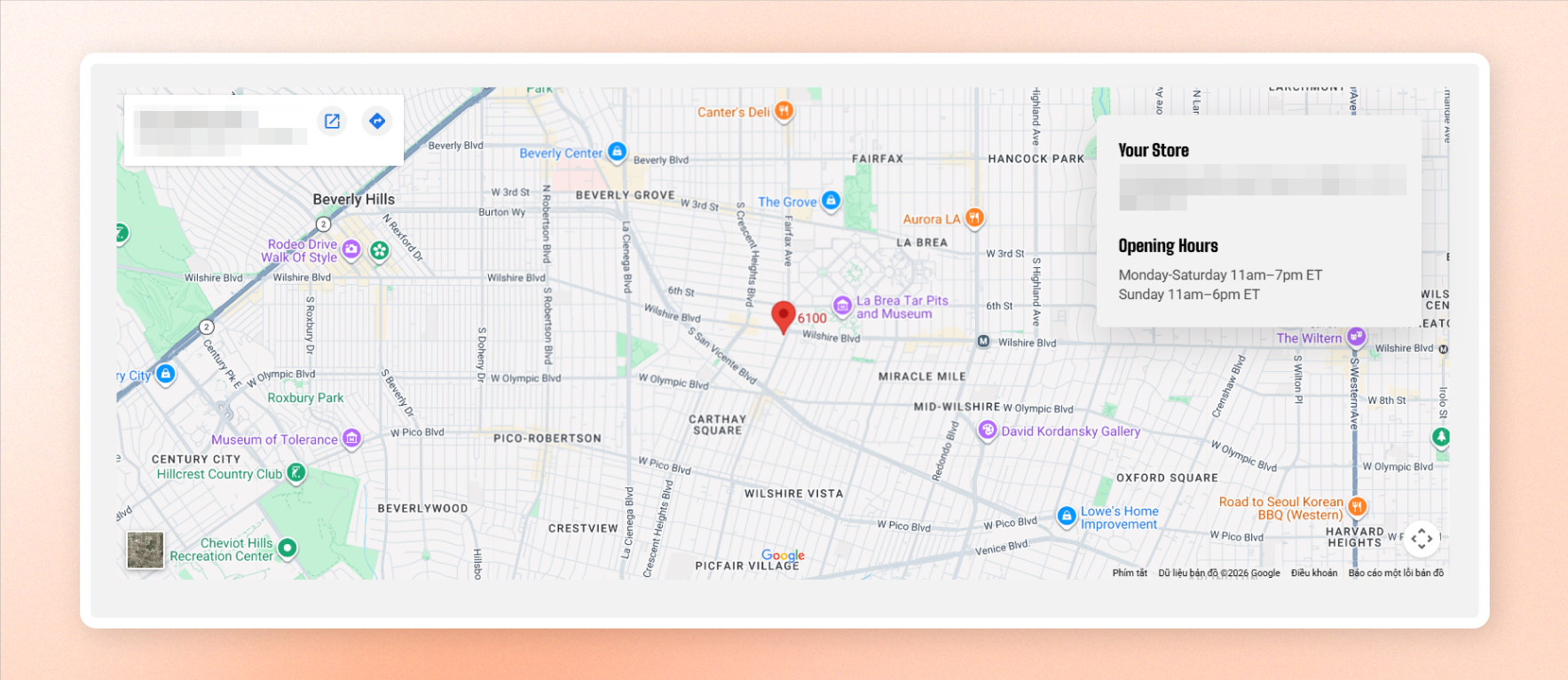
The **Map** block adds an interactive Google Map to help shoppers find your stores, branches, showrooms, or other locations.
Add a **Location** block for each place you want to display. When multiple locations are added, shoppers can select one from the location dropdown to move the map to that location and update the information shown in the card.
## Before you start
You need a Google Maps API key to display the map.
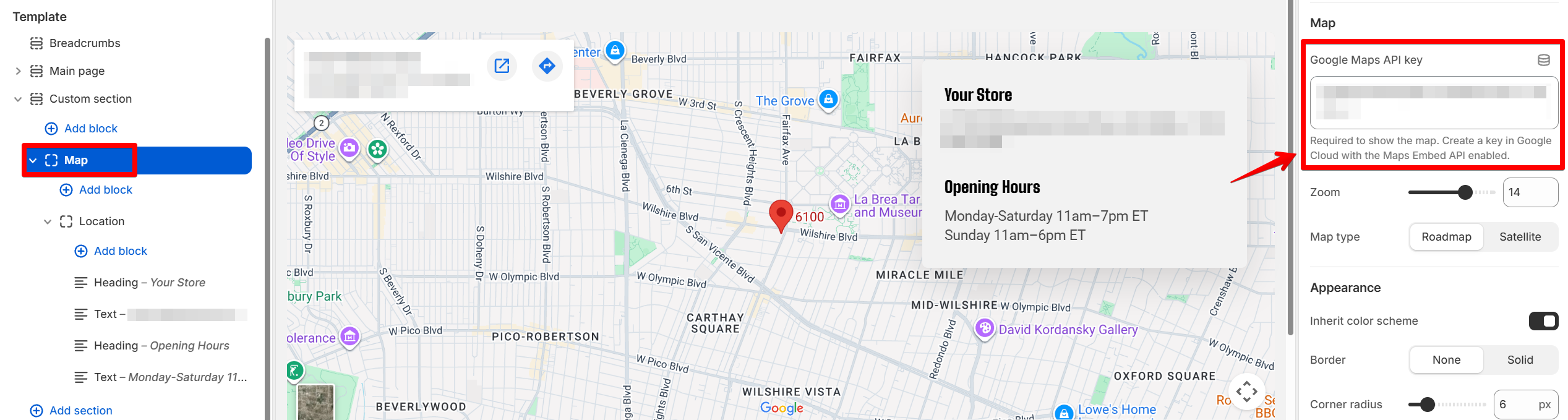
Follow the [Google Maps setup process](https://docs.foxecom.com/motrix-theme/faqs/how-to-get-a-google-maps-api-key) to create an API key. Then, in the theme editor, go to **Map** **> Google Maps API key** and paste your key.
Until a valid API key is added, the map displays a placeholder.
## How to show your store locations
Add the **Map** block to your page
Select **Add block > Location** for each store or branch you want to display.
Enter a **Heading** for each Location. This name appears in the location dropdown.
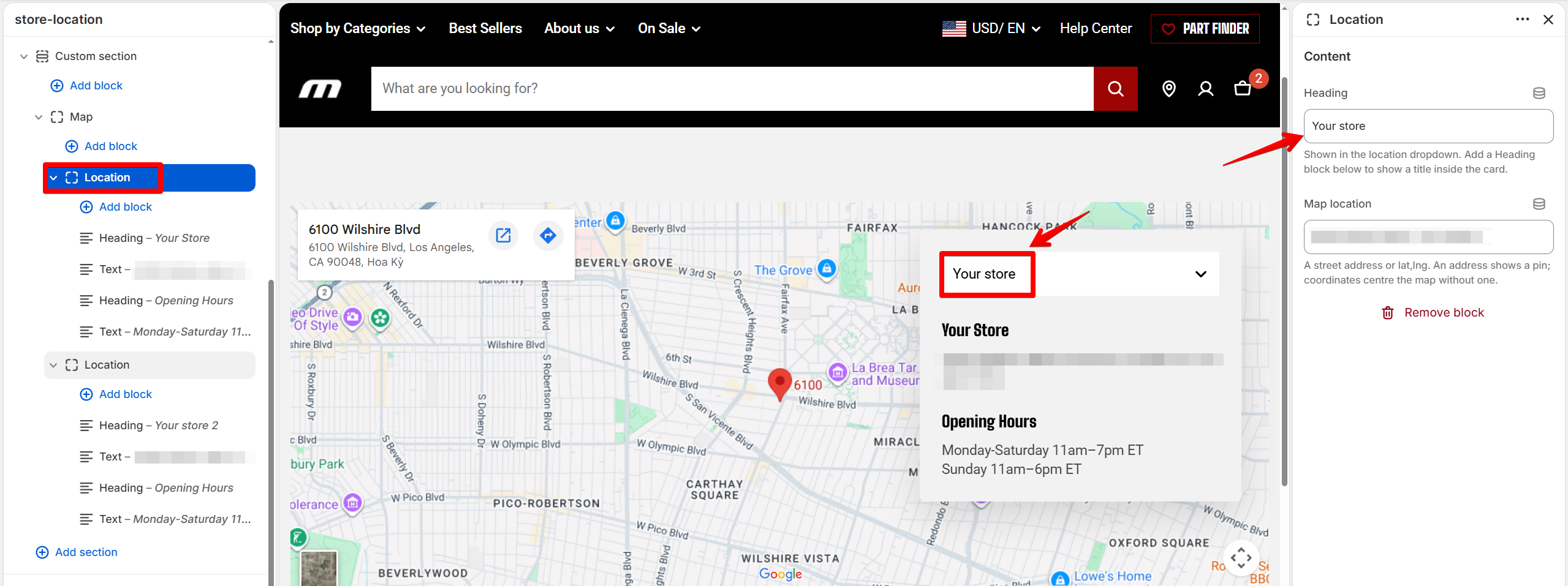
Enter the **Map location** using a street address or coordinates.
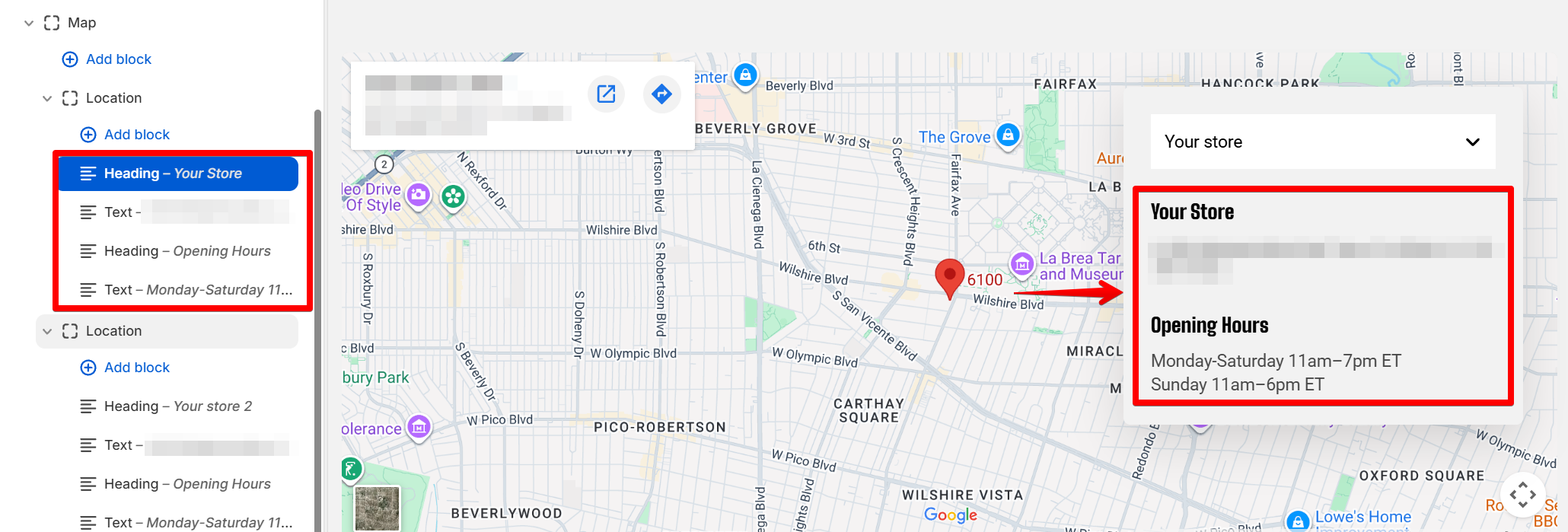
Add **Heading** and **Text** blocks inside each Location to create the information shown in its card.
Adjust the **Layout**, **Card**, and **Map** settings to fit your page.
Use a street address for **Map location** in most cases. Google places the pin on the address and centers the map there.
Keep the Location **Heading** short for the dropdown. It doesn’t need to match the heading displayed inside the card.
## Settings
### Layout
Controls the height of the map on desktop and mobile.
| Setting | Description | Options |
| ----------------- | --------------------------------------------------------------------------------------------------------- | ------------- |
| **Height** | Sets the map height on desktop. If the information card is taller, the map grows to fit the card content. | 200px - 800px |
| **Height mobile** | Sets the map height on mobile devices. | 200px - 800px |
### Card
Controls the location information card displayed with the map.
| Setting | Description | Options |
| ------------------ | --------------------------------------------------------------------------------------------------------------------------------------------------- | ---------------------------------------------------------------------------------------------------- |
| **Show card** | Controls whether the location information card is displayed. The location dropdown is part of the card, so hiding the card also hides the dropdown. | **On** or **Off** |
| **Mobile layout** | Controls how the card appears on mobile devices. | **Stacked**: Places the card above the map.
**Overlay**: Displays the card over the map. |
| **Position** | Sets where the card appears over the map. | Select available postions |
| **Offset** | Controls the distance between the card and the edges of the map. | 0px - 80px |
| **Width** | Sets the card width. | 260px - 520px |
| **Row gap** | Controls the vertical space between blocks inside the card on desktop. | 0px- 48px |
| **Row gap mobile** | Controls the vertical space between blocks inside the card on mobile. | 0px- 48px |
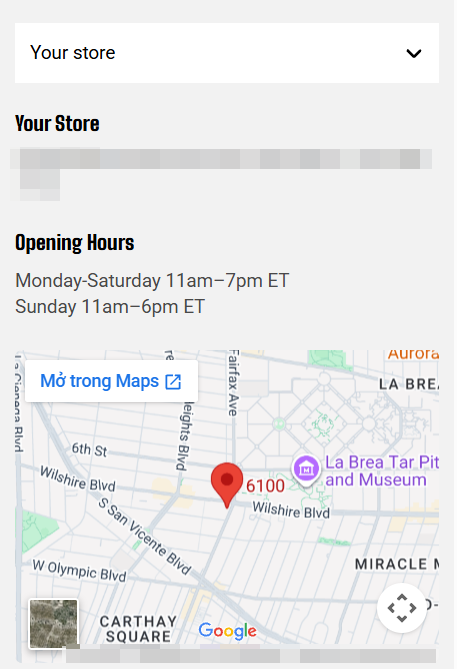
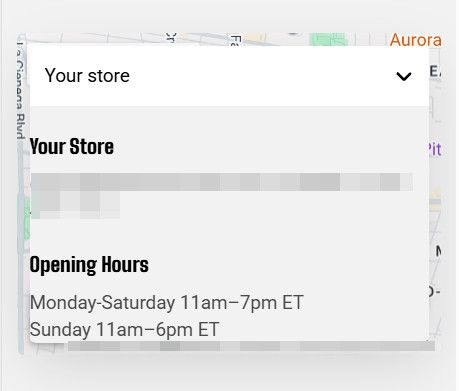
**Tip**: Use **Stacked** on mobile when you want the location details to stay easy to read above the map.
### Card padding
Controls the space around the content inside the location card. Set padding separately for desktop and mobile.
| Setting | Description | Options |
| ---------------------- | ------------------------------------------------------------- | ------------------------- |
| **Devices** | Selects which device-specific padding values you are editing. | **Desktop** or **Mobile** |
| **Vertical padding** | Controls the space above and below the card content. | 0px - 100px |
| **Horizontal padding** | Controls the space to the left and right of the card content. | 0px - 100px |
Mobile padding is **0** by default because the card uses the **Stacked** layout without a background.
If you switch **Mobile layout** to **Overlay**, increase the padding so the content doesn’t sit directly against the card edges.
### Map
Controls the Google Maps connection and map display.
| Setting | Description | Options |
| ----------------------- | --------------------------------------------------------------------------------------------------- | ------------------------------------------------------------------------------------------- |
| **Google Maps API key** | Connects the block to Google Maps. | Enter a valid Google Maps API key with the Maps Embed API enabled. |
| **Zoom** | Controls how close the map appears. Lower values show a wider area; higher values show more detail. | Adjust the zoom level. |
| **Map type** | Controls the map style. | **Roadmap**: Displays the standard map.
**Satellite**: Displays aerial imagery. |
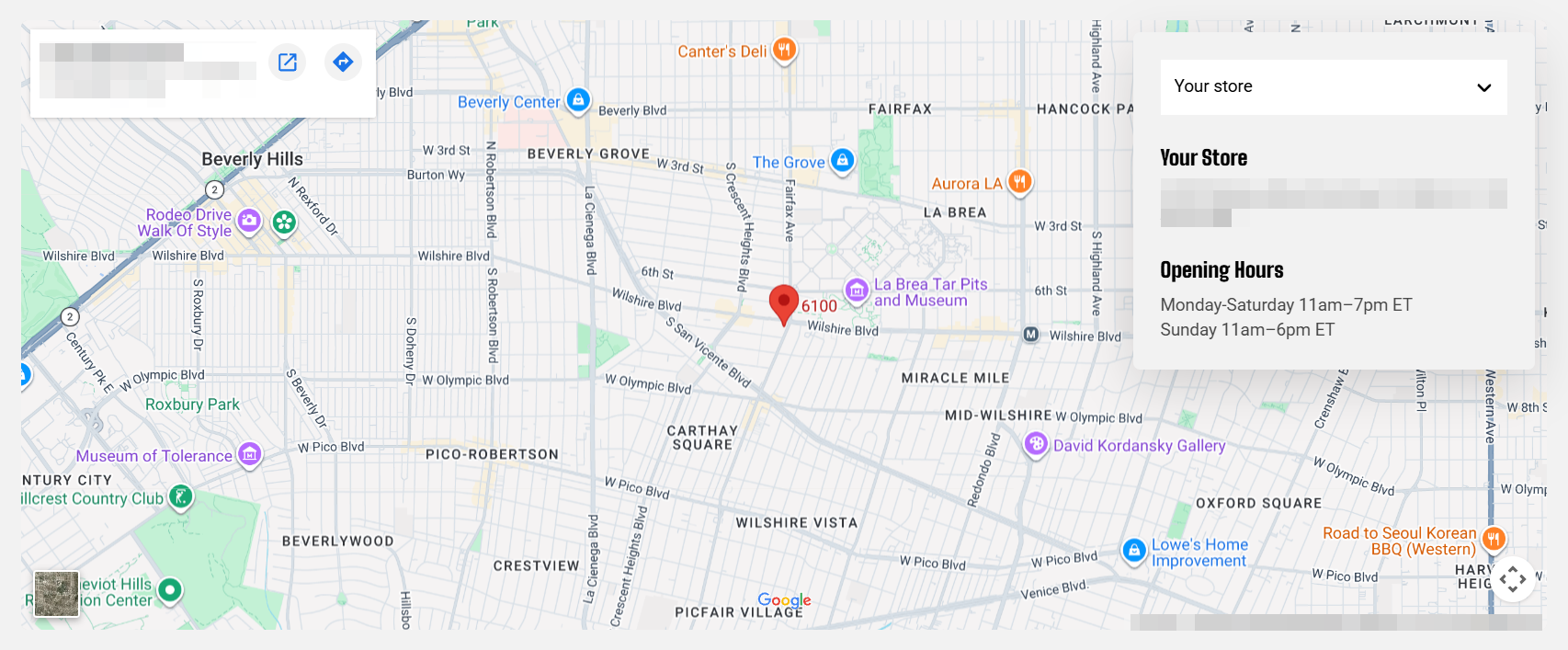
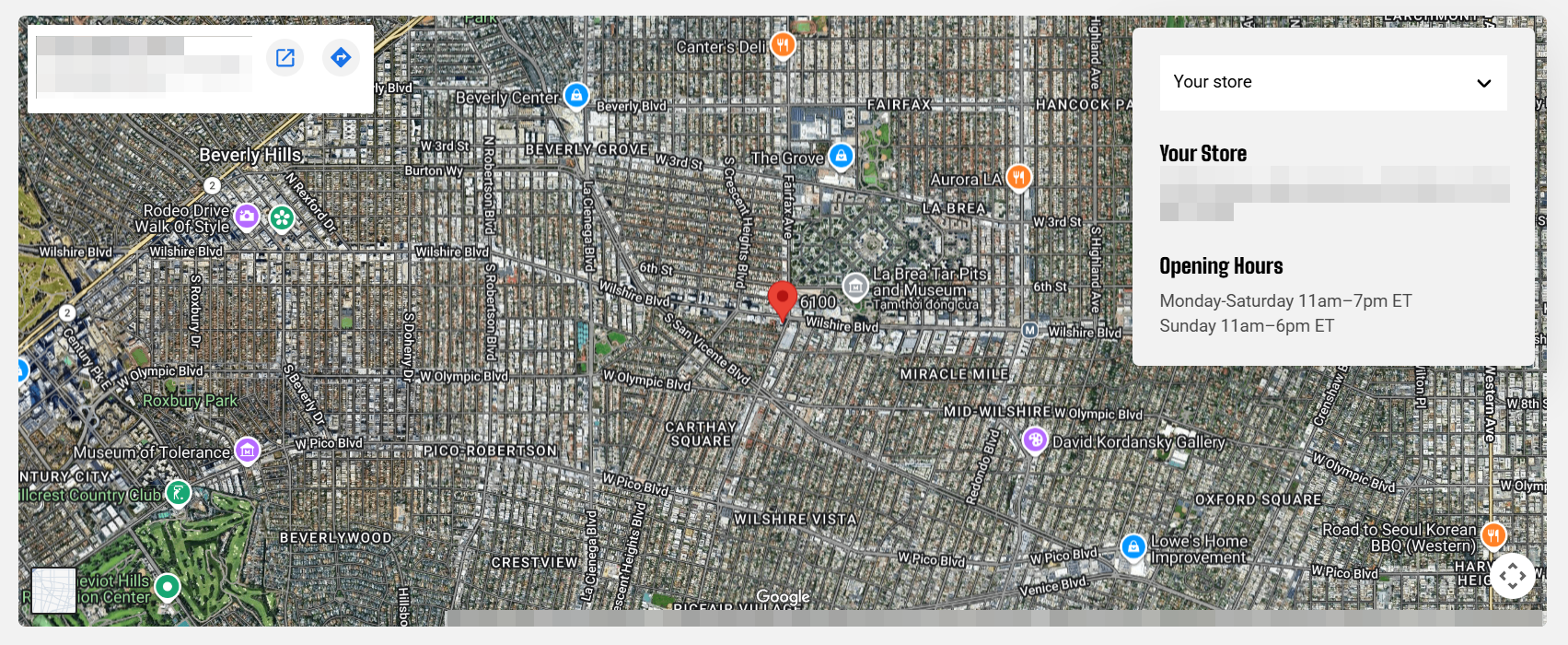
**Tip**: Use **14** for a typical street-level view.
### Appearance
Controls the color scheme, border, and corners of the map and card.
| Setting | Description | Options |
| ------------------------ | ----------------------------------------------------------------------- | -------------------------------------------------------------------------------------------------------------------------------------------------- |
| **Inherit color scheme** | Controls whether the block uses the surrounding section's color scheme. | **On** or **Off** |
| **Color scheme** | Sets a separate color scheme for the block. | Select a color scheme.
*Available when Inherit color scheme is turned off.* |
| **Border** | Controls whether the block has an outline. | **None** or **Solid** |
| **Border color** | Controls the border color. | Select a color or leave blank to use the default color from the current color scheme.
*Available when **Border** is set to **Solid**.* |
| **Border width** | Controls the thickness of the border. | **0–3px**.
*Available when **Border** is set to **Solid**.* |
| **Border opacity** | Controls the opacity of the border. | **0–100%.**
*Available when **Border** is set to **Solid**.* |
| **Corner radius** | Controls how rounded the map and card corners appear. | **0–60px** |
### Size
Controls the width of the Map block on desktop and mobile.
| Setting | Description | Options |
| ----------------------- | ----------------------------------------------- | -------------------------------------------------------------------------------------------------------------------------------------------------- |
| **Width** | Controls the block width on desktop. | **Fit**: Uses only the required width.
**Fill**: Uses the available width.
**Custom**: Lets you set a specific percentage. |
| **Custom width** | Sets the block width as a percentage. | Set a percentage.
*Available when **Width** is set to **Custom**.* |
| **Width mobile** | Controls the block width on mobile devices. | **Fit, Fill,** or **Custom** |
| **Custom width mobile** | Sets the block width on mobile as a percentage. | Set a percentage.
*Available when **Width** is set to **Custom**.* |
### Padding
Controls the space around the entire Map block. Set padding separately for desktop and mobile.
| Setting | Description | Options |
| ----------- | ------------------------------------------------------------- | ------------------------- |
| **Devices** | Selects which device-specific padding values you are editing. | **Desktop** or **Mobile** |
| **Top** | Controls the space above the block. | 0–100px |
| **Bottom** | Controls the space below the block. | 0–100px |
| **Left** | Controls the space to the left of the block. | 0–100px |
| **Right** | Controls the space to the right of the block. | 0–100px |
## Map — items
Add **Location** blocks to the Map for the stores, branches, or other places you want shoppers to find.
Each Location controls its own map position and card content. When more than one Location is added, their headings appear in the location dropdown.
### Location
| Setting | Description | Options |
| ---------------- | ------------------------------------------------------ | -------------------------------------- |
| **Heading** | Sets the location name shown in the location dropdown. | Enter custom text. |
| **Map location** | Sets where the location appears on the map. | Enter a street address or coordinates. |
You can add **Heading** and **Text** blocks inside each Location to build the information shown in its card, such as the store name, address, opening hours, or other details.
[See the **Heading** and **Text** block documentation for their available settings.](https://docs.foxecom.com/motrix-theme/theme-blocks/text)
## Tips and best practices
* Use a complete street address for **Map location** when possible so the pin is placed accurately.
* Keep Location **Heading** values short and easy to scan in the dropdown.
* Use **Stacked** on mobile when readability is more important than placing the card over the map.
* Add only the information shoppers need to identify or visit each location, such as an address and opening hours.