# Image comparison
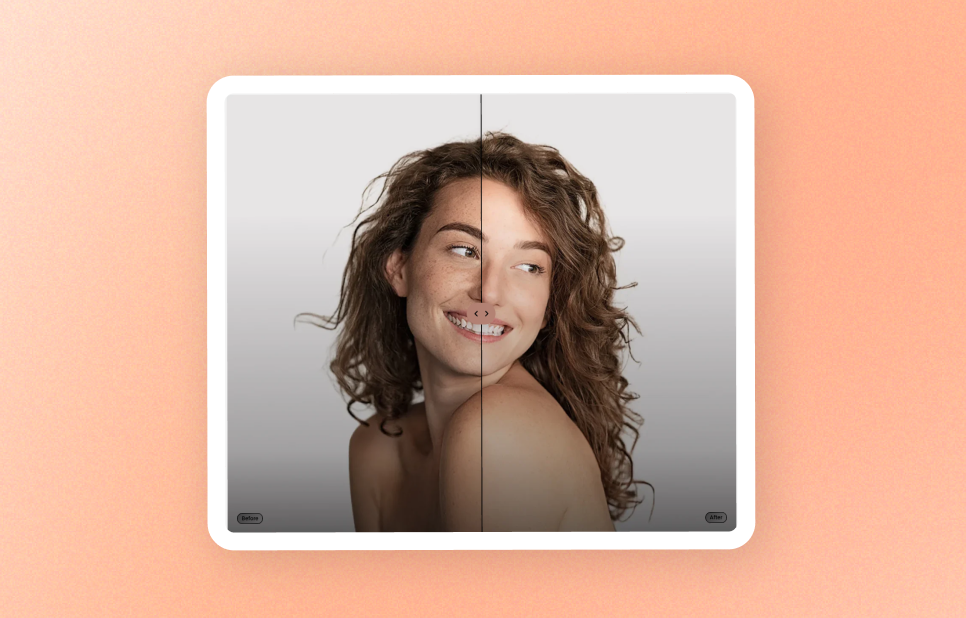
Create a before-and-after slider with two images stacked on top of each other. Customers can drag the handle to reveal more of either image, making it useful for showing transformations such as before/after edits, with/without a product, or old vs. new.
## Layout
| Setting | Description | Options |
| ----------------------- | ------------------------------------------------ | ------------------------------ |
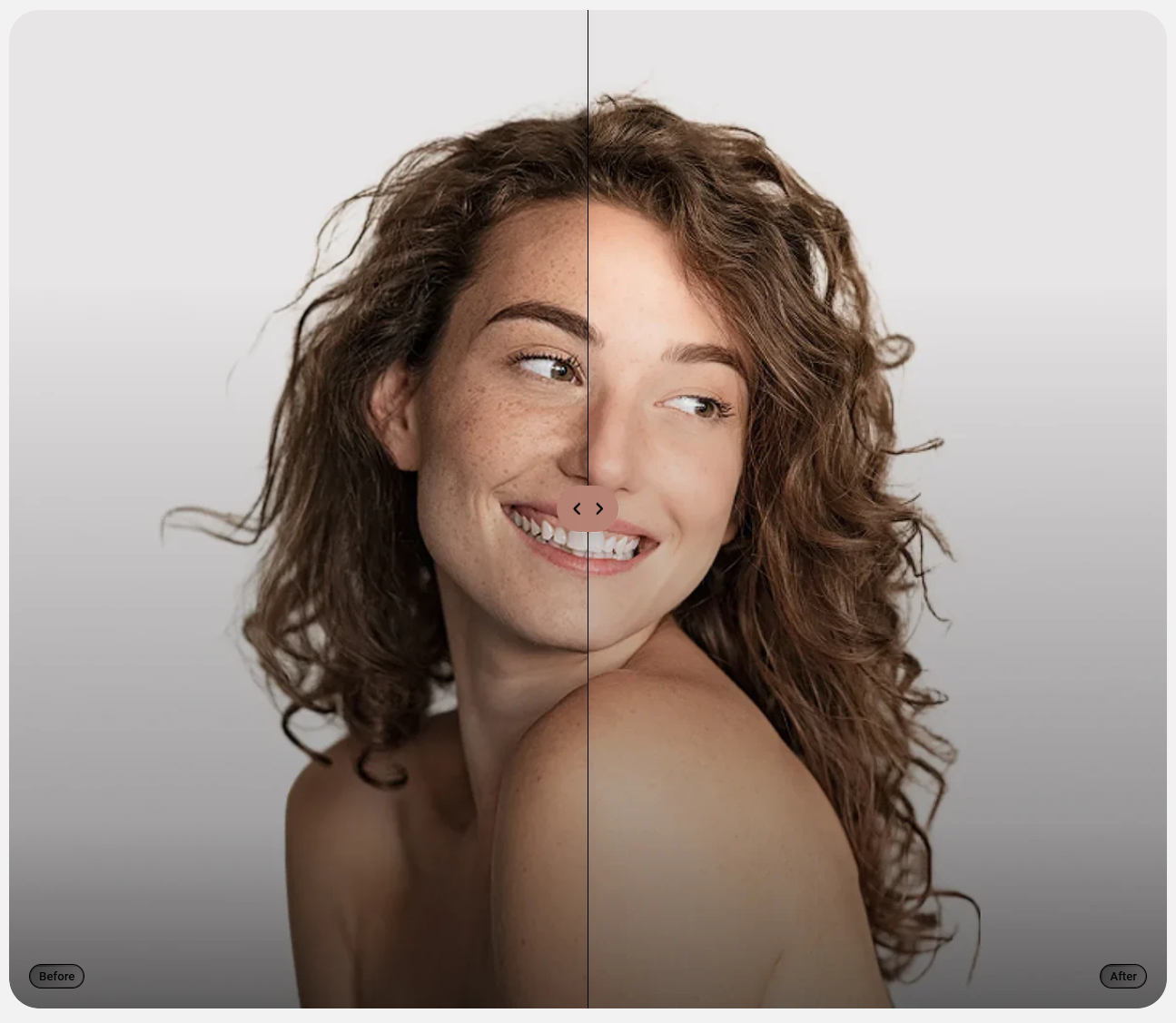
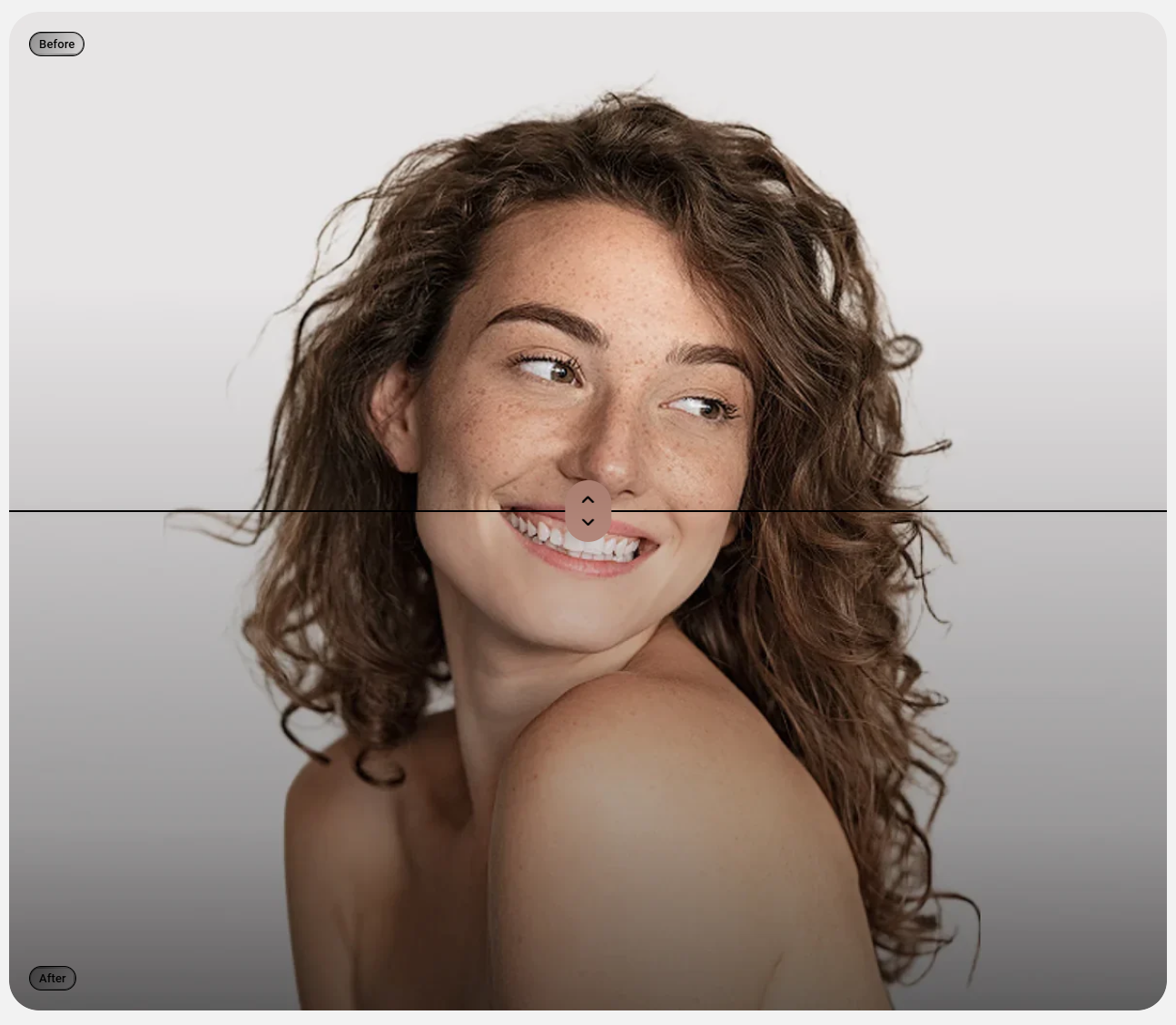
| **Direction** | Choose how customers drag the comparison handle. | Horizontal/Vertical |
| **Aspect ratio** | Set the image shape on desktop. | Auto/Square/Portrait/Landscape |
| **Aspect ratio mobile** | Set the image shape on phones. | Auto/Square/Portrait/Landscape |
## Appearance
| Setting | Description | Options |
| ----------------- | --------------------------------------------------------------------- | -------------------- |
| **Color scheme** | Set the colors for the comparison block, including the slider handle. | Select color schemes |
| **Corner radius** | Round the corners of the comparison slider. | 0px - 32px |
## The two images
The block includes **Before** and **After** sides. Select each side to add its images and optional label.
| Setting | Description | Options |
| ---------------- | ----------------------------------------------------------------------------------- | ----------------------- |
| **Image** | Set the image for this side of the comparison. | Select image |
| **Image mobile** | Set a separate image for phones. Leave empty to reuse the main image. | Select image |
| **Heading** | Add a label to identify this side, such as Before or After. Leave empty to hide it. | Default: Before / After |
| **Color scheme** | Set the colors for this side's label. | Select color scheme |
## Tips
* Use two images with the same size and framing so customers can easily see the difference as they drag the handle.
* Use clear labels such as *Before* and *After* to help customers understand the comparison at a glance.
* Choose the right direction**:** Horizontal works best for most cases; vertical is great for tall images.