# Image card
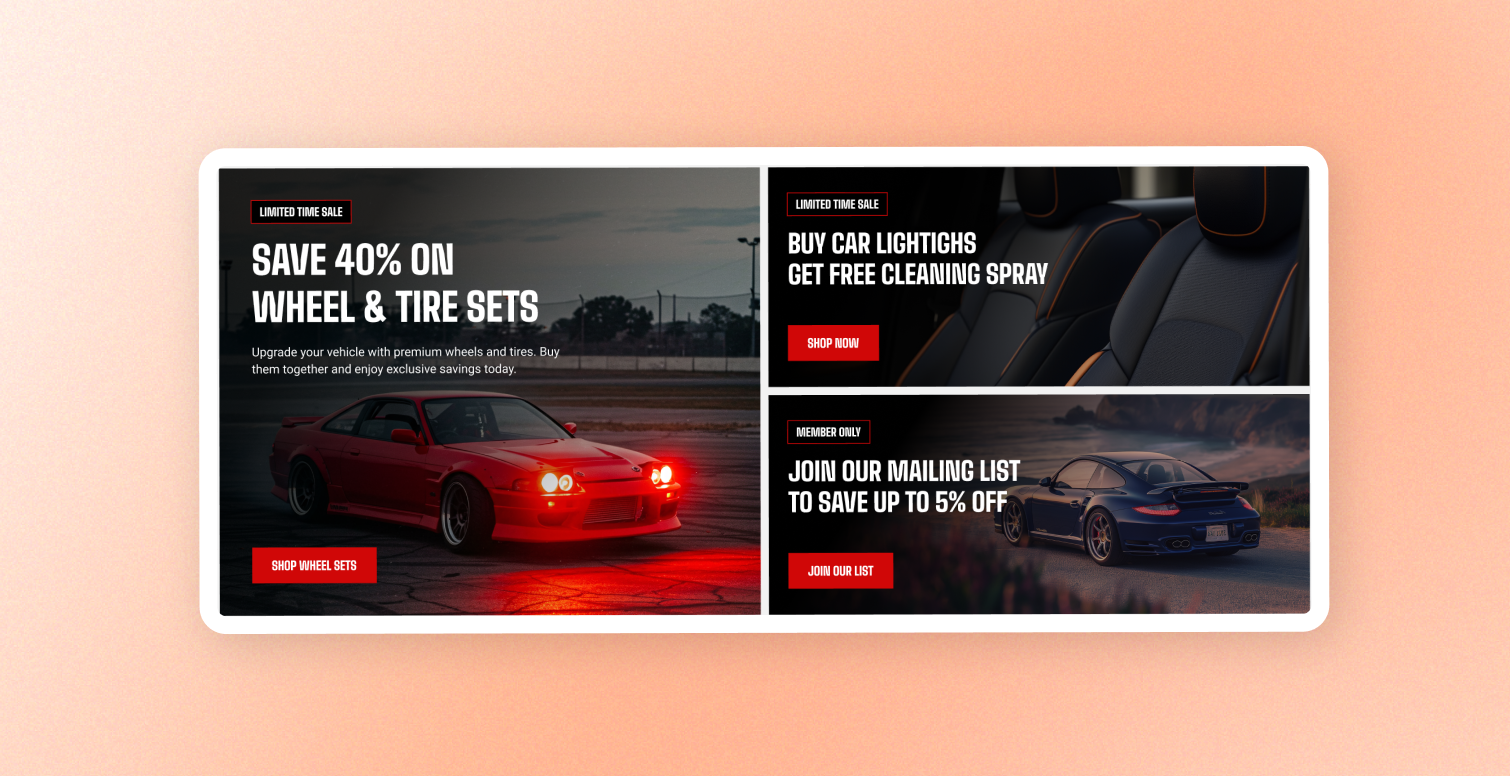
A picture paired with text — a label, subheading, heading, body copy, and a button — laid over the image or set below it.
Use **Image card** for promotional tiles, category cards, editorial callouts, or any spot where an image needs words and a link. The label, subheading, heading, text, and button are built in and edited right on the card; the settings below control the image, layout, and styling. You can make the whole card clickable.
## Layout
| Settings | Descriptions | Options |
| ---------------------------- | ------------------------------------------------------------------------------------------------------ | ----------- |
| **Show content below image** | Choose whether to place the text over the image or in a separate area below it. | Off/On |
| **Gap** | Set the space between the image and the text when Show content below image is turned **on**. | 0px - 100px |
| **Gap mobile** | Set the space between the image and the text on mobile when Show content below image is turned **on**. | 0px - 100px |
Keeps the text over the image.

Moves the text into an area below the image.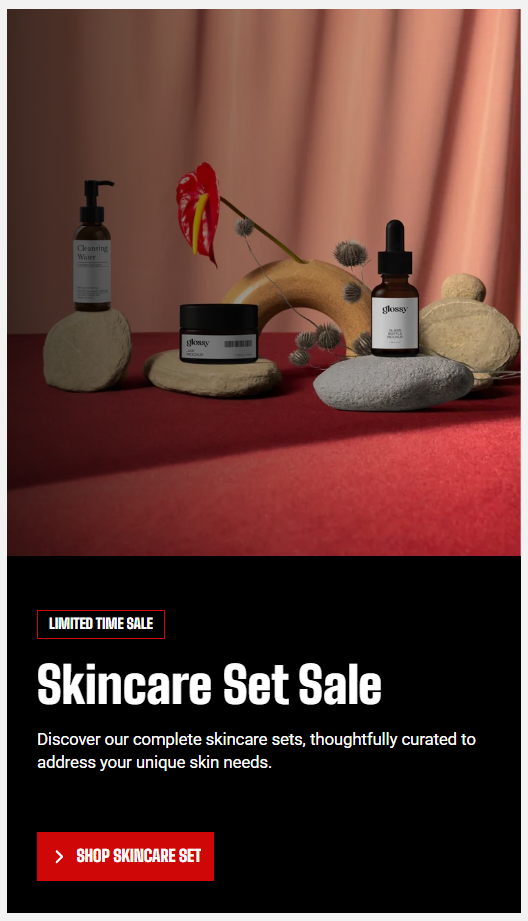
## Image
| Setting | Description | Options |
| ----------------------- | ------------------------------------------------------------------------------------------------------------------------------------ | ---------------------------------------- |
| **Image** | Sets the main image for the card. | Select image |
| **Image mobile** | Sets a separate image for phones. Leave empty to reuse the main image. | Select image |
| **Media overlay** | Adds an overlay to improve the readability of text displayed over the image. | On / Off |
| **Overlay style** | Appears when Media overlay is on. Sets the overlay to a flat Color or Gradient. | Color / Gradient |
| **Overlay color** | Appears when Media overlay is on and **Overlay style \= Color**. | Sets the overlay color and transparency. |
| **Gradient color** | Appears when Media overlay is on and Overlay style \= Gradient. The default fades to dark at the bottom to improve text readability. | Sets the gradient overlay. |
| **Aspect ratio** | Controls the image shape on desktop. | Auto / Square / Portrait / Landscape |
| **Aspect ratio mobile** | Controls the image shape on phones. | Auto / Square / Portrait / Landscape |
| **Link** | Makes the entire card clickable and links it to a page or product. | Set link |
Uses a single color across the image.
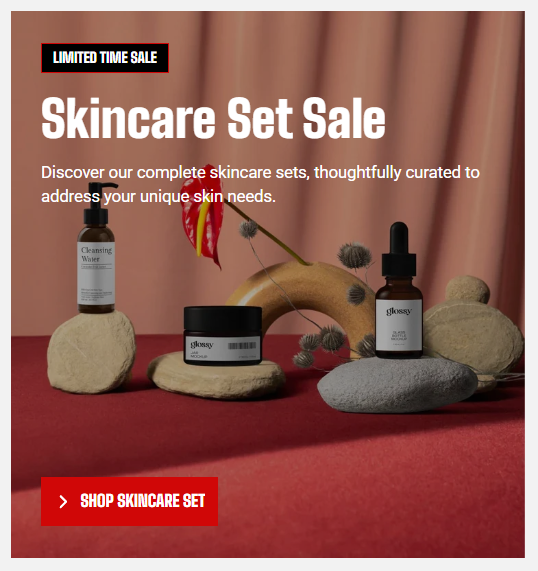
Uses a gradient across the image.

**Tip**: Turn on the media overlay when text sits over a busy image so the words stay easy to read.
A Gradient overlay that darkens only the bottom keeps the top of the image bright while still making bottom-aligned text readable.
## Content
| Setting | Description | Options |
| ---------------------- | ----------------------------------------------------------------------------------------------------------------------------------------------------------------------------- | ------------------------------- |
| **Direction** | Choose how text pieces are arranged. | Vertical/Horizontal |
| **Vertical on mobile** | Appears when **Direction \= Horizontal**. Stacks text into a column on phones. | On/Off |
| **Alignment** | Align text pieces across the card. **Horizontal layouts also support Space between.** | Left/Center/Right/Space between |
| **Position** | Set the vertical position of text pieces. **Horizontal** layouts support Top, Center, or Bottom. **Vertical** layouts also support Space between when text is over the image. | Top/Center/Bottom/Space between |
| **Column gap** | Appears when **Direction \= Horizontal.** Sets the space between text pieces side by side. | 0px - 100px |
| **Column gap mobile** | Appears when **Direction \= Horizontal** and **Vertical on mobile \= Off**. Sets the space between text pieces on phones. | 0px - 100px |
| **Row gap** | Appears when **Direction \= Vertical**. Sets the space between stacked text pieces. | 0px - 100px |
| **Row gap mobile** | Appears when text stacks on phones. Sets the space between stacked text pieces on phones. | 0px - 100px |




## Content Padding
Control the space between the text and the edge of its area. This applies to the whole card when the text sits over the image, or to the text area when the text sits below the image.
| Setting | Description | Options |
| -------------- | ------------------------------------------------------------------------------------------------------------------- | -------------- |
| **Devices** | Choose which screen size to set padding for. Both Desktop and Mobile values apply to their respective screen sizes. | Desktop/Mobile |
| **Horizontal** | Appears when **Devices \= Desktop.** Sets the space on the left and right of the text on large screens. | 0px - 100px |
| **Vertical** | Appears when **Devices \= Desktop**. Sets the space above and below the text on large screens. | 0px - 100px |
## Size
| Setting | Description | Options |
| ------------------------------- | -------------------------------------------------------- | -------------------------------------------------------------------------------------------------------------------------------------------------------------------------------- |
| **Width** | How wide the card is | **- Fit:** Sizes the card to fit its content.
**- Fill:** Stretches the card to fill the available space.
**- Custom:** Lets you set a specific width as a percentage. |
| **Custom width** | Appears when **Width \= Custom**. Width as a percentage. | 0% - 100% |
| **Width mobile / Custom width** | The same choice for phones. | - |
| **Enable full height** | Stretches this card to match the tallest one in its row. | On/Off |
## Appearance
| Setting | Description | Options |
| ------------------------ | ---------------------------------------------------------------------------------------------------------------------- | ----------------------------- |
| **Inherit color scheme** | Use the color scheme from the surrounding section.
Turn this off to choose a separate color scheme for the card. | On/Off |
| **Color scheme** | Choose the card's color scheme when **Inherit color scheme** is turned off. | Select color scheme |
| **Border** | Add an outline around the entire card. | Choose **None** or **Solid**. |
| **Border width** | Set the thickness of the card border when **Border** is set to **Solid**. | opx - 10px |
| **Border opacity** | Control how visible the card border is when **Border** is set to **Solid**. | 0% - 100% |
| **Corner radius** | Round the corners of the entire card. | 0px - 32px |
## Advanced
| Setting | Description | Option |
| ------------------------ | ----------------------------------------------------------------------------------------------------- | ------ |
| **Enable preload image** | Load the image earlier when the card appears as the page opens, which can help improve loading speed. | On/Off |
Use this for cards near the top of the page rather than cards further down the page.