# Icon list
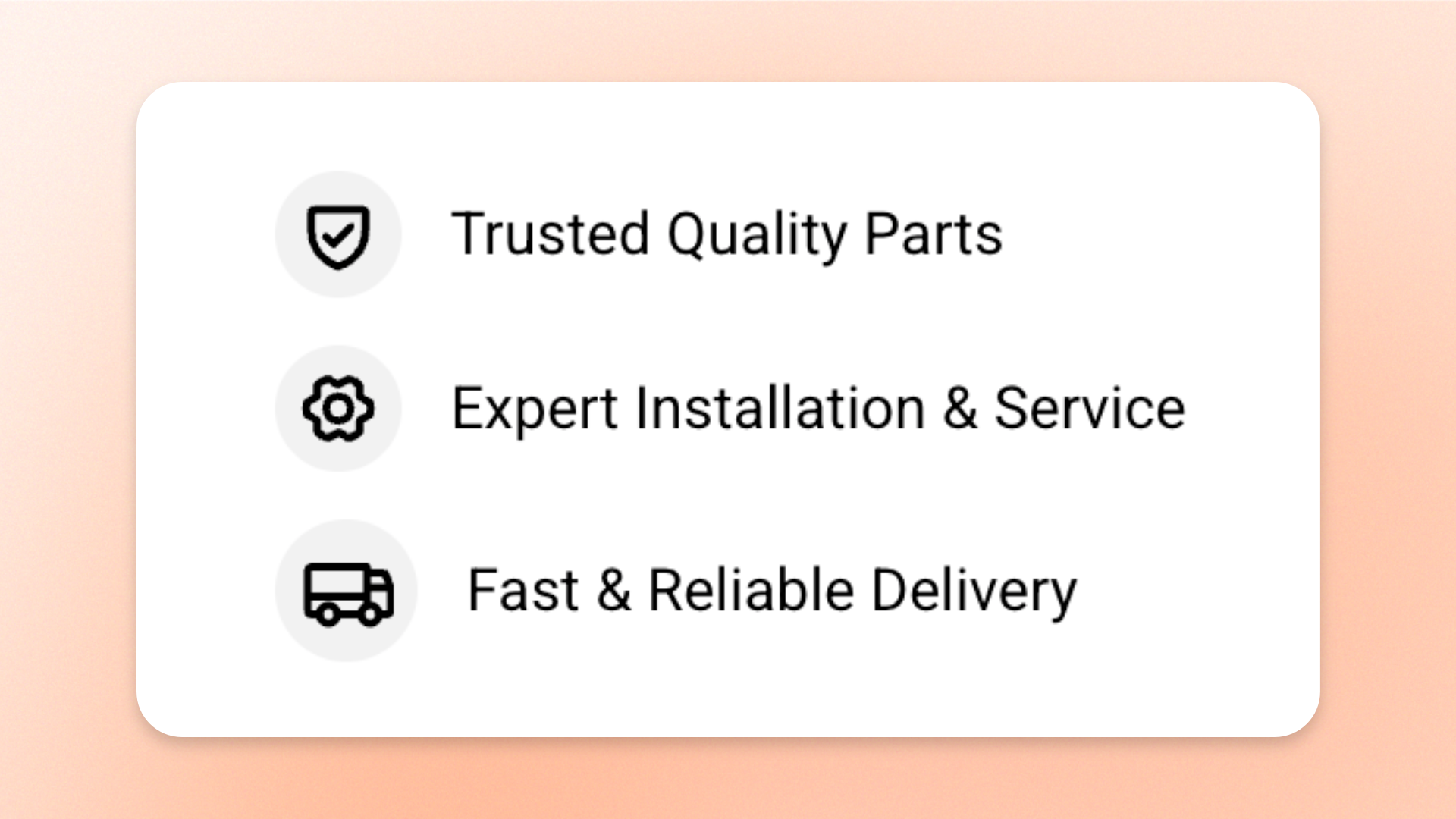
The **Icon list** block displays a vertical list where each row pairs an icon with a line of text. Use it for **feature checklists, included items, product benefits, service highlights, quick selling points, or other short sets of key details** that shoppers can scan quickly.
Add one **List item** block for each point, then choose the icon and text for that row. Control the spacing, icon style, alignment, padding, and animation for the whole list.
## Settings
### Layout
Controls the spacing between rows in the list.
| Setting | Description | Options |
| ---------------- | ----------------------------------------- | ---------- |
| **Vertical gap** | Controls the vertical space between rows. | **0–40px** |
### Mobile settings
Controls the spacing between rows on mobile devices.
| Setting | Description | Options |
| ---------------- | --------------------------------------------------- | ---------- |
| **Vertical gap** | Controls the vertical space between rows on mobile. | **0–40px** |
### List items
Controls how the icons are styled and aligned across all rows.
| Setting | Description | Options |
| ------------ | ------------------------------------------------------ | ------------------------------------------------------------------------------------------------------------- |
| **Style** | Controls how the icon is displayed on each row. | **Standard:** Displays the icon on its own.
**Circle:** Displays the icon inside a circular badge. |
| **Position** | Controls how the icon aligns vertically with its text. | **Top, Center, or Bottom** |
### Padding
Controls the space inside the Icon list separately for desktop and mobile.
| Setting | Description | Options |
| ----------- | ------------------------------------------------------------- | ------------------------- |
| **Devices** | Selects which device-specific padding values you are editing. | **Desktop** or **Mobile** |
| **Top** | Controls the space above the list content. | **0–100px** |
| **Bottom** | Controls the space below the list content. | **0–100px** |
| **Left** | Controls the space to the left of the list content. | **0–100px** |
| **Right** | Controls the space to the right of the list content. | **0–100px** |
### Animation
These settings are available when animations are enabled in **Theme settings**. Learn more: [Animations](https://docs.foxecom.com/motrix-theme/theme-settings/animations).
| Setting | Description | Options |
| --------------------------- | ------------------------------------------------------------------------------------------- | ------------------------------------------------------------------------------- |
| **Type** | Controls the entrance animation used when the list rows scroll into view. | **None, Fade in, Fade up, Fade down, Slide in (left), or Slide in (right)** |
| **Reveal items one by one** | Controls whether rows appear one after another instead of the whole list appearing at once. | **On** or **Off.**
*Available when **Type** is not set to **None**.* |
| **Delay (ms)** | Controls how long the animation waits before starting. | **0–2000ms**
*Available when **Type** is not set to **None**.* |
## Icon list — items
Add **List item** blocks inside the Icon list to create the points you want to display. Each List item contains its own **Icon** and **Text** settings.
The Icon list controls the spacing, icon style, alignment, padding, and animation shared by all rows, while each List item controls its own icon and text content.
### Icon
Controls the icon displayed on an individual row.
| Setting | Description | Options |
| ---------------- | -------------------------------------------- | -------------------------------------------------------------------------------------- |
| **Icon** | Sets the icon displayed in the block. | Select an icon from the built-in icon set. |
| **Icon size** | Controls the overall size of the icon. | **Extra small, Small, Medium, Large, Extra large, or Custom** |
| **Width** | Sets the exact icon width on desktop. | **12–200px**.
*Available when **Icon size** is set to **Custom**.* |
| **Width mobile** | Sets the exact icon width on mobile devices. | **12–200px**.
*Available when **Icon size** is set to **Custom**.* |
| **Color** | Controls the icon color. | Select a color, or leave blank to use the default color from the current color scheme. |
### Text
Controls the text displayed on an individual row.
| Setting | Description | Options |
| -------------------- | -------------------------------------------------- | ----------------------------------------------------------------------------------------------------------------------------------------------------------------------------------------------------------------- |
| **Text** | Sets the text displayed on the row. | Enter and format custom text. |
| **Preset** | Sets the overall typography style. | **Default, Paragraph, Subheading, Heading 1–6, or Custom** |
| **Font** | Selects which theme font is used. | **Body** or **Heading**.
*Available when **Preset** is set to **Custom**.* |
| **Font weight** | Controls how light or bold the text appears. | **Inherit, Light, Regular, Medium, Semi bold, Bold, Extra bold, or Black**.
*Available when **Preset** is set to **Custom**.* |
| **Font size** | Sets the text size on desktop. | **10–100px**.
*Available when **Preset** is set to **Custom**.* |
| **Font size mobile** | Sets the text size on mobile devices. | **10–60px**.
*Available when **Preset** is set to **Custom**.* |
| **Line height** | Controls the spacing between lines of text. | **Tight, Normal, or Loose**.
*Available when **Preset** is set to **Custom**.* |
| **Text transform** | Controls how letter casing is applied to the text. | **Inherit:** Follows the theme setting.
**As typed:** Keeps the original casing.
**Title Case, UPPER CASE, or lower case**.
*Available when **Preset** is set to **Custom**.* |
| **Color** | Sets the text color. | **Text, Subtext, Gradient or Custom** |
| **Gradient color** | Sets the gradient used for the text. | Select a gradient.
*Available when **Color** is set to **Gradient**.* |
| **Custom** | Lets you choose an exact text color. | Select a color.
*Available when **Color** is set to **Custom**.* |
## Tips and best practices
* Use **Circle** style when you want the icons to have a softer, badge-like appearance.
* Keep the same icon across rows for a clean, consistent checklist, or use different icons when each point represents a distinct feature.
* Use **Reveal items one by one** on shorter lists when you want each point to appear separately as shoppers scroll.