# Icon
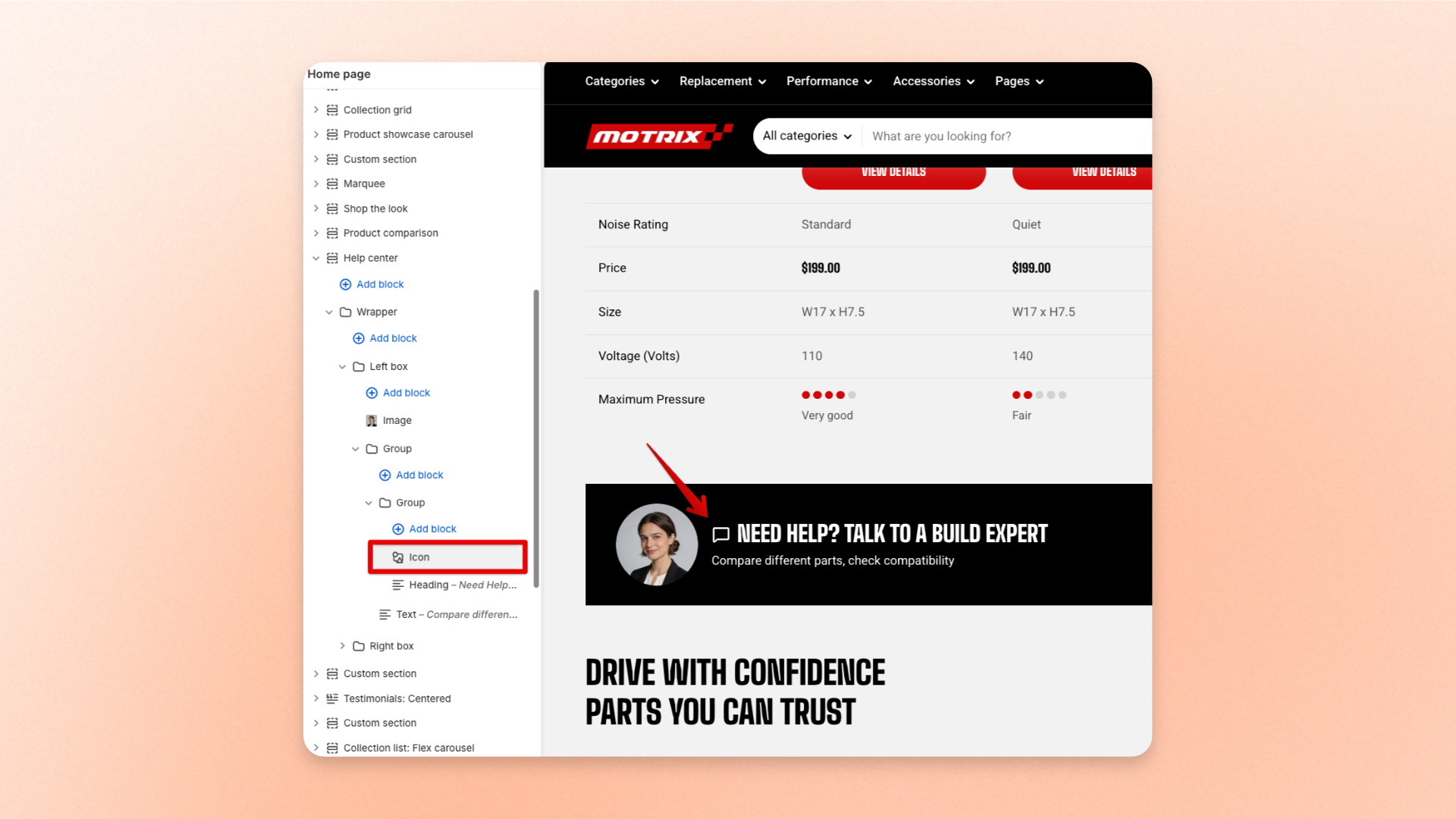
The **Icon** block adds a single standalone icon to your layout. Use it for **arrows, cart icons, chat icons, social icons, decorative symbols, linked icons**, or custom graphics that support the surrounding content.
Choose from the built-in icon set or upload your own image. You can customize the icon’s size and color, and optionally add a link to direct shoppers to a page or product.
## Settings
### General
| Setting | Description | Options |
| ---------------- | ------------------------------------------------------- | ------------------------------------------------------------------------------------------------------------- |
| **Icon** | Sets the icon displayed in the block. | Select an icon from the built-in icon set. |
| **Image icon** | Replaces the built-in icon with an uploaded image. | Upload an image. |
| **Color** | Controls the color of the built-in icon. | Select a color or leave blank to use the default.
*Available when no **Image icon** is uploaded.* |
| **Icon size** | Controls the overall size of the icon. | **Extra small, Small, Medium, Large, Extra large, or Custom** |
| **Width** | Sets the exact icon width on desktop. | **12–200px.**
*Available when **Icon size** is set to **Custom**.* |
| **Width mobile** | Sets the exact icon width on mobile devices. | **12–200px.**
*Available when **Icon size** is set to **Custom**.* |
| **Link** | Sets where shoppers are taken when they click the icon. | Select a page or product. |
### Appearance
Available when an **Image icon** is uploaded.
| Setting | Description | Options |
| ----------- | ---------------------------------------- | ------------------ |
| **Rounded** | Rounds the uploaded image into a circle. | **On** or **Off**. |
## Tips and best practices
* Uploading an **Image icon** replaces the built-in icon, so the **Color** setting no longer applies. Use **Rounded** to display the uploaded image as a circle.
* Use **Custom** for **Icon size** when you need precise control over the icon width on desktop and mobile.