# Feature callouts
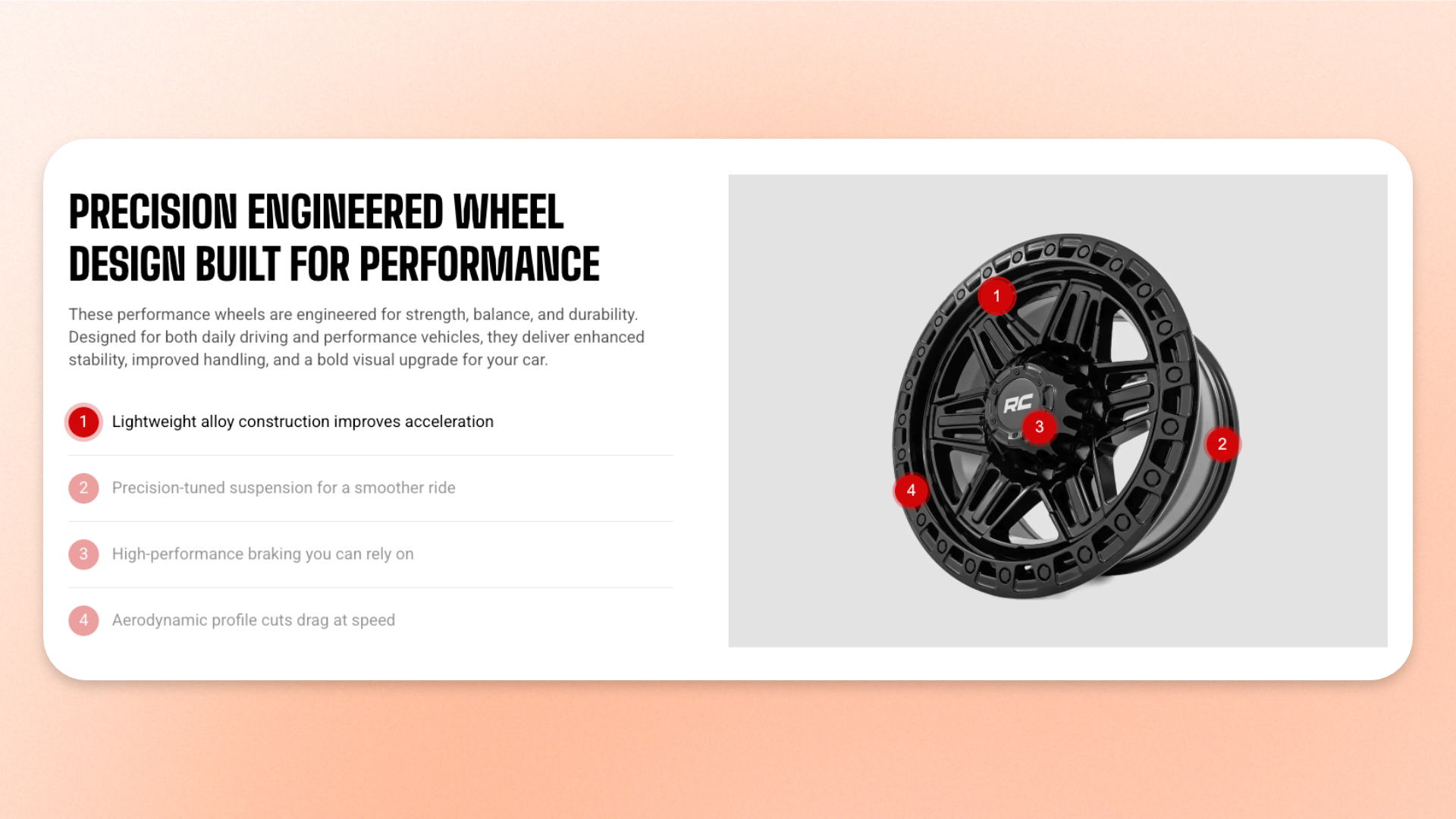
The **Feature callouts** block creates a two-column feature explainer with a heading, description, and numbered highlights on one side, and an image with matching numbered pins on the other. Use it for **product features, materials, construction details, technical components, and other annotated product imagery** where you want to connect each benefit or detail to a specific part of an image.
Each **Feature callout** item is paired with a pin automatically based on its order. Hovering over a highlight emphasizes its matching pin, and hovering over a pin emphasizes the corresponding highlight.
## Settings
### Layout
Controls how the text column is positioned next to the image.
| Setting | Description | Options |
| ------------- | --------------------------------------------------------------------- | ------------------------------ |
| **Alignment** | Controls the vertical alignment of the text column next to the image. | **Top, Center,** or **Bottom** |
### Media
Controls the image and its placement within the block.
| Setting | Description | Options |
| ----------------------- | ------------------------------------------------------ | --------------------------------------------------------------------------------------------------------------------------------------------------- |
| **Position** | Controls which side of the block the image appears on. | **Left** or **Right** |
| **Width** | Controls how much of the row is occupied by the image. | **30–70%** |
| **Image** | Sets the main image used for the feature pins. | Select an image. |
| **Image mobile** | Sets a separate image for mobile devices. | Select an image. |
| **Aspect ratio** | Controls the image shape on desktop. | **Auto:** Uses the image’s original proportions.
**Square (1/1), Portrait (4/5), Portrait (3/4), Landscape (16/9), or Landscape (4/3)** |
| **Aspect ratio mobile** | Controls the image shape on mobile devices. | **Auto, Square (1/1), Portrait (4/5), Portrait (3/4), Landscape (16/9), or Landscape (4/3)**
|
| **Corner radius** | Controls how rounded the image corners appear. | **0–32px** |
### Pin style
Controls the appearance of the pins placed on the image.
| Setting | Description | Options |
| ------------------ | ------------------------------------------------------------------------------------------------ | ------------------------------------------------------- |
| **Size** | Controls the diameter of the pins. | **20–48px** |
| **Show counter** | Controls whether matching numbers are displayed inside the pins and beside the feature callouts. | **On** or **Off.** |
| **Pin background** | Sets the background color of the pins. | Select a color or leave blank to use the theme default. |
| **Pin text** | Sets the color of the number inside each pin. | Select a color or leave blank to use the theme default. |
### Appearance
Controls the color scheme, border, and corners of the block.
| Setting | Description | Options |
| ------------------------ | ----------------------------------------------------------------------- | -------------------------------------------------------------------------------------------------------------------------------------------------- |
| **Inherit color scheme** | Controls whether the block uses the surrounding section's color scheme. | **On** or **Off.** |
| **Color scheme** | Sets a separate color scheme for the block. | Select a color scheme.
*Available when I**nherit color scheme** is turned off.* |
| **Border** | Controls whether the block has an outline. | **None** or **Solid** |
| **Border width** | Controls the thickness of the block border. | **0–10px.**
*Available when **Border** is set to **Solid**.* |
| **Border opacity** | Controls the opacity of the block border. | **0–100%.**
*Available when **Border** is set to **Solid**.* |
| **Border color** | Controls the color of the block border. | Select a color or leave blank to use the default color from the current color scheme.
*Available when **Border** is set to **Solid**.* |
| **Corner radius** | Controls how rounded the block corners appear. | **0–32px.** |
### Animation
This group appears when animations are enabled in **Theme settings**.
| Setting | Description | Options |
| -------------- | ------------------------------------------------------------------------- | -------------------------------------------------------------------------------------------- |
| **Type** | Controls the entrance animation used when the block scrolls into view. | **None, Fade in, Fade up, Slide in (left),** or **Slide in (right)** |
| **Delay (ms)** | Controls how long the theme waits before starting the entrance animation. | Enter a delay in milliseconds.
*Available when **Type** is not set to **None**.* |
### Padding
Controls the space between the edges of the **Feature callouts** block and its content. Set padding separately for desktop and mobile.
| Setting | Description | Options |
| ----------- | ------------------------------------------------------------- | ------------------------- |
| **Devices** | Selects which device-specific padding values you are editing. | **Desktop** or **Mobile** |
| **Top** | Controls the space above the block content. | **0–100px** |
| **Bottom** | Controls the space below the block content. | **0–100px** |
| **Left** | Controls the space to the left of the block content. | **0–100px** |
| **Right** | Controls the space to the right of the block content. | **0–100px** |
### Advanced
| Setting | Description | Options |
| ------------------------ | ------------------------------------------------------------------------------------------------------------- | ----------------- |
| **Enable preload image** | Loads the block's image earlier to help it appear faster when the block is visible as soon as the page loads. | **On** or **Off** |
Use **Enable preload image** only when the Feature callouts block is visible when the page first loads. Avoid enabling it for blocks farther down the page.
## Feature callouts — items
The **Feature callouts** block automatically includes two built-in static **Text** blocks for the heading and description, so you don’t need to add them manually. Configure each Text block individually to control its content and typography.
You can add **Feature callout** blocks for the individual highlights you want to display. Each item appears in the list and can place a matching pin on the image. Pins are paired with the items automatically according to their order.
### Text
The built-in **Text** blocks provide the heading and description shown above the feature list.
Configure each block individually using the standard **Text** block settings.
See the **Text** block documentation for its available settings.
### Feature callout
Each **Feature callout** block adds one highlight to the list and can place a corresponding pin on the image.
| Setting | Description | Options |
| ----------------------- | ------------------------------------------------------------------------- | ---------------------------------------------------------------------------------- |
| **Text** | Sets the highlight wording displayed in the list. | Enter custom text. |
| **Preset** | Sets the typography style of the highlight. | **Default, Paragraph, Subheading,** or **Heading 1–6** |
| **Show pin** | Controls whether the highlight also displays a matching pin on the image. | **On** or **Off.** |
| **Devices** | Selects which device-specific pin position values you are editing. | **Desktop** or **Mobile.**
*Available when **Show pin** is turned on.* |
| **Horizontal position** | Controls the pin's left-to-right position on the selected device. | **0–100%.**
*Available when **Show pin** is turned on.* |
| **Vertical position** | Controls the pin's top-to-bottom position on the selected device. | **0–100%.**
*Available when **Show pin** is turned on.* |
## Tips and best practices
* Pin numbers are assigned automatically based on the order of the **Feature callout** blocks. Reordering the items renumbers both the list and the matching pins.
* If you use a separate **Image mobile**, set each pin's mobile position so it still points to the correct detail.
* Turn off **Show pin** when you want a highlight to remain in the list without displaying a marker on the image.