# Contact form
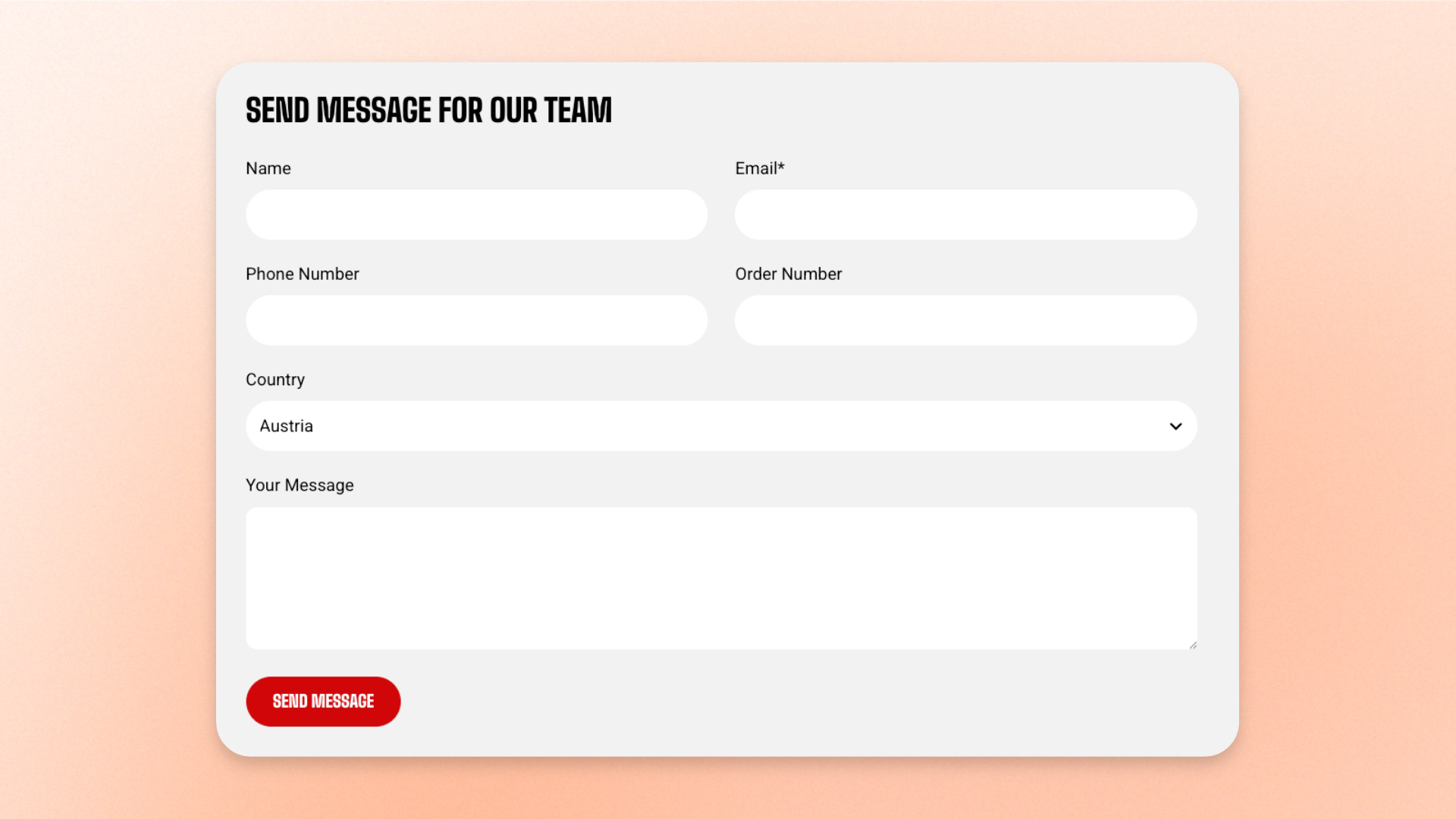
The **Contact form** block creates a working form that sends customer submissions to your store. Use it for **general contact pages, product enquiries, wholesale requests, service enquiries**, or other forms where shoppers need to provide information.
The form includes an email field for replies. Add **Custom field** blocks for any additional information you want to collect, such as names, phone numbers, order numbers, messages, dropdown selections, checkboxes, or radio choices.
## Where are form submissions sent?
When a customer submits the Contact form, Shopify sends the submission to your store’s **Sender email address**.
You can view or update this email address in: **Shopify admin > Settings > Notifications > Sender email**
For more information, see Shopify’s official documentation: [Shopify Help Center — Add a Contact Us page to your store](https://help.shopify.com/en/manual/online-store/themes/customizing-themes/common-customizations/add-contact-page)
## Default fields
The Contact form includes the following fields by default:
| Field | Required | Description |
| ---------------- | -------- | ------------------------------------------------------------------------------------- |
| **Name** | No | Collects the customer's name. |
| **Email** | Yes | Collects the customer's email address so you can identify and reply to their enquiry. |
| **Your message** | No | Allows the customer to enter a message or enquiry. |
Additional fields aren't added automatically. Add a **Custom field** block for each extra piece of information you want to collect.
## Settings
### Layout
Controls the form width and spacing between fields on desktop.
| Setting | Description | Options |
| ------------------ | -------------------------------------------------------------------- | ---------------------------------------------------------------------- |
| **Width** | Controls the width of the Contact form on desktop. | **Fit, Fill, or Custom** |
| **Custom width** | Controls the form width as a percentage. | **0–100%**
*Available when **Width** is set to **Custom**.* |
| **Horizontal gap** | Controls the horizontal space between fields displayed side by side. | **0–100px** |
| **Vertical gap** | Controls the vertical space between rows of fields. | **0–100px** |
### Mobile settings
Controls the form width and spacing on mobile devices.
| Setting | Description | Options |
| ---------------- | ------------------------------------------------------------- | ---------------------------------------------------------------------- |
| **Width** | Controls the width of the Contact form on mobile devices. | **Fit, Fill, or Custom** |
| **Custom width** | Controls the form width on mobile as a percentage. | **0–100%**
*Available when **Width** is set to **Custom**.* |
| **Vertical gap** | Controls the vertical space between rows of fields on mobile. | **0–100px** |
## Contact form — items
Add a **Custom field** block inside the Contact form for each additional piece of information you want to collect.
The Contact form includes the email field used for replies, so Custom fields are intended for additional information. The **Phone** field type can only be added once.
### Custom field
Controls the input displayed in an individual Custom field.
| Setting | Description | Options |
| ----------------- | ----------------------------------------------------------------------------------------- | -------------------------------------------------------------------------------------------------------------------------------------------------------------- |
| **Field type** | Controls the type of information the field collects. | **Text, Textarea, Phone, Select, Checkbox, or Radio**
*The **Phone** field type can only be added once.* |
| **Label** | Sets the label displayed for the field. | Enter custom text. |
| **Placeholder** | Sets hint text displayed inside an empty field. | Enter placeholder text.
*Available for **Text, Textarea, and Phone** fields.* |
| **Required** | Controls whether shoppers must complete the field before submitting the form. | **On** or **Off.** |
| **Full width** | Controls whether the field uses the full row instead of sharing space with another field. | **On** or **Off.** |
| **Checked value** | Sets the value recorded when the checkbox is selected. | Enter a value.
*Available when **Field type** is set to **Checkbox**.* |
| **Uncheck value** | Sets the value recorded when the checkbox is not selected. | Enter a value.
*Available when **Field type** is set to **Checkbox**.* |
| **Options** | Sets the choices available in a Select or Radio field. | Enter choices separated by commas, for example **Option 1, Option 2, Option 3**.
*Available when **Field type** is set to **Select** or **Radio**.* |
## Tips and best practices
* Turn on **Full width** for longer inputs, such as a message field, when you want the field to use the entire row.
* For **Select** and **Radio** fields, enter each choice in **Options** and separate the choices with commas.