# Collection feature
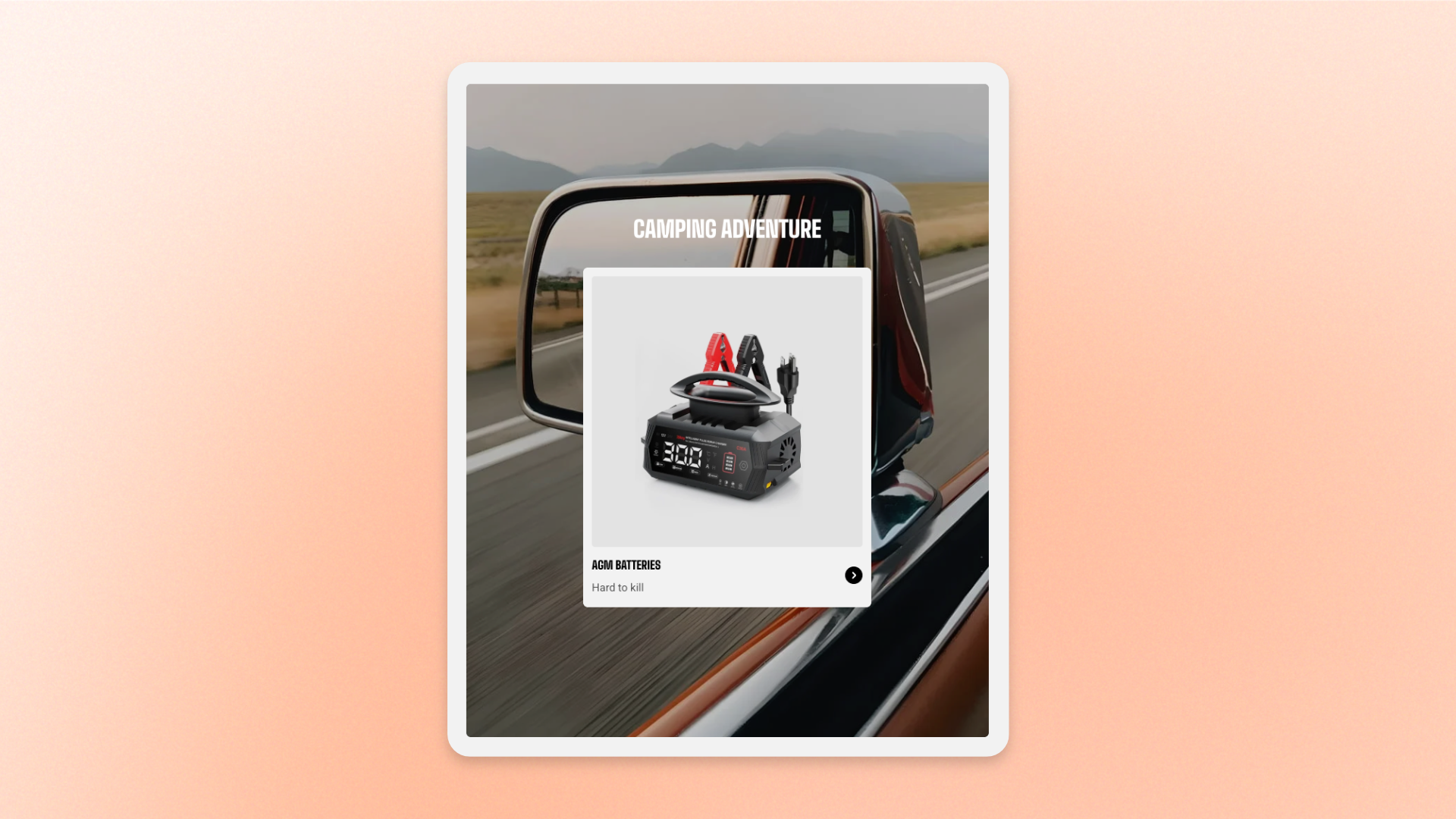
The **Collection feature** block displays a banner image with content layered on top. Use it to highlight a **featured collection, seasonal campaign, new arrival, promotion, or curated product category**, or to introduce products before or beside a product or collection grid.
By default, the block includes a **Text** block and a **Collection feature card** that can link shoppers to a selected collection. You can add, remove, and reorder supported nested blocks to customize the banner content.
## Settings
### Media
Controls the banner image, aspect ratio, and optional image overlay.
| Setting | Description | Options |
| ----------------------- | ------------------------------------------------------------- | --------------------------------------------------------------------------------------------------------------------------------------------------- |
| **Image** | Sets the main banner image. | Select an image. |
| **Image mobile** | Sets a different banner image for mobile devices. | Select an image, or leave blank to use the main image. |
| **Aspect ratio** | Controls the shape of the banner image on desktop. | **Auto:** Uses the image’s original proportions.
**Square (1/1), Portrait (4/5), Portrait (3/4), Landscape (16/9), or Landscape (4/3)** |
| **Aspect ratio mobile** | Controls the shape of the banner image on mobile devices. | **Auto:** Uses the image’s original proportions.
**Square (1/1), Portrait (4/5), Portrait (3/4), Landscape (16/9), or Landscape (4/3)** |
| **Media overlay** | Controls whether an overlay is applied over the banner image. | **On** or **Off**. |
| **Overlay style** | Controls the type of overlay applied to the image. | **Color** or **Gradient**.
*Available when* ***Media overlay*** *is turned on.* |
| **Overlay color** | Sets the color and transparency of the overlay. | Select a color and opacity.
*Available when* ***Media overlay*** *is turned on and* ***Overlay style*** *is set to* ***Color***. |
| **Gradient color** | Sets the gradient used for the overlay. | Select a gradient.
*Available when* ***Media overlay*** *is turned on and* ***Overlay style*** *is set to* ***Gradient***. |
### Size
Controls the width of the Collection feature separately for desktop and mobile.
| Setting | Description | Options |
| ---------------- | --------------------------------------------------------------- | -------------------------------------------------------------------------------------------------------------------------------------------------------------------------------------------------------------------- |
| **Width** | Controls the width of the Collection feature on desktop. | **Fit:** Sizes the block to its content.
**Fill:** Fills the available width.
**Percent:** Uses a custom width from **0–100%**.
**Pixel:** Uses a fixed width from **100–800px**. |
| **Width mobile** | Controls the width of the Collection feature on mobile devices. | **Fit:** Sizes the block to its content.
**Fill:** Fills the available width.
**Percent:** Uses a custom width from **0–100%**.
**Pixel:** Uses a fixed width from **100–400px**. |
### Appearance
Controls the color scheme and corner shape of the Collection feature.
| Setting | Description | Options |
| ------------------------ | -------------------------------------------------------------------------------- | ---------------------------------------------------------------------------------------------------------- |
| **Inherit color scheme** | Controls whether the block uses the color scheme of the section it is placed in. | **On** or **Off.** |
| **Color scheme** | Sets a separate color scheme for the block. | Select an available color scheme.
*Available when* ***Inherit color scheme*** *is turned off.* |
| **Corner radius** | Controls how rounded the banner corners are. | **0–32px** |
### Content padding
Controls the space between the banner edges and the content displayed over it. Set the padding separately for desktop and mobile.
| Setting | Description | Options |
| -------------- | ---------------------------------------------------------------------------------- | -------------------------- |
| **Devices** | Selects which device-specific padding values you are editing. | **Desktop** or **Mobile.** |
| **Horizontal** | Controls the space between the content and the left and right edges of the banner. | **0–100px** |
| **Vertical** | Controls the space between the content and the top and bottom edges of the banner. | **0–100px** |
Tablet and other in-between screens use a value between the two, so you don't need to set padding for them separately.
### Advanced
| Setting | Description | Options |
| ------------------------ | ------------------------------------------------------------------------------------------------------------ | ------------------ |
| **Enable preload image** | Loads the banner image earlier to help it appear faster when the block is visible as soon as the page loads. | **On** or **Off.** |
Use **Enable preload image** only when the Collection feature is visible when the page first loads. Avoid enabling it for blocks farther down the page.
## Collection feature — items
The content displayed over the banner is built from nested blocks that you can add, remove, and reorder.
A new Collection feature starts with a **Text** block and a **Collection feature card**. Both can be removed or reordered, and other supported theme or app blocks can be added.
### Text
The default **Text** block is typically used as the heading for the Collection feature.
Use it to add a heading or other introductory content over the banner. See the [Text block](https://docs.foxecom.com/motrix-theme/theme-blocks/text) documentation for its available settings.
### Collection feature card
The **Collection feature card** is a specialized nested block used to display and link to a selected collection.
It can use content from the selected collection automatically or override it with custom content.
Leave the card **Image** or **Title** blank when you want it to use the selected collection’s image or title automatically.
#### General
| Setting | Description | Options |
| -------------- | -------------------------------------------------------- | -------------------- |
| **Collection** | Selects the collection displayed and linked by the card. | Select a collection. |
#### Media
| Setting | Description | Options |
| ---------------- | ------------------------------------- | ------------------------------------------------------------------------------------------------------------------------------------------------------------------------------------------------------------------------------ |
| **Image** | Sets a custom image for the card. | Select an image, or leave blank to use the collection image. |
| **Aspect ratio** | Controls the shape of the card image. | **Use global settings:** Uses the theme’s default image ratio.
**Auto:** Uses the image’s original proportions.
**Square (1/1), Portrait (4/5), Portrait (3/4), Landscape (16/9), or Landscape (4/3)** |
#### Content
| Setting | Description | Options |
| ------------ | --------------------------------------------------------- | ---------------------------------------------------------------- |
| **Title** | Sets the title displayed on the card. | Enter custom text, or leave blank to use the collection’s title. |
| **Subtitle** | Sets supporting text displayed with the collection title. | Enter custom text. |
#### Size
Controls the Collection feature card width separately for desktop and mobile.
| Setting | Description | Options |
| ---------------- | ------------------------------------------ | -------------------------------------------------------------------------------------------------------------------------------------------------------------------------------------------------------------------- |
| **Width** | Controls the card width on desktop. | **Fit:** Sizes the card to its content.
**Fill:** Fills the available width.
**Percent:** Uses a custom width from **0–100%**.
**Pixel:** Uses a fixed width from **100–800px**. |
| **Width mobile** | Controls the card width on mobile devices. | **Fit:** Sizes the card to its content.
**Fill:** Fills the available width.
**Percent:** Uses a custom width from **0–100%**.
**Pixel:** Uses a fixed width from **100–400px**. |
#### Appearance
| Setting | Description | Options |
| ------------------------ | -------------------------------------------------------------- | ---------------------------------------------------------------------------------------------------------- |
| **Inherit color scheme** | Controls whether the card uses the color scheme of its parent. | **On** or **Off.** |
| **Color scheme** | Sets a separate color scheme for the card. | Select an available color scheme.
*Available when* ***Inherit color scheme*** *is turned off.* |
| **Corner radius** | Controls how rounded the card corners are. | **0–32px** |
#### Advanced
| Setting | Description | Options |
| ------------------------ | --------------------------------------------------------------------------------------------------------- | ------------------ |
| **Enable preload image** | Loads the card image earlier to help it appear faster when the card is visible as soon as the page loads. | **On** or **Off.** |
Use **Enable preload image** only for Collection feature cards that are visible when the page first loads. Avoid enabling it for cards farther down the page.
## Tips and best practices
* Add an **Image mobile** when the desktop image does not crop well on smaller screens; otherwise, leave it blank to reuse the main image.
* Turn on **Media overlay** when content needs more contrast against the banner image.
* Use **Use global settings** for the card’s aspect ratio when you want its image treatment to follow the theme’s global settings.