# Collection card
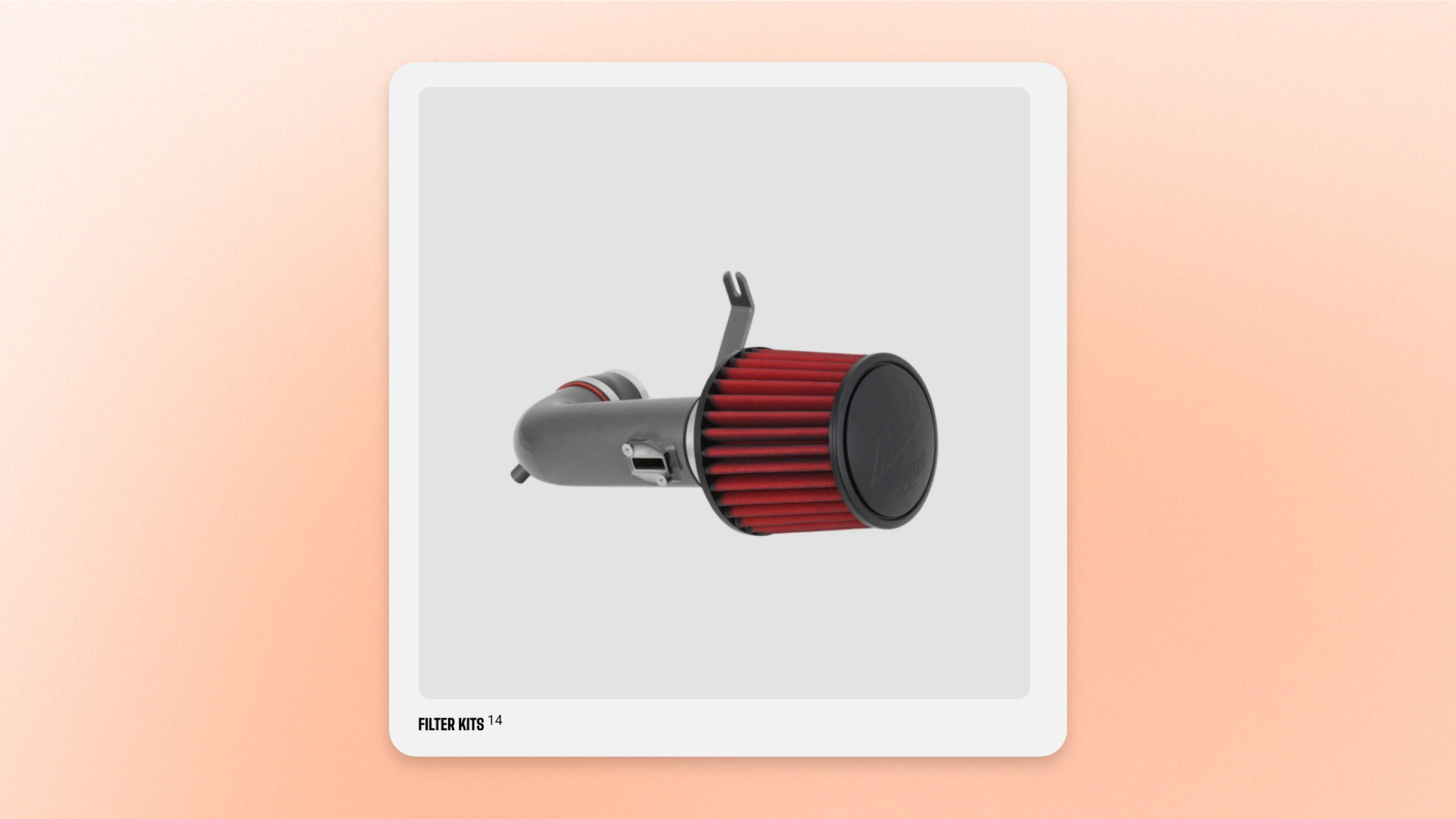
The **Collection card** block displays a single collection as a visual card using its image, title, product count, and optional description. Use it for **Shop by category**, **featured collections**, **seasonal collections**, and other collection-based navigation on homepages, landing pages, or custom merchandising layouts.
Select a collection to automatically pull in its content, or override the image, title, and description when you want a more customized card. Choose from several layouts to create anything from a simple category card to an image-led promotional tile.
## Settings
### General
| Setting | Description | Options |
| -------------- | ----------------------------------------------------- | ------------------------------------------------------------------------------------------------- |
| **Collection** | Selects the collection displayed in the card. | Select a collection. |
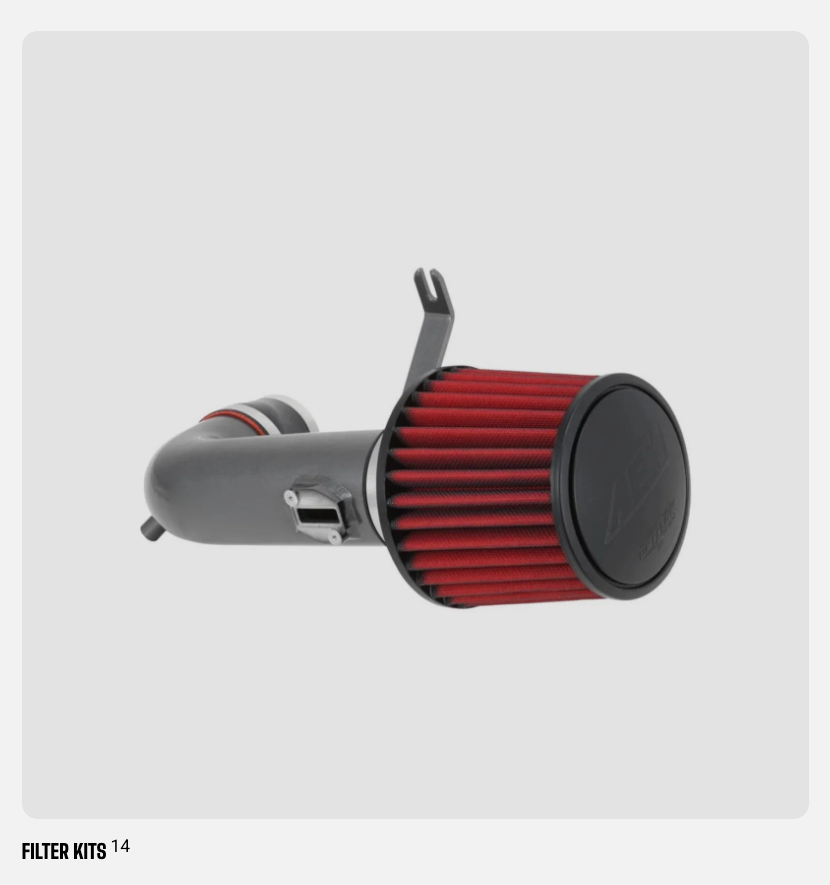
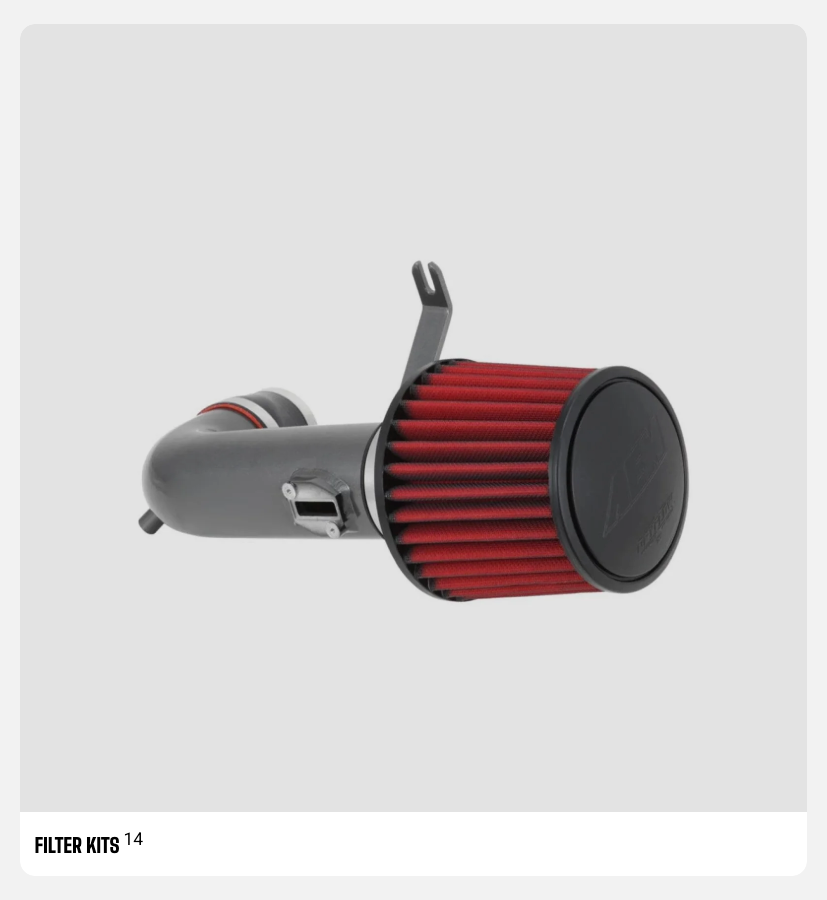
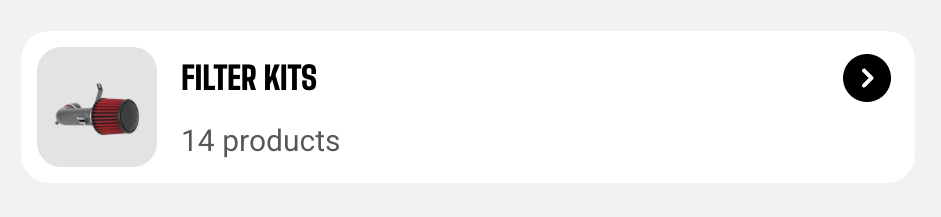
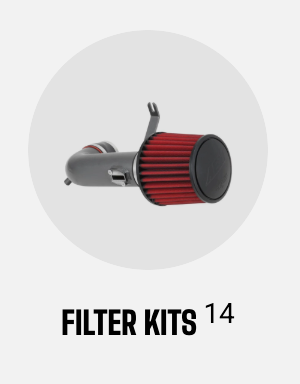
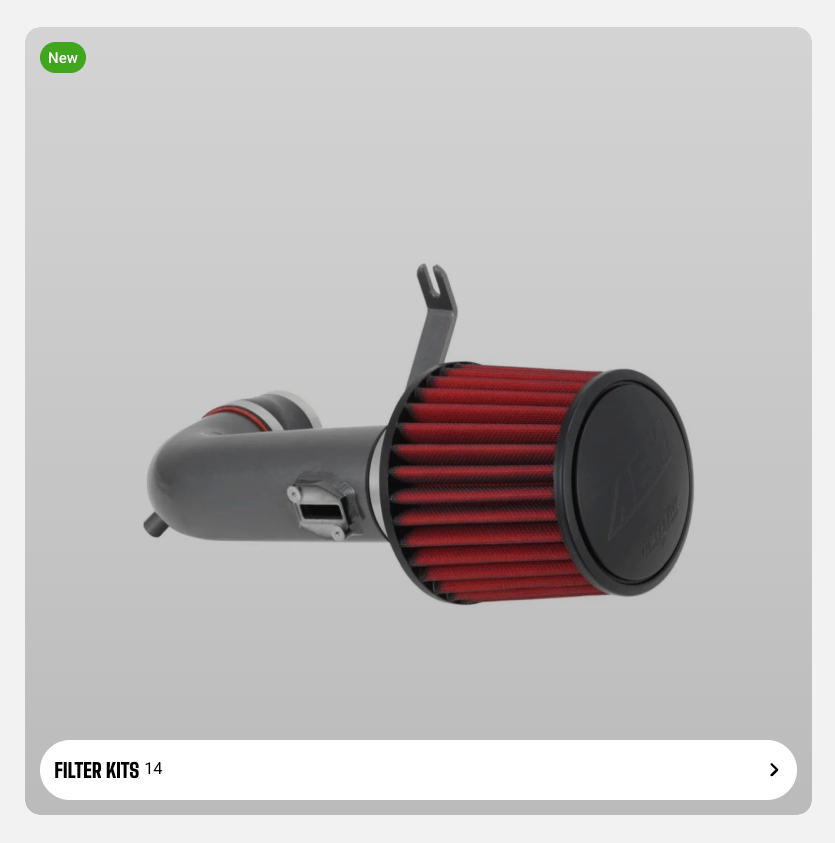
| **Layout** | Controls the overall card layout. | **Standard, Vertical card, Horizontal card, Circle thumbnail, or Overlay with badge** |
| **Icon style** | Controls the appearance of the icon used in the card. | **Standard** or **Solid**.
*Available when **Layout** is set to **Horizontal card**.* |
| **Alignment** | Controls the alignment of the card content. | **Left, Center, or Right** |


 ### Media
| Setting | Description | Options |
| ---------------- | ------------------------------------- | ------------------------------------------------------------------------------------------------------------------------------------------------------------------------------------------------------------------------------ |
| **Image** | Sets the image displayed in the card. | Select or upload an image. Leave blank to use the selected collection’s image. |
| **Aspect ratio** | Controls the shape of the card image. | **Use global settings:** Uses the theme’s default image ratio.
**Auto:** Uses the image’s original proportions.
**Square (1/1), Portrait (4/5), Portrait (3/4), Landscape (16/9), or Landscape (4/3)** |
### Content
| Setting | Description | Options |
| ---------------------- | ----------------------------------------------------------------------- | ----------------------------------------------------------------------------------------------------------------------------------- |
| **Title** | Sets a custom title for the card. | Enter custom text. Leave blank to use the selected collection’s title. |
| **Title preset** | Controls the typography used for the card title. | **Paragraph, Subheading, Heading 1, Heading 2, Heading 3, Heading 4, Heading 5, or Heading 6** |
| **Show product count** | Controls whether the number of products in the collection is displayed. | **On** or **Off** |
| **Show description** | Controls whether a collection description is displayed below the title. | **On** or **Off** |
| **Description** | Sets a custom description for the card. | Enter custom text. Leave blank to use the collection’s description.
*Available when **Show description** is turned on.* |
### Badge
These settings are available when **Layout** is set to **Overlay with badge**.
| Setting | Description | Options |
| ------------------ | ------------------------------------------------------------------------------------- | ----------------------------------------------------------------------------------------- |
| **Text** | Sets the text displayed in the corner badge. | Enter custom text. |
| **Style** | Controls the badge style. | **New, Hot, Popular, or Sale** |
| **Media overlay** | Adds a tinted overlay over the card image to help the badge and text remain readable. | **On** or **Off** |
| **Overlay style** | Controls the type of image overlay. | **Color** or **Gradient**.
*Available when **Media overlay** is turned on.* |
| **Overlay color** | Sets a single-color overlay over the image. | Select a color.
*Available when **Overlay style** is set to **Color**.* |
| **Gradient color** | Sets a gradient overlay over the image. | Select a gradient.
*Available when **Overlay style** is set to **Gradient**.* |
To change badge colors, go to **Theme settings >** [Colors](https://docs.foxecom.com/motrix-theme/theme-settings/colors).
### Appearance
These settings apply to the **Vertical card** and **Horizontal card** layouts.
| Setting | Description | Options |
| ------------------------ | ------------------------------------------------------------------------------------------- | --------------------------------------------------------------------------------------------------------------------------------------------------------------------------------------- |
| **Inherit color scheme** | Controls whether the card uses the color scheme of the section or container it sits inside. | **On:** Uses the surrounding color scheme.
**Off:** Lets you select a separate scheme.
*Available when **Layout** is set to **Horizontal card**.* |
| **Color scheme** | Controls the colors used by the card panel. | Select a theme color scheme.
*Available when **Layout** is set to **Vertical card**, or when **Layout** is **Horizontal card** and **Inherit color scheme** is turned off.* |
### Size
| Setting | Description | Options |
| ---------------- | ------------------------------------------ | -------------------------------------------------------------------------------------------------------------------------------------------------------------------------------------------------------------------- |
| **Width** | Controls the card width on desktop. | **Fit:** Sizes the card to its content.
**Fill:** Fills the available width.
**Percent:** Uses a custom width from **0–100%**.
**Pixel:** Uses a fixed width from **100–800px**. |
| **Width mobile** | Controls the card width on mobile devices. | **Fit:** Sizes the card to its content.
**Fill:** Fills the available width.
**Percent:** Uses a custom width from **0–100%**.
**Pixel:** Uses a fixed width from **100–400px**. |
### Advanced
| Setting | Description | Options |
| ------------------------ | --------------------------------------------------------------------------------------------------------- | ----------------- |
| **Enable preload image** | Loads the card image earlier to help it appear faster when the card is visible as soon as the page loads. | **On** or **Off** |
Use **Enable preload image** only for Collection cards that are visible when the page first loads. Avoid enabling it for cards farther down the page.
## Tips and best practices
* Leave **Image**, **Title**, and **Description** blank to automatically use the selected collection’s content and keep the card in sync when the collection is updated.
* Choose the **Layout** first, since some settings such as color schemes and badge options are only available for specific layouts.
* Use **Pixel** width when you need cards to stay the same fixed size, especially in horizontal or swipeable layouts.