# Button group
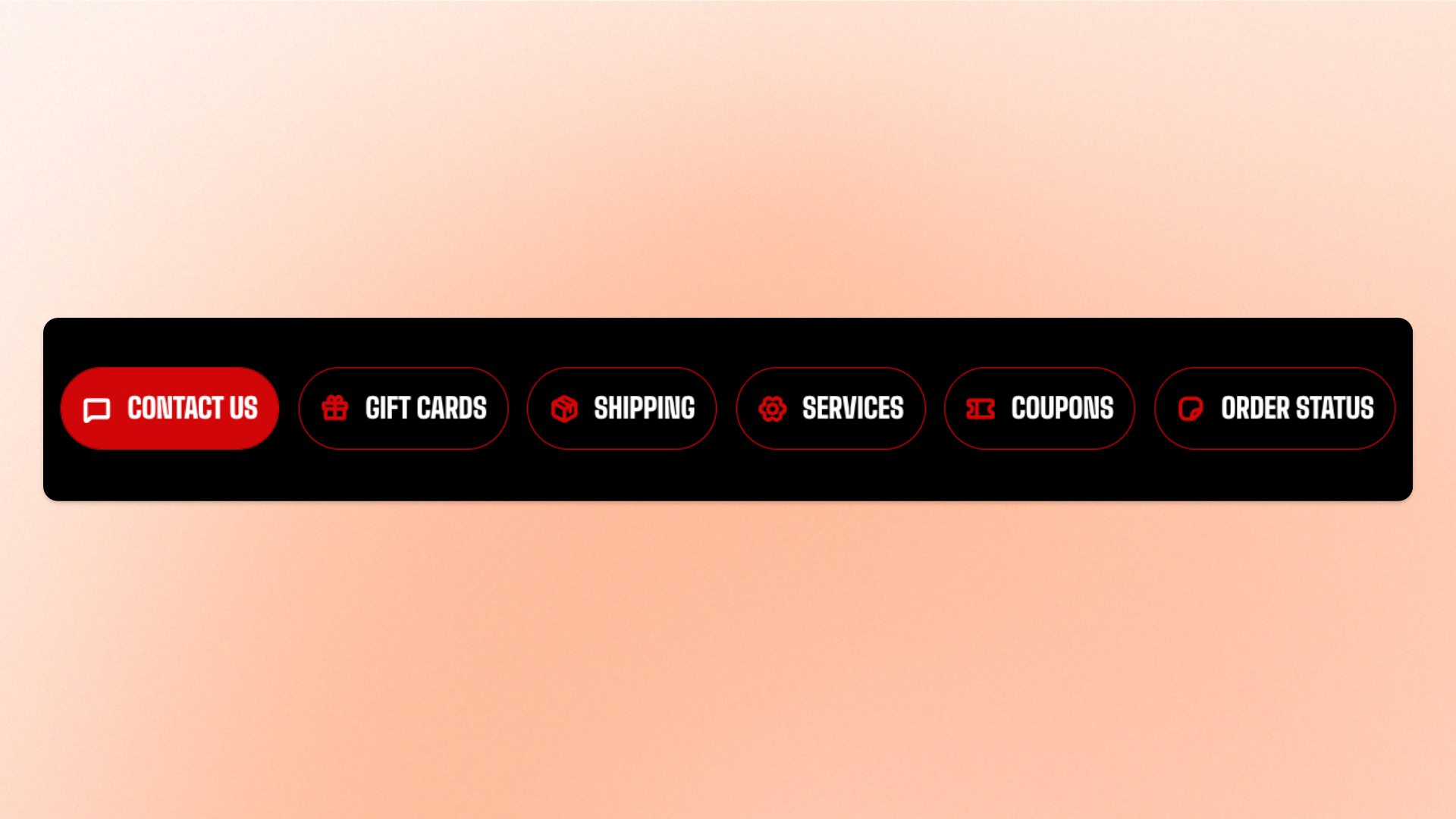
The **Button group** block arranges multiple Button blocks together and wraps them automatically when there isn’t enough horizontal space. Use it for related calls to action such as Shop now + Learn more, View collection + See details, or other primary and secondary actions that should appear together.
Add the buttons you need inside the group, then control their spacing, overall width, and mobile arrangement.
## Settings
### Layout
Controls the spacing between buttons in the group.
| Setting | Description | Options |
| ------------------ | --------------------------------------------------------------------- | ----------- |
| **Horizontal gap** | Controls the horizontal space between buttons displayed side by side. | **0–100px** |
| **Vertical gap** | Controls the vertical space between rows of buttons when they wrap. | **0–100px** |
### Size
| Setting | Description | Options |
| ---------------- | --------------------------------------------------------- | ------------------------------------------------------------------------------------------------------------------- |
| **Width** | Controls the width of the Button group on desktop. | **Fit:** Keeps the group sized to its buttons.
**Fill:** Expands the group to fill the available width. |
| **Width mobile** | Controls the width of the Button group on mobile devices. | **Fit** or **Fill** |
### Mobile settings
Controls how buttons are arranged and spaced on mobile devices.
| Setting | Description | Options |
| ------------------ | -------------------------------------------------------------- | ------------------------------------------------------------------------------------------------------------------------------------------------------------------------------------- |
| **Mobile columns** | Controls how buttons are arranged on mobile. | **Auto:** Lets buttons wrap naturally based on available space.
**1 column:** Places each button on its own row.
**2 columns:** Displays two buttons per row. |
| **Horizontal gap** | Controls the horizontal space between buttons on mobile. | **0–100px** |
| **Vertical gap** | Controls the vertical space between rows of buttons on mobile. | **0–100px** |
## Button group — items
Add **Button** blocks inside the Button group to create the actions you want to display.
Each Button block has its own settings for the **label, link, style, size, icon, and width**. The Button group controls only how those buttons are arranged and spaced.
See the [**Button** block documentation](https://docs.foxecom.com/motrix-theme/theme-blocks/button) for its available settings.
## Tips and best practices
* Use **1 column** on mobile when you want each button to appear on its own row for a cleaner, easier-to-tap layout.
* Keep related actions together and avoid adding too many buttons to one group, which can make the hierarchy less clear.