# Button
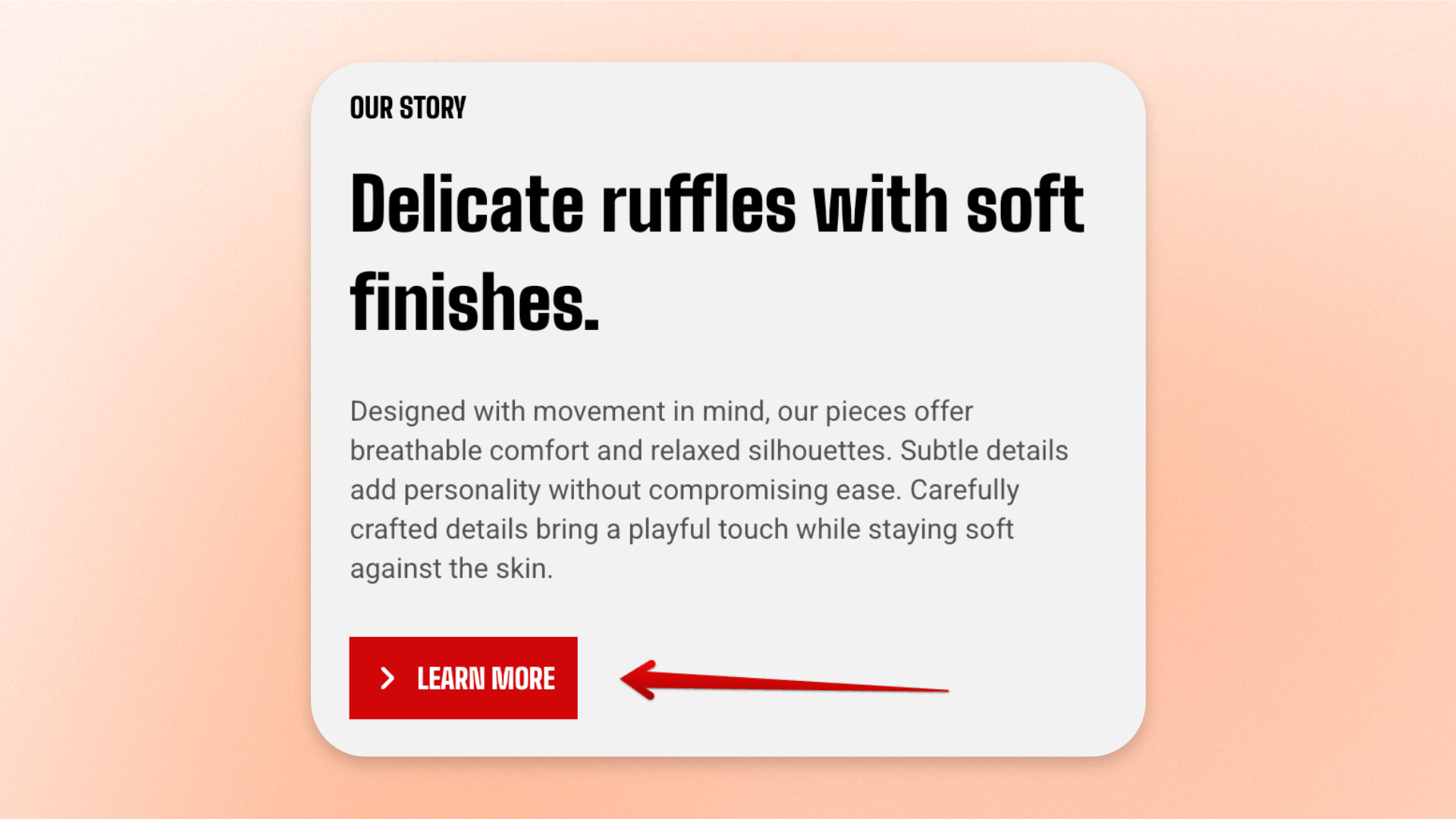
The **Button** block adds a clickable call-to-action that directs shoppers to a product, collection, page, blog post, or other link. Use it for actions such as Shop now, Learn more, View collection, or Read more.
Set the button label and destination, then customize its style, size, icon, width, and entrance animation. Use a Button on its own or place multiple Button blocks inside a **Button group** when you need more than one action.
## Settings
### General
| Setting | Description | Options |
| ----------------- | ------------------------------------------------------------ | ------------------------------------------------------------------------------------------------------------------ |
| **Label** | Sets the text displayed on the button. | Enter custom text. |
| **Link** | Sets where shoppers are taken when they click the button. | Select or enter a link. |
| **Style** | Controls the visual style of the button. | **Primary, Secondary, Outline, or Plain** |
| **Size** | Controls the overall size of the button. | **Extra small, Small, Medium, or Large** |
| **Icon** | Adds an optional icon to the button. | Select an available icon or **None**. |
| **Icon size** | Controls the size of the selected icon. | **Auto, Extra small, Small, Medium, Large, or Extra large**.
*Available when an **Icon** is selected.* |
| **Icon only** | Displays only the icon and hides the button label. | **On** or **Off**.
*Available when an **Icon** is selected.* |
| **Trailing icon** | Places the icon after the button label instead of before it. | **On** or **Off**.
*Available when an **Icon** is selected and **Icon only** is turned off.* |
### Size
These settings are available when **Icon only** is turned off.
| Setting | Description | Options |
| ---------------- | -------------------------------------------- | --------------------------------------------------------------------------------------------------------------------- |
| **Width** | Controls the button width on desktop. | **Fit:** Keeps the button sized to its content.
**Fill:** Expands the button to fill the available width. |
| **Width mobile** | Controls the button width on mobile devices. | **Fit** or **Fill** |
### Animation
This group appears when animations are enabled in **Theme settings >** [**Animations**](https://docs.foxecom.com/motrix-theme/theme-settings/animations).
| Setting | Description | Options |
| -------------- | ------------------------------------------------------------------------- | ----------------------------------------------------------------------- |
| **Type** | Controls the entrance animation used when the button scrolls into view. | **None, Fade in, Fade up, Slide in (left), or Slide in (right)** |
| **Delay (ms)** | Controls how long the theme waits before starting the entrance animation. | **0–2000ms**
*Available when **Type** is not set to **None**.* |
## Tips and best practices
* Use a short, action-focused label so shoppers immediately understand what the button does.
* Choose **Primary** for the main action and use a less prominent style, such as **Secondary**, **Outline**, or **Plain**, for supporting actions.
* Use **Fill** when the button should span its available container, especially in mobile layouts; use **Fit** for a more compact button.