# Quick order list
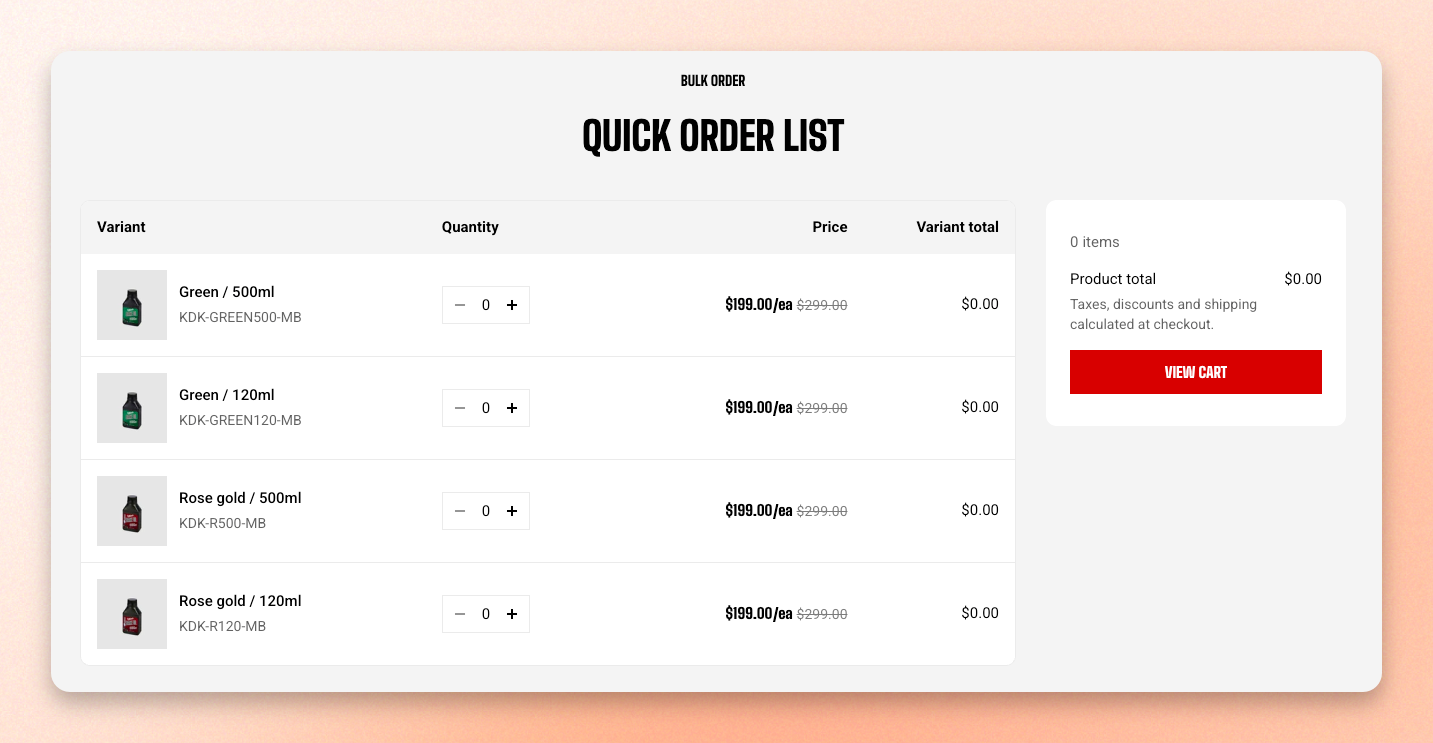
Some products are bought by the box, not by the piece. A shopper restocking a workshop needs six of one size, two of another, and none of the rest — and the normal product page makes them pick a variant, add to cart, go back, and repeat.
Quick order list puts every variant in one table with a quantity field on each row, and a running total beside it.
This section is only available on product templates. It won't appear in **Add section** while you're editing any other template.
## Add the section
1. In the theme editor, click the page selector and go to **Products**.
2. Choose the product template you want to add it to.
3. In the **Template** area of the sidebar, click **Add section**.
4. Select **Quick order list**.
5. Drag it into position, then click **Save**.
## How it works
The table lists every variant of the product, with a quantity field, unit price, and line total on each row.
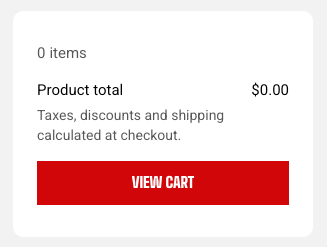
**Quantities go straight to the cart.** There's no add-to-cart button — a shopper types a quantity and the cart updates a moment later. The summary panel keeps count and links through to the cart when they're done.
Each row has its own remove control, and the summary panel holds a **Remove all** button that asks for confirmation before clearing everything from this product.
**Sold-out variants stay in the table** but show a Sold out badge in place of the quantity box, so a shopper scanning for a size can see it exists and is unavailable rather than wondering whether they missed it.
**Tip:** Because each variant becomes a full card, a product with a long variant list gets very tall on a phone. Check it on mobile before publishing — 20 variants is a manageable table on desktop and a long scroll on a phone.
## Section settings
### Layout
| Setting | What it does |
| ------------- | -------------------------------------------------------------------------------------------------- |
| **Container** | Keeps the section within the page width (Fixed), or lets it span the full width. Fixed by default. |
### Table
| Setting | What it does |
| ----------------- | ------------------------------------------ |
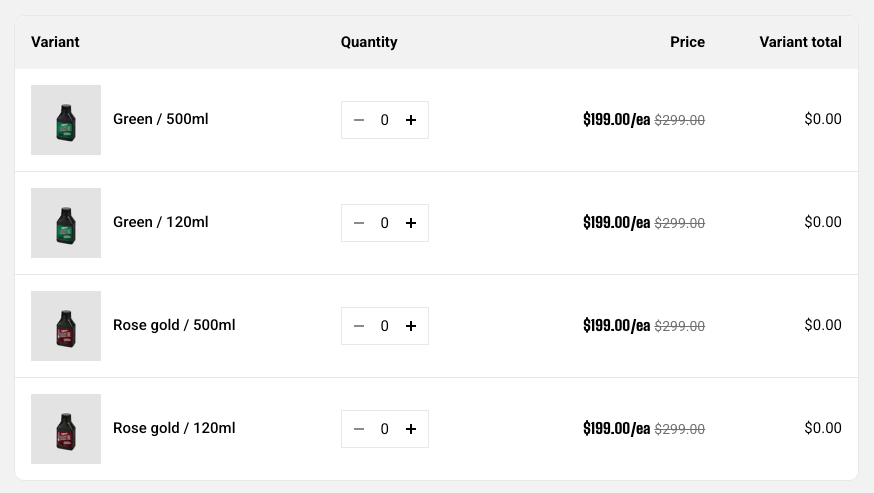
| **Show image** | Adds a thumbnail to each variant row. |
| **Show SKU** | Adds the variant's SKU under its name. |
| **Color scheme** | Applies a theme color scheme to the table. |
| **Border radius** | Rounds the table corners. |
**Tip:** Keep **Show SKU** on for parts and technical products — trade customers order by part number, and it's what they'll check before typing a quantity.
### Summary bar
| Setting | What it does |
| ----------------- | -------------------------------------------------- |
| **Color scheme** | Applies a theme color scheme to the summary panel. |
| **Corner radius** | Rounds the panel corners |
### Appearance
| Setting | What it does |
| ---------------- | ----------------------------------------------------------------------- |
| **Color scheme** | Applies a theme color scheme to the section behind the table and panel. |
## Heading and subheading
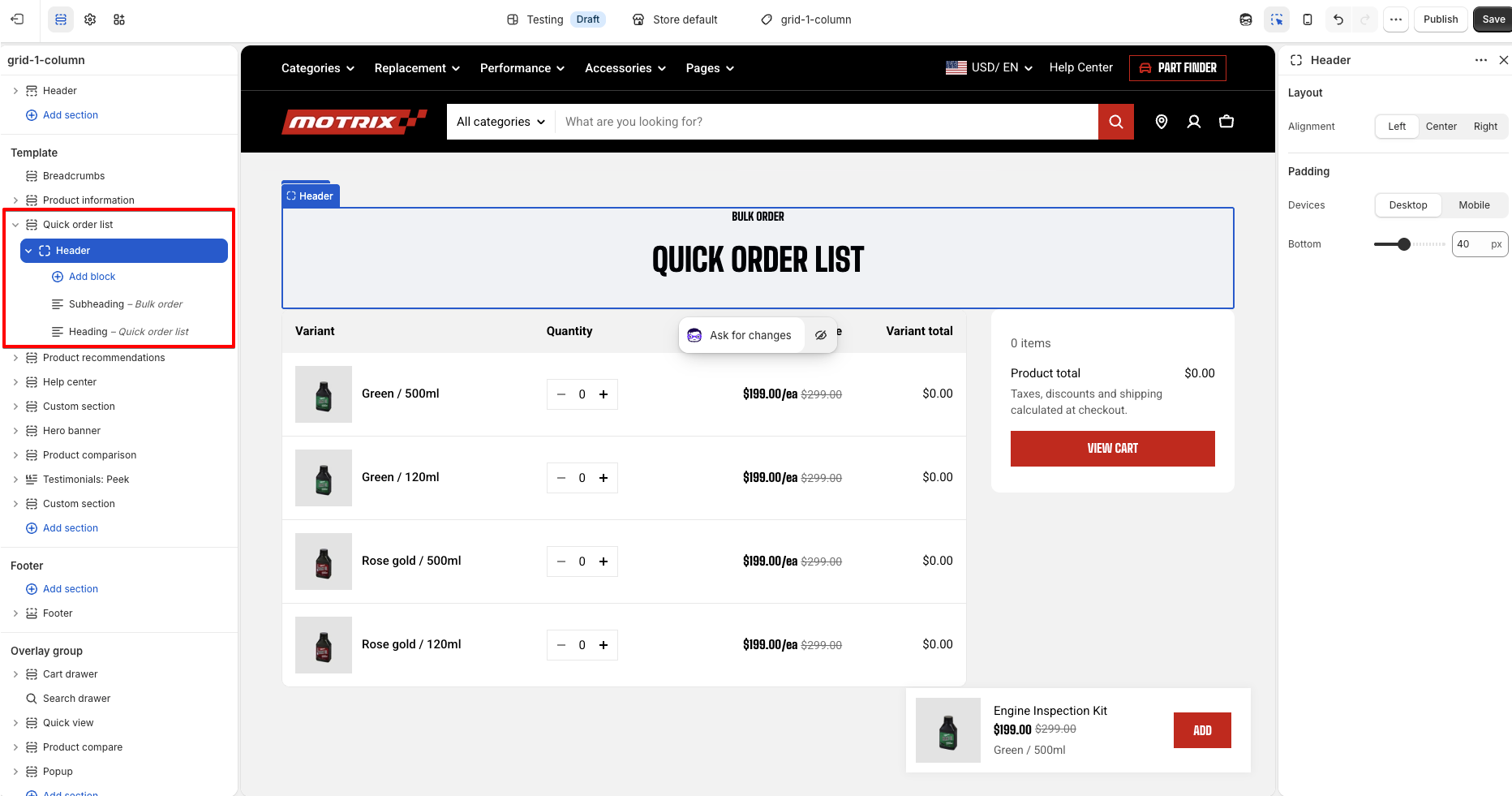
The text above the table comes from blocks, not settings. Expand the **Header** block in the sidebar and click **Subheading** or **Heading** to edit the wording, size, and aligment. You can also add more blocks to the section header.
## FAQs
#### Why isn't Quick order list in my Add section list?
It's only available on product templates. Check the page selector at the top of the editor — if you're editing the homepage, a collection, or a page, the section won't be offered.
#### Why can't I add a second one to the same page?
Only one Quick order list is allowed per template. Adding a second would give shoppers two tables writing to the same cart.
#### Why is the summary panel missing on one of my products?
That product has only one variant. The panel is only shown for products with several variants, since there's nothing to total up otherwise.