# Quick comparison table
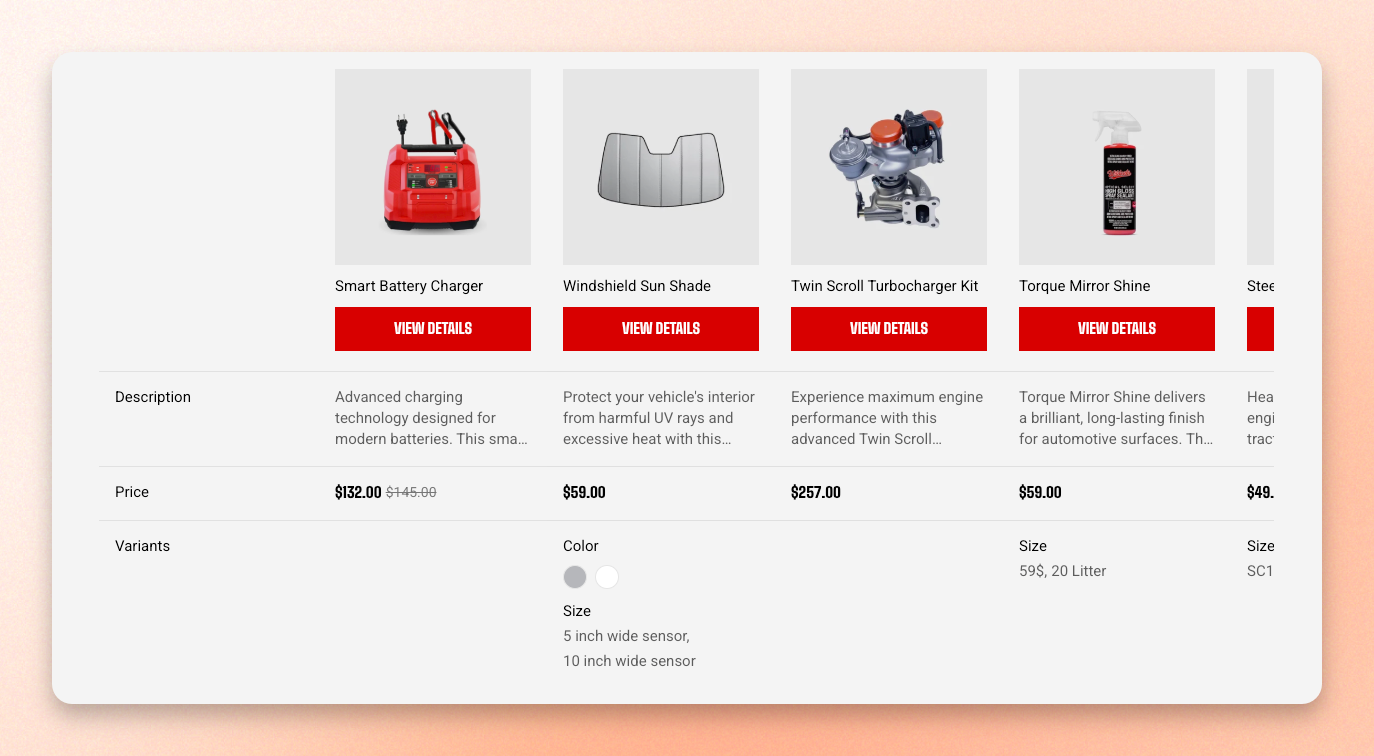
A shopper deciding between two filters, two batteries, or two sizes usually opens tabs and flicks between them. This section does that work on the page: the product they're viewing sits in the first column, with alternatives beside it, and each row lines up one detail — price, variants, a spec from a metafield, etc. — across all of them.
You don't pick the products. Shopify supplies the alternatives, so the table fills itself on every product you have.
This section is only available on product templates. It won't appear in **Add section** while you're editing any other template.
### How is this different from Product comparison section?
They aren't exclusive. A curated Product comparison on a landing page and an automatic Quick comparison table on the product template answer different questions for the same shopper.
## Add the section
1. In the theme editor, click the page selector and go to **Products**.
2. Choose the product template you want to add it to.
3. In the **Template** area of the sidebar, click **Add section**.
4. Select **Quick comparison table**.
5. Drag it into position — under the buy area is the usual spot — then click **Save**.
## How the table is built
**Columns are automatic.** The product being viewed comes first, then products Shopify recommends alongside it. There's no product picker.
The table uses Shopify's **related products**, worked out by Shopify's algorithm from purchase history, product descriptions, and shared collections. You can override that per product in the [Search & Discovery app](https://apps.shopify.com/search-and-discovery):
1. From your Shopify admin, go to **Apps > Search & Discovery**.
2. Click R**ecommendations**, then **Add recommendations**.
3. Select the product you want to customize.
4. Choose up to 10 **Related products**.
5. Decide whether to show only your picks, or your picks plus Shopify's automatic ones.
6. Click **Save**.
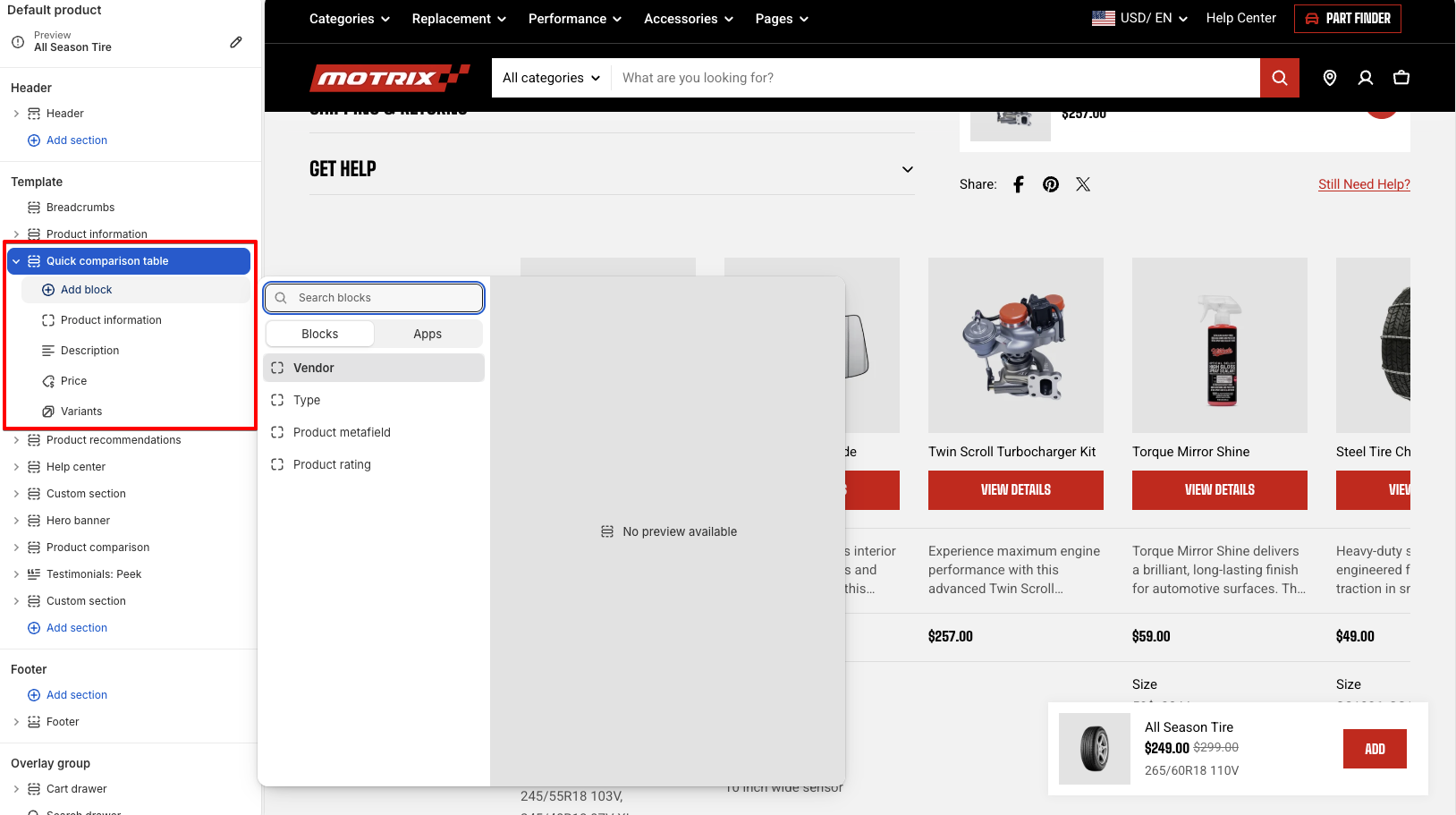
**Rows are blocks.** Each block you add to the section becomes one row of the table, in the order they appear in the sidebar. The section ships with Product information, Description, Price, and Variants.
* Auto-generated recommendations improve as your store gathers sales and browsing data. A brand-new store may get few or none, and the section stays empty on those products. It isn't broken — either wait for the store to trade, or set the related products yourself.
* A product won't appear as a recommendation if it's sold out, has Unlisted status, or is priced at $0.00. Sold-out products can still show if **Continue selling when out of stock** is turned on for them. If a product you picked never appears, check these before the theme.
## Section settings
| Setting | What it does |
| ------------------------------ | ----------------------------------------------------------- |
| **Number of products to show** | How many recommended products load into the table, 2 to 12. |
Every product you add is another column, and the table scrolls sideways once it's wider than the screen.
### Layout
| Setting | What it does |
| ------------- | ----------------------------------------------------------------------------- |
| **Container** | Keeps the content within the page width, or lets it span the available width. |
### Appearance
| Setting | What it does |
| ------------------ | ------------------------------------------------------------------- |
| **Color scheme** | Applies a theme color scheme to the section. |
| **Border** | Shows or hides the section border. |
| **Border width** | Thickness of the border, 0–10 px. Appears when a border is enabled. |
| **Border opacity** | How strong the border appears. Appears when a border is enabled. |
| **Corner radius** | Rounds the section corners. |
## Rows
Each block below adds one row. Product information, Description, Price, Vendor, Type, and Variants can each be added once. **Product metafield** and **Product rating** can be added as many times as you need.
### Product information
Each product's photo and name, linked to its product page.
| Setting | What it does |
| ------------------------------ | -------------------------------------------------------------------------------------- |
| **Enable view details button** | Adds a **View details** button under each product that opens its product page. |
| **Corner radius** | Rounds the corners of the product images, 0–32 px. |
| **Text line limit** | Keeps long product names to a set number of lines, from 1 to 5, or shows them in full. |
**Tip:** keep **Text line limit** at 1 or 2. Product names vary in length, and letting them run in full makes the top of each column a different height, which is exactly what a comparison table is meant to avoid.
### Description
Each product's description.
| Setting | What it does |
| ------------------------- | ------------------------------------------------------------------------------------------------------------- |
| **Text line limit** | Trims the description to a set number of lines, from 1 to 5, or shows it in full. |
| **Show view more button** | Adds a **view more** toggle so shoppers can expand the trimmed description. Appears when a line limit is set. |
### Price, Vendor, Type, and Variants
These info are pulled from Shopify admin > Products.
* **Price** — the product's price.
* **Vendor** — the product's vendor.
* **Type** — the product's type.
* **Variants** — the product's available options and variants. Left empty for products without options.
### Product metafield
A custom product detail stored in a metafield — a material, a capacity, a certification.
| Setting | What it does |
| ------------------------------- | -------------------------------------------------------- |
| **Metafield namespace and key** | Which metafield to show — for example `custom.material`. |
| **Label** | The row's name in the first column of the table. |
* The metafield definition has to exist first. Then in the block settings: Type the namespace and key by hand. You enter the metafield's namespace and key as plain text, and the theme pulls that field from every product in the table.
* This works with product fields only. List metafields, other than single-line text lists, and metaobjects aren't supported and leave the row blank.
### Product rating
A score stored in a Rating-type metafield, drawn as a row of dots or stars filled to match the score.
As with [Product metafield](https://docs.foxecom.com/motrix-theme/product-page/quick-comparison-table#product-metafield), you type the namespace and key by hand — there's no dynamic source picker. The definition must exist in Shopify first, and its type must be **Rating**.
| Setting | What it does |
| ------------------------------- | ---------------------------------------------------------------------------- |
| **Metafield namespace and key** | Which rating metafield to show — for example `custom.noise_rating`. |
| **Icon** | Draws the score as Dots or Stars. |
| **Show rating text** | Adds a written verdict beside the icons, such as *Excellent* or *Very good*. |
| **Hide rating value** | Hides the numeric score, leaving the icons and the verdict. |
| **Label** | The row's name in the first column of the table. |
**Best practice:** Always fill the Label on metafield and rating rows. Without it the row's first column is blank, and shoppers see a line of values with nothing naming what they are.
## FAQs
#### Can I choose which products appear in the table?
Not in the theme editor, but yes in Shopify. Install the free **Search & Discovery** app, open **Product recommendations**, and set the **Related products** for that product.
#### I want a fixed list of featured products shown. Is that possible?
Not in this section. Use [Product comparison](https://docs.foxecom.com/motrix-theme/theme-sections/product-comparison) instead — it takes a list of products you choose, and can go on any page, not just product templates.
#### Why can't I add a second Price row?
Price, Vendor, Type, Variants, Product information, and Description can each be added once. Only Product metafield and Product rating can be repeated, since you'll usually want several spec rows.