# Product recommendations
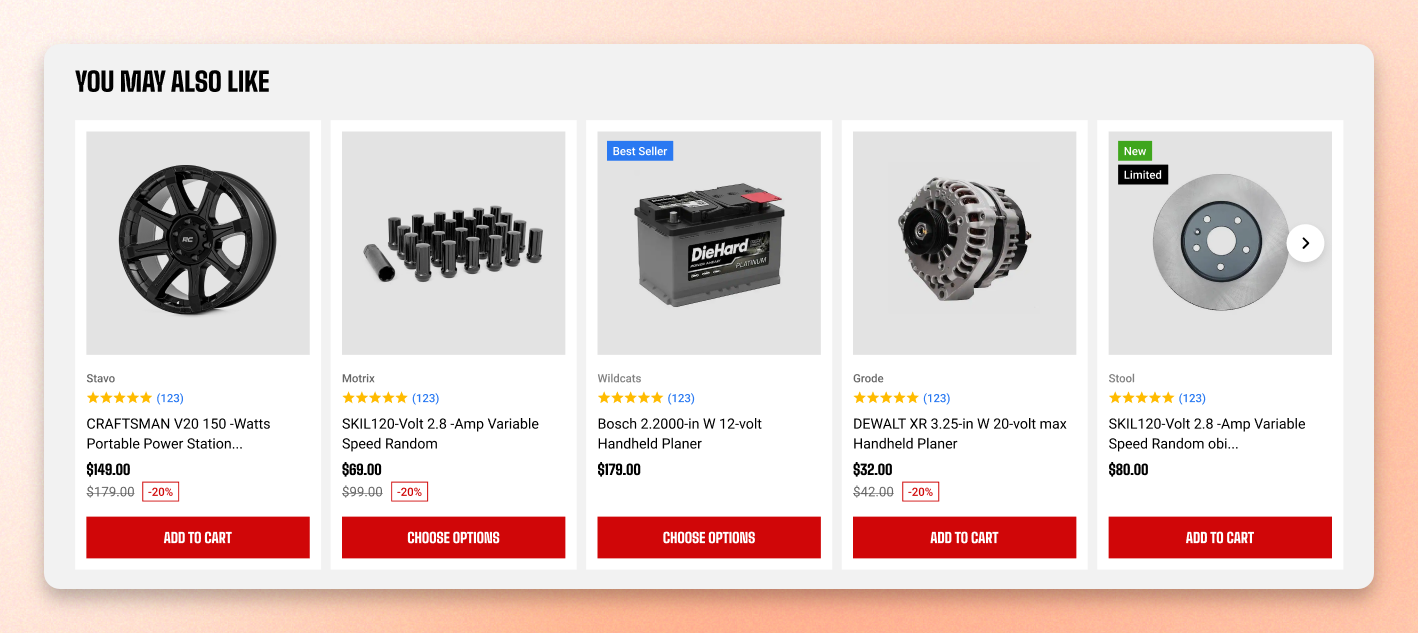
The classic "You may also like" row. Shopify picks the products, so the section fills itself on every product page and gets better as your store gathers sales and browsing data.
Use it to give a shopper somewhere to go when the product they're on isn't quite right — and to put the obvious add-on in front of them when it is.
This section is only available on product templates. It won't appear in **Add section** while you're editing any other template.
### How is this different from the Product recommendations block?
## Add the section
1. In the theme editor, click the page selector and go to **Products**.
2. Choose the product template you want to add it to.
3. In the **Template** area of the sidebar, click **Add section**.
4. Select **Product recommendations**.
5. Drag it into position — below the product details is the usual spot — then click **Save**.
## Section settings
| Setting | What it does |
| -------- | ------------------------------------------------------------------------------------------------------------------------------- |
| **Type** | Chooses the recommendation style: **Related** shows similar products; **Complementary** shows products that pair well together. |
Customize the recommended products using Shopify's **Search & Discovery app**. [Learn more](https://help.shopify.com/manual/online-store/storefront-search/search-and-discovery-recommendations)
### Layout
| Setting | What it does |
| ------------------ | ----------------------------------------------------------------------------- |
| **Container** | Keeps the content within the page width, or lets it span the available width. |
| **Type** | Shows products in a wrapping **Grid** or a navigable **Carousel**. |
| **Columns** | How many cards appear across on large screens, from 2 to 6. |
| **Product count** | How many recommended products are shown, from 1 to 10. |
| **Horizontal gap** | Space between cards, 0–100 px. |
| **Vertical gap** | Space between grid rows, 0–100 px. Appears when Type is Grid. |
**Grid** suits a row you want fully visible — everything on screen, nothing to discover. **Carousel** suits a higher product count, where showing eight products in a grid would push the footer far down the page.
**Columns** applies to large screens only. On smaller desktop and tablet widths the theme automatically shows fewer, so setting 6 doesn't mean six columns everywhere. Check a mid-size window before assuming the setting didn't work.
### Carousel settings
These appear when the layout **Type** is Carousel.
| Setting | What it does |
| --------------------- | ----------------------------------------------------------------------------------------------------------------------- |
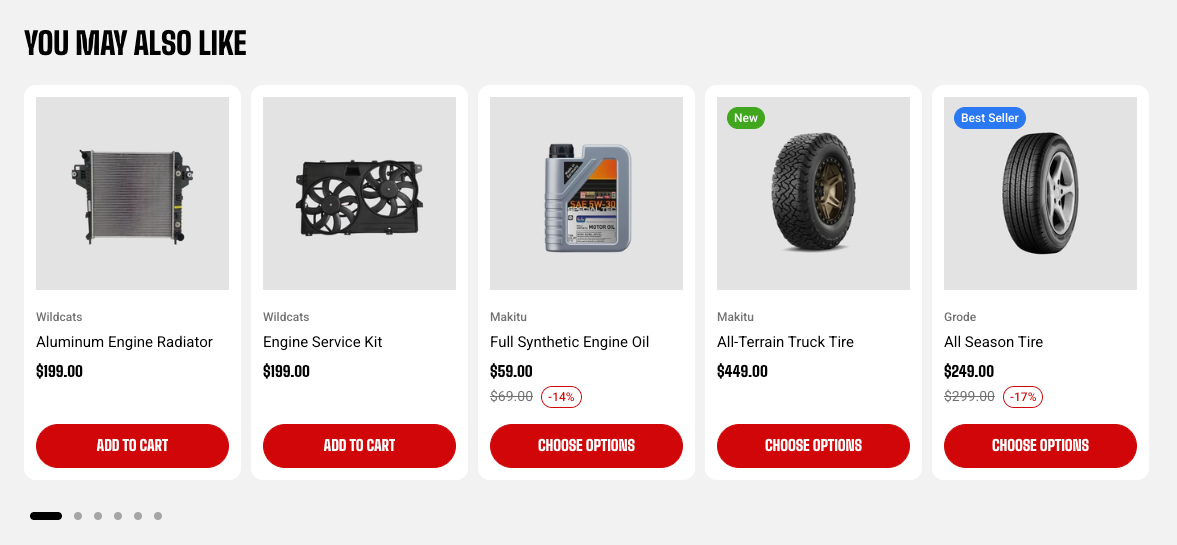
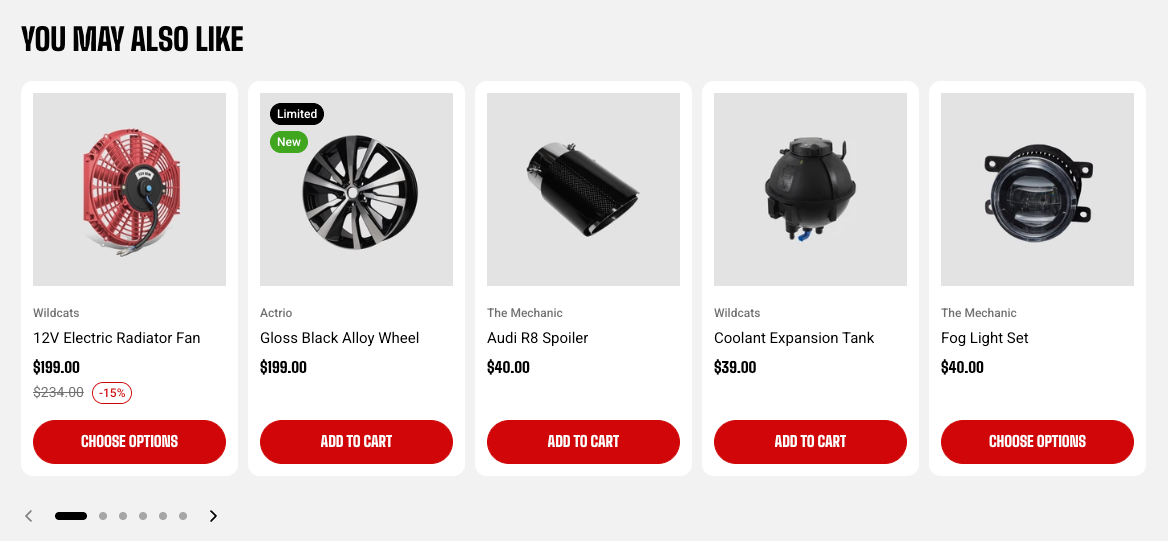
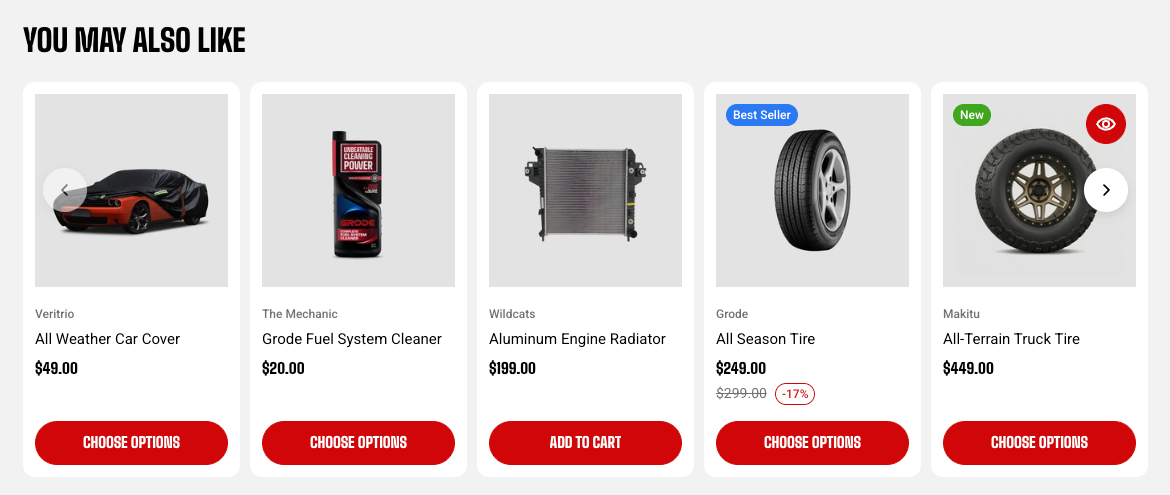
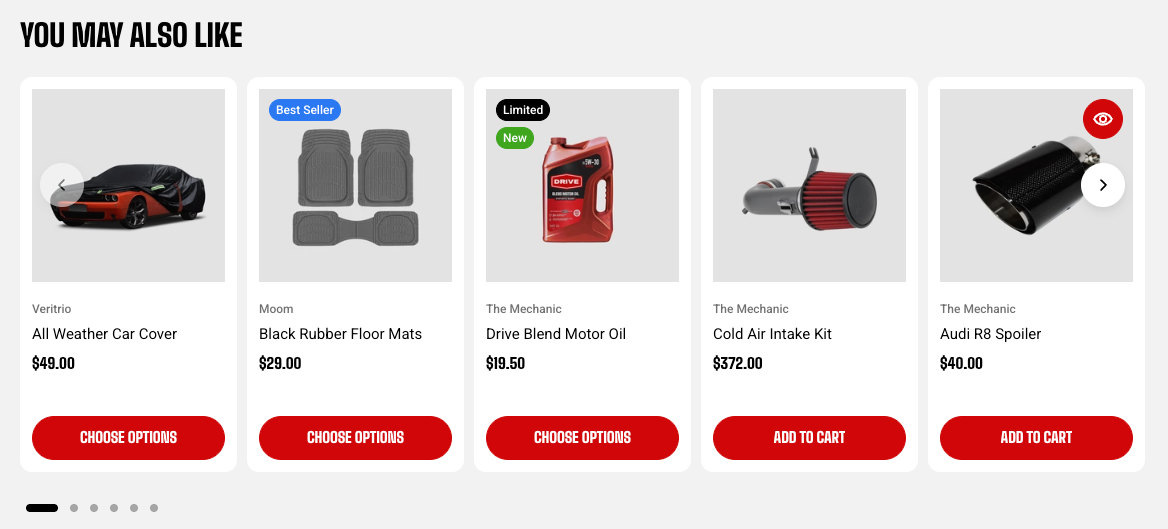
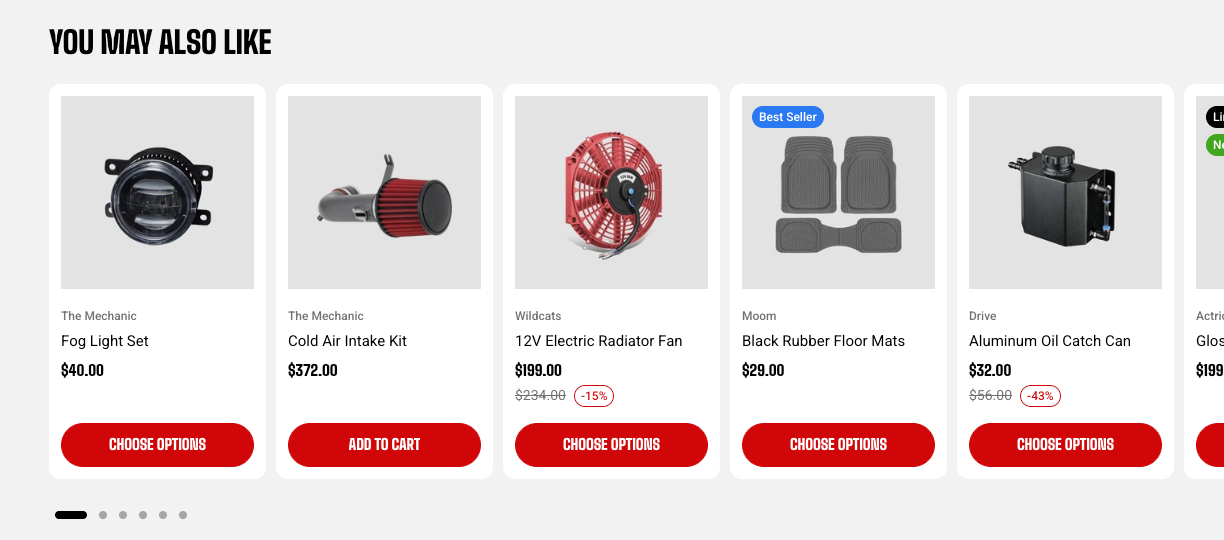
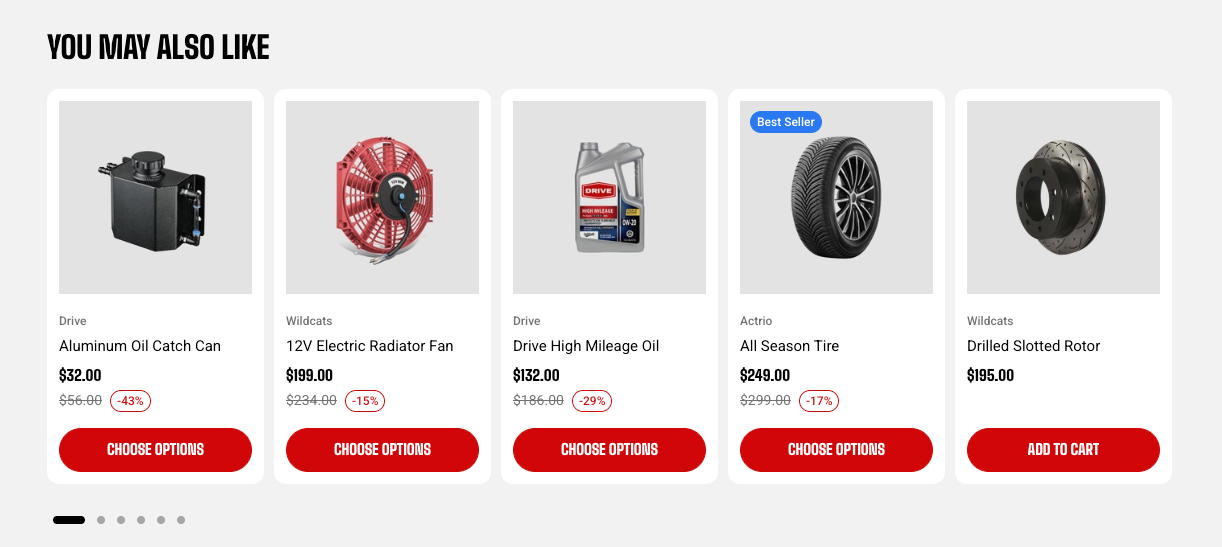
| **Control type** | The carousel navigation: None, Dots, an arrows-and-dots row, floating arrows over the cards, or floating arrows + dots. |
| **Control alignment** | Aligns the controls Left, Center, or Right. Appears when Control type is not None. |
| **Overflow content** | Lets the next card peek beyond the section edge (Visible) or keeps it clipped (Hidden). |
| **Show edge fade** | Fades the cards out at the section edges to hint there's more to scroll. |
### Mobile layout
| Setting | What it does |
| ---------------------------- | ------------------------------------------------------------------------------------------------- |
| **Enable swipe on mobile** | Lets shoppers swipe horizontally through cards on phones. |
| **Show edge fade on mobile** | Fades cards out at the screen edges. Appears for a Carousel with mobile swipe on. |
| **Custom column width** | Uses a custom card width so part of the next card stays visible. Appears when mobile swipe is on. |
| **Columns** | A one- or two-column mobile layout. Appears when Custom column width or mobile swipe is off. |
| **Horizontal gap** | Space between mobile cards, 0–100 px. |
| **Vertical gap** | Space between mobile rows, 0–100 px. Appears when mobile swipe is off. |
## Blocks
The ready-made preset includes:
* Text block for Heading: restyle it like any other [text](https://docs.foxecom.com/motrix-theme/theme-blocks/text) block.
* Product card for product list: use the theme's standard product cards, which you style in **Theme settings >** [Product cards](https://docs.foxecom.com/motrix-theme/theme-settings/product-cards).
## FAQs
#### Why is my Complementary row empty?
Complementary products have to be set per product in Shopify's Search & Discovery app. If none are set for that product, there's nothing to show. Switch to **Related** if you'd rather not maintain the pairings.
#### Why do I see fewer columns than I set?
The **Columns** setting applies to large screens. Smaller desktop and tablet widths automatically show fewer so the cards stay readable.