# Product information
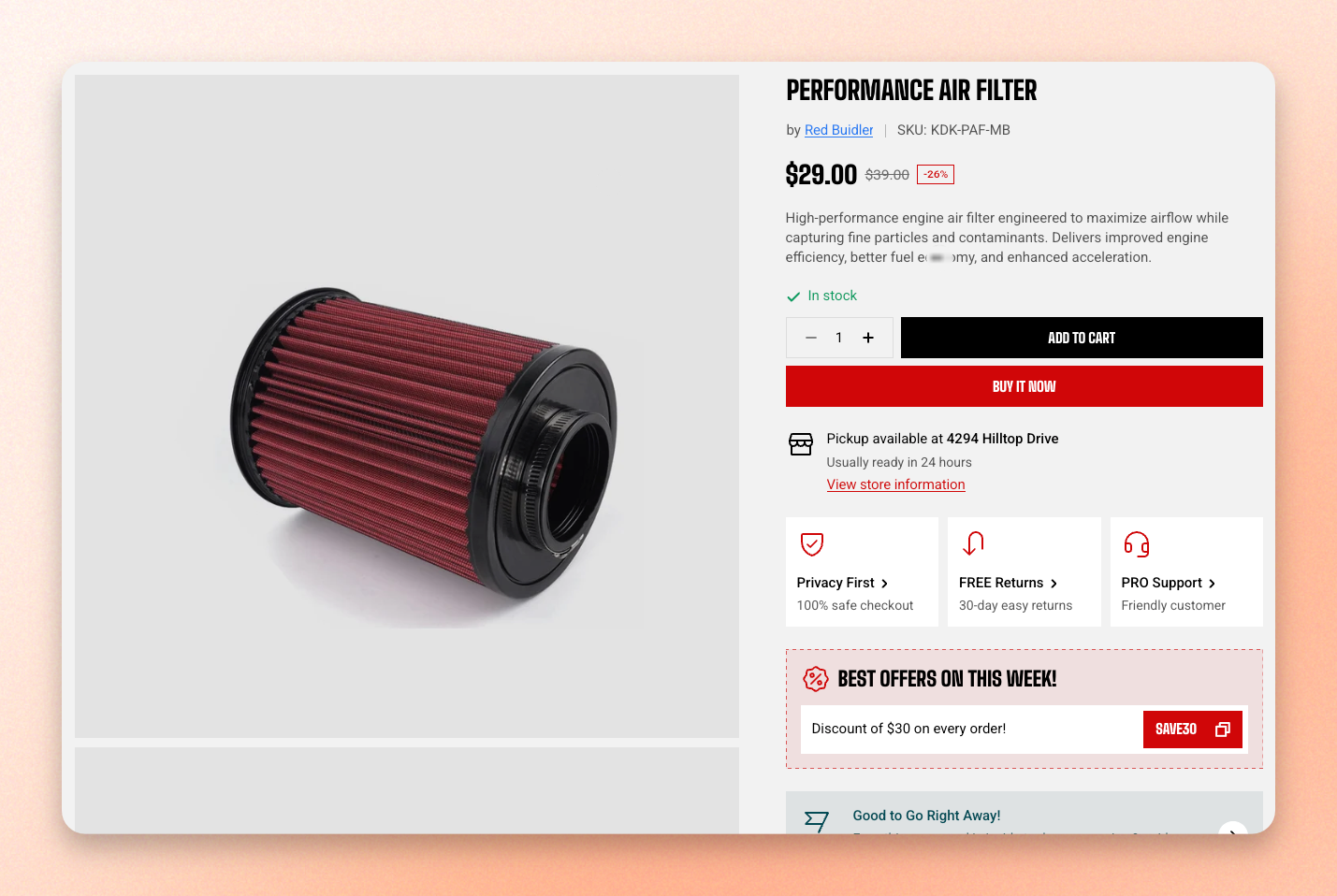
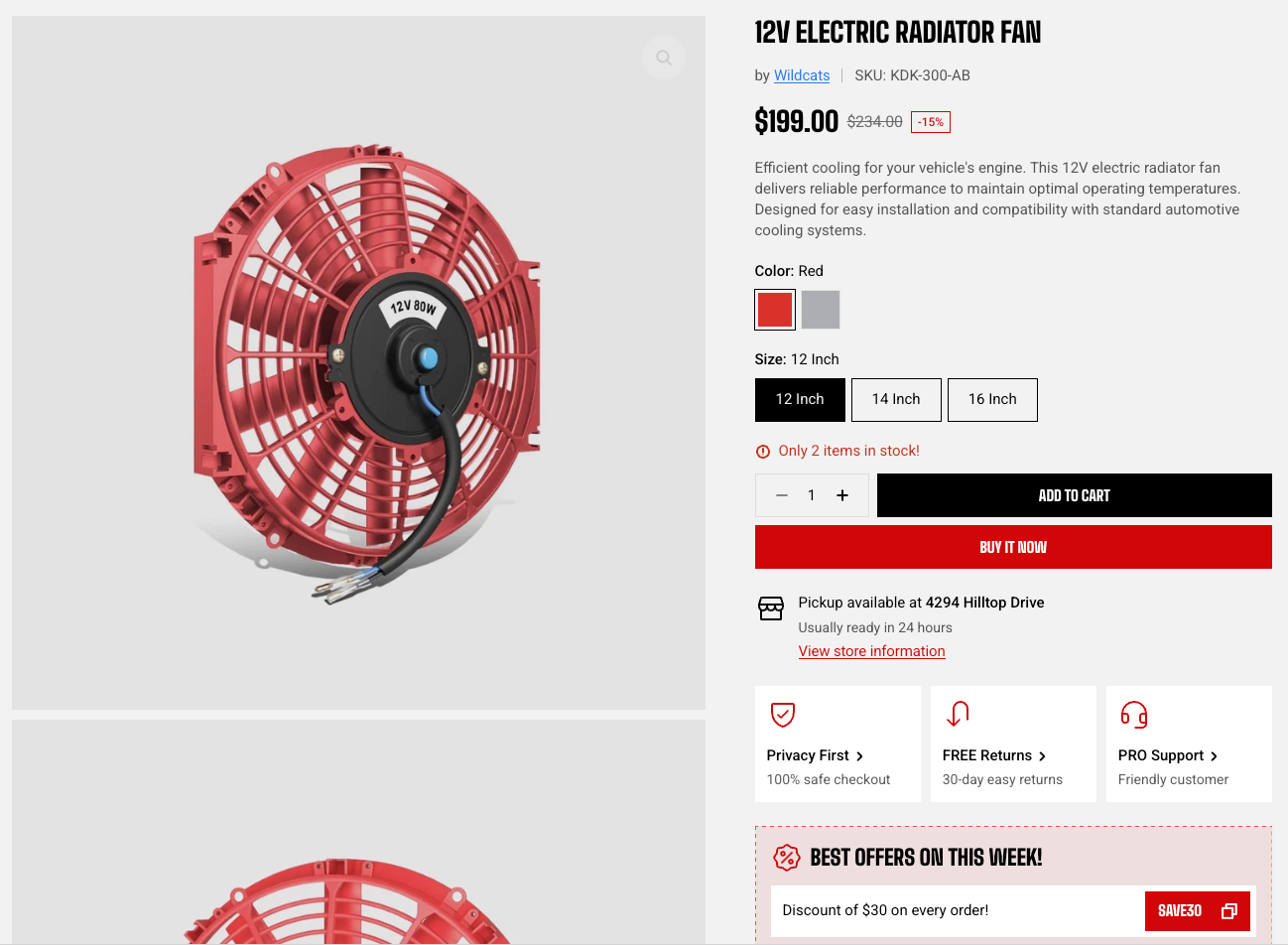
Product information is the part of the page shoppers see first on a product page: the media gallery on one side, and the product details — title, price, options, buy buttons — on the other.
The settings on the section itself control the two-column layout. What appears *inside* each column is controlled by blocks. Open a block in the sidebar to change it.
## Open the section
1. In the theme editor, click the page selector at the top of the screen and select **Products**.
2. Choose the product template you want to edit — **Default product** unless you've created others.
3. In the **Template** area of the sidebar, click **Product information**.
4. Click the arrow beside it to expand the blocks inside: **Product media** and **Product details**.
## How the section is structured
The section holds two blocks, and everything else sits inside them.
| Block | Where its content appears |
| ----------------------- | -------------------------------------------------------------------------------------------------- |
| **Product media** | The gallery column. |
| **Product details** | The column beside the gallery — title, price, options, buy buttons. |
| **Below product media** | A group inside Product details. Blocks added here appear *under the gallery* instead of beside it. |
| Setting | What it does |
| ----------------------------- | ------------------------------------------------------------------------------------------------------------------------------------- |
| **Container** | Keeps the content within the page width, or lets it span the available width. |
| **Media position** | Places the media gallery Left or Right of the product details on desktop. |
| **Media width** | How much of the section width the gallery column takes, 35% to 65%. |
| **Gap** | Space between the gallery and the product details. |
| **Enable sticky add to cart** | Shows a compact card with the product image, title, price, and an add-to-cart button once the regular buy buttons scroll out of view. |
Portrait product photos suit a narrower **Media width**; wide lifestyle shots can use the full 65%. Products with no images show the details across the full width automatically.
The sticky add-to-cart card needs the [Buy buttons](https://docs.foxecom.com/motrix-theme/product-page/product-information#buy-buttons) block to be present in the product details. Remove that block and the card has nothing to appear from.
### Appearance
| Setting | What it does |
| ---------------- | -------------------------------------------- |
| **Color scheme** | Applies a theme color scheme to the section. |
### Padding
Choose **Desktop** or **Mobile**, then set top and bottom spacing for that device. The section ships with no extra spacing on desktop and 48 px top and bottom on mobile.
## Product media
The gallery column.
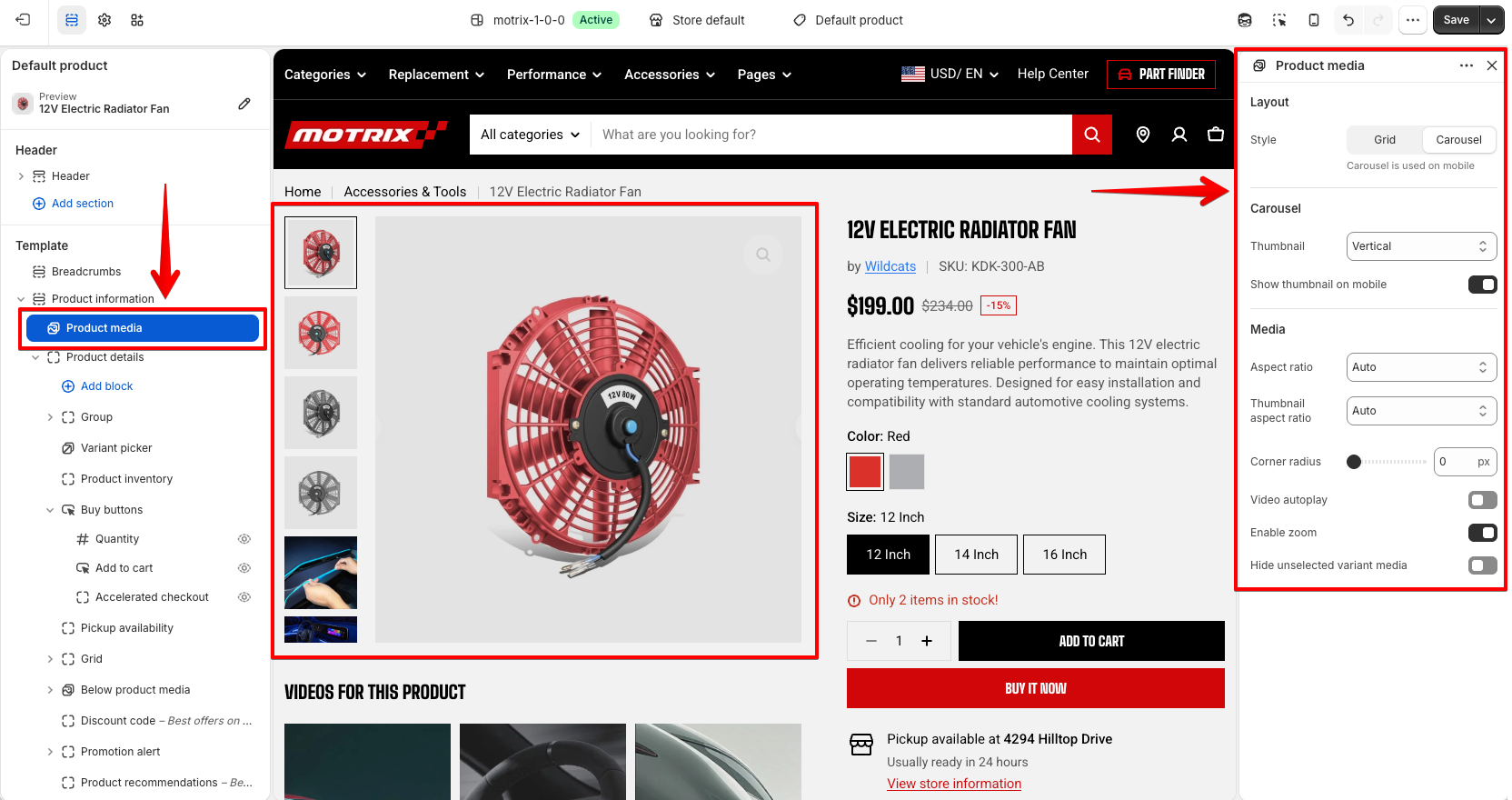
### Layout
| Setting | What it does |
| ---------------- | ------------------------------------------------------------------------------------------- |
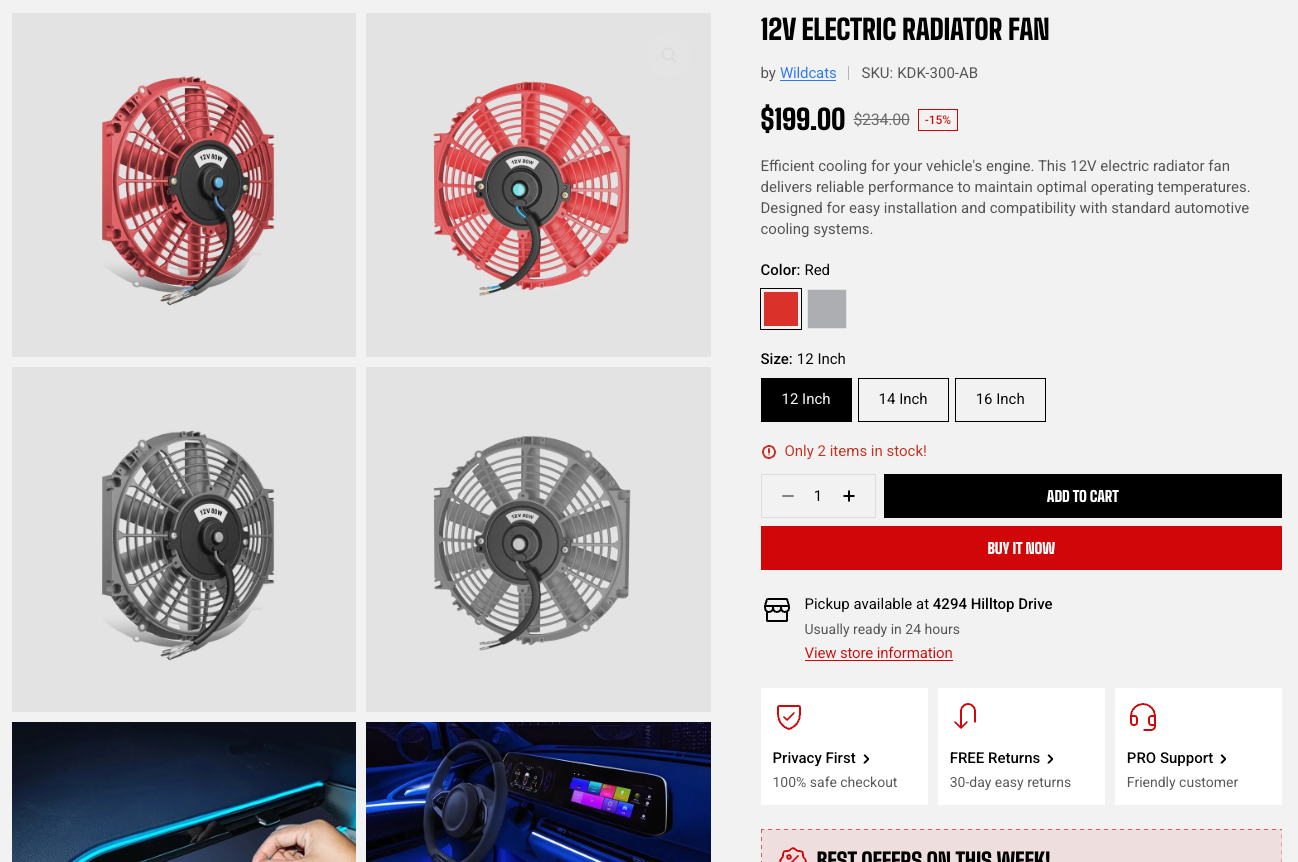
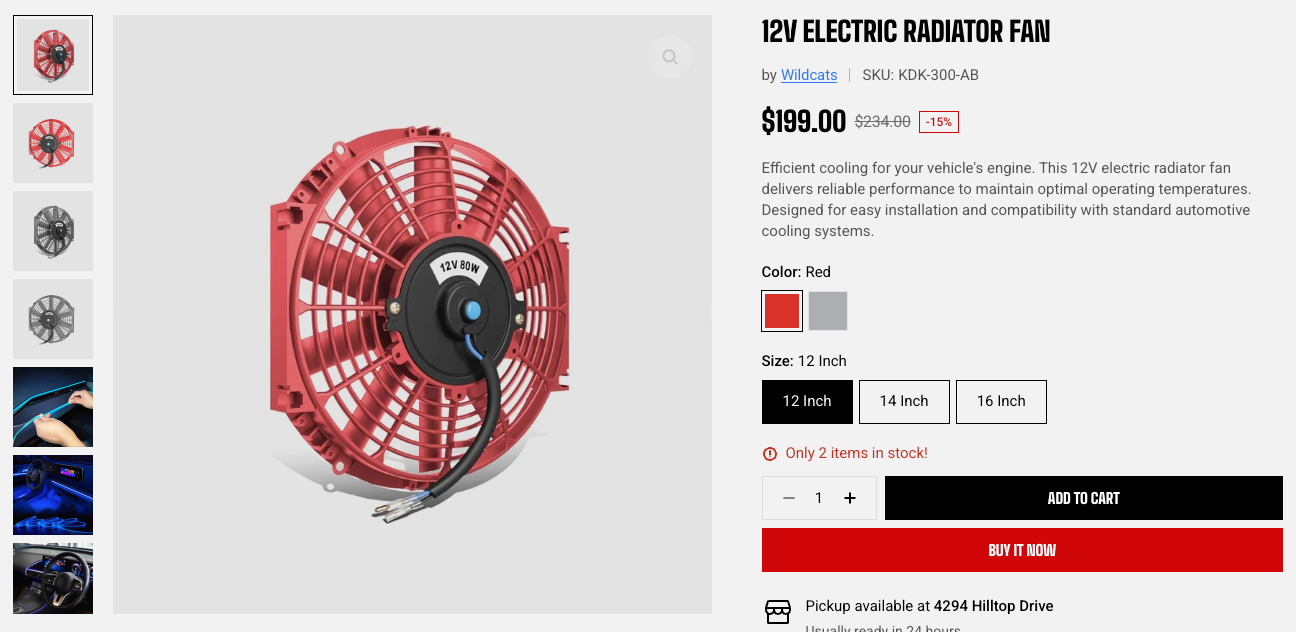
| **Style** | **Grid** stacks all images down the page; **Carousel** shows one at a time with thumbnails. |
| **Grid columns** | One or two images per row. Grid only. |
| **Gap** | Space between images in the grid, 0–50 px. Grid only. |
**Grid** only applies from tablet width up. On phones the gallery always falls back to a carousel with horizontal thumbnails.
### Carousel
Only visible when **Style** is set to Carousel.
| Setting | What it does |
| ------------------------- | -------------------------------------------------------- |
| Thumbnail | Where the thumbnails sit: None, Horizontal, or Vertical. |
| Show thumbnails on mobile | Keeps thumbnails visible on phones. |
**Vertical** thumbnails only apply on large screens. On tablets and phones they switch to horizontal automatically.
### Media
| Setting | What it does |
| --------------------------------- | ----------------------------------------------------------------------------------------------------------------------------------------------------------------------------------------------------------------------------------------------------------- |
| **Aspect ratio** | Shape of the main images. Auto keeps each image's own proportions; any other option crops them all to the same shape. |
| **Thumbnail aspect ratio** | Same, for the thumbnails. |
| **Corner radius** | Rounds the corners of the media, 0–32 px. |
| **Video autoplay** | Plays videos in the gallery automatically. |
| **Enable zoom** | Lets shoppers click an image to zoom. |
| **Hide unselected variant media** | Hides images that are assigned to a different variant in Shopify. If none of the product's images are assigned, the setting has nothing to hide and the gallery looks the same either way. Assign them under **Shopify admin > Products > Variants.** |
## Product details
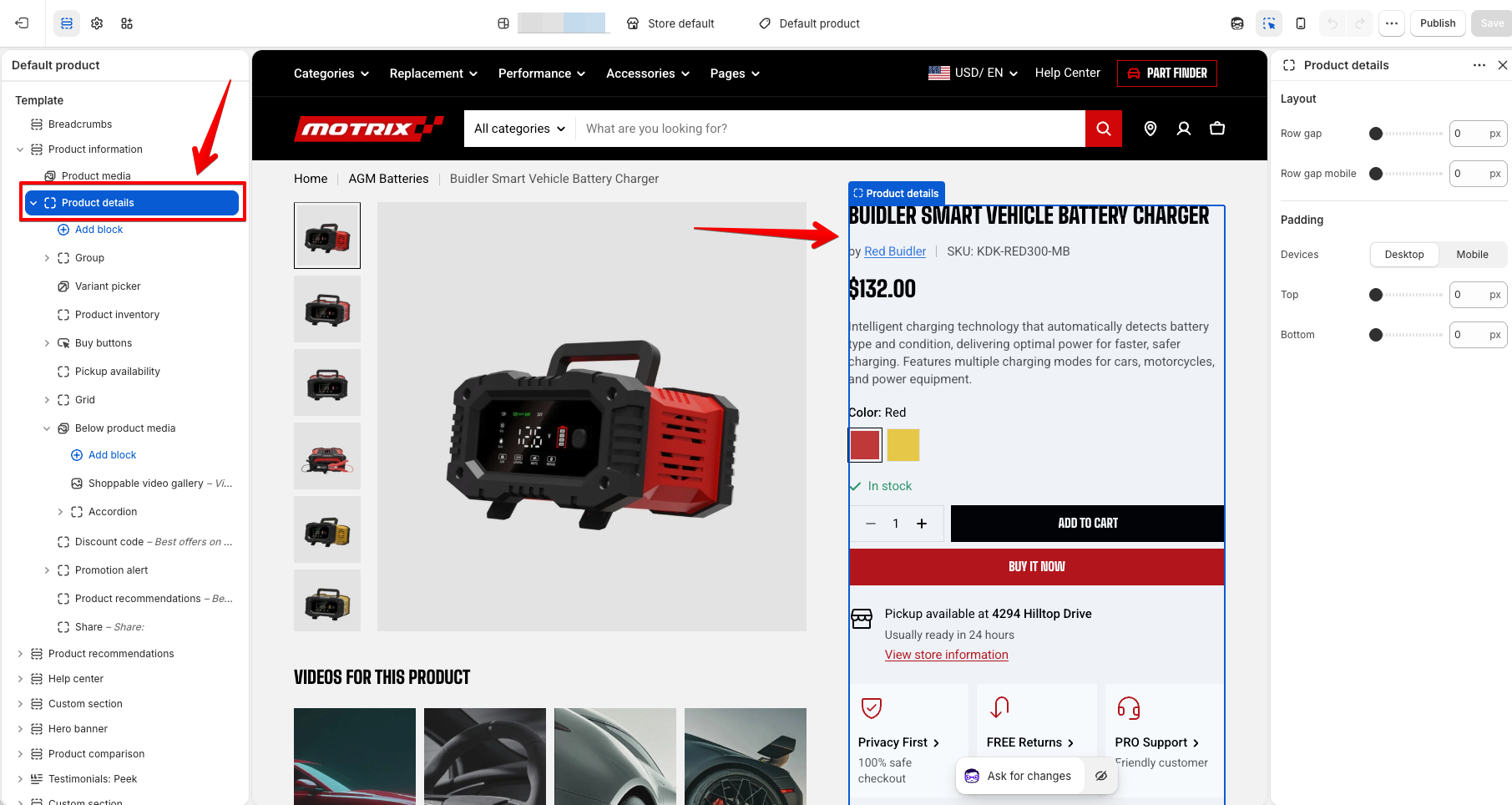
The column beside the gallery. It's a container: its own settings only control spacing, and everything visible comes from the blocks inside it.
| Setting | What it does |
| ----------- | -------------------------------------------------------------------- |
| **Row gap** | Space between blocks in the column on desktop and mobile separately. |
| **Padding** | Top and bottom spacing, set per device. |
### Which blocks you can add
The product blocks are built for this section and pull their content from the product automatically. You can also add any of the [theme's general blocks](https://docs.foxecom.com/motrix-theme/theme-blocks/overview), so the details column isn't limited to a fixed list.
Product title
Price
Product badges
Metas
Variant picker
Product inventory
Buy buttons
Pickup availability
Product recommendations
Share
Frequently bought together
Shoppable video gallery
Discount code
### Product title
| Setting | What it does |
| ------------ | ----------------------------------------------------------------------------------------------- |
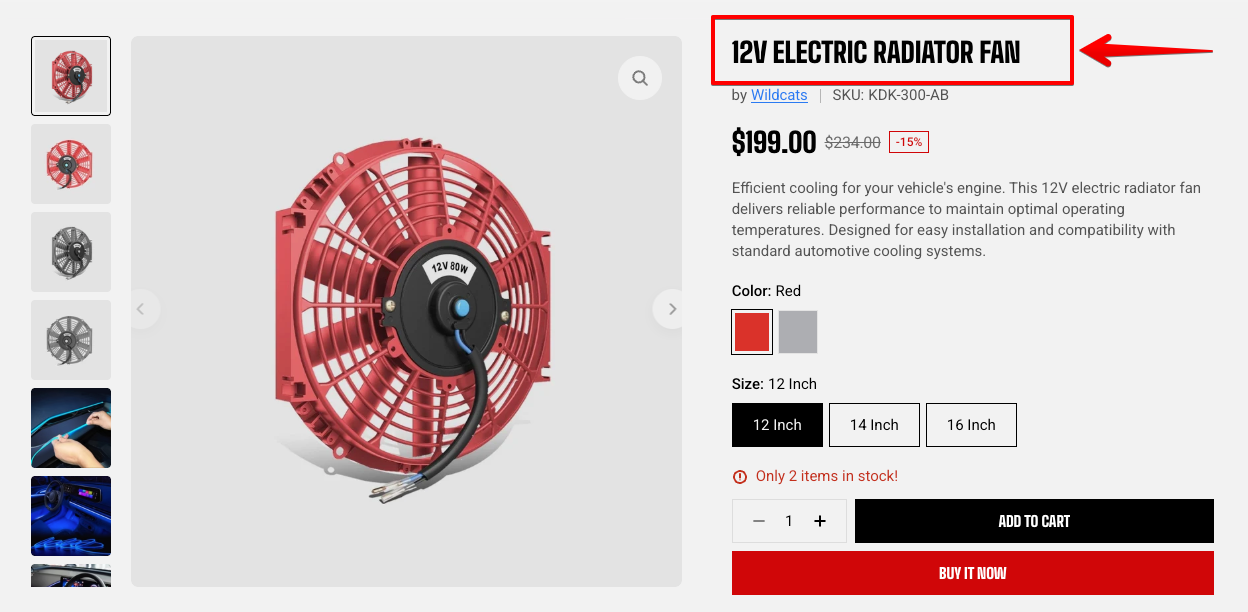
| **Preset** | The text style — Paragraph, H1 to H6, or Custom. Controls how the title looks. |
| **HTML tag** | The heading level in the page code. Controls what search engines and screen readers understand. |
| **Color** | Text, Subtext, or a custom color. |
**Best practice:** leave **HTML tag** on H1. A page should have one main heading, and on a product page that's the product name — changing it can weaken how the page is understood in search results. Use **Preset** to change the size instead; the two settings are separate for exactly this reason.
### Price
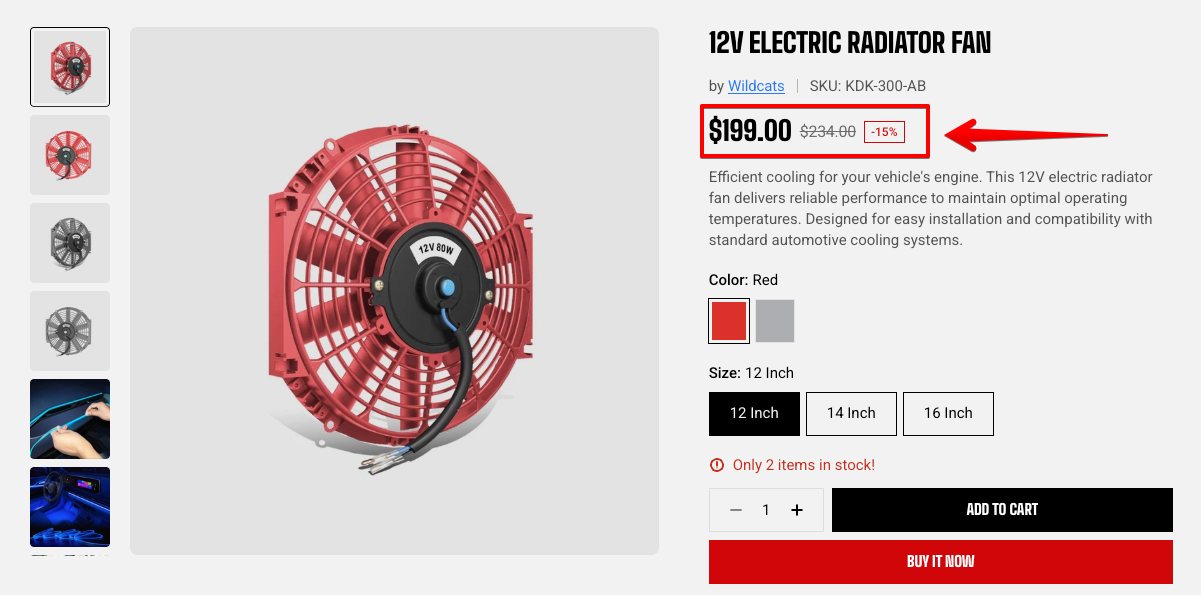
| Setting | What it does |
| --------------------- | ---------------------------------------------------------------------------------------------------------------------------------------------------------------------- |
| **Show installments** | Shows the instalment option under the price. Learn more about [Shop Pay Installments](https://help.shopify.com/manual/payments/shop-pay-installments) |
| **Show tax info** | Adds a line noting that tax or duties are included, plus a shipping policy link. |
| **Show sale badge** | Shows a discount badge beside the price. See [how to set sale prices for products](https://help.shopify.com/manual/products/details/product-pricing/sale-pricing) |
| **Sale badge type** | Text, percentage off, or amount saved. |
| **Preset** | The text style, H1 to H6. |
| Setting | What it does |
| ----------------------- | ---------------------------------------------------------------------------------------------------------------------------------------------------------------------- |
| **Show custom badges** | Shows your own badges, such as *New* or *Limited*. See [how to set up custom badges](https://docs.foxecom.com/motrix-theme/theme-settings/badges) |
| **Show sold out badge** | Shows a badge when the variant is unavailable. |
| **Show sale badge** | Shows a discount badge beside the price. See [how to set sale prices for products](https://help.shopify.com/manual/products/details/product-pricing/sale-pricing) |
| **Sale badge type** | Text ("Sale"), a percentage off, or the amount saved. |
### Metas
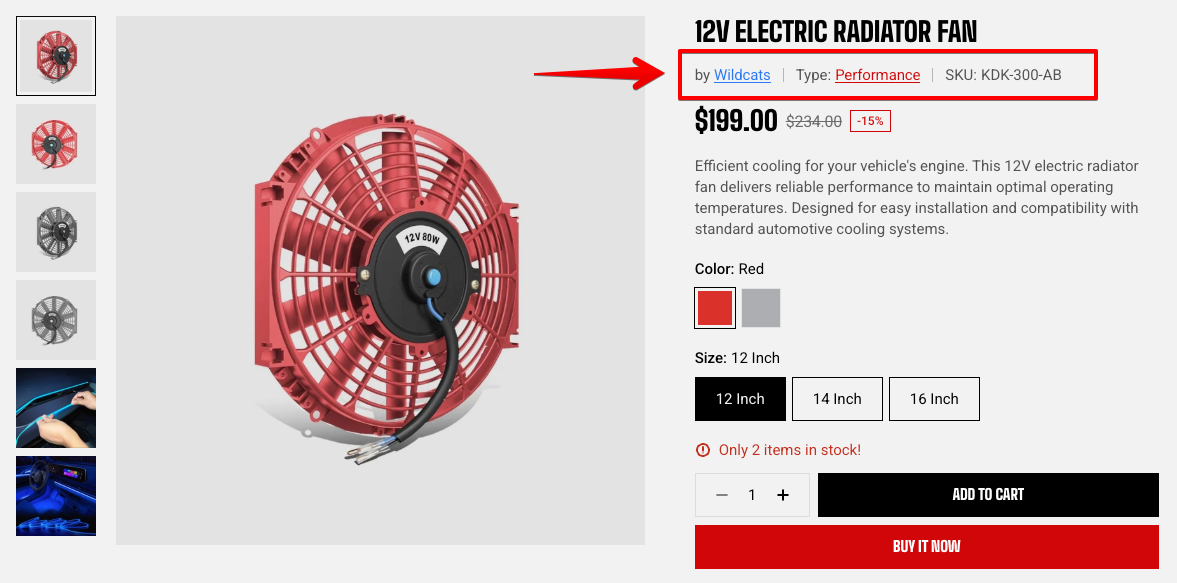
A row of product details. Metas is a container — add a child block for each detail you want to show: Vendor, Type, SKU and Barcode.
Each connects to the product automatically, so there's nothing to type. SKU and barcode update when a shopper picks a different variant.
| Setting | What it does |
| ---------- | ------------------------------------------------------------------------------------------------------ |
| **Prefix** | A label printed before the value, such as *SKU:* or *by*. Leave it empty to show the value on its own. |
| **Color** | Set a color for the hyperlink text. Vendor and Product type only. |
### Variant picker
How shoppers choose options like size and color.
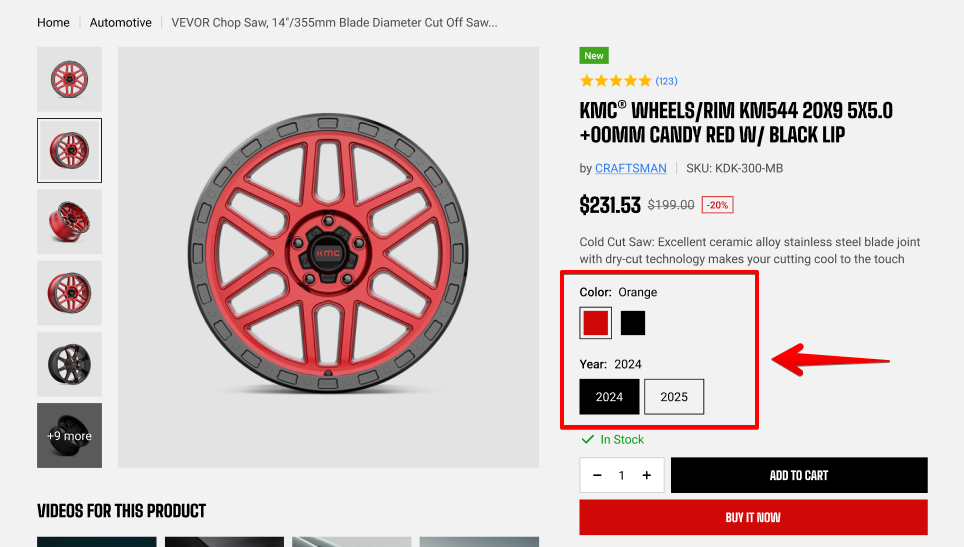
| Setting | What it does |
| ---------------------- | ----------------------------------------------------------------------------------------------------------------------------------------------------------- |
| **Style** | **Buttons** show all options at once; **Dropdowns** collapse them into a list. |
| **Font** | Option labels use the heading font or the body font. To set up font, go to Theme settings > [Typography](https://docs.foxecom.com/motrix-theme/theme-settings/typography). |
| **Show swatches** | Shows colour or image swatches instead of plain text buttons. |
| **Show variant image** | Uses the variant's product image as the swatch. |
| **Swatch shape** | Circle or square. |
| **Swatch width** | 16–100 px. |
| **Swatch height** | 16–100 px. Square shape only. |
| **Border radius** | Rounds the option buttons, 0–100 px. |
#### When swatches appear
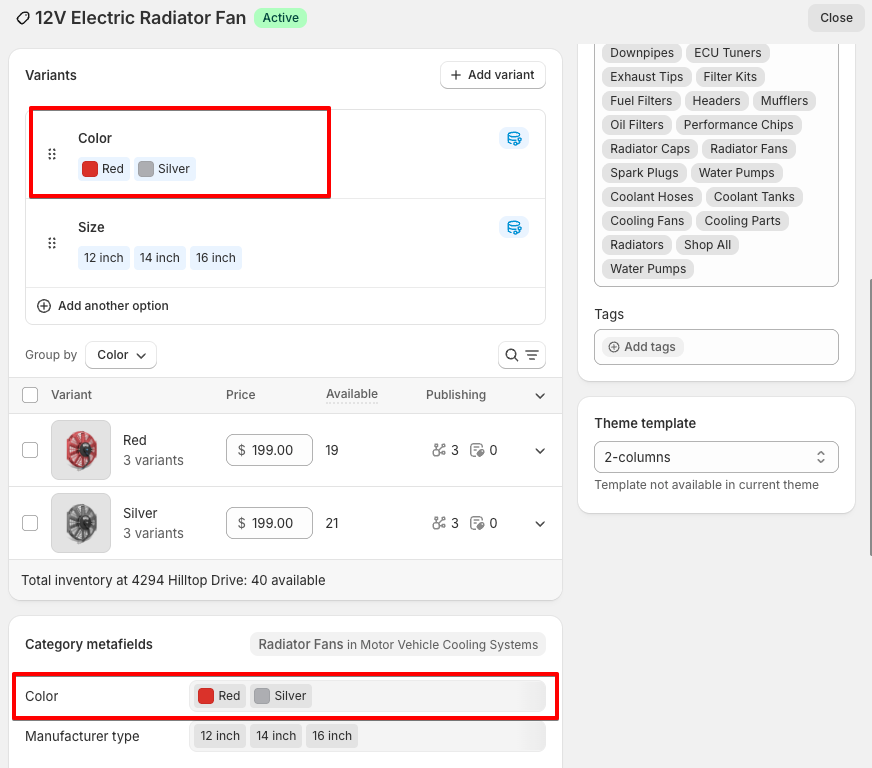
Turning **Show swatches** on doesn't turn every option into a swatch. The option has to be connected to Shopify's **Color** category metafield first — that's what tells the theme which color to paint each value. Learn more about [Category metafield](https://help.shopify.com/manual/custom-data/metafields/category-metafields).
Options that aren't connected — Size, Material, Length — keep their text buttons whatever this setting says.
An example of product setup in Shopify admin
### Product inventory
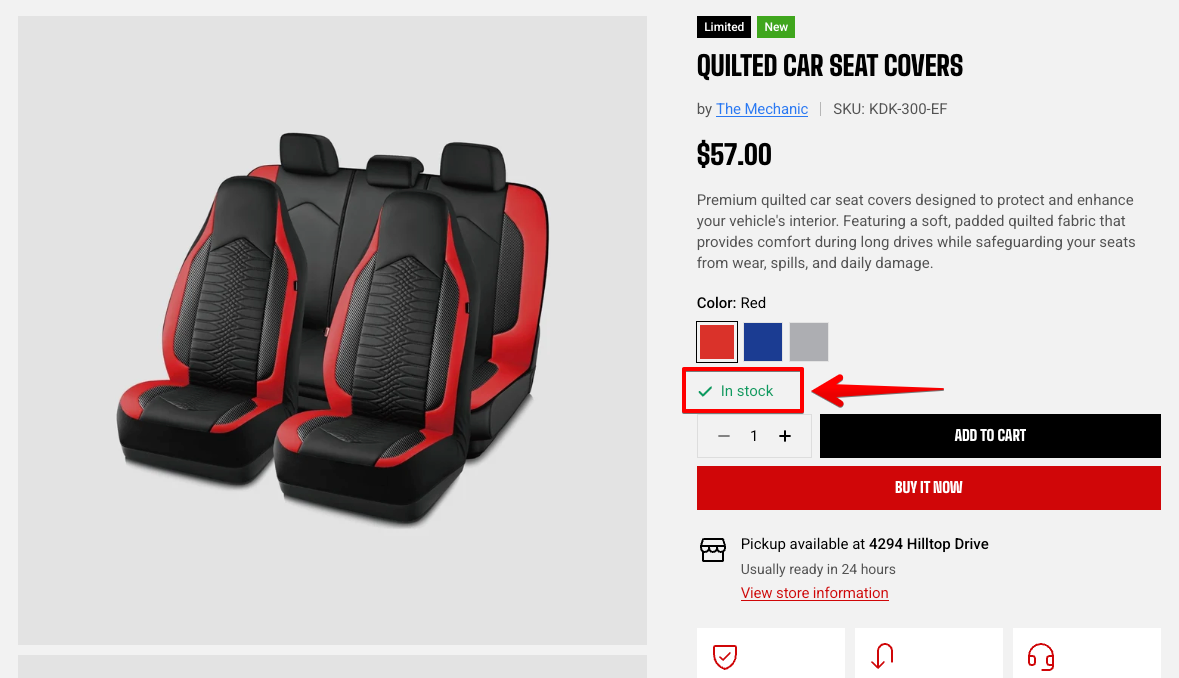
| Setting | What it does |
| --------------------------- | ------------------------------------------------------------------------ |
| **Inventory threshold** | The stock level at which the message switches to low stock. |
| **Show inventory quantity** | Shows the exact number remaining instead of a general low-stock message. |
#### How the message is decided
The block only reflects real stock levels when Shopify is tracking inventory for that variant. If tracking is off, the product always shows as in stock.
| Stock | Message |
| -------------------------------------------------- | --------------------------------------------------------------------- |
| Above the threshold | In stock |
| At or below the threshold, above zero | Low stock — with the exact count if **Show inventory quantity** is on |
| Zero, with "Continue selling when out of stock" on | In stock |
| Zero, with continue selling off | Out of stock |
| Child block | What it does |
| ------------------------ | ---------------------------------------------------------------------------------------------------------------------------------------------------------------------------------------- |
| **Quantity** | The quantity stepper beside the add-to-cart button. |
| **Add to cart** | The main button. Add items to the cart. |
| **Accelerated checkout** | Express payment buttons such as Buy it now, which skip the cart. Learn more about [Accelerated checkout buttons](https://help.shopify.com/en/manual/online-store/dynamic-checkout). |
Block setting:
| Setting | What it does |
| ---------------------------- | ---------------------------------------------------------------------------------- |
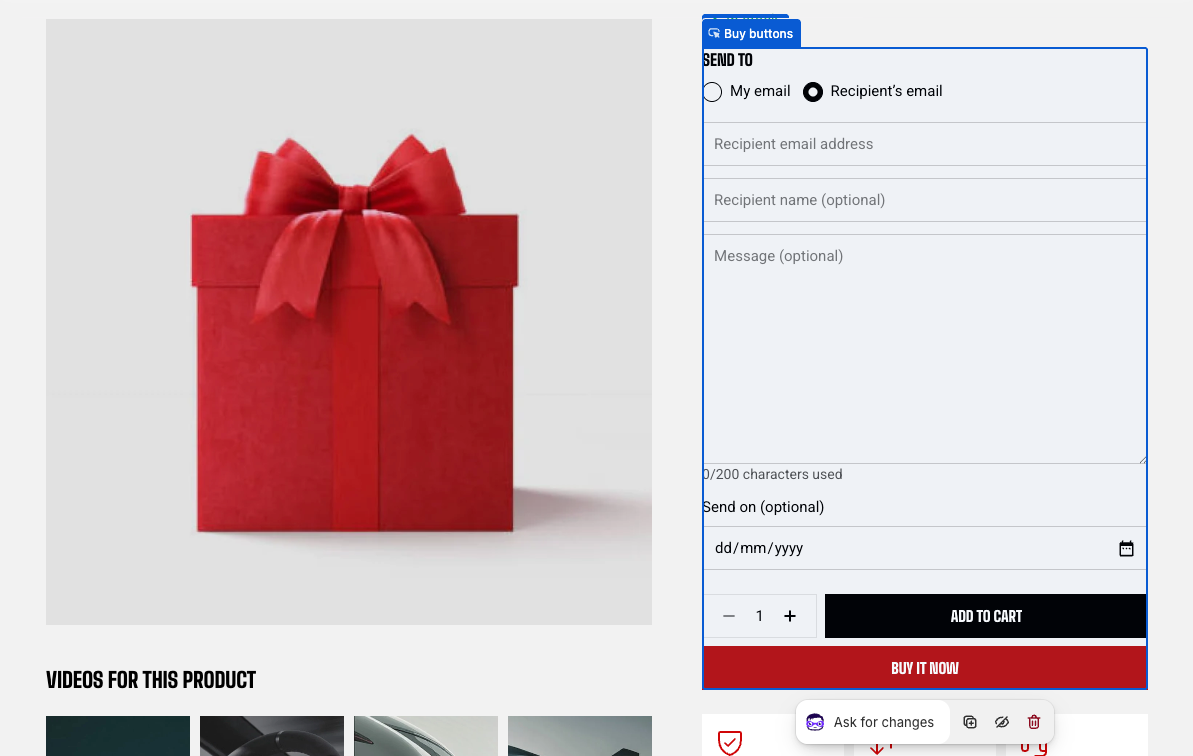
| **Gift card recipient form** | On gift card products, adds fields for the recipient's email, name, and a message. |
### Pickup availability
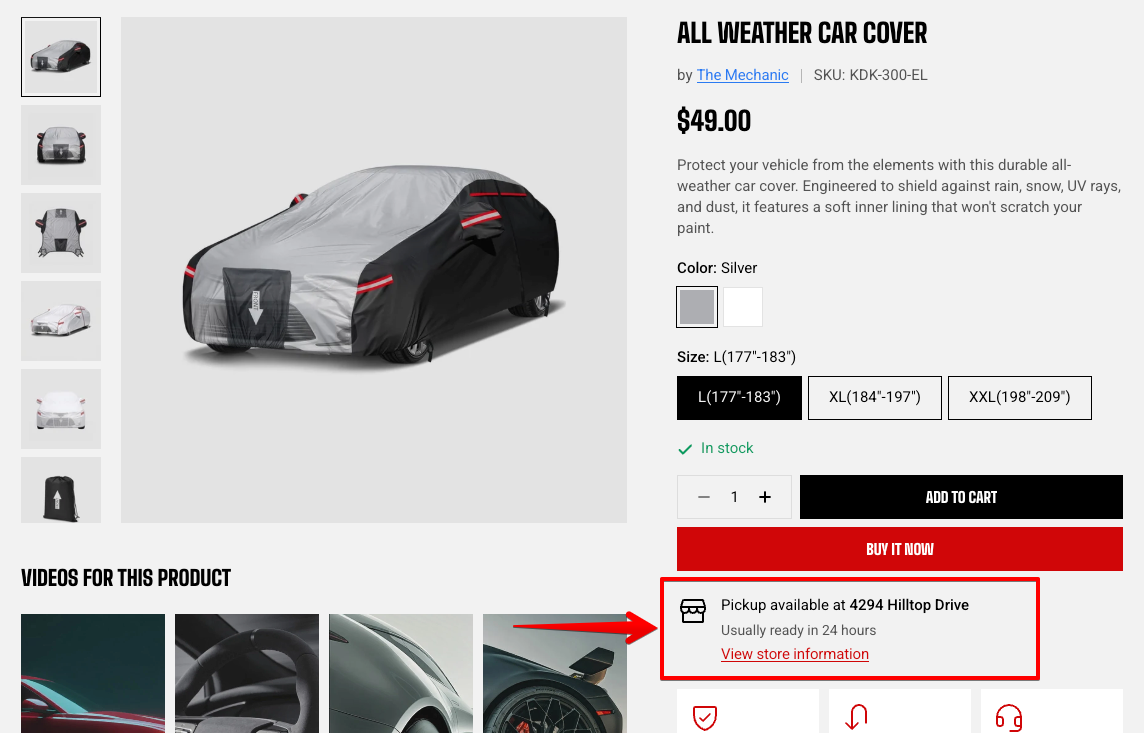
Shows whether the selected variant can be collected in store, with a link that opens a panel listing every pickup location, its address, and how long the order takes to be ready.
| Setting | What it does |
| ------------------------ | --------------------------------------------------------------------- |
| **Style** | Standard sits inline with the page; Card puts it in a bordered panel. |
| **Inherit color scheme** | Card only. Uses the section's colors instead of its own. |
| **Color scheme** | Card only, when Inherit is off. |
| **Borders** | Card only. None or Solid. |
| **Border width** | 0–3 px. |
| **Border opacity** | How visible the border is, 0–100%. |
| **Border radius** | Rounds the card corners, 0–32 px. |
This block only appears when at least one of your Shopify locations has local pickup turned on *and* the selected variant is in stock. On a store with no pickup locations it stays invisible whatever you set here, so set pickup up in Shopify first — **Settings > Shipping and delivery > Local pickup**.
See [Setting up pickup in store for online orders](https://help.shopify.com/en/manual/fulfillment/setup/delivery-methods/pickup-in-store).
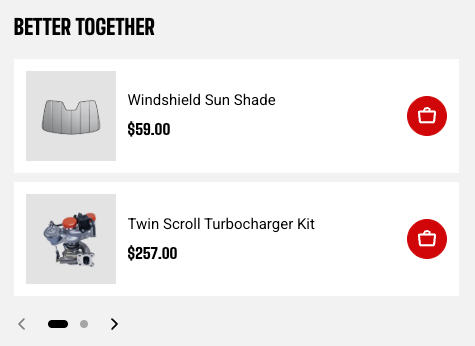
### Product recommendations
### 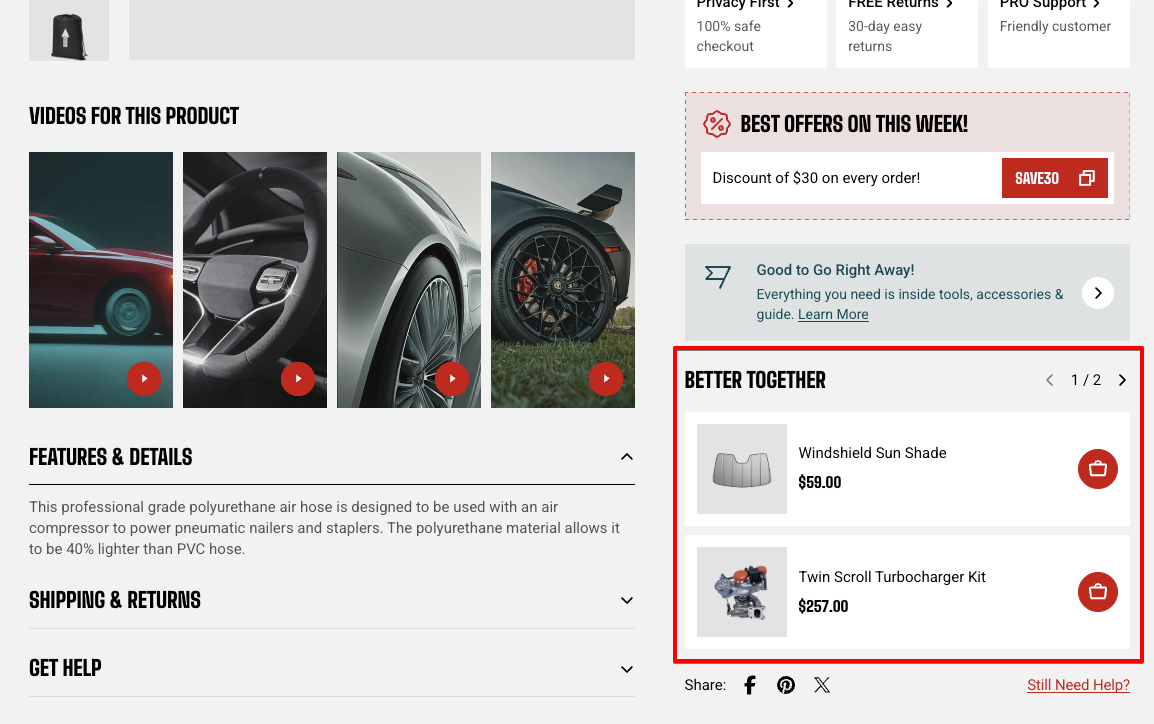
A carousel of other products, usually placed under the buy area or below the gallery.
#### Content
| Setting | What it does |
| ------------------ | ------------------------------------------------------------------------------------------------------------------------------------------------------------------------------------------------------------------------------------------------------------------------------------------------- |
| **Type** | **Related** picks products automatically. **Complementary** uses the products you've paired manually. Learn how to [customize product recommendations with Shopify Search & Discovery](https://help.shopify.com/manual/online-store/storefront-search/search-and-discovery-recommendations). |
| **Heading** | The text above the carousel. |
| **Heading preset** | Text style, H1 to H6. |
| **Product count** | How many products to pull, 1–10. |
#### Layout
| Setting | What it does |
| ------------------- | -------------------------------------------------------------------------------- |
| **Layout** | Grid shows cards side by side; List stacks them horizontally, image beside text. |
| **Desktop columns** | Grid only, 1–3. |
| **Items per page** | List only, 1–3 stacked per slide. |
| **Horizontal gap** | Space between cards, 0–100 px. |
| **Vertical gap** | List only, when more than one item per page. |
| Setting | What it does |
| ----------------------- | ------------------------------------------------------------- |
| **Show vendor** | Adds the vendor to each card. |
| **Show product type** | Adds the product type. |
| **Show product badges** | Shows sale and sold-out badges on the cards. |
| **Show swatches** | Shows color swatches on the cards. |
| **Show quick view** | Grid only. Opens product details without leaving the page. |
| **Show quick add** | Adds an add-to-cart control to each card. |
| **Aspect ratio** | Card image shape, or follow your global product card setting. |
**Best practice:** keep these off unless a shopper needs the information to choose. This carousel competes with the product they're already looking at — every extra line on a card is one more thing pulling attention from the buy button.
#### Appearance
| Setting | What it does |
| --------------------------- | --------------------------------------------------------------- |
| **Style** | Default or Box cards, or follow your global product card style. |
| **Use custom color scheme** | Box style only. Paints the card panel a different color. |
| **Color scheme** | Box style only, when the custom scheme is on. |
#### Carousel
| Setting | What it does |
| --------------------- | -------------------------------------------------------------------------------------- |
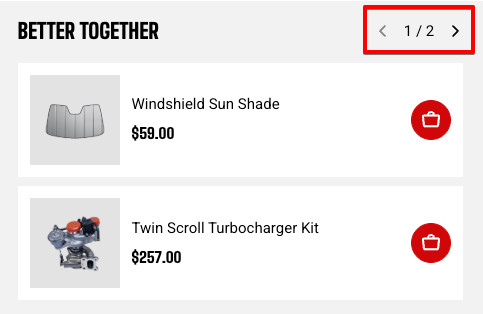
| **Control position** | Arrows in the heading row, or controls below the carousel. |
| **Control type** | Below only: None, Dots, Arrows and dots, Floating arrows, or Floating arrows and dots. |
| **Control alignment** | Below only: Left, Center, or Right. |
| **Overflow content** | Whether the next card is clipped at the edge or peeks into view. |
| **Show edge fade** | Fades the carousel edges. |
#### Mobile
| Setting | What it does |
| ---------------------------- | ------------------------------------------------------------------------------------------- |
| **Enable swipe on mobile** | Turns the grid into a swipeable row on phones. Off stacks the cards instead. |
| **Show edge fade on mobile** | Fades the edges of the swipeable row. |
| **Custom column width** | Grid with swipe on. Sets card width as a percentage of the screen instead of using columns. |
| **Columns** | Swipe on mobile off. Instead, shows products in one or two grid columns across on mobile. |
### Share

Social sharing links, plus an optional help link beside them.
| Setting | What it does |
| ------------------- | -------------------------------------------- |
| **Label** | The text before the sharing icons. |
| **Show help desk** | Adds a second link beside the sharing icons. |
| **Help desk label** | The text for that link. |
| **Link** | Where the help link goes. |
Set sharing options in **Theme settings** > [Social media](https://docs.foxecom.com/motrix-theme/theme-settings/social-media).
### Frequently bought together
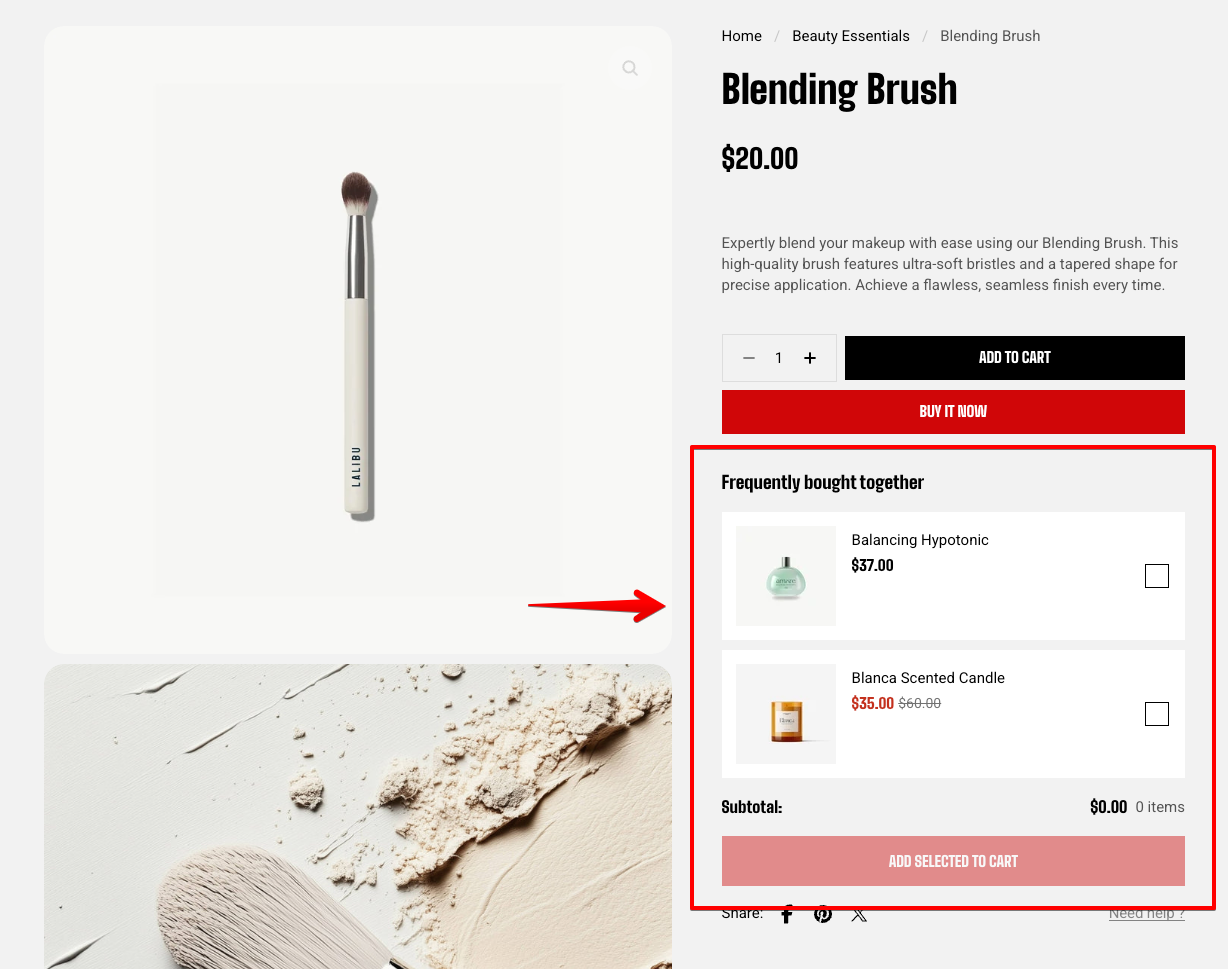
A panel of products a shopper can add alongside the one they're viewing, with a running subtotal and a single button to add everything selected.
| Setting | What it does |
| ---------------- | ------------------------------------------------------------- |
| **Products** | The products offered in the panel. |
| **Color scheme** | Applies to the product cards in the panel. |
| **Aspect ratio** | Card image shape, or follow your global product card setting. |
#### Same list everywhere, or one per product?
Picking products by hand sets **one list shown on every product** using this template. That works for genuine catch-alls — a universal cleaner, a tool kit, an extended warranty — but not for pairings that differ product by product.
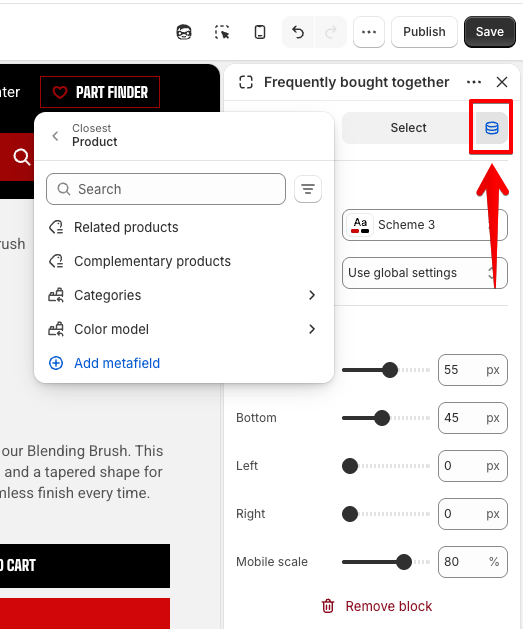
For those, click the dynamic source icon beside **Products** and connect a source instead:
| Source | Where the list comes from |
| ---------------------------- | ----------------------------------------------------------- |
| **Complementary products** | Pull from Shopify's Search & Discovery app. |
| **Related products** | Pull from Shopify's Search & Discovery app. |
| **A product list metafield** | A list you control per product in the product's metafields. |
### Shoppable video gallery
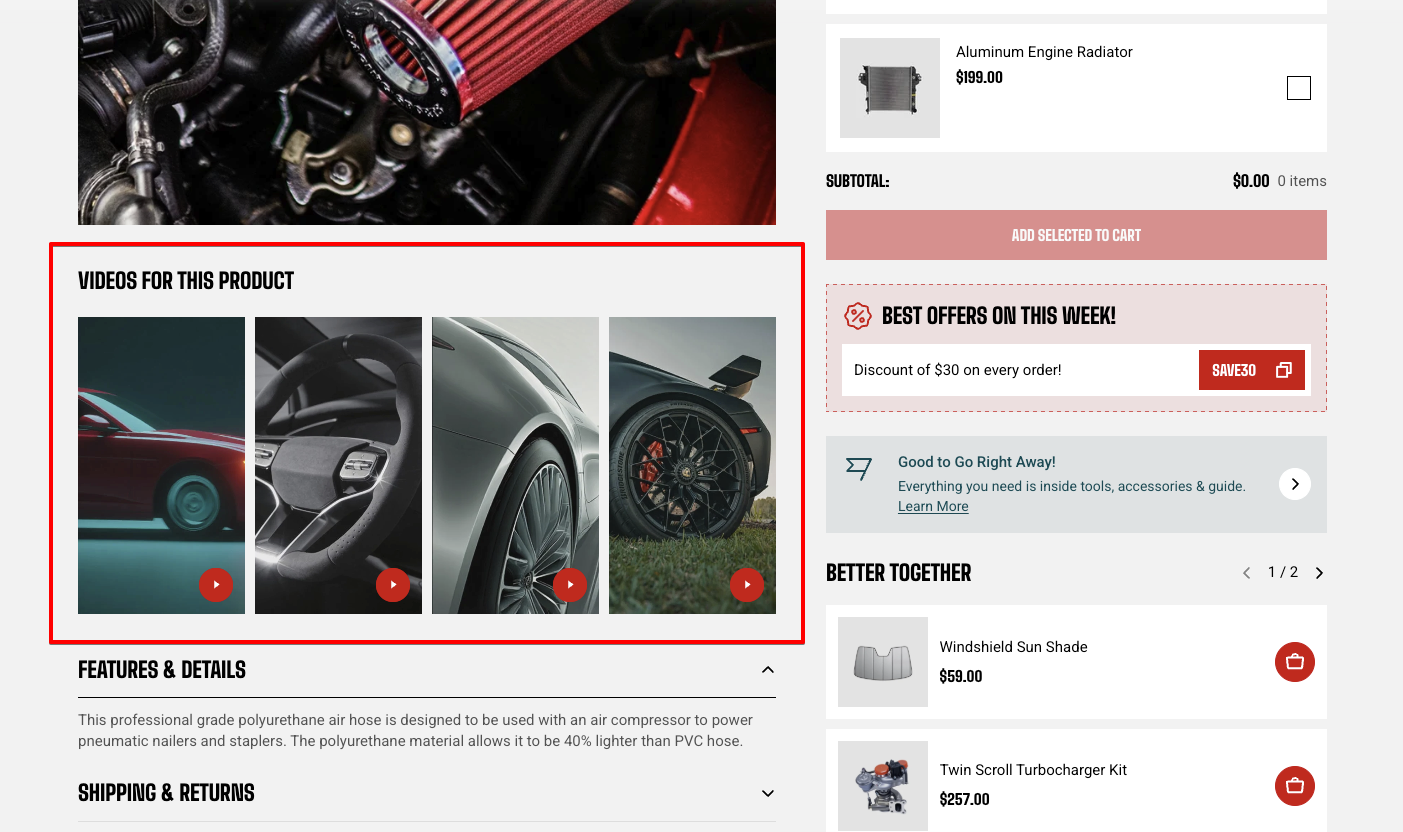
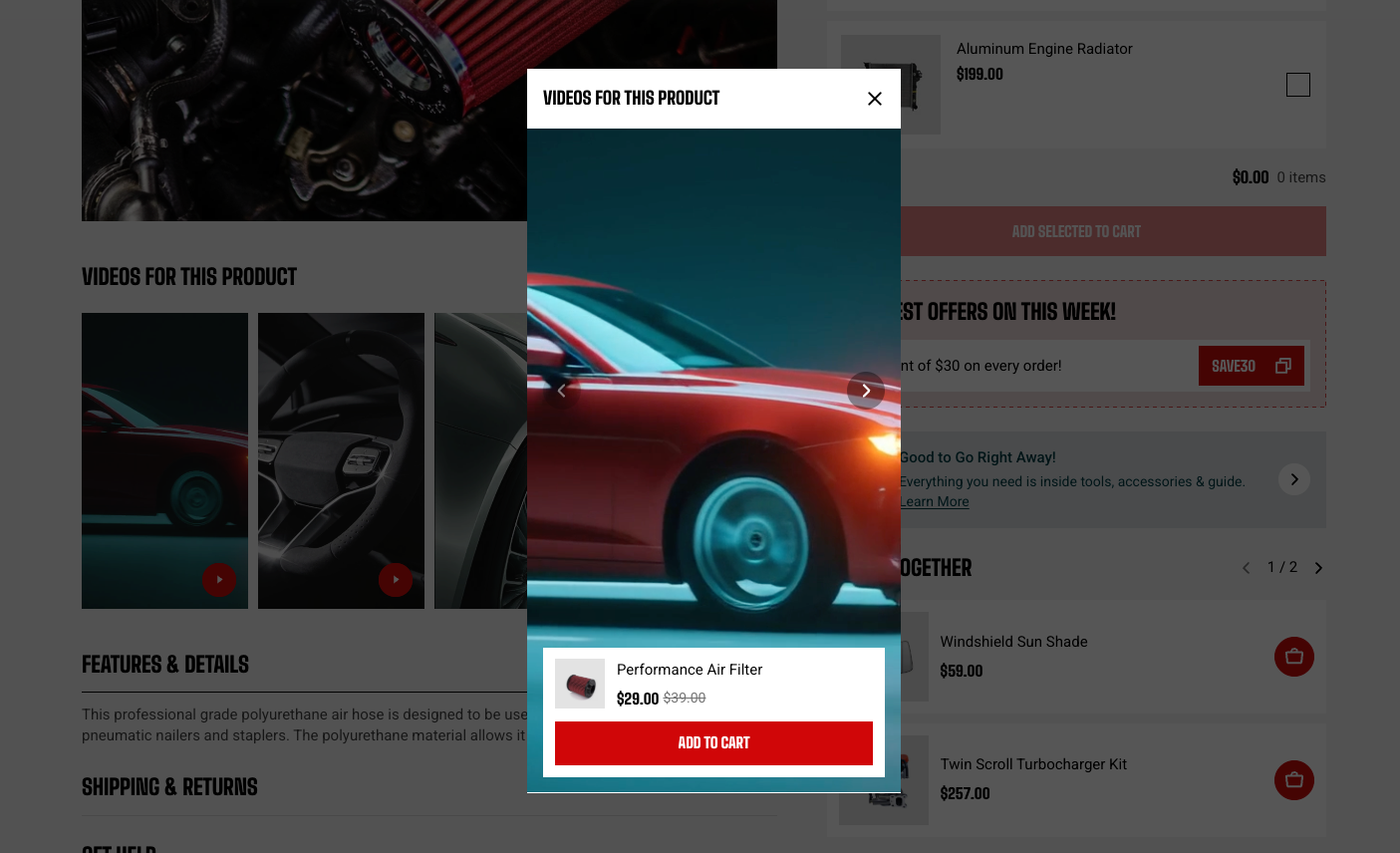
A row of video tiles. Each opens a player with an add-to-cart card for the product being viewed.
The videos come from the product's own **Videos** metafield in Shopify, so each product shows its own — there's no product picker in this block.
#### Set up the Videos metafield
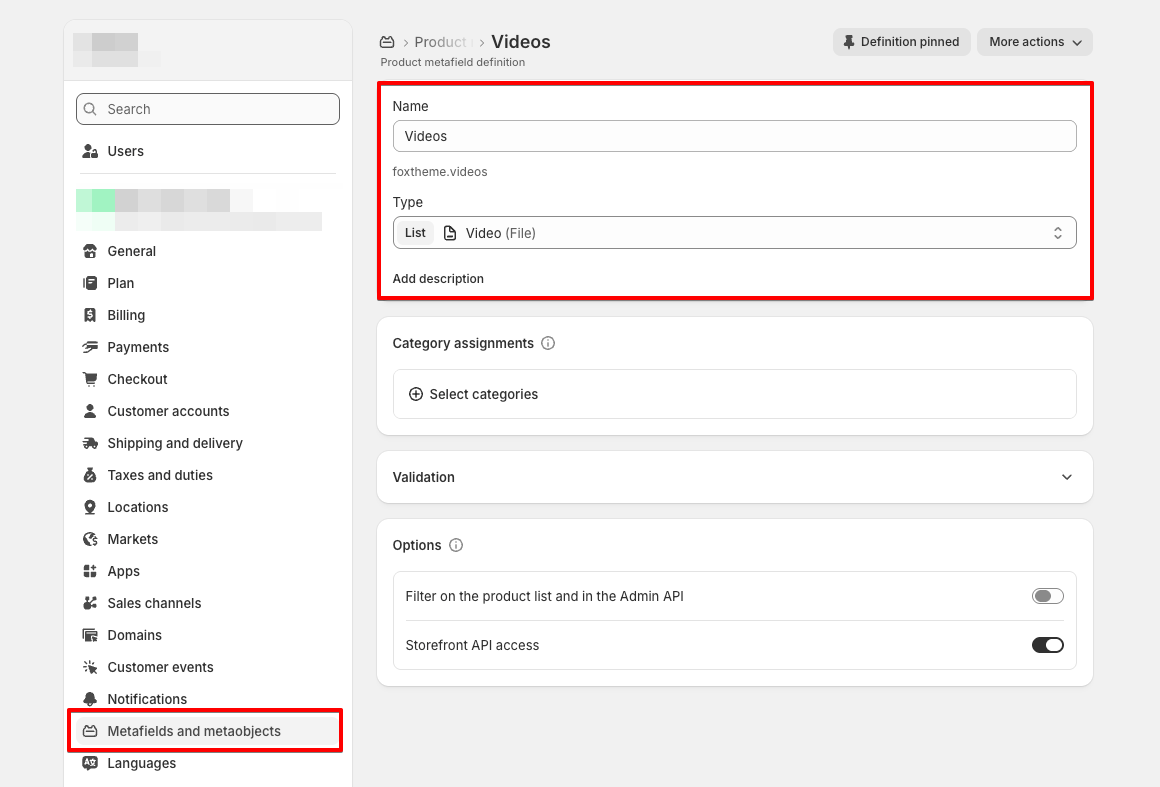
1. From your Shopify admin, go to **Settings > Metafields and metaobjects**.
2. Select **Products**, then click **Add definition**.
3. Enter `Videos` as the **Name**.
4. Set the **Namespace and key** to `foxtheme.videos`.
5. For **Type**, choose **File**, restrict it to **Video**, and turn on **List of values**.
6. Click **Save**.
7. Go to **Products**, open a product, scroll to **Metafields**, and add its videos under **Videos**.
8. Back in the theme editor, add the **Shoppable video gallery** block.
Only videos hosted by Shopify appear. YouTube and Vimeo links in the metafield are skipped, because embedded players can't reliably autoplay on hover.
#### Layout settings
| Setting | What it does |
| ------------------- | ------------------------------ |
| **Heading** | Text above the tiles. |
| **Heading preset** | Text style, H1 to H6. |
| **Desktop columns** | Tiles across on desktop, 2–6. |
| **Horizontal gap** | Space between tiles, 0–100 px. |
#### Content, media, and appearance
| Setting | What it does |
| ------------------- | ----------------------------------------------------------------------- |
| **Show sale badge** | Adds a discount badge to the card inside the player. |
| **Aspect ratio** | Tile shape — Auto, Square, or one of the portrait and landscape ratios. |
| **Hover autoplay** | Plays a tile's video when a shopper hovers over it. |
| **Color scheme** | Applies to the gallery. |
| **Corner radius** | Rounds the tiles, 0–32 px. |
#### Mobile
| Setting | What it does |
| -------------------------- | ----------------------------------------------------------------------- |
| **Enable swipe on mobile** | Turns the row into a swipeable strip. Off stacks tiles into a grid. |
| **Custom column width** | Sets tile width as a percentage of the screen instead of using columns. |
| **Custom width** | 20–90% of screen width. |
| **Columns** | One or two tiles across. |
### Discount code
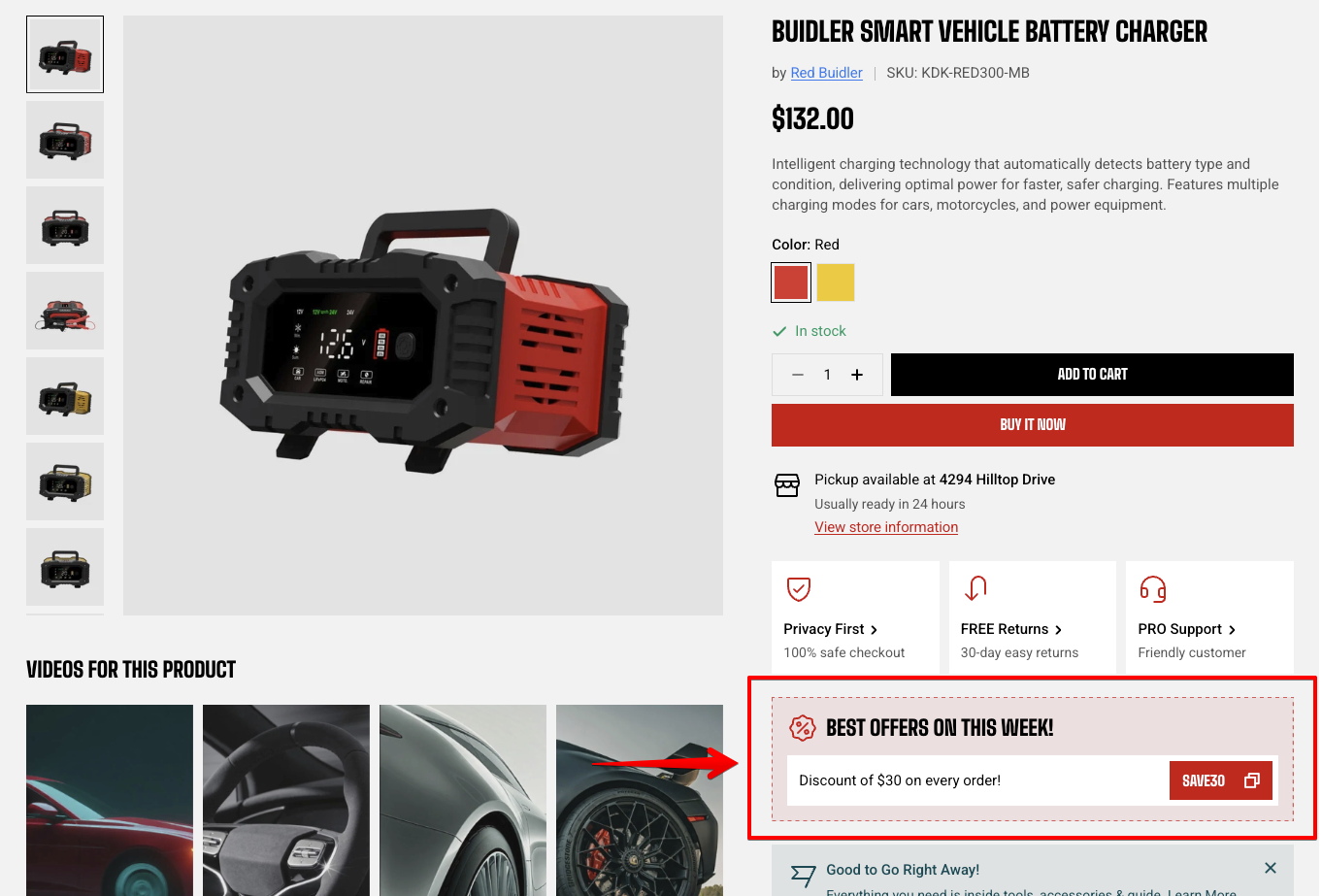
A promotional panel with a heading, an offer line, and a discount code shoppers can copy with one click.
You type the code in yourself, and the theme does not check it against your discounts. Create the discount in Shopify admin > [Discounts](https://help.shopify.com/en/manual/discountshttps://help.shopify.com/en/manual/discounts) first, then copy the code across exactly — a typo here shows shoppers a code that fails at checkout.
**Tips:**
* Keep the code short and typeable. Shoppers can copy it with a click, but plenty still retype it, and a long code invites mistakes at checkout.
* Remove the block when the promotion ends. Nothing here expires on its own, and a dead code left on the page costs you more trust than the discount ever earned.
#### Content
| Setting | What it does |
| ----------------- | ----------------------------------------------------------------------- |
| **Heading** | The line at the top of the panel, beside the icon. |
| **Preset** | The heading's text style, H1 to H6, or Custom to set the type yourself. |
| **Icon** | None, a percent seal, or a tag. |
| **Text** | The offer itself, shown in the bar under the heading. |
| **Discount code** | The code shown in the pill. Shoppers click it to copy. |
Setting **Preset** to **Custom** replaces the fixed style with Font, Font weight, Font size, Font size mobile, Line height, and Text transform, so the heading can differ from the rest of your headings. Leave it on a preset unless the panel needs to look deliberately unlike the page around it.
#### Apprearance
| Setting | What it does |
| ------------------- | -------------------------------------------------------------------------------------------------------------------------------------- |
| **Color scheme** | Applies a theme color scheme to the panel. |
| **Color** | The accent used for the dashed border, the icon, and the code pill. Leave it blank to use the sale price color from your color scheme. |
| **Code text color** | The text inside the code pill. Auto picks black or white for you; Light and Dark override that choice. |
| **Border radius** | Rounds the panel corners, 0–32 px. |
#### Animation and padding
The Animation group sets how the panel enters the screen, and appears only when animations are turned on in Theme settings > [Animations](https://docs.foxecom.com/motrix-theme/theme-settings/animations). Padding adds space around the panel, set separately for desktop and mobile.
The block has no width setting here. It fills the column it sits in. To put it under the gallery instead of beside it, add it inside the **Below product media** group.
## FAQs
#### Why did my new block appear under the gallery instead of beside it?
You added it inside the **Below product media** group. Drag it out into **Product details** to move it into the column beside the gallery.
#### Why doesn't Media position change anything on mobile?
Media position only applies on desktop. On mobile the gallery always sits above the details, since there's no room for two columns.
#### Why isn't the sticky add-to-cart card showing?
Check that the Buy buttons block is still in the product details. The card mirrors those buttons, so it can't appear without them. It also only appears once the buy buttons have scrolled out of view — on a short product page there may never be a point where that happens.
#### Why is my gallery a carousel on mobile when I set it to Grid?
That's expected. Grid applies from tablet width up; phones always use a carousel with horizontal thumbnails.
#### Why is my out-of-stock product showing as in stock?
The variant most likely has "Continue selling when out of stock" turned on in Shopify, or inventory tracking is off for it. Both make the theme show it as available.