# Breadcrumbs
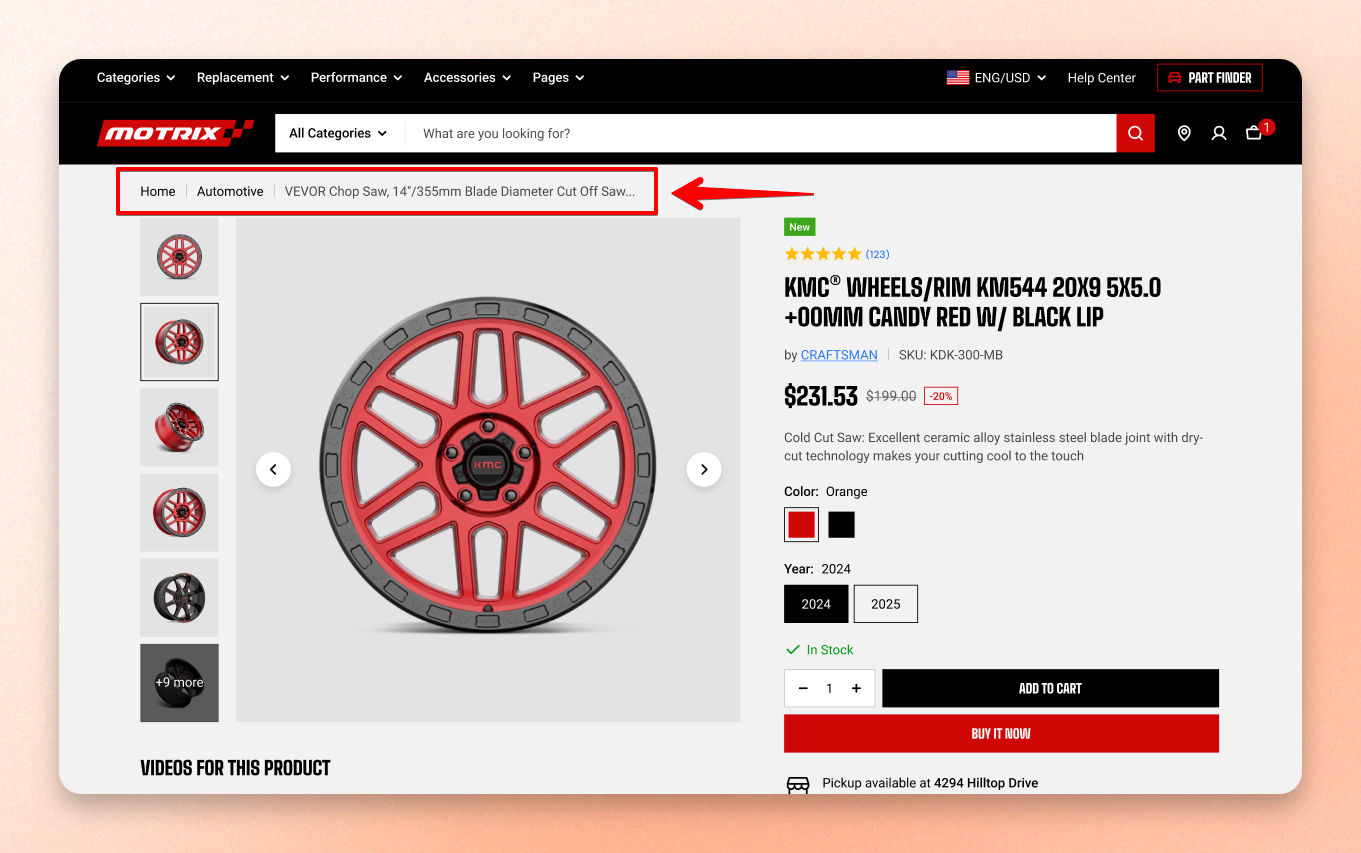
Most shoppers don't reach a product page from your homepage. They arrive from search, an ad, or a shared link, with no sense of what else you sell. Breadcrumbs give that context: they show which category the product belongs to and put it one click away.
## How the trail is built
On a product page the trail has three steps: **Home → Collection → Product name**
The product name is the last step and isn't a link.
### Which collection shows
A product often belongs to several collections, but only one can appear in the trail. By default it's the collection whose name comes first alphabetically.
A product that belongs to no collection shows a link to your full catalog instead.
### Show a different collection
To pick the collection yourself, set a primary collection metafield on the product.
Steps:
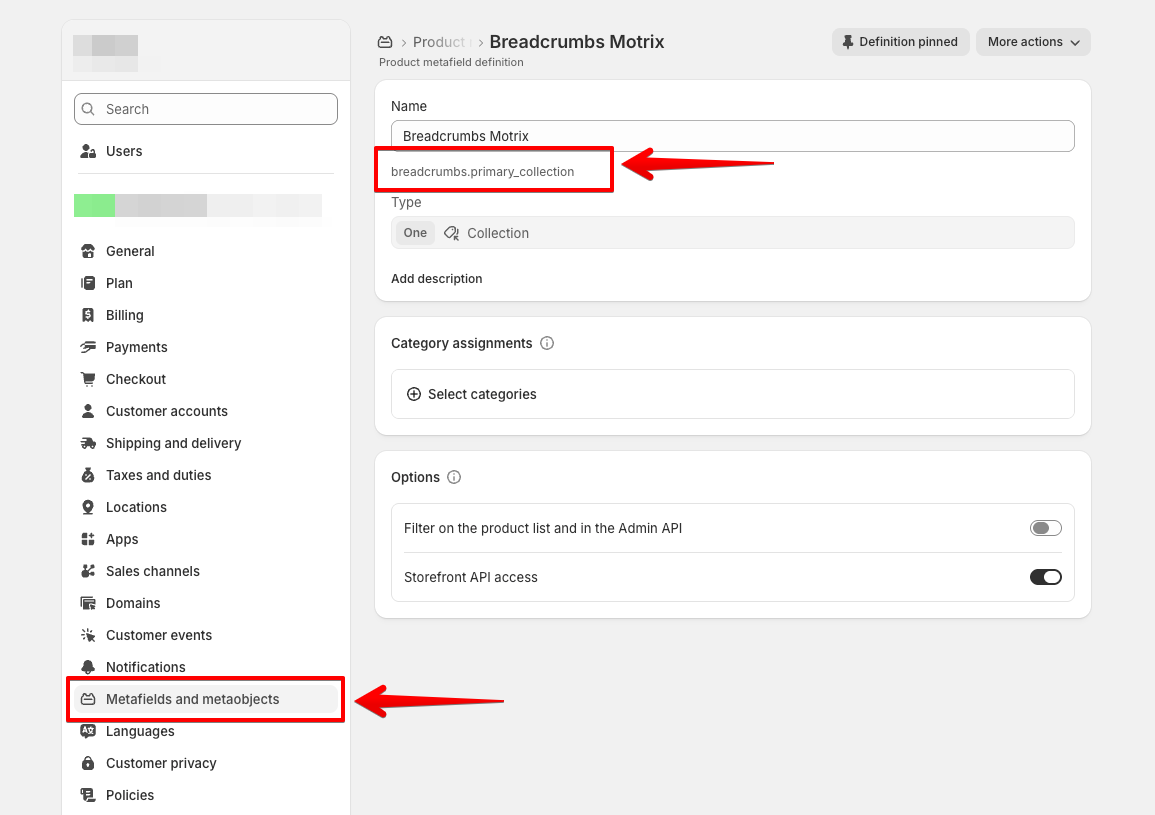
1. From your Shopify admin, go to **Settings > Custom data > Products** and click **Add definition**.
2. Enter any **Name** — Primary collection is clear.
3. Set the **Namespace and key** to `breadcrumbs.primary_collection`.
4. Set the type to **Collection**.
5. Click **Save**.
6. Go to **Products**, open a product, scroll to **Metafields**, pick the collection, and click **Save**.
The namespace and key must be `breadcrumbs.primary_collection` exactly.
## Add breadcrumbs to your product page
1. In the theme editor, click the page selector and go to **Products > Default product** (or the product template you want).
2. In the **Template** area of the sidebar, click **Add section**.
3. Under **Layout**, select **Breadcrumbs**.
4. Drag the section to the top of the **Template** area, above **Product information**.
5. Click **Save**.
## Breadcrumbs section settings
### Layout
| Setting | What it does |
| ------------------ | --------------------------------------------------- |
| **Text alignment** | Aligns the trail Left, Center, or Right on desktop. |
### Mobile layout
| Setting | What it does |
| ------------------ | ------------------------------------------------------------------------------- |
| **Text alignment** | Sets a different alignment on mobile, or Inherit to follow the desktop setting. |
### Apprearance
| Setting | What it does |
| ---------------- | ------------------------------------------------------------------------------------------- |
| **Color scheme** | Applies a theme [color scheme](https://docs.foxecom.com/motrix-theme/theme-settings/colors) to the section. |
### Padding
| Setting | What it does |
| --------------- | ----------------------------------------------------- |
| **Devices** | Switches which set of spacing sliders you're editing. |
| **Top/ Bottom** | Space above and below the trail, 0–32 px. |
Devices doesn't control where breadcrumbs appear. It only switches which sliders you're editing. Both sets always apply on their own screen size, so leaving it on Mobile doesn't hide the trail on desktop.
To change the symbol between the steps of the breadcrumbs, go to **Theme settings > Breadcrumbs**. [Learn more](https://docs.foxecom.com/motrix-theme/theme-settings/breadcrumbs)