# Product compare
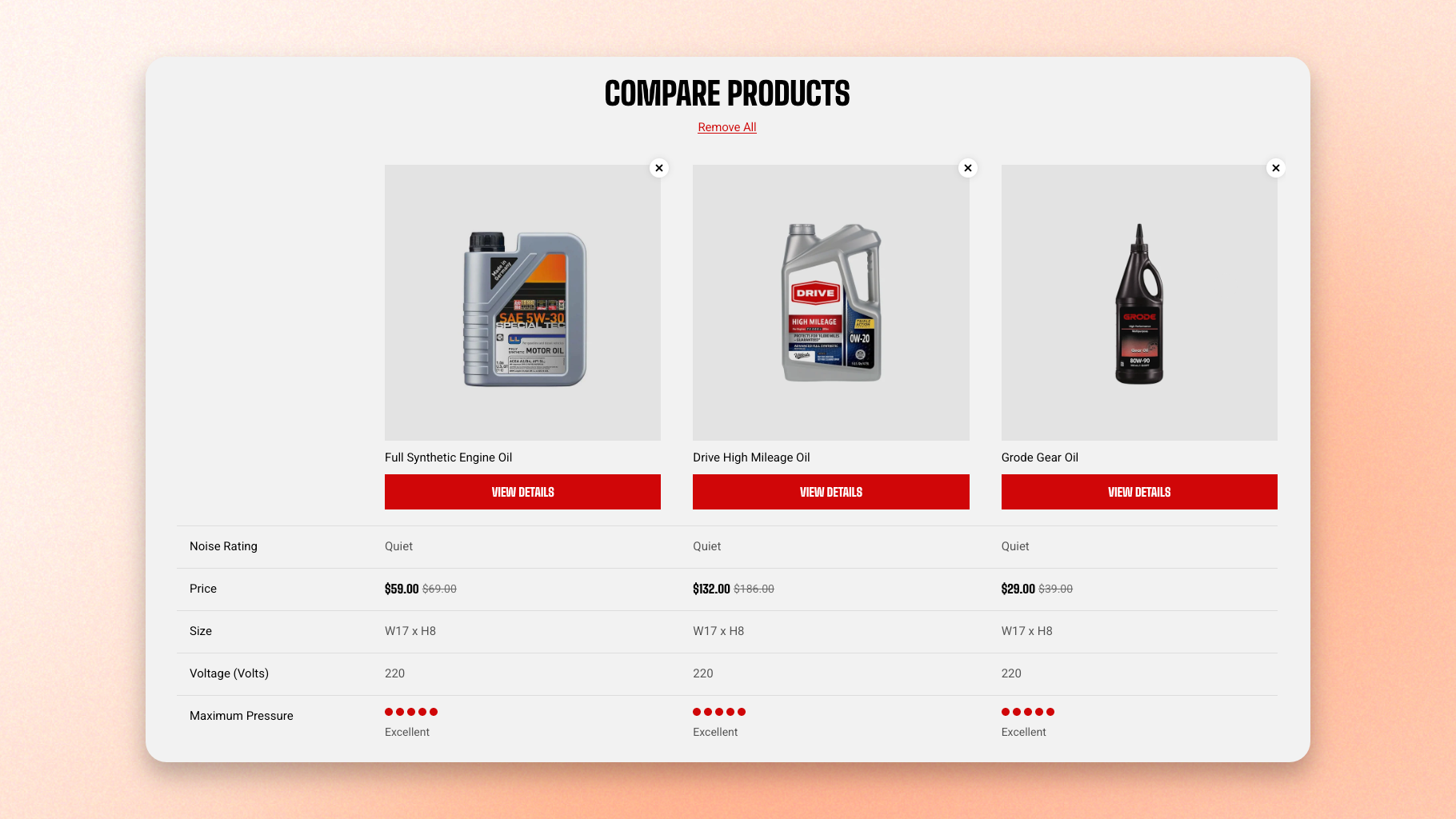
Customers tick products while they browse a collection, then open the comparison to see them together. Each product takes a column; each block you add here becomes a row that runs across all of them.
You are not choosing the products — customers do that. What you set here is what gets compared.
## Before you start
Comparing is switched on in **Theme settings** > [Product compare](https://docs.foxecom.com/motrix-theme/overlay-group/product-compare), which is also where you set how many products a customer can compare at once and whether the comparison opens as a drawer or a page.
This section only runs when **Type** is set to **Drawer**. With Type set to Page, customers go to the compare page instead, and the rows there come from the **Comparison table** section on that page.
Both use the same set of blocks but are separate sections, so they do not share them. Switching Type later means setting the rows up again in the other one.
## How customers add products
In the Main collection section, next to the sort and layout controls.
A checkbox appears on each product card, and a bar along the bottom fills up with what they have chosen.
The products they ticked become the columns.
## Section settings
| Setting | What it does |
| --------------------- | ----------------------------------------------------------------------------------------------------------------------------------------------------- |
| **Heading** | The title at the top of the comparison. |
| **Heading size** | How large the title is drawn. |
| **Show clear button** | Adds a link under the title that empties the comparison in one tap. Customers can still remove products one at a time from the corner of each column. |
## Rows
Each block becomes one row, in the order they appear in the sidebar. Product information, Description, Price, Vendor, Type, and Variants can each be added once. Product metafield and Product rating can be added as many times as you need.
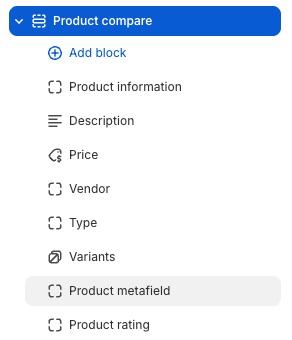
### Product information
Each product's photo and name at the top of its column.
| Setting | What it does |
| ------------------------------ | ------------------------------------------------------------- |
| **Enable view details button** | Adds a button under each product that opens its product page. |
| **Text line limit** | Keeps long product names to a set number of lines. |
Keep the line limit at 1 or 2. Product names vary in length, and letting them run in full makes each column start at a different height, which is what a comparison is meant to avoid.
### Description
Displays the product description set in Shopify admin > Products.
| Setting | What it does |
| ------------------------- | -------------------------------------------------------------- |
| **Text line limit** | Trims the description to a set number of lines. |
| **Show view more button** | Adds a toggle so customers can expand the trimmed description. |
Descriptions are the row most likely to overwhelm the table. A 3-line limit with the view more button on keeps it scannable while leaving the full text one tap away.
### Price, Vendor, Type, and Variants
These rows have no settings. They show what is already on the product in your Shopify admin, so change the product there and the row follows.
* Price — the product's price, including sale pricing.
* Vendor — the product's vendor.
* Type — the product's type.
* Variants — the product's options and their values. Left empty for products without options.
### Product metafield
A custom product detail — a material, a capacity, a certification. Add one block per specification you want compared.
| Setting | What it does |
| ------------------------------- | ----------------------------------- |
| **Metafield namespace and key** | Which metafield to show. |
| **Label** | The row's name in the first column. |
* Product fields only. List metafields are not supported except a list of single line text values, and metaobjects are not supported.
* Enter the **exact** namespace and key in plain text. Connecting to the dynamic source connector is not yet supported. A typo produces an empty row rather than an error, so if a row is blank on every product.
### Product rating
A score from a Rating metafield, drawn as icons filled to match the score. The metafield must exist in Shopify first and its type must be Rating — a decimal such as 4.2.
| Setting | What it does |
| ------------------------------- | ------------------------------------------------------------------------- |
| **Metafield namespace and key** | Which rating metafield to show. |
| **Icon** | Draws the score as dots or stars. |
| **Show rating text** | Automatically adds a written verdict beside the icons based on the score. |
| **Hide rating value** | Hides the numeric score, leaving the icons and the verdict. |
| **Label** | The row's name in the first column. |
Use stars only for customer review scores. For a measured attribute such as noise, hardness, or grip, dots read as a rating scale rather than implying shoppers voted on it.
## Tips
* Always fill in Label on metafield and rating rows. Without it the row's first column is blank, and customers see a line of values with nothing naming what they are.
* Put the rows customers decide on near the top. Price and the one specification that separates your products earn their place; a long description above them pushes everything else out of view.
* Use rows every product in a collection actually has. A metafield only some products fill in leaves gaps, and a half-empty row reads as a missing feature rather than missing data.