# Popup
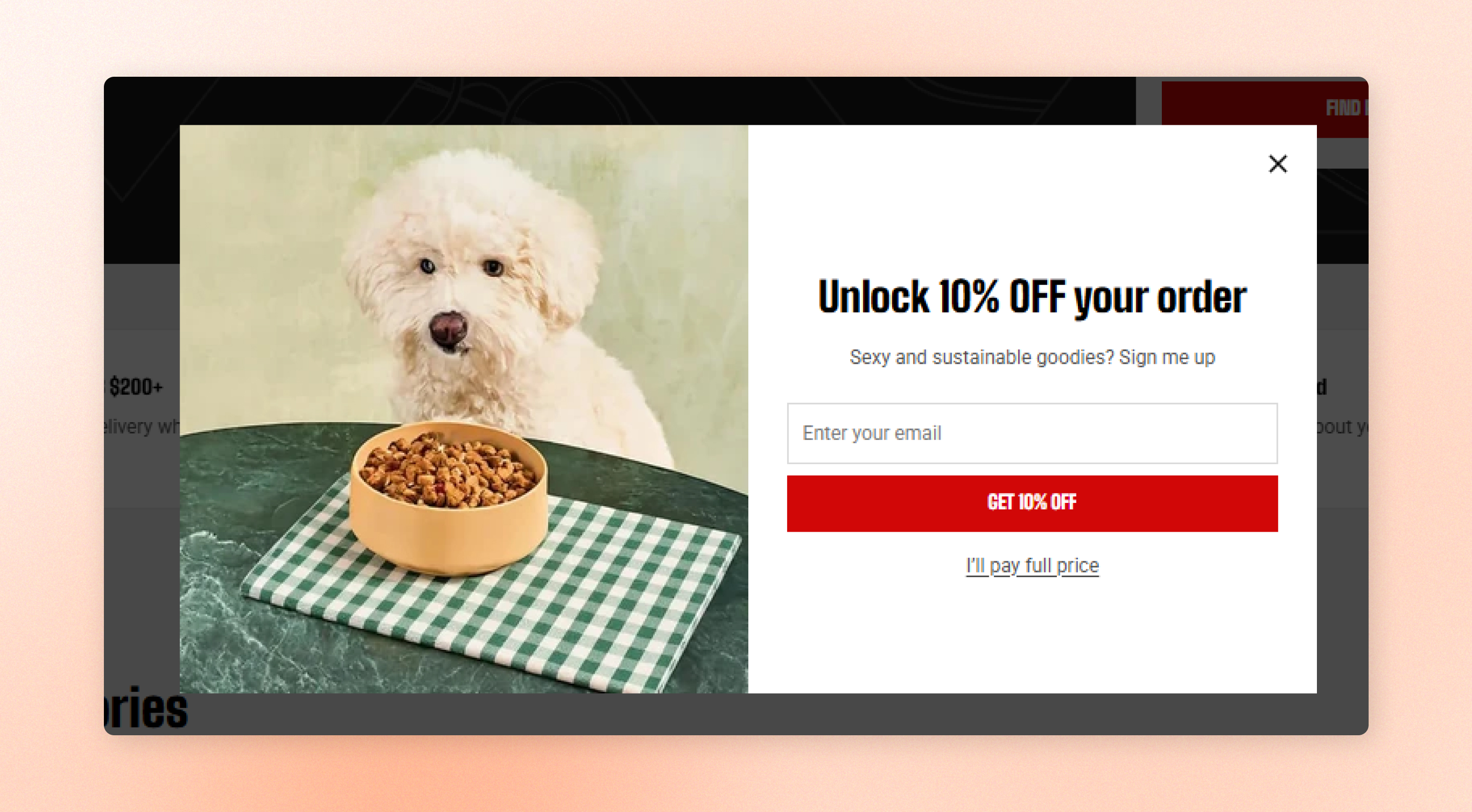
A Popup is an overlay that stops on-site visitors and displays an informational or promotional message to grab their attention.
The popup includes a side image and a content area that you can customize with the blocks you need.
## How to customize the Popup
**Steps:**
1. In the theme editor (**Customize**), scroll down to the **Overlay group** area.
2. Select the **Popup** section.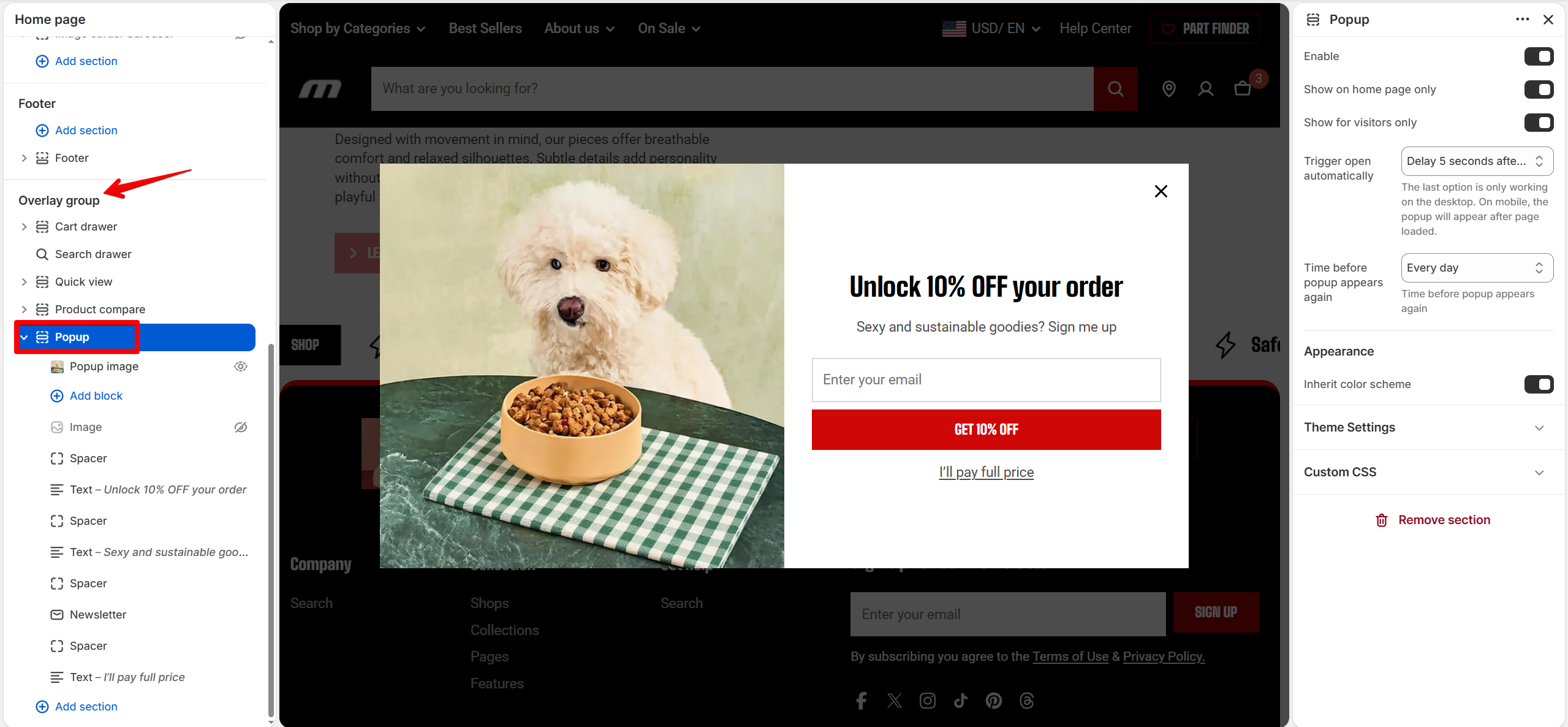
3. Make necessary changes.
4. Click **Save**.
## Section settings
### Activate buttons
| Setting | Description | Option |
| -------------------------- | ------------------------------------------------------ | -------------------------------------------------------------------------------------------------------------------------- |
| **Enable** | Turn the popup on for shoppers. | On / Off |
| **Show on home page only** | Control which pages can display the popup. | Keep it **on** to show the popup only on your home page. Turn it **off** to allow the popup to appear on other pages. |
| **Show for visitors only** | Show the popup only to shoppers who are not logged in. | On / Off |
The popup stays visible in the theme editor while you're designing it, even when **Enable** is off. Turn it on when you're ready to show it on your storefront.
Use the home page option when the popup promotes a general offer or newsletter signup. Turn it off when the message is relevant across your store.
### Trigger open automatically
| Setting | Description | Option |
| ------------------------------ | ---------------------------- | -------------------------------------------------------------------------------------------------------------------------------------------------------------------------------------------------------------------------------------------------------------------------------------------- |
| **Trigger open automatically** | Chooses when the popup opens | **Immediately after page loaded**: Open the popup as soon as the page loads.
**Delay 5 seconds after page loaded:** Give shoppers a few seconds to browse before showing it.
**After scrolling:** Wait until shoppers have started scrolling before opening the popup. |
Use a delay or scroll trigger when you want shoppers to see your page content before the popup appears.
### Time before popup appears again
| Setting | Description | Option |
| ----------------------------------- | ---------------------------------------------------------------------------- | ------------------------------------------------------------------------------------------------------------------------------------------------------------------------------------------------------------------------------------------------------------------- |
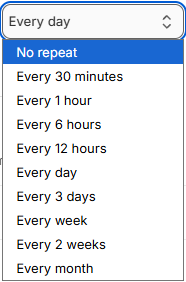
| **Time before popup appears again** | Control how long the popup stays hidden after a visitor has already seen it. | **Every day:** Show it again after one day.
Choose **a longer period** when you want to reduce how often the same visitor sees the popup.
Select **No repeat** to keep it hidden from that visitor for a long period, approximately one year. |
| | | |
Time options
### Appearance
| Setting | Description | Option |
| ------------------------ | ------------------------------------------------------------------------------------------------------------------------------------------------------------------------------------------------------------------ | ------------------------------------------------------------------------------------------------------------------------------------------------------------------------------------ |
| **Inherit color scheme** | Use the color scheme configured for dialogs in your theme settings. Learn more: [Dialogs](https://docs.foxecom.com/motrix-theme/theme-settings/dialogs) | Keep this **on** when you want the popup to **match other drawers and pop-ups automatically**.
Turn it **off** when you want to give this popup **its own color scheme**. |
| **Color scheme** | Choose a color scheme specifically for the popup. This setting appears when **Inherit color scheme** is turned off. Learn more: [Color scheme settings](https://docs.foxecom.com/motrix-theme/theme-settings/colors#color-schemes) | Select a color scheme |
## Block settings
Customize the popup content by adding blocks to the content area.
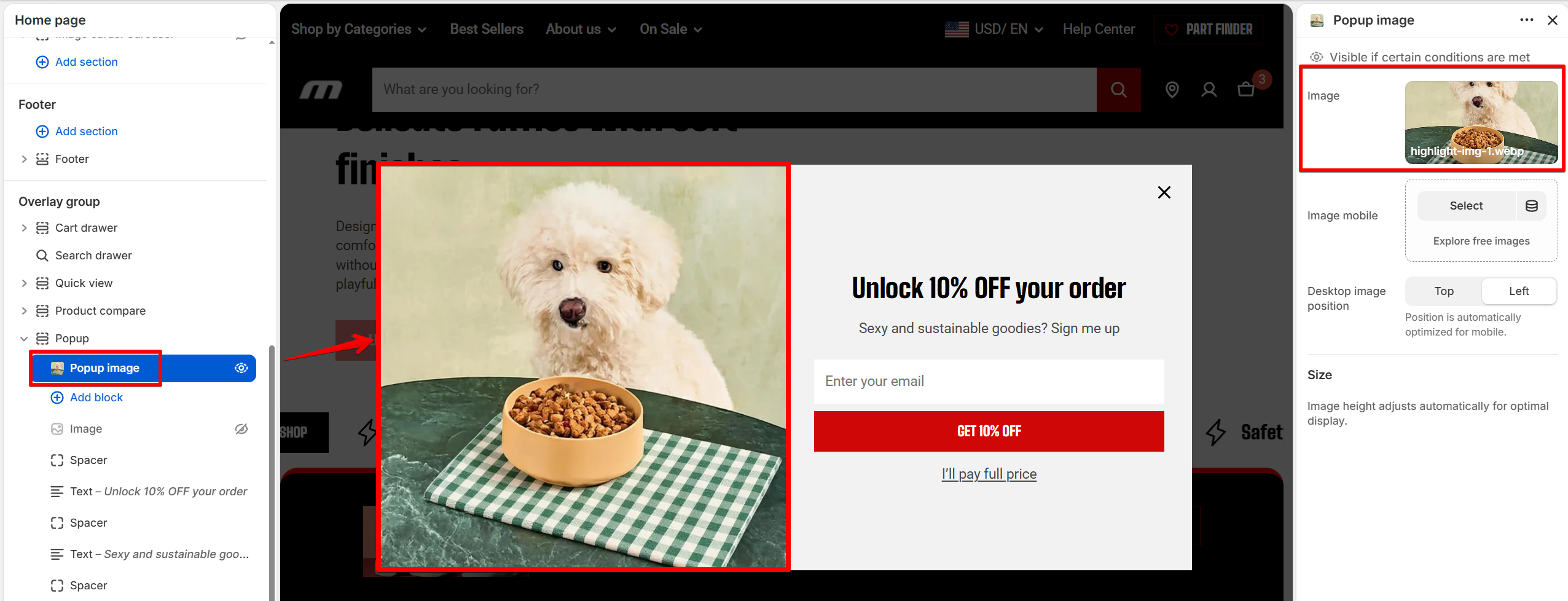
### Side image - Popup image
Select the side image from the editor sidebar to replace it or hide it.
Use an image that supports your message without competing with the content, especially when the popup promotes a discount or newsletter signup.
### Content blocks
Add the blocks you need to build the popup content:
* [**Text**](https://docs.foxecom.com/motrix-theme/theme-blocks/text)**:** Add headings, supporting messages, or other text.
* [**Button**](https://docs.foxecom.com/motrix-theme/theme-blocks/button)**:** Add a call-to-action button.
* [**Icon**](https://docs.foxecom.com/motrix-theme/theme-blocks/icon)**:** Add an icon to support your message.
* [**Image**](https://docs.foxecom.com/motrix-theme/theme-blocks/image)**:** Add additional images to the content area.
* [**Video**](https://docs.foxecom.com/motrix-theme/theme-blocks/video)**:** Add video content.
* [**Divider**](https://docs.foxecom.com/motrix-theme/theme-blocks/divider)**:** Separate different parts of the content.
* [**Group**](https://docs.foxecom.com/motrix-theme/theme-blocks/group)**:** Organize related blocks together.
* [**Grid**](https://docs.foxecom.com/motrix-theme/theme-blocks/grid)**:** Arrange blocks into a grid.
* **Spacer:** Add adjustable vertical space between blocks.
* [**Newsletter**](https://docs.foxecom.com/motrix-theme/theme-blocks/newsletter)**:** Add an email signup field and button.
* **App:** Add content provided by an installed app.
Open the storefront in **a private** or **incognito window** when testing the popup again, because the visitor's device remembers when the popup was last shown.