# Search page
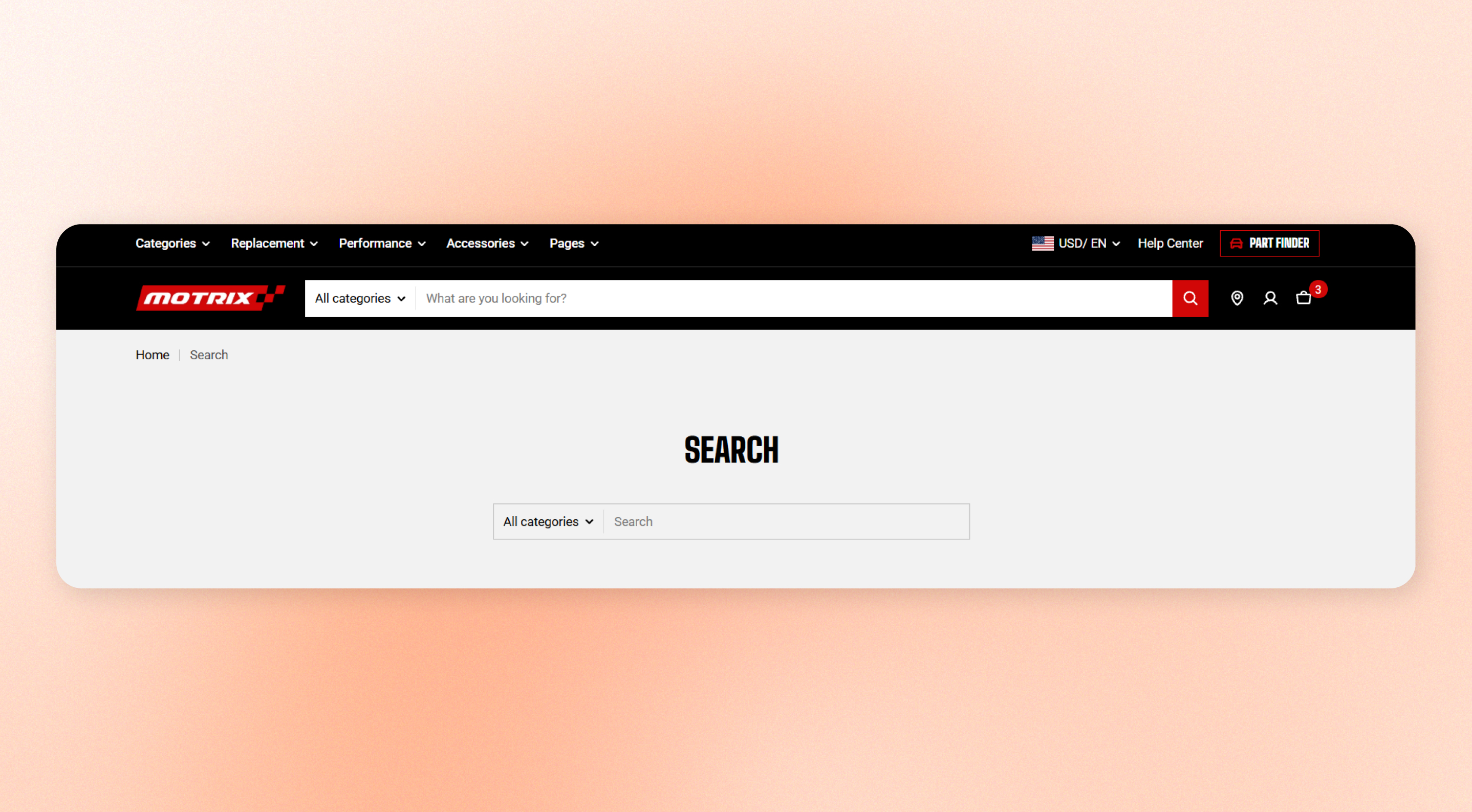
Add a heading and search bar to the top of the search page. The heading automatically shows **Search** when customers first open the page and changes to **Search results** after they submit a search.
Use this section as the main search header, then add other available theme sections or blocks to customize the rest of the search page.
## How to customize the Search page
1. Go to **Online Store > Themes** in Shopify Admin.
2. Find your theme and click **Edit theme**.
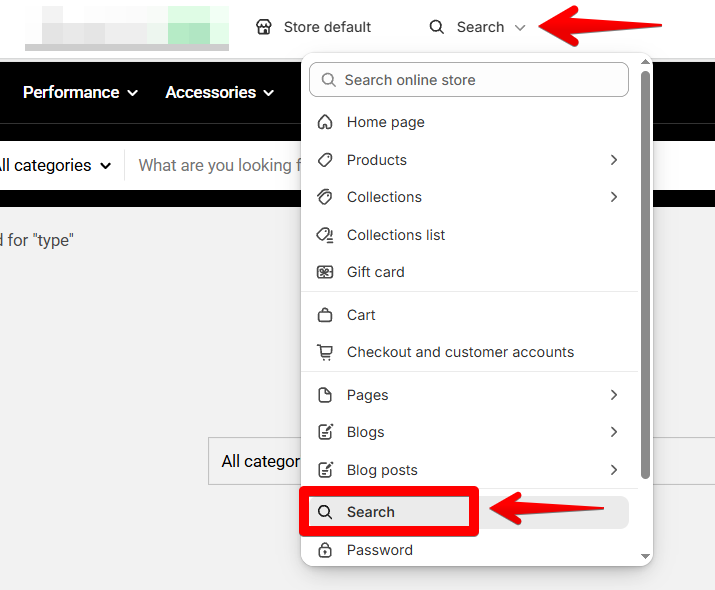
3. Open the page selector and select **Search**
4. Select the **Search** section from the section list.
5. Adjust the section settings and customize its blocks.
6. Add other **available theme sections or blocks** if you want to customize more of the search page.
7. **Save** your changes.
 ## Search section settings
### Layout
Control the width and alignment of the search header.
## Search section settings
### Layout
Control the width and alignment of the search header.
| Setting | Description | Options |
| ------------- | ----------------------------------------------------------------------------------------- | --------------------- |
| **Container** | Set whether the search header stays within the page width or spans the full screen width. | Fixed / Full |
| **Alignment** | Set the alignment of the heading and search bar. | Left / Center / Right |
### Padding
Control the spacing around the search header.
| Setting | Description | Options |
| ---------- | -------------------------------------- | ----------- |
| **Top** | Set the space above the search header. | 0px - 100px |
| **Bottom** | Set the space below the search header. | 0px - 100px |
Find [Search results page](https://docs.foxecom.com/motrix-theme/other-pages/search-page/search-result) for available settings for the search results section
## Search section blocks
The **Search** section includes two fixed blocks: [**Heading** ](https://docs.foxecom.com/motrix-theme/other-pages/search-page#heading)and [**Search input**](https://docs.foxecom.com/motrix-theme/other-pages/search-page#search-input). You can select and customize these blocks from the editor sidebar.
### Heading
Displays the search page heading. The text updates automatically based on the search state: Search before a search and Search results after customers submit a search.
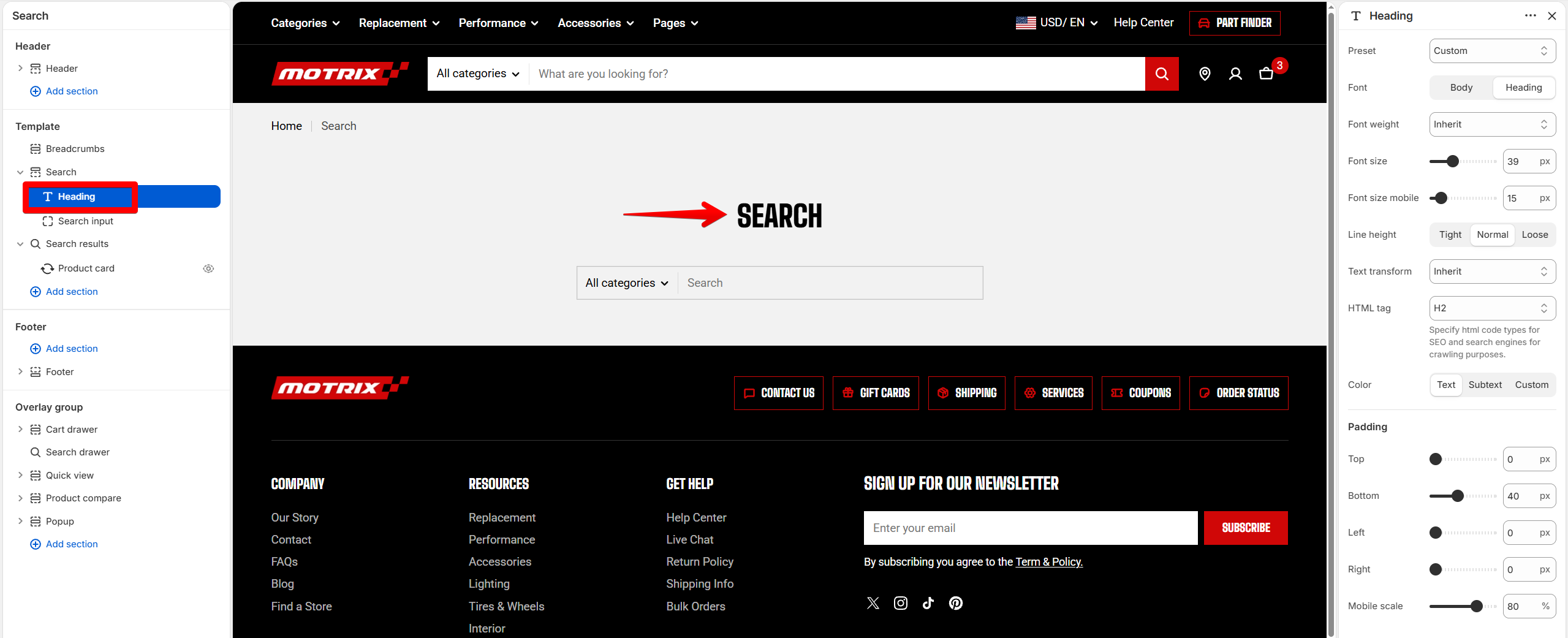
#### Typography
| Setting | Description | Options |
| -------------------- | ----------------------------------------------------------------------------------------------------------------------- | -------------------------------------------------------------------------- |
| **Preset** | Choose a predefined text style or create a custom heading style. | Default / Paragraph / Subheading / Heading 1 - 6/ Custom |
| **Font** | Choose the font used for the heading. | Body / Heading |
| **Font weight** | Set the thickness of the heading text. | Inherit / Light / Regular / Medium / Semi bold / Bold / Extra bold / Black |
| **Font size** | Set the heading font size on desktop. | 10px - 100px |
| **Font size mobile** | Set the heading font size on mobile. | 10px - 100px |
| **Line height** | Set the vertical space between lines of text. | Tight / Normal / Loose |
| **Text transform** | Control the capitalization of the heading text. | Inherit / As typed / Title Case / UPPER CASE / lower case |
| **HTML tag** | Choose the HTML tag used for the heading. Use the tag that best matches the page's content hierarchy and SEO structure. | H1 / H2 / H3 / H4 / H5 / H6 / P / Span / Div |
| **Color** | Set the heading color. | Text / Subtext / Custom |
Keep the heading's HTML tag aligned with your page structure. Use **H1** for the main page heading when appropriate.
#### Padding
| Setting | Description | Options |
| ---------------- | --------------------------------------------- | ----------- |
| **Top** | Set the space above the heading. | 0px - 100px |
| **Bottom** | Set the space below the heading. | 0px - 100px |
| **Left** | Set the space to the left of the heading. | 0px - 100px |
| **Right** | Set the space to the right of the heading. | 0px - 100px |
| **Mobile scale** | Adjust the heading spacing on mobile devices. | 0px - 100px |
### Search input
Displays the search field customers use to enter their search terms. An optional product-type dropdown can appear when product-type search is enabled in the search theme settings.
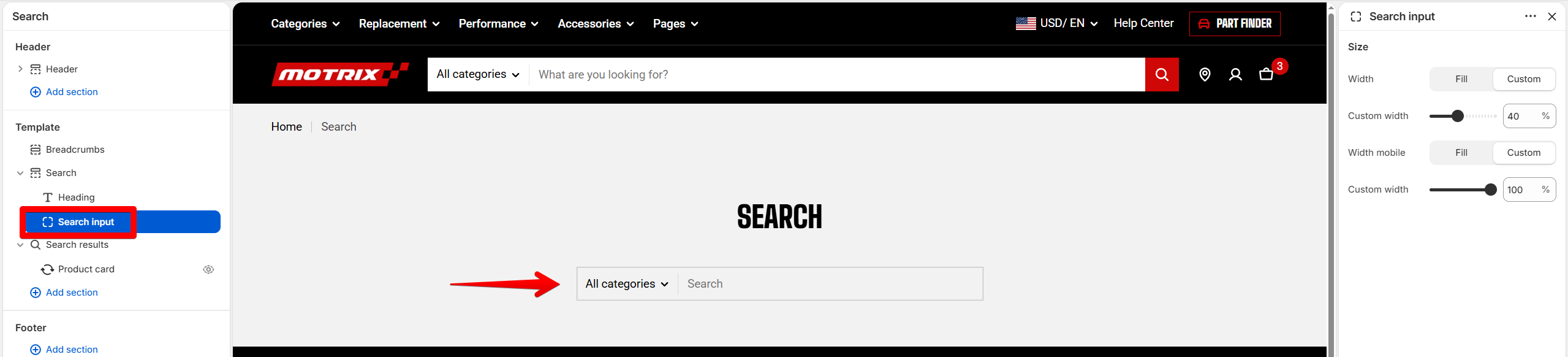
[Check **Search documentation** in Theme settings to find available search function settings.](https://docs.foxecom.com/motrix-theme/theme-settings/search)
## Additional sections and blocks
Add other available theme sections or blocks to customize the search page beyond the search header. Use these additional sections to add content such as product recommendations, promotional content, images, or other supporting information below the search area.
The available sections and blocks depend on the theme and its version.
Learn more:
Theme sections
Theme blocks
## Tips
* Use the **Search** section for the heading and search field customers see after they open or submit a search.
* Live search suggestions shown while customers type in the header are handled by the separate **Search drawer** section.
* Keep the search header focused on search-related content so customers can quickly find what they need.
* Add supporting sections below the search header when you want to provide recommendations or promotional content.