# Password
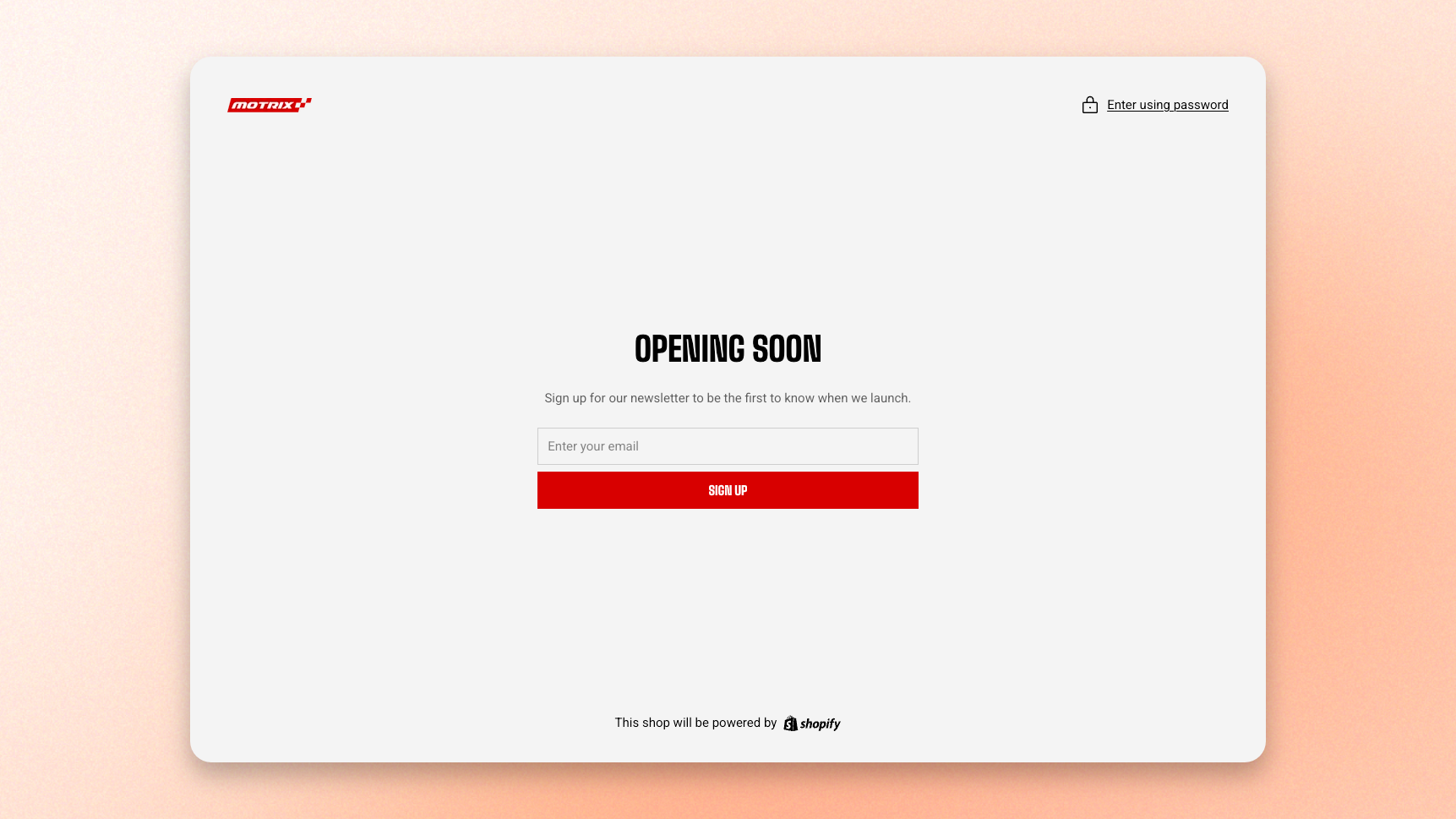
While password protection is on, every visitor without the password lands here instead of your storefront. It is the only page most people will see before launch, so it is worth more than a holding message: this is where you introduce the brand and collect the email addresses you will announce to.
## Turn password protection on
Protection is switched on in your Shopify admin, not in the theme editor.
1. From your Shopify admin, go to **Online Store** > [**Preferences**](https://admin.shopify.com/online_store/preferences).
2. In the **Store access** section, select **Password protection**.
3. In the **Password** field, enter the password that you want to add to your online store and restrict access with.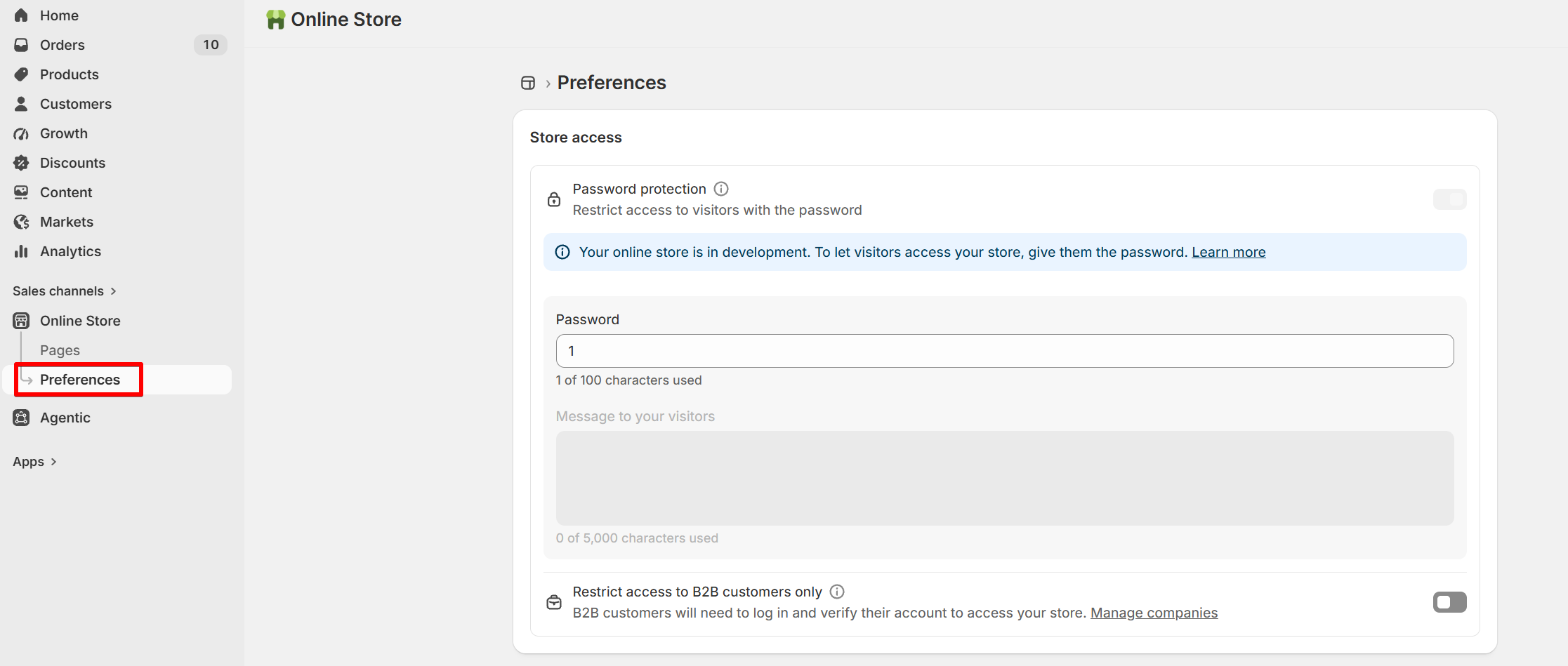
4. Click **Save**.
## How to edit the Password page
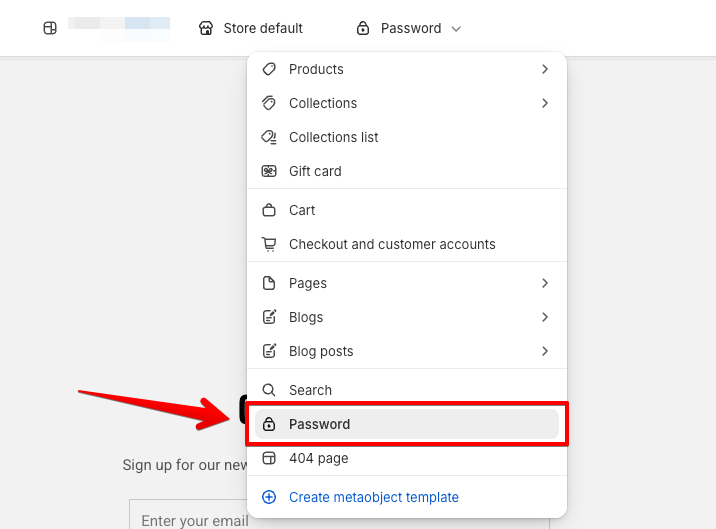
1. In the theme editor, open the page selector at the top of the screen.
2. Select **Password**.
3. On the left sidebar, select the **Password section.**
4. Build the content you want, then click **Save**.
## Password header
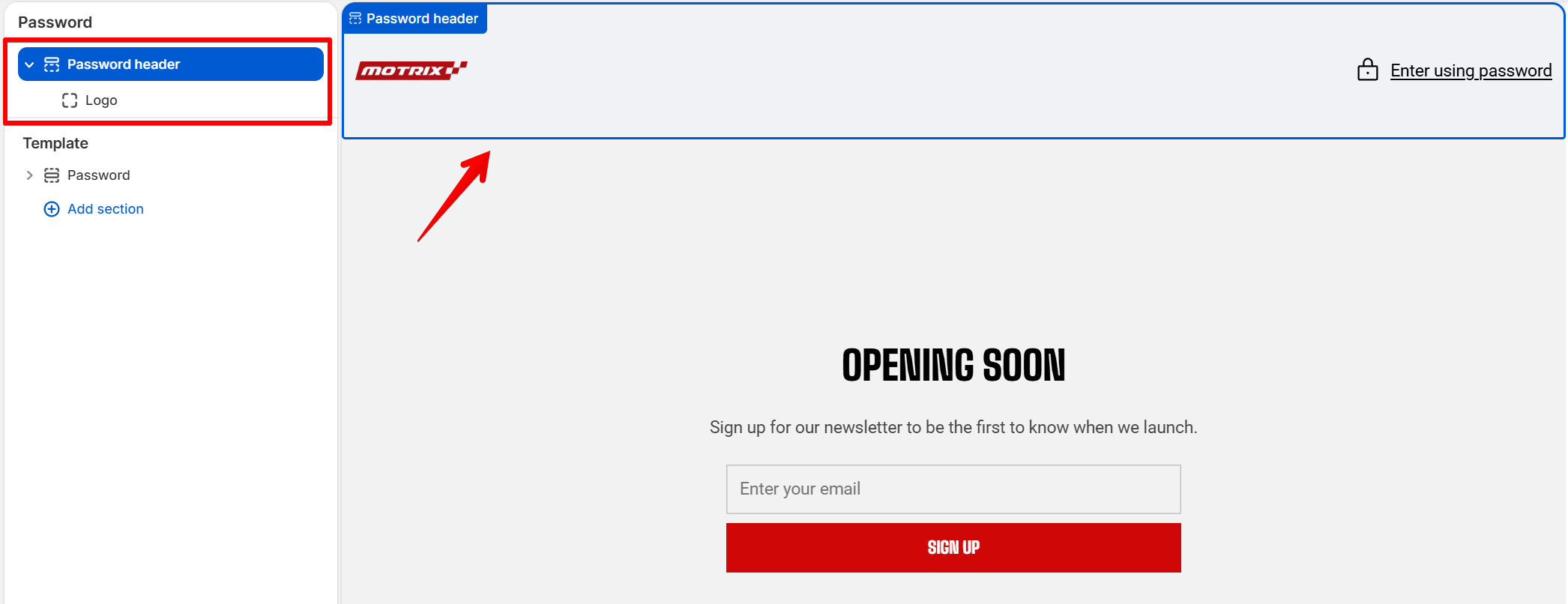
Show your store logo at the top of the password page, along with an **Enter using password** link. [See how to set up your Logo](https://docs.foxecom.com/motrix-theme/theme-settings/logo)
Customers can select the link to open a password dialog and enter the store password to access the locked store. The dialog also includes a sign-in link for the store owner.
You can adjust the Password header section through the following settings, including:
* Container
* Apprearance
* Padding
## Password section settings
### Layout
| Setting | What it does |
| ---------------- | -------------------------------------------------------------------------------------- |
| **Container** | Keeps the content within the page width, or lets it span the full width of the screen. |
| **Alignment** | Aligns the stacked blocks left, centre, or right. |
| **Vertical gap** | Space between blocks |
Centre alignment suits a password page more often than it suits other pages — there is usually one short column of content and nothing to align it against.
### Appearance
| Setting | What it does |
| ------------------ | ------------------------------------------------------------------------ |
| **Color scheme** | Applies a theme color scheme to the section. |
| **Border** | Shows or hides a border around the section. |
| **Border width** | Thickness of the border, 0–10 px. Appears when a border is enabled. |
| **Border opacity** | How strong the border appears, 0–100%. Appears when a border is enabled. |
| **Corner radius** | Rounds the section corners. |
### Padding
Choose **Desktop** or **Mobile**, then set the spacing for that device.
The left and right sliders only appear when Container is set to Full. On Fixed the page width already sets the side margins.
## Block settings
The section accepts any theme block, plus app blocks, and stacks them in a single column that sits centred on the screen.
A workable starting point
* [Text](https://docs.foxecom.com/motrix-theme/theme-blocks/collapsible-text) — a short line on what you sell and when you open.
* [Newsletter](https://docs.foxecom.com/motrix-theme/theme-blocks/newsletter) — the reason to build this page properly. Visitors who sign up are the list you launch to.
* [Countdown timer](https://docs.foxecom.com/motrix-theme/theme-blocks/countdown-timer) — a date to open, if you have committed to one.
Learn more:
Theme sections
Theme blocks
## Tips
* Add a newsletter block. A password page without one wastes every visit you get before launch, and those addresses are the cheapest audience you will ever build.
* Share the password with anyone reviewing the store — a client, a photographer, a developer. They enter it once and browse normally from then on.
* Check the page after you launch by turning protection off. It is easy to leave a countdown to a date that has passed.