# Cart page
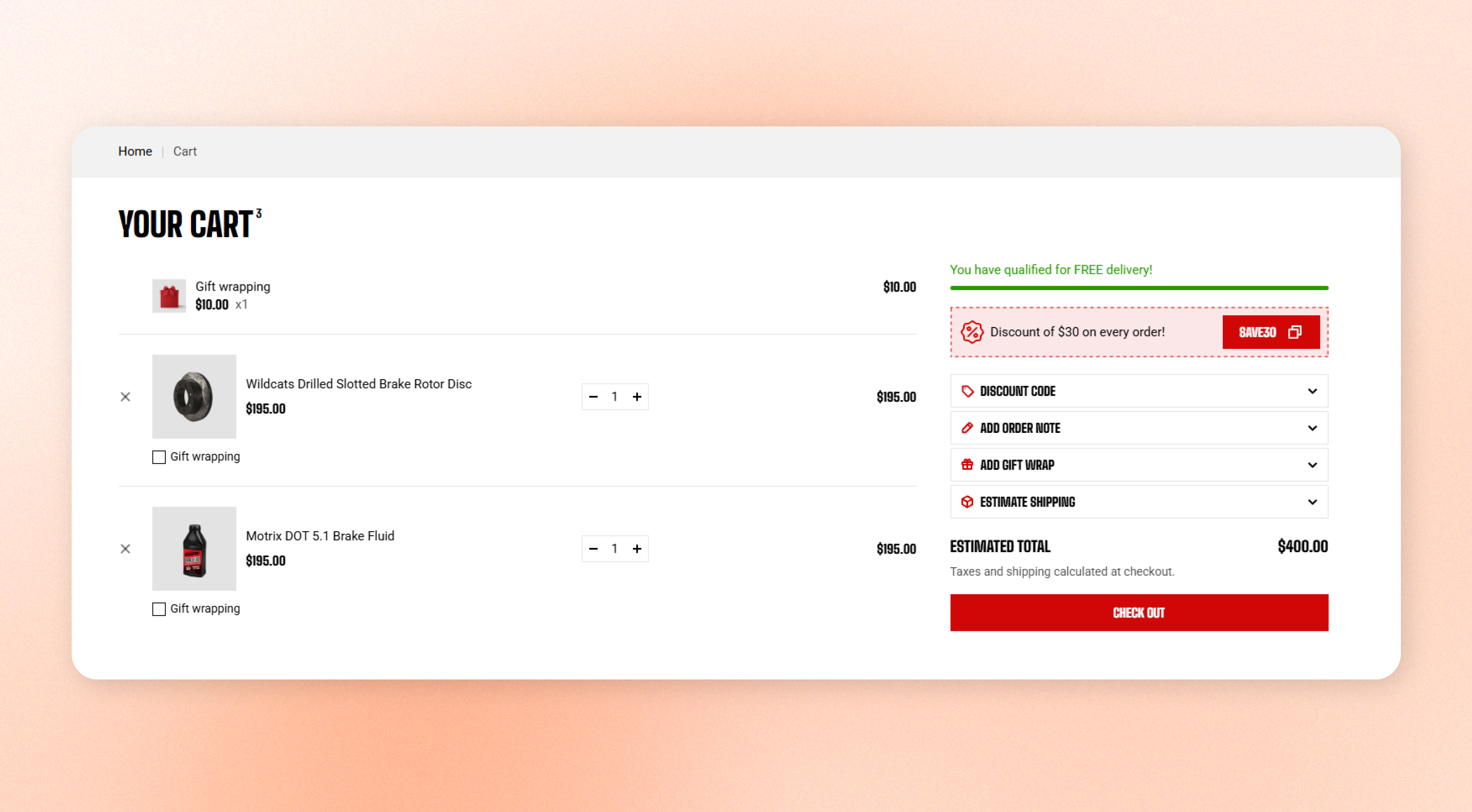
Display the cart page with the products customers have added, quantity controls, and an order summary that leads to checkout.
When the cart is empty, customers see a message and a **Continue shopping** button. Depending on your theme settings, the empty cart can also show recommended products and a customer account login prompt.
## How to customize the Cart page
1. Go to **Online Store > Themes** in Shopify Admin.
2. Find the theme you want to edit and click **Edit theme**.
3. Open the page selector at the top of the theme editor and select **Cart**.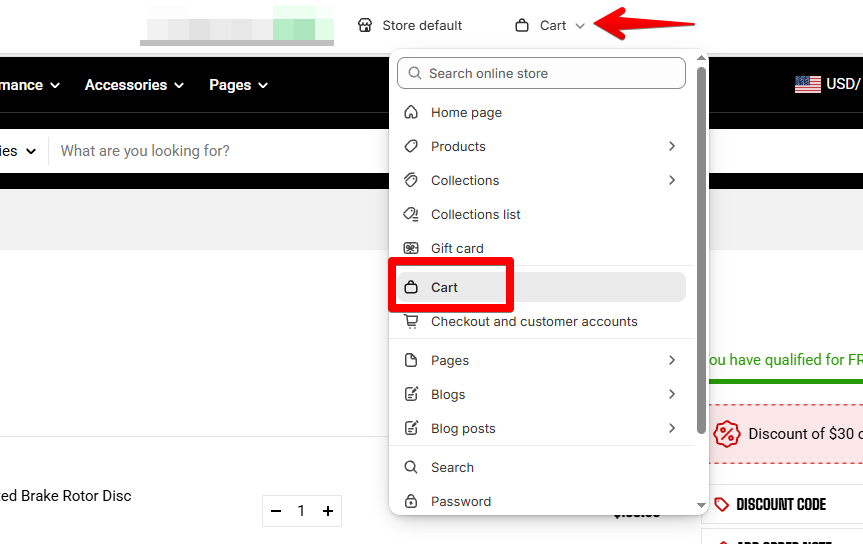
4. Select the **Cart** section to customize its layout, appearance, and padding.
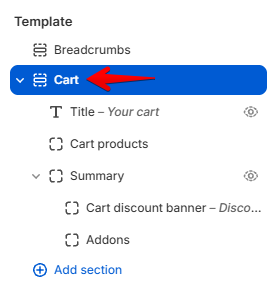
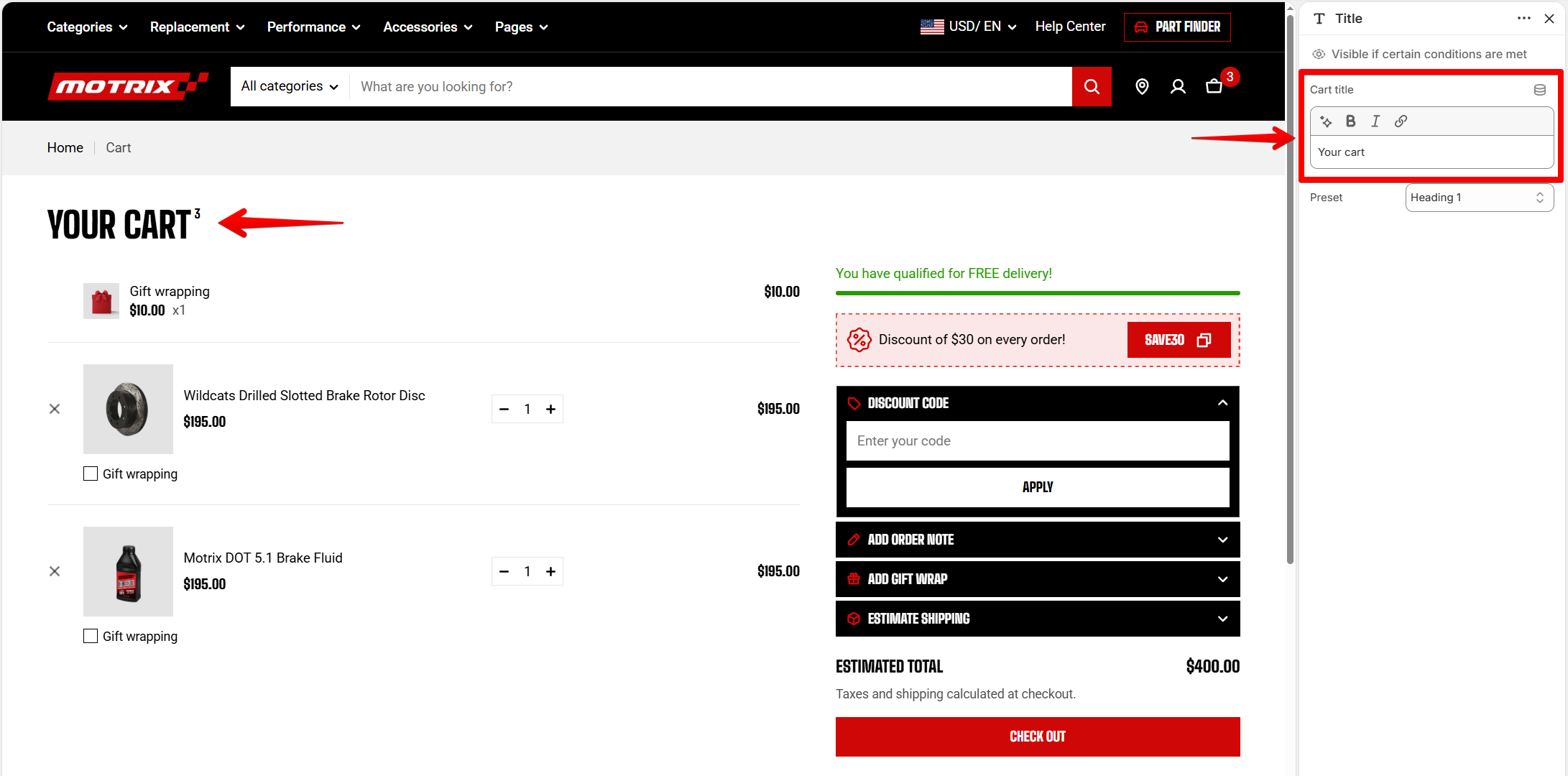
5. **Select a built-in block** and make necessary changes.
6. Click **Save.**
## Section settings
### Layout
| Setting | Description | Options |
| ------------- | ----------------------------------------------------------------------------------------- | ------------ |
| **Container** | Choose whether the cart content stays within the page width or spans the available width. | Fixed / Full |
### Appearance
| Setting | Description | Options |
| ---------------- | ------------------------------------------ | --------------------- |
| **Color scheme** | Choose the color scheme for the cart page. | Select a color scheme |
### Padding
Choose **Desktop** or **Mobile**, then set the top, bottom, left, and right spacing for each device.
Left and right controls appear when **Container** is set to **Full**.
| Setting | Description | Options |
| ---------- | ------------------------------------------- | ----------- |
| **Top** | Add space above the cart content. | 0px - 100px |
| **Bottom** | Add space below the cart content. | 0px - 100px |
| **Left** | Add space to the left of the cart content. | 0px - 100px |
| **Right** | Add space to the right of the cart content. | 0px - 100px |
## Block settings
The cart heading, item list, and order summary are built-in parts of the section. Select each block in the theme editor sidebar to adjust its individual settings.
* **Title** — Displays the cart page heading.
* **Cart products** — Displays the products added to the cart, including quantity controls and the option to remove items.
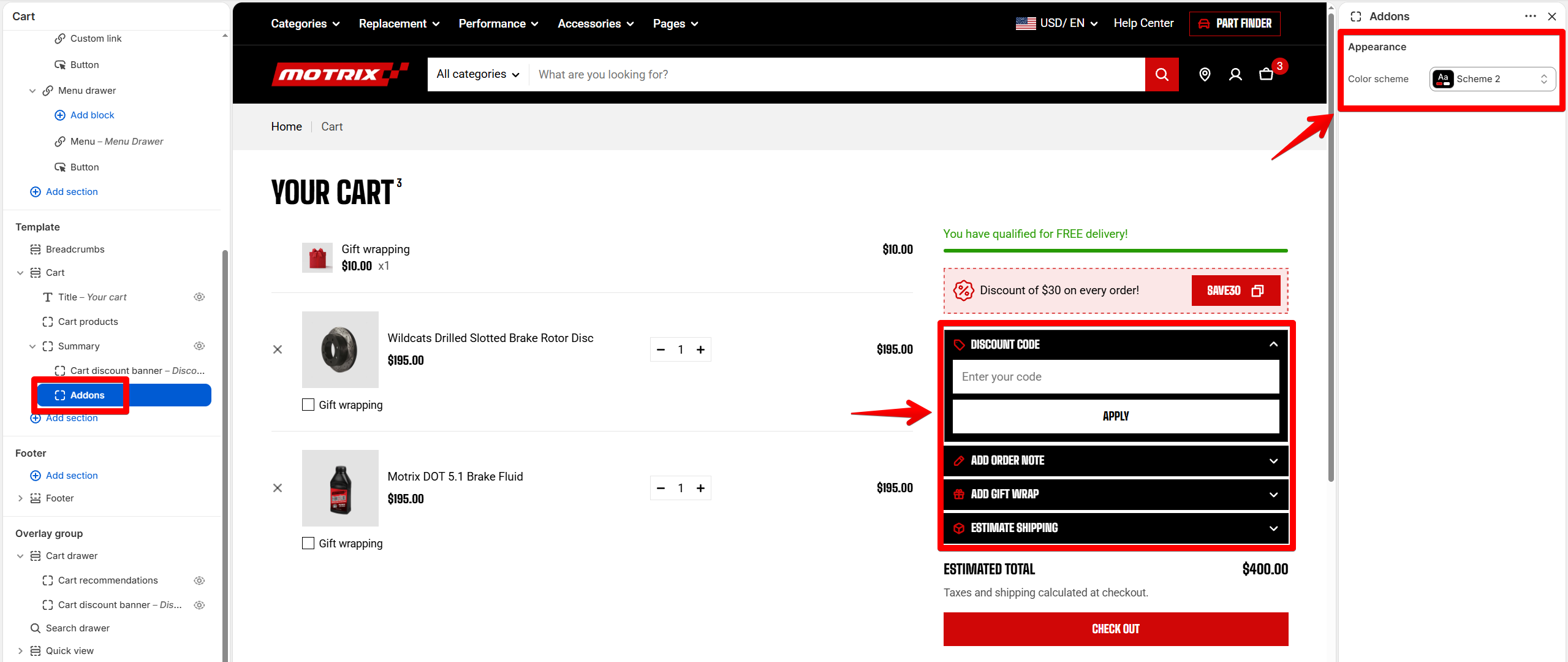
* **Summary** — Displays the cart summary, including the [**Cart discount banner**](https://docs.foxecom.com/motrix-theme/overlay-group/cart-drawer#cart-discount-banner) and **Addons**. Use the **Color scheme** setting to customize the **cart addon tabs**.
## Tips
* Configure cart features such as **gift wrapping, the shipping rate calculator, and empty-cart recommendations** from [**Theme settings** **> Cart**](https://docs.foxecom.com/motrix-theme/theme-settings/cart).
* The item list updates when customers change quantities or remove products, without reloading the page.
* Use **Full** container width when you need more horizontal space for the cart layout.