# Blogs page
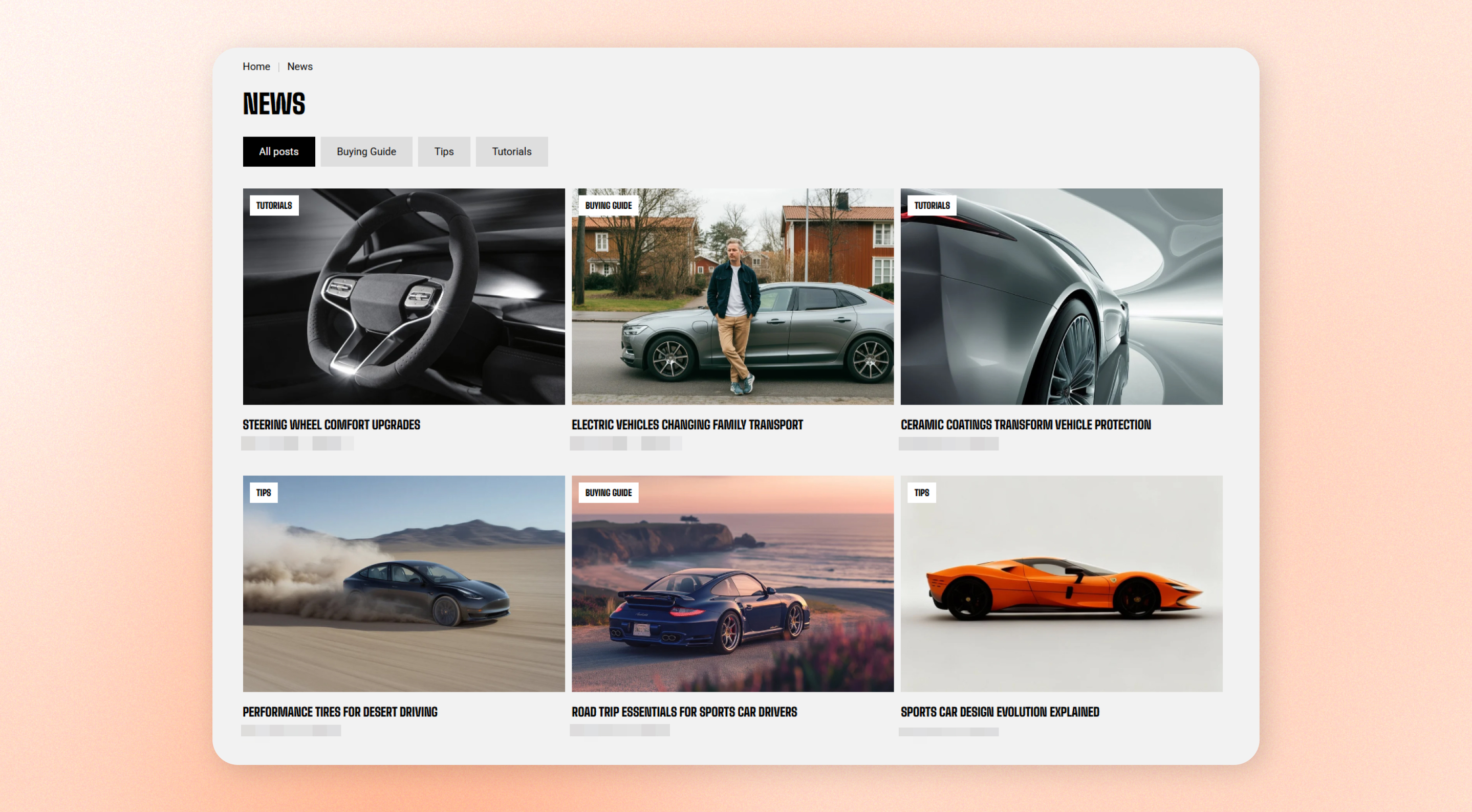
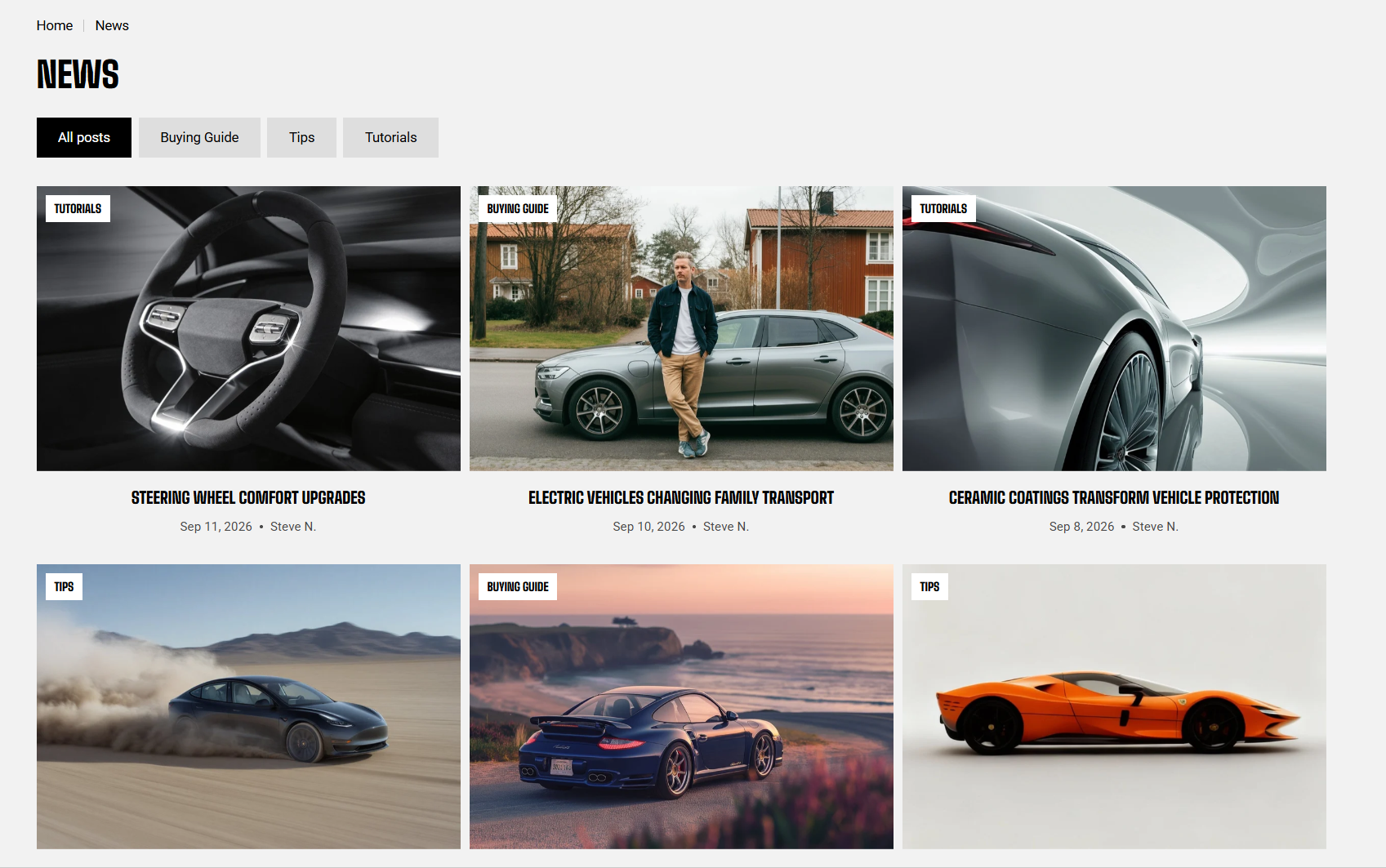
Display **blog posts as a card grid** with the blog title and tag links above the list. Customers can browse posts by tag and use pagination to move between pages when the blog contains more posts than the **Post limit**.
## How to customize Blogs listing page
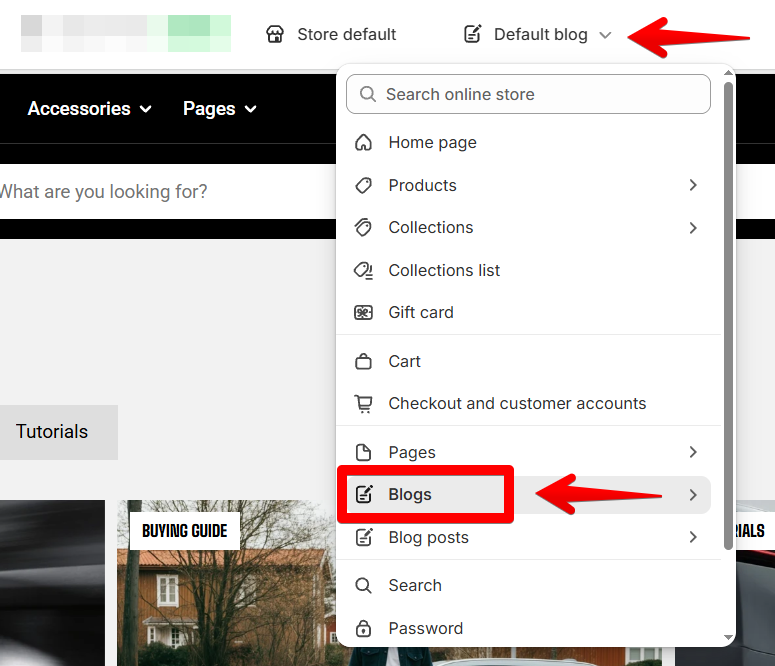
1. Go to **Online Store > Themes** in Shopify Admin.
2. Find your theme and click **Edit theme**.
3. Open the page selector and select the **Blogs** page > **Select a template**
4. Select the **Blog posts** section from the section list
5. Adjust the section settings and customize its blocks.
6. **Save** your changes.
 ## Section settings
### Layout
Control the width, number of posts, and spacing of the blog post grid.
## Section settings
### Layout
Control the width, number of posts, and spacing of the blog post grid.
| Setting | Description | Options |
| -------------------------------- | --------------------------------------------------------------------------------------------- | ------------- |
| **Container** | Set whether the blog content stays within the page width or spans the available screen width. | Fixed / Full |
| **Post limit** | Set how many posts appear on each page. Additional posts appear on subsequent pages. | 2 - 12 |
| **Number of columns on desktop** | Set how many article cards appear in each row on desktop. | 1 - 4 columns |
| **Column gap** | Set the horizontal space between article cards. | 0px - 100px |
| **Row gap** | Set the vertical space between rows of article cards. | 0px - 100px |
Use fewer columns when your article cards contain longer titles or excerpts. This gives each card more space and makes the content easier to scan.
### Mobile layout
Control the blog post grid on mobile devices.
| Setting | Description | Options |
| --------------------- | --------------------------------------------------------------- | -------------------- |
| **Mobile columns** | Set how many article cards appear in each row on mobile. | 1 column / 2 columns |
| **Column gap mobile** | Set the horizontal space between article cards on mobile. | 0px - 100px |
| **Row gap mobile** | Set the vertical space between rows of article cards on mobile. | 0px - 100px |
Use one column when your article cards include longer titles, excerpts, or metadata. Use two columns when you want customers to browse more posts at once.
### Appearance
Customize the overall appearance of the Blog posts section.
| Setting | Description | Options |
| ---------------- | ------------------------------------------- | --------------------- |
| **Color scheme** | Apply a color scheme to the entire section. | Select a color scheme |
### Padding
Choose **Desktop** or **Mobile**, then control the top and bottom spacing around the section. Left and right padding controls are available when **Container** is set to **Full**.
| Setting | Description | Options |
| ------- | ---------------------------------------------------------------------------- | ---------------- |
| Devices | Choose the device type for the padding settings. | Desktop / Mobile |
| Top | Set the space above the blog content. | 0px - 100px |
| Bottom | Set the space below the blog content. | 0px - 100px |
| Left | Set the space to the left of the content when **Container is set to Full.** | 0px - 100px |
| Right | Set the space to the right of the content when **Container is set to Full.** | 0px - 100px |
## Blocks
The **Blog posts** section includes **Heading**, **Tags**, and **Article card** blocks. Use these blocks to control the blog title, tag navigation, and individual post cards.
### Heading
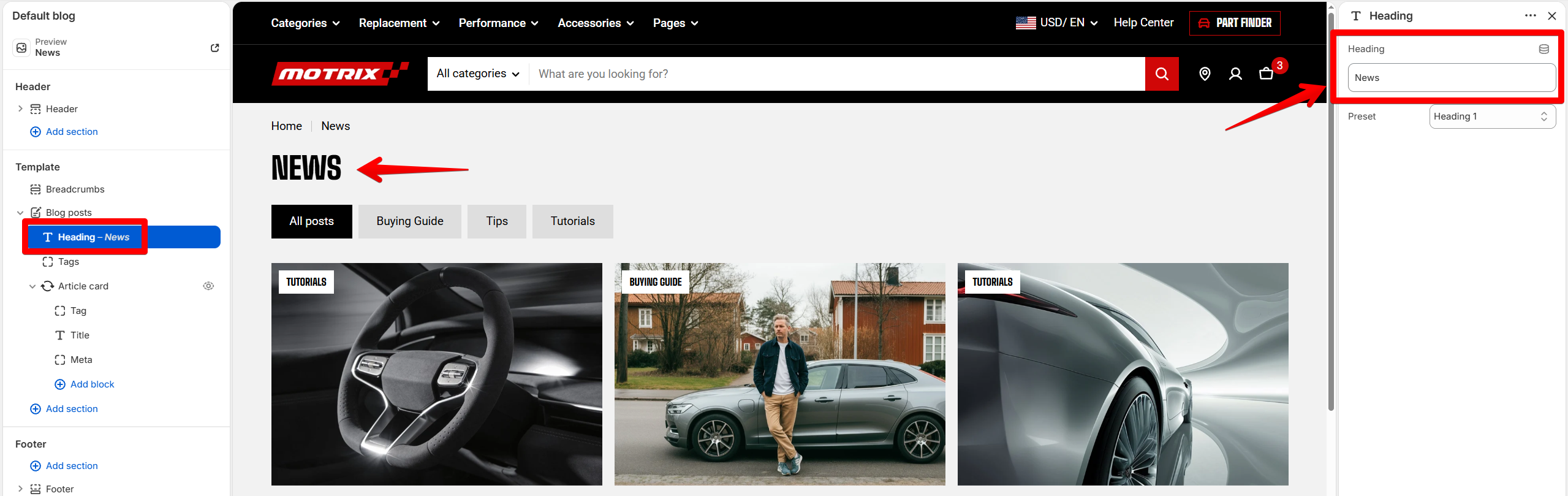
Displays the blog title above the article list.
### Tags
Displays links to the blog's tags above the article list. **All posts** shows all posts, while selecting a tag reloads the page to show only posts with that tag.
Use the block settings to control how many tags appear in the list.
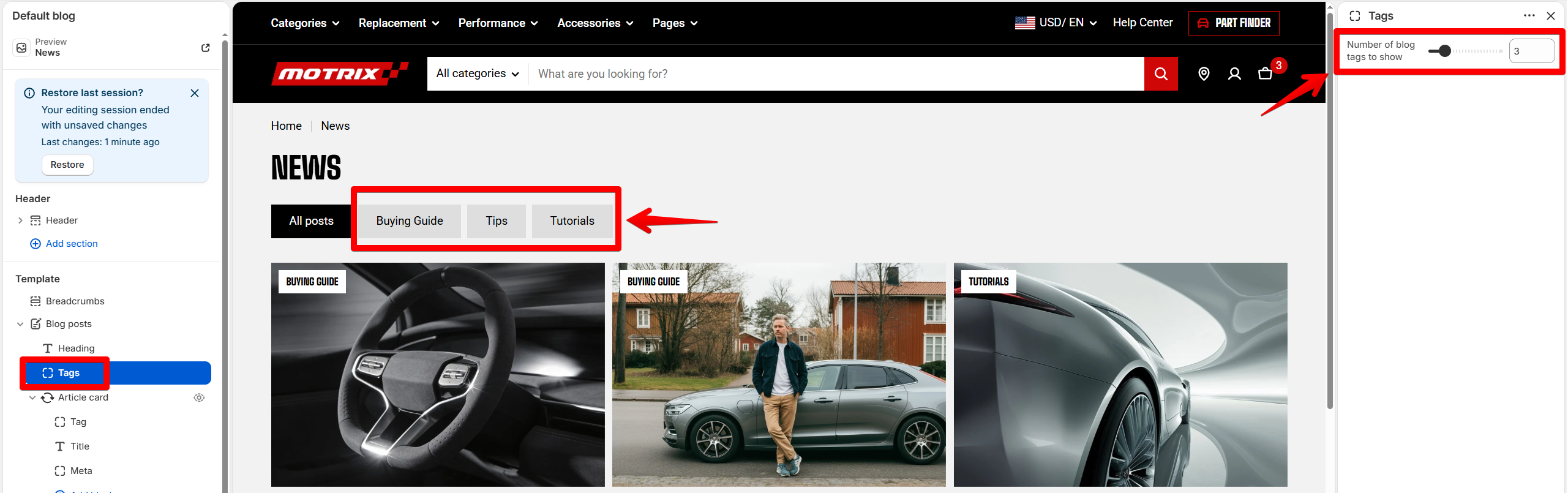
Keep tag names short so customers can scan and browse the tag list easily, especially on mobile where the tags scroll horizontally.
### Article card
Displays each blog post as an individual card in the grid.
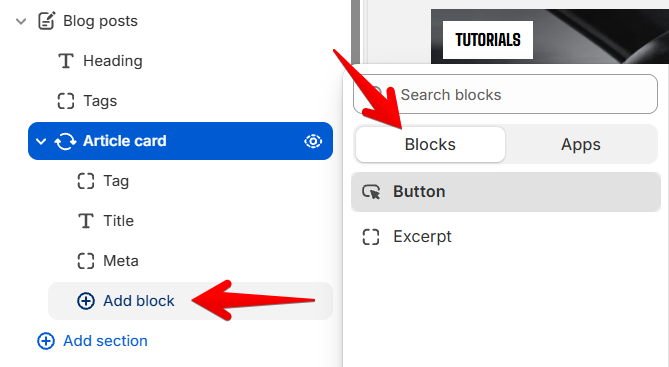
The Article card includes **child blocks** that control the content shown on each post card, such as the tag label, title, metadata, excerpt, and button.
See the [**Article card** documentation for details on configuring **child block settings**](https://docs.foxecom.com/motrix-theme/theme-blocks/article-card#article-card-items)**.**
| Setting | Description | Options |
| ------------------------- | ----------------------------------------------------------------------- | ------------- |
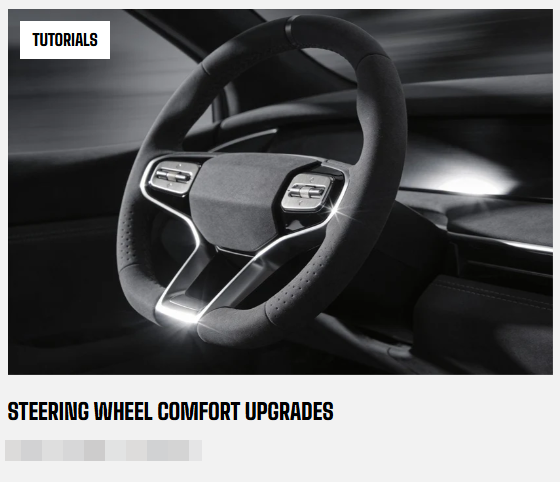
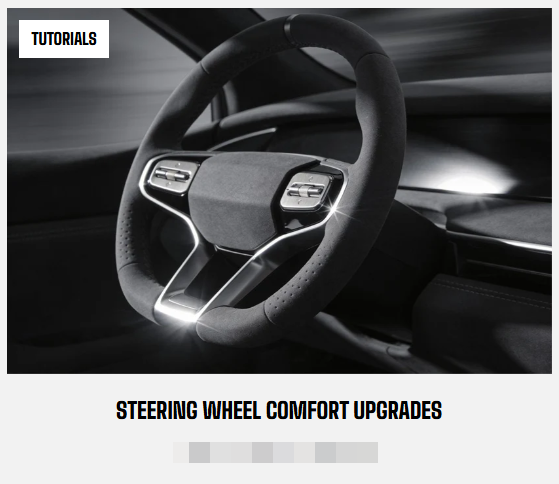
| **Alignment** | Set the alignment of the content inside the article card. | Left / Center |
| **Enable video lightbox** | Open the article's video in a larger lightbox when customers select it. | On / Off |
## Additional sections and blocks
Add other available theme sections or blocks to customize the Blogs page.
Use these additional sections to add content such as product recommendations, promotional content, images, or other supporting information below the search area.
The available sections and blocks depend on the theme and its version.
Learn more:
Theme sections
Theme blocks
## Tips
* Use consistent image crops across your articles so the card grid stays visually aligned.
* Keep article titles concise when using multiple columns.
* Use the tag filter to help customers browse posts by topic.
* On mobile, the tag list scrolls horizontally, so shorter tag names are easier to browse.