# Blog post page
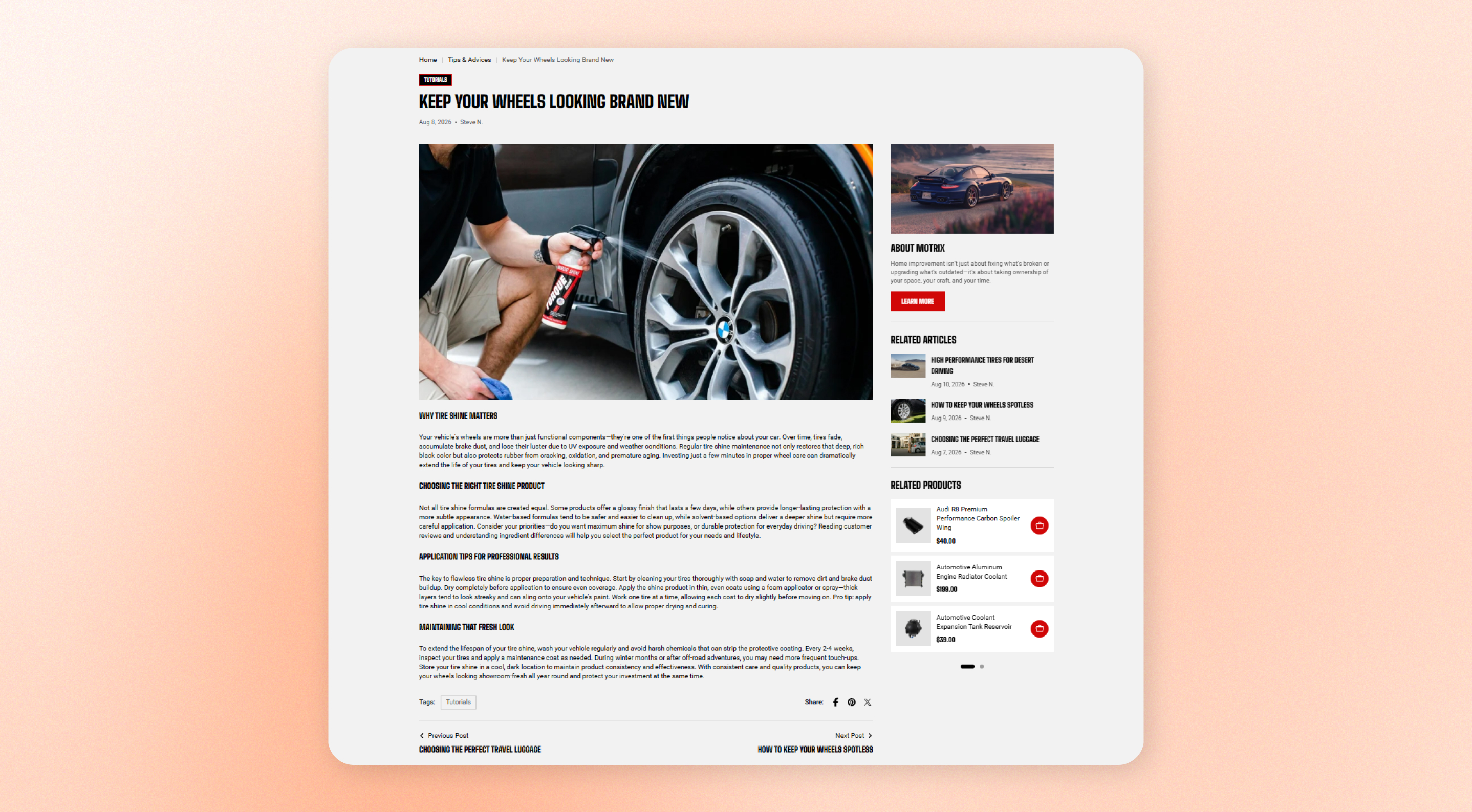
Display the **full content** of an individual blog post, including its title, featured image, article content, sharing options, navigation, and related posts.
Use this page to control how customers see a blog post after they open it from your blog listing, search results, or another link.
## How to add a Blog post in Shopify
Create at least one blog and blog post in Shopify before customizing this page. Learn more: [Adding and managing blog posts](https://help.shopify.com/en/manual/online-store/blogs/writing-blogs/working-with-blog-posts).
1. Go to **Content >** [**Blog posts**](https://admin.shopify.com/content/articles) in Shopify Admin.
2. Click **Add blog post**.
3. Enter a **Title** and add your article content.
4. Select the **Blog** and **Author** for the post.
5. Optionally add a featured **Image**, **Excerpt**, and **Tags**.
6. Set the post to **Visible** when you are ready to publish it.
7. Assign a theme template.
8. Click **Save**.
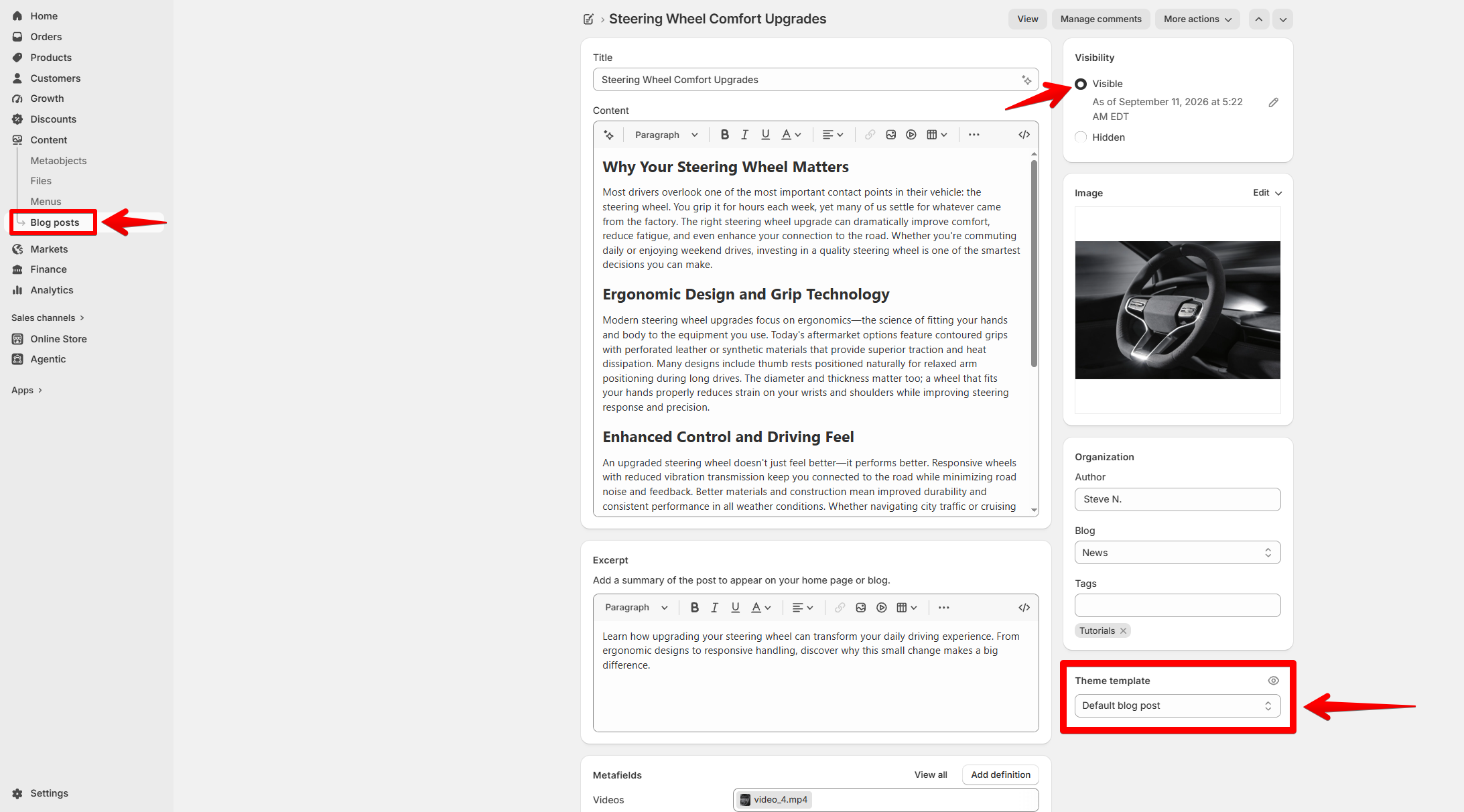
Shopify stores the article content in the blog post, so the [**Content**](https://docs.foxecom.com/motrix-theme/other-pages/blog-post-page#content) and [**Navigation** ](https://docs.foxecom.com/motrix-theme/other-pages/blog-post-page#navigation)blocks on this page automatically use the content of the post being viewed.
Add tags to your posts if you want to organize content by topic or use tags for filtering and related content.
## How to customize the Blog posts page template
1. Go to **Online Store > Themes** in Shopify Admin.
2. Find your theme and click **Edit theme**.
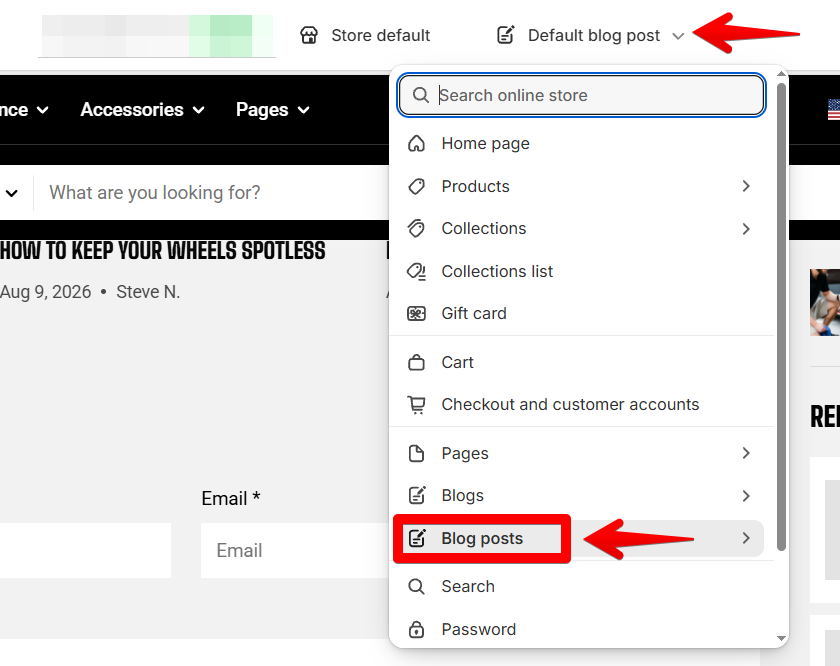
3. Open the page selector and select **Blog posts > Select a template**
4. Select the **Main article** section to customize the main article layout.
5. Adjust the available section settings and fixed blocks.
6. Customize the **Sidebar**, **Related posts**, and **Comment** sections as needed.
7. Save your changes.
## Section settings - Main article
The **Main article** section displays the main content of the blog post customers are currently viewing.
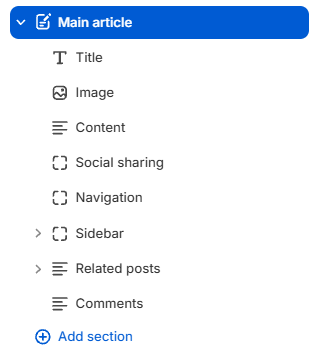
It includes the following fixed blocks:
* [**Title** ](https://docs.foxecom.com/motrix-theme/other-pages/blog-post-page#title)— Displays the blog post title and optional tags, publication date, and author.
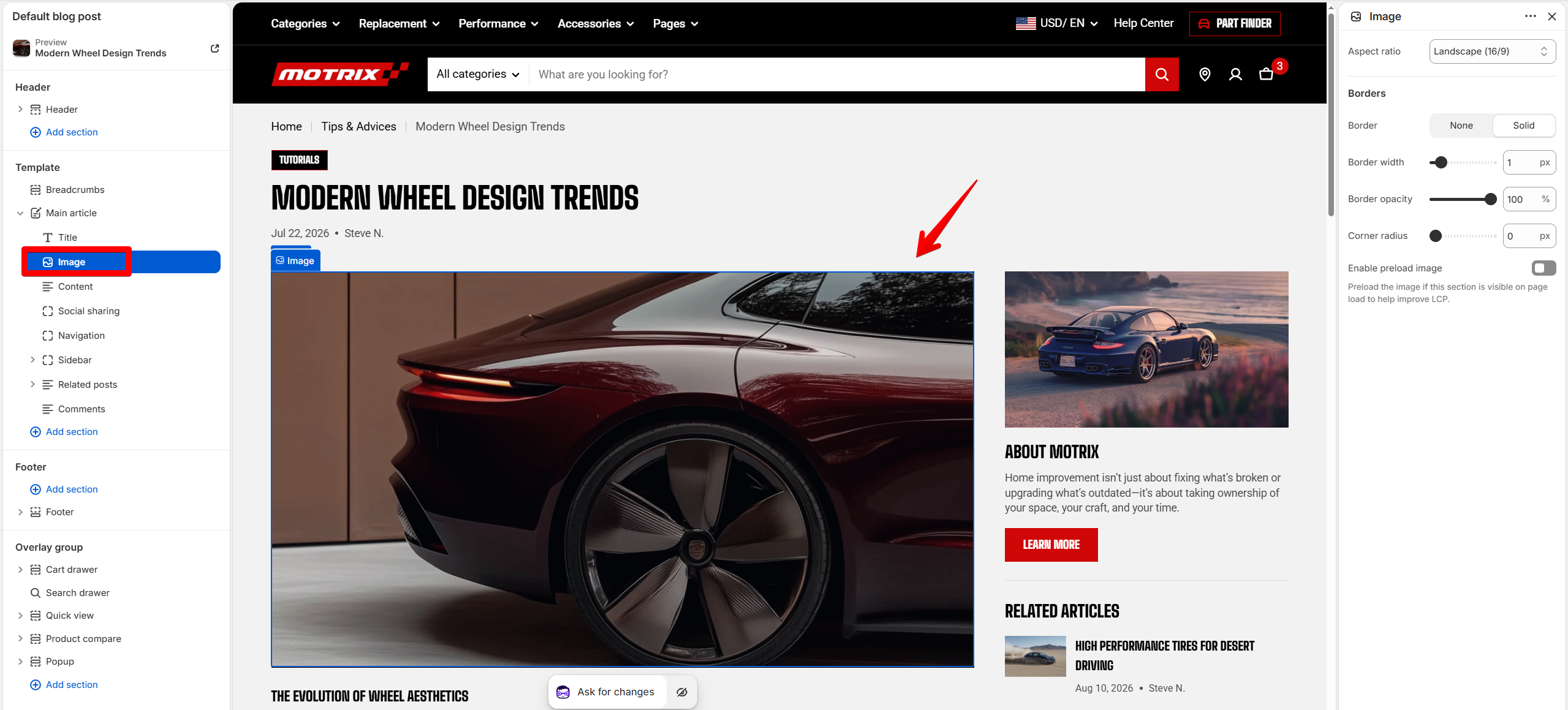
* [**Image** ](https://docs.foxecom.com/motrix-theme/other-pages/blog-post-page#image)— Displays the featured image of the current blog post.
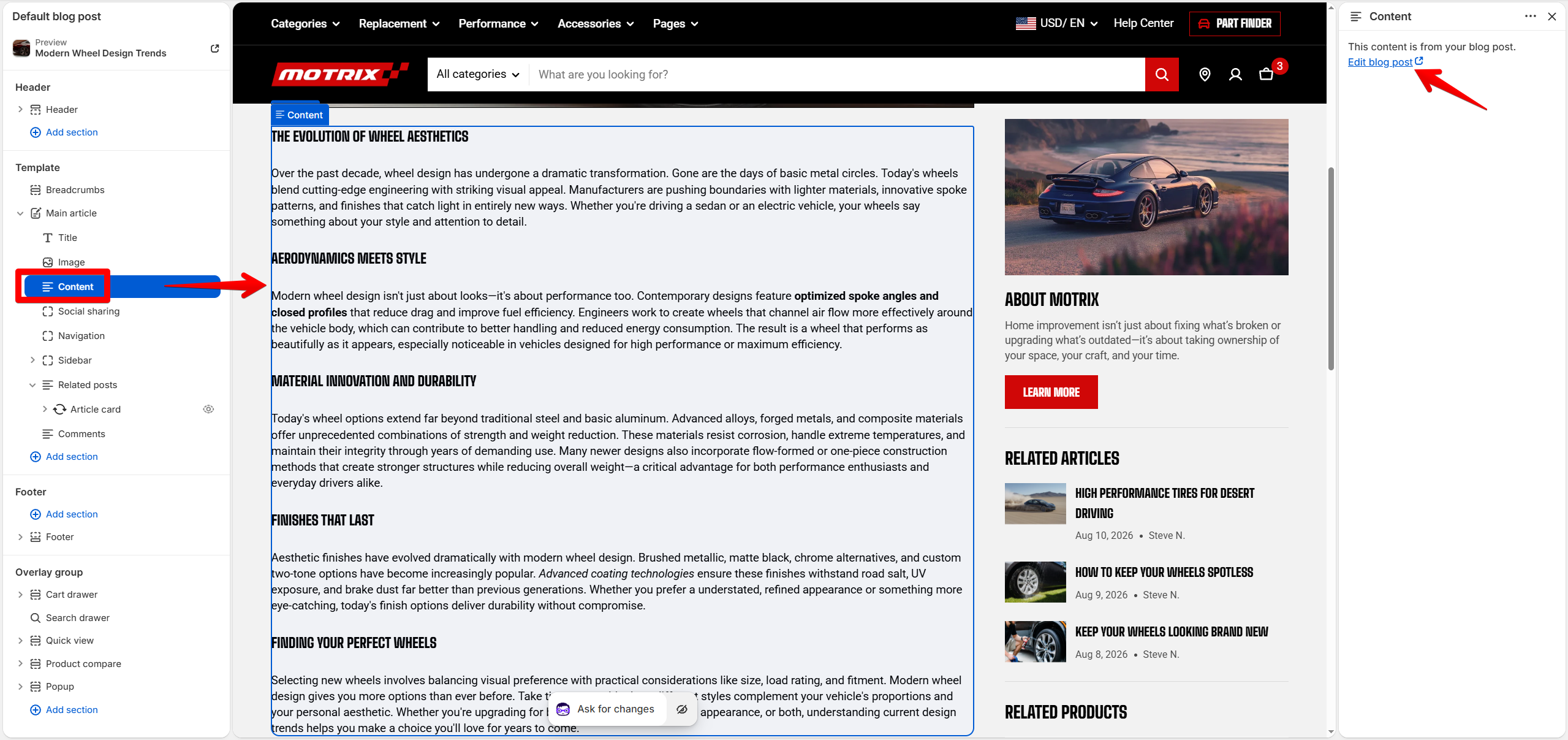
* [**Content** ](https://docs.foxecom.com/motrix-theme/other-pages/blog-post-page#content)— Displays the content of the current blog post.
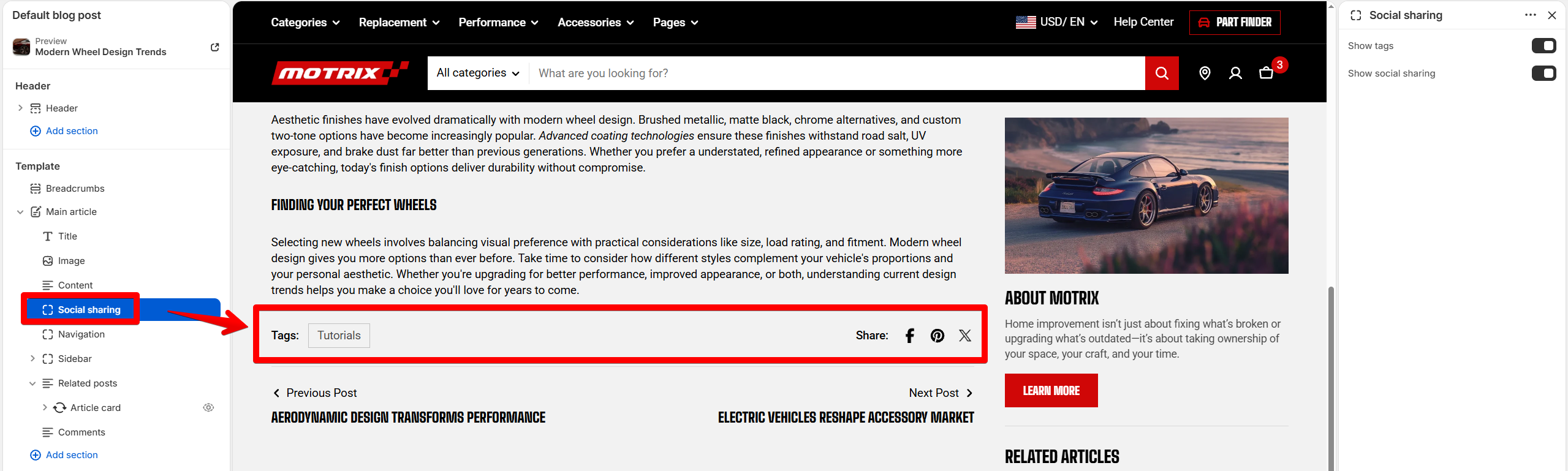
* [**Social Sharing**](https://docs.foxecom.com/motrix-theme/other-pages/blog-post-page#social-sharing) — Displays tags and social sharing options.
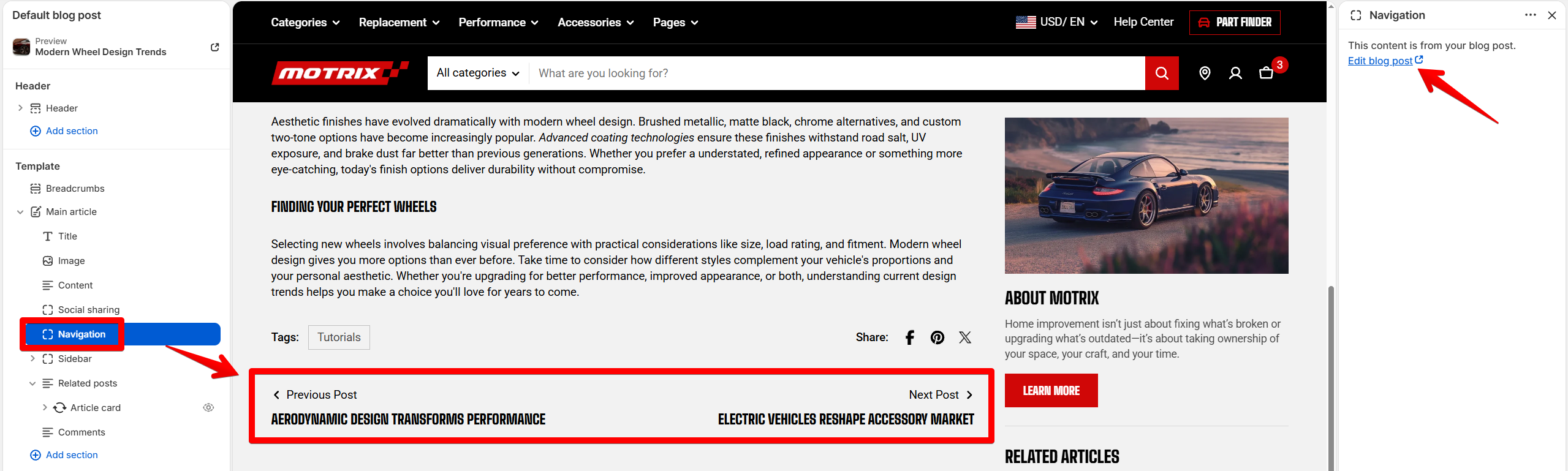
* [**Navigation** ](https://docs.foxecom.com/motrix-theme/other-pages/blog-post-page#navigation)— Displays navigation links between blog posts.
* [**Sidebar** ](https://docs.foxecom.com/motrix-theme/other-pages/blog-post-page#sidebar)— Displays supporting content beside the main article, such as an image card and other available theme blocks.
* [**Related posts**](https://docs.foxecom.com/motrix-theme/other-pages/blog-post-page#related-posts) — Displays related blog posts to encourage customers to continue reading.
* [**Comment** ](https://docs.foxecom.com/motrix-theme/other-pages/blog-post-page#comment)— Displays a form where customers can leave comments on the blog post.
| Setting | Description | Options |
| --------------------- | ------------------------------------------------------------ | --------------------- |
| **Color scheme** | Choose the color scheme applied to the main article section. | Select a color scheme |
| **Padding - Devices** | Choose the device type for the padding settings. | Desktop / Mobile |
| **Padding - Top** | Set the space above the main article content. | 0px - 100px |
| **Padding - Bottom** | Set the space below the main article content. | 0px - 100px |
## Blocks
The content displayed in the **Title**, **Image**, **Content**, **Navigation**, and **Related posts** blocks comes directly from the blog posts you create in Shopify Admin. To edit a blog post's content or add a new blog post, go to **Content >** [**Blog posts**](https://admin.shopify.com/content/articles) in Shopify Admin.
### Title
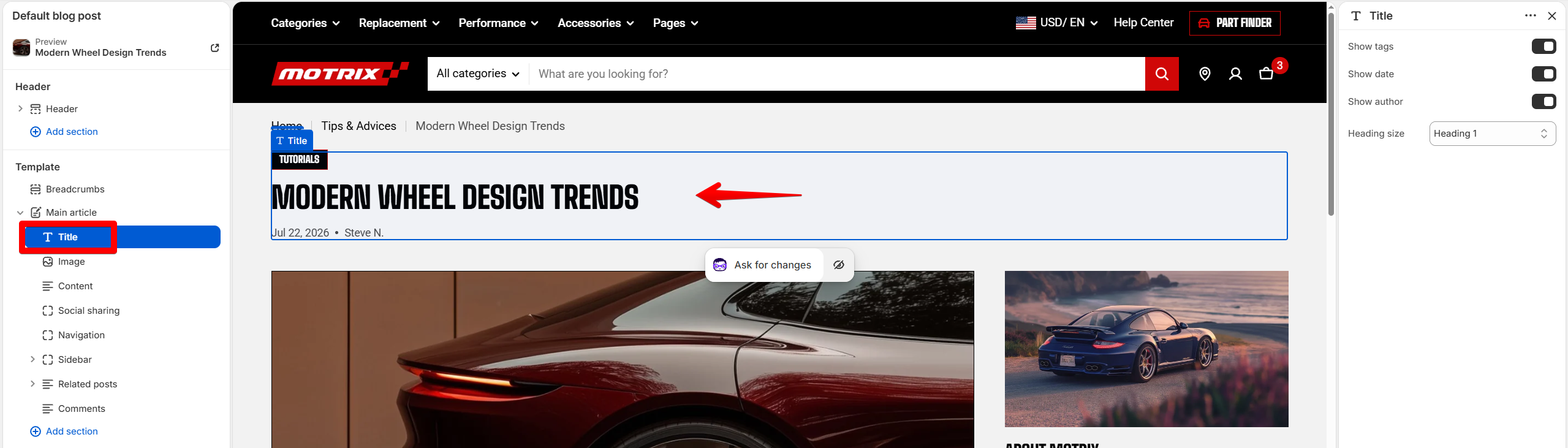
Displays the title of the current blog post, together with optional post information such as tags, publication date, and author.
| Setting | Description | Options |
| ---------------- | --------------------------------------------------- | ---------------------- |
| **Show tags** | Display the tags assigned to the current blog post. | On / Off |
| **Show date** | Display the blog post's publication date. | On / Off |
| **Show author** | Display the author of the blog post. | On / Off |
| **Heading size** | Set the size of the blog post title. | Heading 1 - 6 / Custom |
Title settings
### Image
Displays the featured image assigned to the current blog post.
| Setting | Description | Options |
| ------------------------ | ---------------------------------------------------------------------------------------- | ------------------------------------------------------------------------------------------------------------- |
| **Aspect ratio** | Set the shape of the featured image. | Auto / Square (1:1) / Portrait (4:5) / Portrait (3:4) / Landscape (16:9) / Landscape (4:3) / Landscape (21:9) |
| **Border** | Add a border around the featured image. | None / Solid |
| **Border width** | Set the border thickness. This setting appears when Border is Solid. | 0px - 10px |
| **Border opacity** | Set how visible the border is. | 0% - 100% |
| **Corner radius** | Round the corners of the featured image. | 0px - 32px |
| **Enable preload image** | Loads the image earlier so it appears faster when the block is near the top of the page. | On / Off |
Image settings
Use an **aspect ratio** that matches the style of your blog images. Keep the same ratio across posts when you want a consistent visual layout.
**Enable preload image** only when the image is visible as soon as the page opens. Avoid enabling it for images customers need to scroll to.
### Content
Displays the content of the blog post being viewed.
The content comes directly from the **Content** field of the blog post in Shopify Admin. Edit the article content from **Shopify Admin > Content >** [**Blog posts**](https://admin.shopify.com/content/articles), or use the **Edit blog post** link in the theme editor.
Content settings
Format your article content in Shopify's blog post editor before adjusting the theme layout. This keeps the article content itself separate from the way it is displayed on your storefront.
### Social sharing
Adds social sharing options to the blog post.
| Setting | Description | Options |
| ----------------------- | --------------------------------------------------------------- | -------- |
| **Show tags** | Display the blog post's tags alongside the social sharing area. | On / Off |
| **Show social sharing** | Display social sharing options for the current blog post. | On / Off |
Social sharing settings
### Navigation
Displays **navigation links between blog posts** so customers can move to other posts without returning to the blog listing.
The navigation content is generated from the blog posts in Shopify. Use the **Edit blog post** link to update the current article and its content.
Navigation settings
### Sidebar
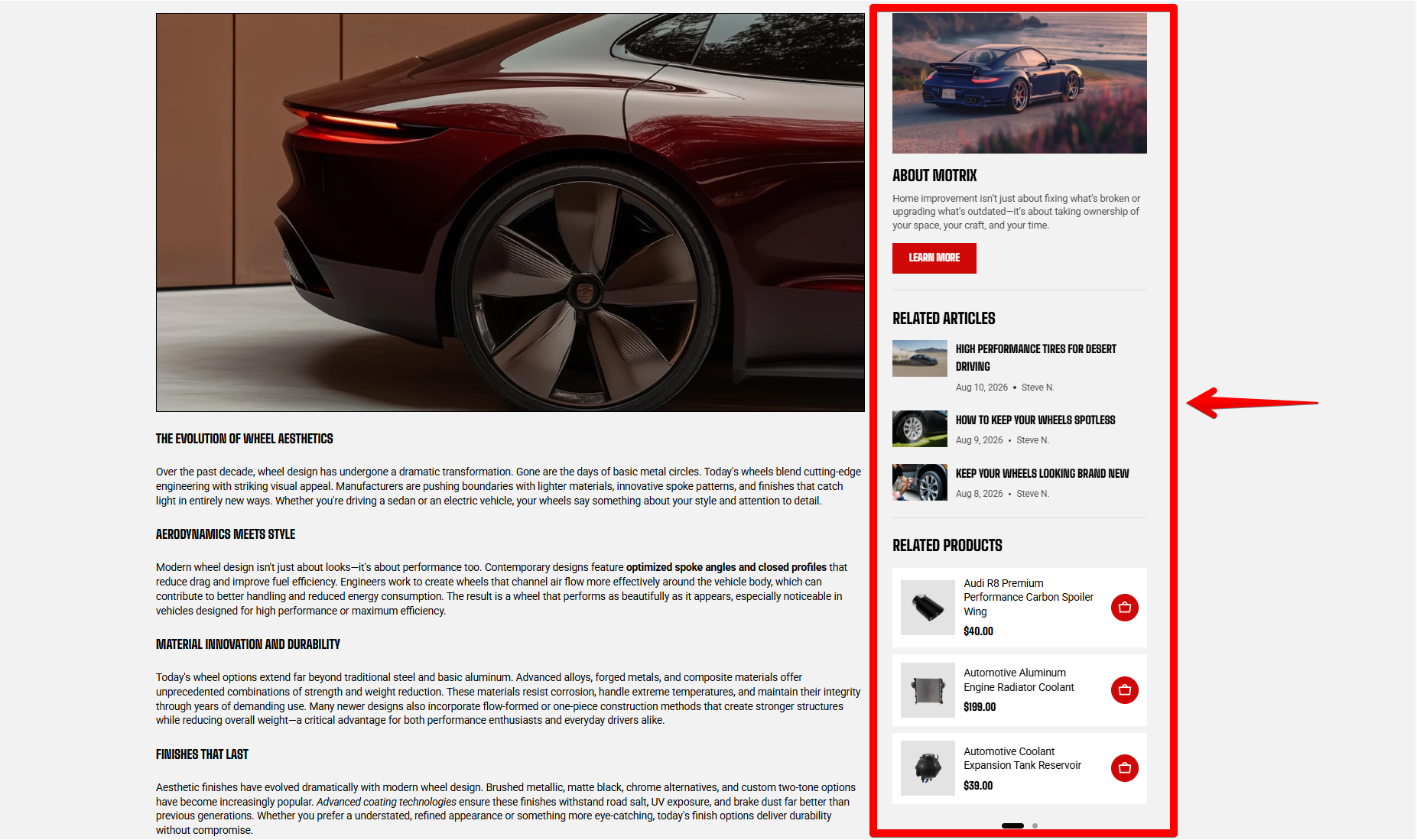
The **Sidebar** appears **beside the main article** content on desktop (below the main article content on mobile) and provides an additional area for supporting content.
Sidebar position on desktop
Use the sidebar to add content such as recent articles, product lists, promotional content, or other information that helps customers explore more of your store.
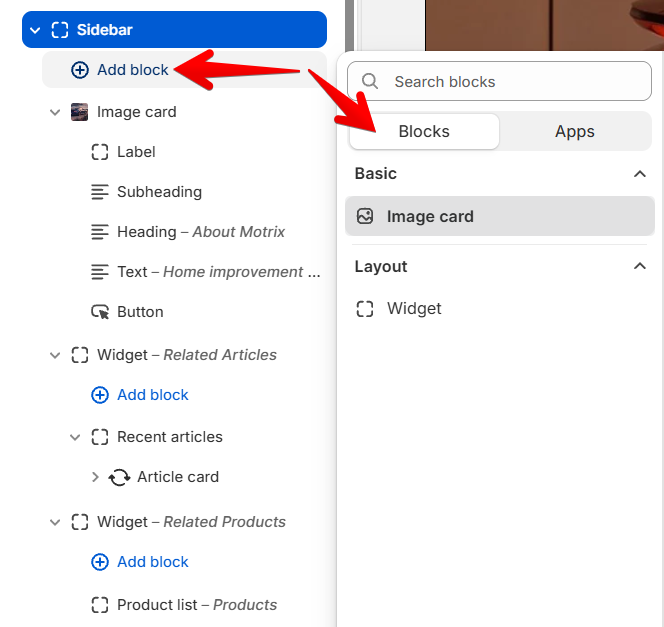
The sidebar can include **Image cards** and [**Widgets** ](https://docs.foxecom.com/motrix-theme/other-pages/blog-post-page#widget)to add other available theme blocks.
#### Image card
Adds an image card to the sidebar. Use the **Image card** block to highlight a collection, product, promotion, or other visual content.
[See the **Image card** documentation for details on configuring its settings.](https://docs.foxecom.com/motrix-theme/theme-blocks/image-card)
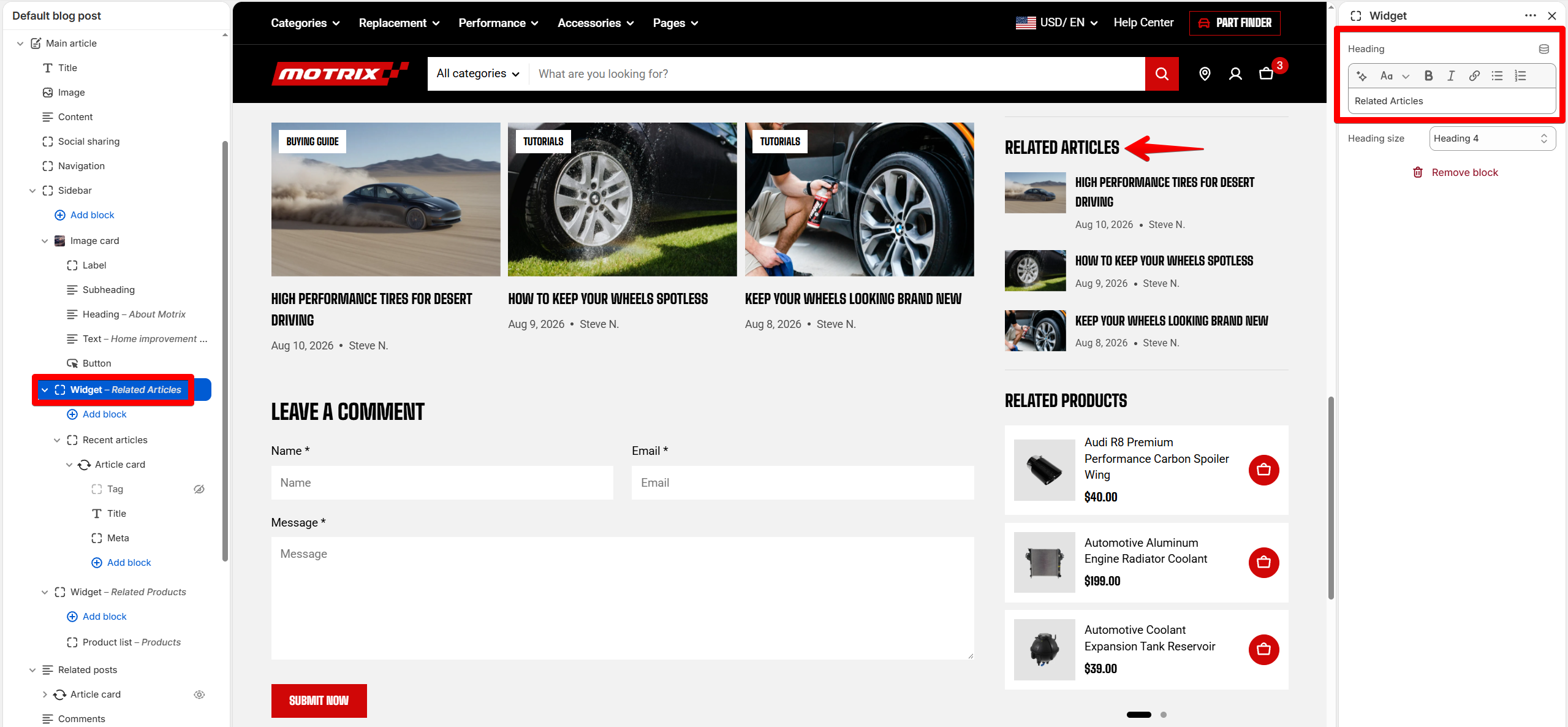
#### Widget
Use widget to add other supported [theme blocks](https://docs.foxecom.com/motrix-theme/theme-blocks/overview) to the sidebar, such as **Recent articles**, **Product list**, or other available blocks. Use these blocks to give customers additional ways to discover content or products while reading the article.
Customize the widget heading and its size to match your sidebar layout.
| Setting | Description | Options |
| ---------------- | --------------------------------------------------------------- | ------------- |
| **Heading** | Add a heading to introduce the content displayed in the widget. | Enter text |
| **Heading size** | Choose the heading level used for the widget heading. | Heading 1 - 6 |
Widget settings
Keep the sidebar focused on content related to the article. Too many blocks can distract customers from the main content.
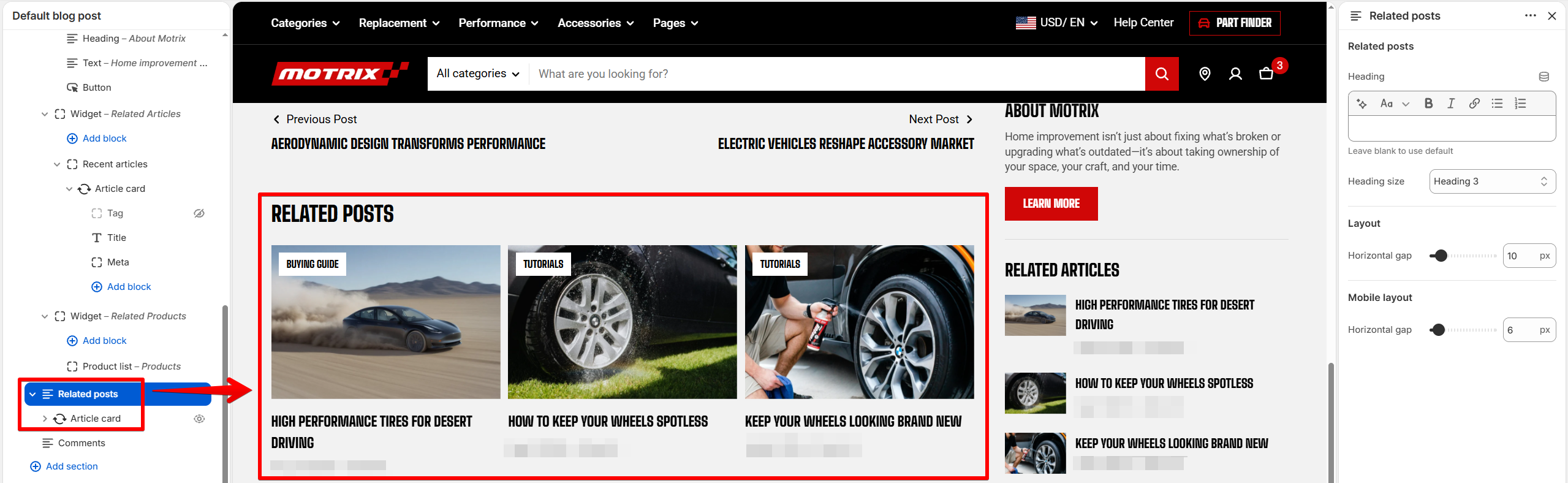
### Related posts
Displays other blog posts that customers may want to read after the current article.
Related posts settings
| Setting | Description | Options |
| ---------------------------------- | ---------------------------------------------------------------------------------------------- | ---------------------- |
| **Heading** | Set the heading displayed above the related posts. **Leave blank to use the default heading.** | Enter Text |
| **Heading size** | Set the size of the related posts heading. | Heading 1 - 6 / Custom |
| **Layout - Horizontal gap** | Set the horizontal space between related post cards. | 0px - 100px |
| **Mobile layout - Horizontal gap** | Set the horizontal space between related post cards on mobile. | 0px - 100px |
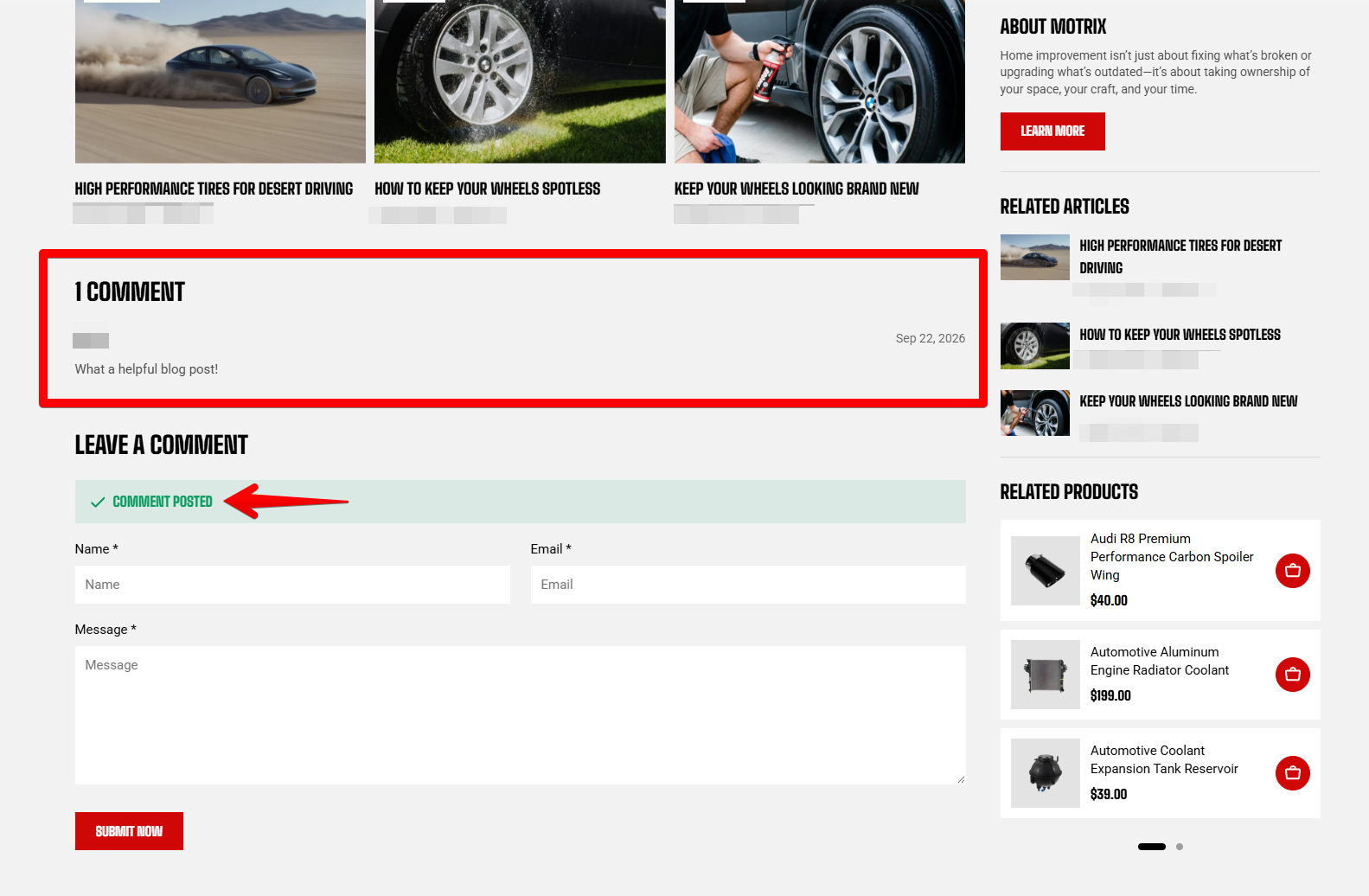
### Comment
Displays a comment form that lets customers leave comments on the blog post.
Use this section when you want customers to engage with your blog content and share their feedback or discussion.
After submitting the comment form
Make sure **comments are enabled** for the relevant blog in Shopify if you want customers to submit comments. Blog comment management is configured at the blog level in Shopify Admin. Learn more: [Managing comments on blog posts](https://help.shopify.com/en/manual/online-store/blogs/managing-comments)

## Tips
* Use the Blog posts template for layout changes. Changes made in the theme editor apply to the layout of blog posts using this template.
* Keep your blog content organized. Use relevant tags, clear titles, featured images, and consistent formatting to make your articles easier for customers to explore.
* Review the blog post on desktop and mobile after making layout changes to make sure the content displays as expected.
 ## Section settings - Main article
The **Main article** section displays the main content of the blog post customers are currently viewing.

It includes the following fixed blocks:
* [**Title** ](https://docs.foxecom.com/motrix-theme/other-pages/blog-post-page#title)— Displays the blog post title and optional tags, publication date, and author.
* [**Image** ](https://docs.foxecom.com/motrix-theme/other-pages/blog-post-page#image)— Displays the featured image of the current blog post.
* [**Content** ](https://docs.foxecom.com/motrix-theme/other-pages/blog-post-page#content)— Displays the content of the current blog post.
* [**Social Sharing**](https://docs.foxecom.com/motrix-theme/other-pages/blog-post-page#social-sharing) — Displays tags and social sharing options.
* [**Navigation** ](https://docs.foxecom.com/motrix-theme/other-pages/blog-post-page#navigation)— Displays navigation links between blog posts.
* [**Sidebar** ](https://docs.foxecom.com/motrix-theme/other-pages/blog-post-page#sidebar)— Displays supporting content beside the main article, such as an image card and other available theme blocks.
* [**Related posts**](https://docs.foxecom.com/motrix-theme/other-pages/blog-post-page#related-posts) — Displays related blog posts to encourage customers to continue reading.
* [**Comment** ](https://docs.foxecom.com/motrix-theme/other-pages/blog-post-page#comment)— Displays a form where customers can leave comments on the blog post.
## Section settings - Main article
The **Main article** section displays the main content of the blog post customers are currently viewing.

It includes the following fixed blocks:
* [**Title** ](https://docs.foxecom.com/motrix-theme/other-pages/blog-post-page#title)— Displays the blog post title and optional tags, publication date, and author.
* [**Image** ](https://docs.foxecom.com/motrix-theme/other-pages/blog-post-page#image)— Displays the featured image of the current blog post.
* [**Content** ](https://docs.foxecom.com/motrix-theme/other-pages/blog-post-page#content)— Displays the content of the current blog post.
* [**Social Sharing**](https://docs.foxecom.com/motrix-theme/other-pages/blog-post-page#social-sharing) — Displays tags and social sharing options.
* [**Navigation** ](https://docs.foxecom.com/motrix-theme/other-pages/blog-post-page#navigation)— Displays navigation links between blog posts.
* [**Sidebar** ](https://docs.foxecom.com/motrix-theme/other-pages/blog-post-page#sidebar)— Displays supporting content beside the main article, such as an image card and other available theme blocks.
* [**Related posts**](https://docs.foxecom.com/motrix-theme/other-pages/blog-post-page#related-posts) — Displays related blog posts to encourage customers to continue reading.
* [**Comment** ](https://docs.foxecom.com/motrix-theme/other-pages/blog-post-page#comment)— Displays a form where customers can leave comments on the blog post.
 #### Image card
Adds an image card to the sidebar. Use the **Image card** block to highlight a collection, product, promotion, or other visual content.
[See the **Image card** documentation for details on configuring its settings.](https://docs.foxecom.com/motrix-theme/theme-blocks/image-card)
#### Widget
Use widget to add other supported [theme blocks](https://docs.foxecom.com/motrix-theme/theme-blocks/overview) to the sidebar, such as **Recent articles**, **Product list**, or other available blocks. Use these blocks to give customers additional ways to discover content or products while reading the article.
Customize the widget heading and its size to match your sidebar layout.
#### Image card
Adds an image card to the sidebar. Use the **Image card** block to highlight a collection, product, promotion, or other visual content.
[See the **Image card** documentation for details on configuring its settings.](https://docs.foxecom.com/motrix-theme/theme-blocks/image-card)
#### Widget
Use widget to add other supported [theme blocks](https://docs.foxecom.com/motrix-theme/theme-blocks/overview) to the sidebar, such as **Recent articles**, **Product list**, or other available blocks. Use these blocks to give customers additional ways to discover content or products while reading the article.
Customize the widget heading and its size to match your sidebar layout.