# 404 page
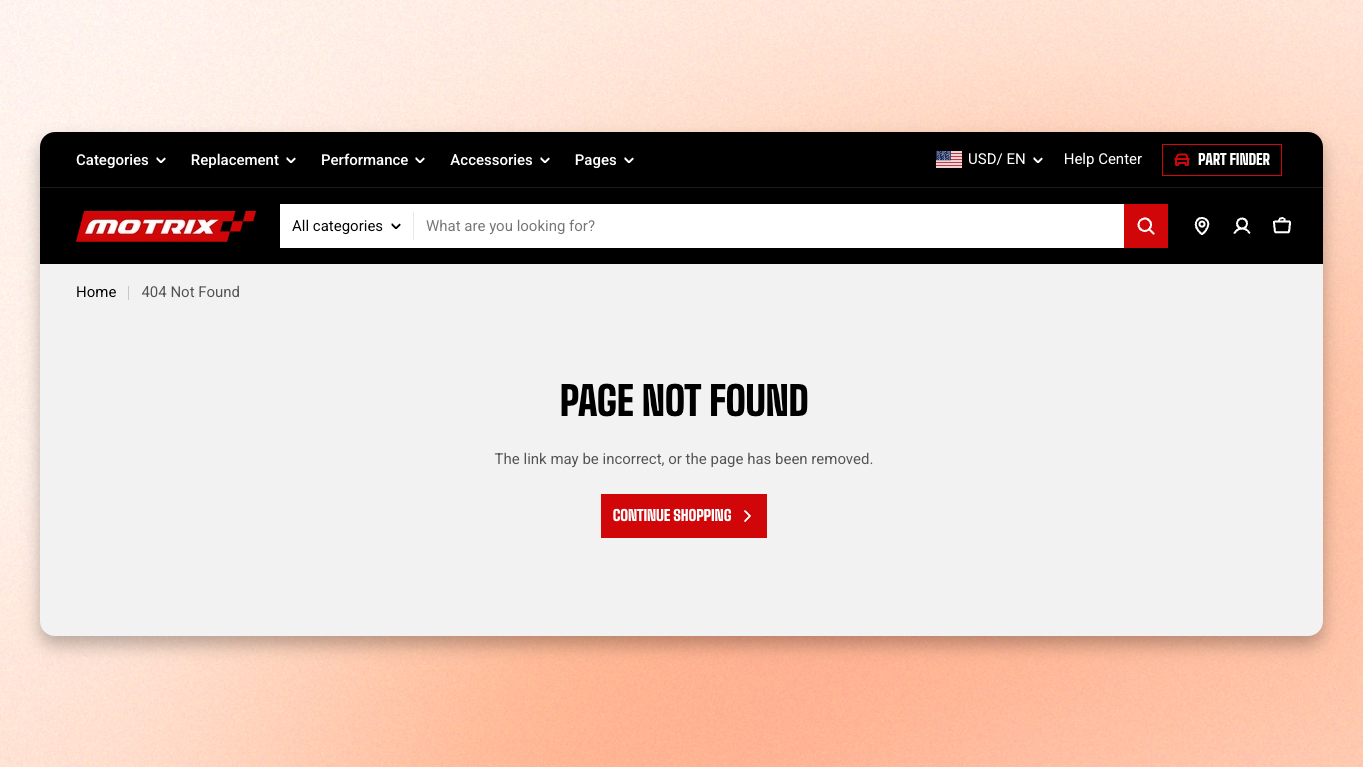
Customers land here after a mistyped address, a link from an old email, or a product you have since deleted. They did not choose to be here, so the page has one job: get them somewhere useful before they leave.
## How to edit the 404 page
You can add any section that is listed in Theme sections. Nevertheless, there is a section designed specifically for the 404 page.
**Step:**
1. In the theme editor, open the page selector at the top of the screen.
2. Choose **404 page** under **Pages**.
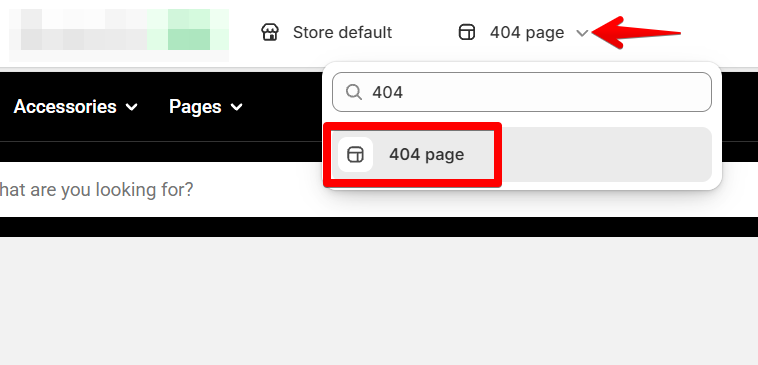 3. On the left-side bar, select the **404 page section** or **Add section**.
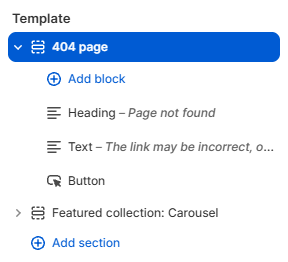
4. Build the content you want, then click **Save**.
## Section settings
### Layout
| Setting | Description | Option |
| ---------------- | -------------------------------------------------------------- | ---------------------------------------------------------------------------------------------------------------------------------------------- |
| **Container** | Choose how much horizontal space the 404 page content can use. | Select **Fixed** to keep the content within your store's standard page width.
Select **Full** to let the content use the available width. |
| **Alignment** | Align the 404 page content to the Left, Center, or Right. | Left, Center, or Right. |
| **Vertical gap** | Set the space between content blocks on desktop. | 0px - 100px |
Centre alignment suits a short message and a single button. Left reads better once you add a row of products or a longer explanation.
### Mobile layout
| Setting | Description | Option |
| ---------------- | ----------------------------------------------- | ----------- |
| **Vertical gap** | Set the space between content blocks on mobile. | 0px - 100px |
Use a smaller gap when you want the 404 page to stay compact on phones.
### Appearance
| Setting | Description | Option |
| ------------------ | -------------------------------------------------------------------------------------------- | ------------------- |
| **Color scheme** | Choose the color scheme for the 404 page. | Select color scheme |
| **Border** | Add or remove a border around the 404 page section. | None / Solid |
| **Border width** | This setting appears when **Border** is enabled. Set the thickness of the section border. | 0px - 10px |
| **Border opacity** | This setting appears when **Border** is enabled. Set how visible the section border appears. | 0% - 100% |
| **Corner radius** | Round the corners of the 404 page section. | 0px - 32px |
Use a scheme that keeps the message and buttons easy to read while matching your store's design.
Use a border to visually separate the section from the rest of the page.
### Padding
Choose **Desktop** or **Mobile**, then set the spacing for that device.
When **Container** is set to **Full**, the **Left** and **Right** controls let you keep the content away from the screen edges.
## Block settings
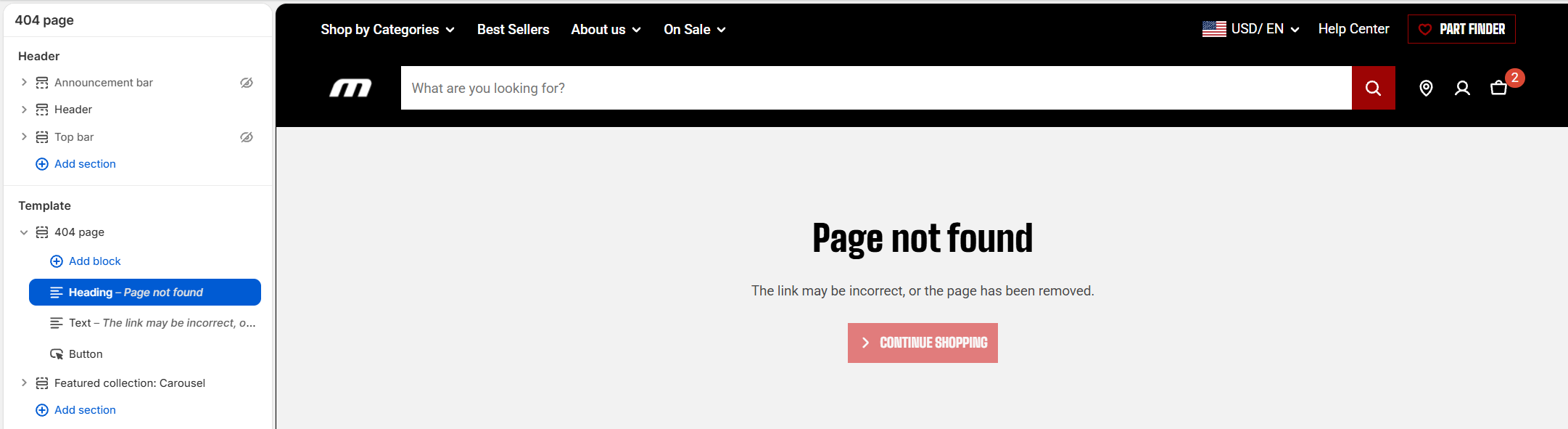
The section accepts any theme block, plus app blocks, and stacks them in a single column. There is no fixed set of content, so you decide what a lost customer gets.
A workable starting point:
* [Text](https://docs.foxecom.com/motrix-theme/theme-blocks/text) — a short heading saying the page was not found, and a line of reassurance.
* [Button](https://docs.foxecom.com/motrix-theme/theme-blocks/button) — back to the home page, or to your main collection.
* [Product card](https://docs.foxecom.com/motrix-theme/theme-blocks/product-card) or a [collection](https://docs.foxecom.com/motrix-theme/theme-blocks/collection-card) block — a few things to browse instead.
Learn more:
Theme sections
Theme blocks
## Tips
* Give customers somewhere to go, not just an apology. A button to your best-selling collection recovers more visits than a message alone.
* Keep the page short. Someone who hit a dead end is deciding whether to stay, and a long page is one more thing standing between them and what they wanted.
* Set up redirects for URLs you retire. Shopify admin > **Content > Menus > URL redirects** sends old links to the right page, so customers never see this one.
* Test it by adding any nonsense to your store's address, such as /pages/does-not-exist. That is the page your customers actually get.