# Top bar
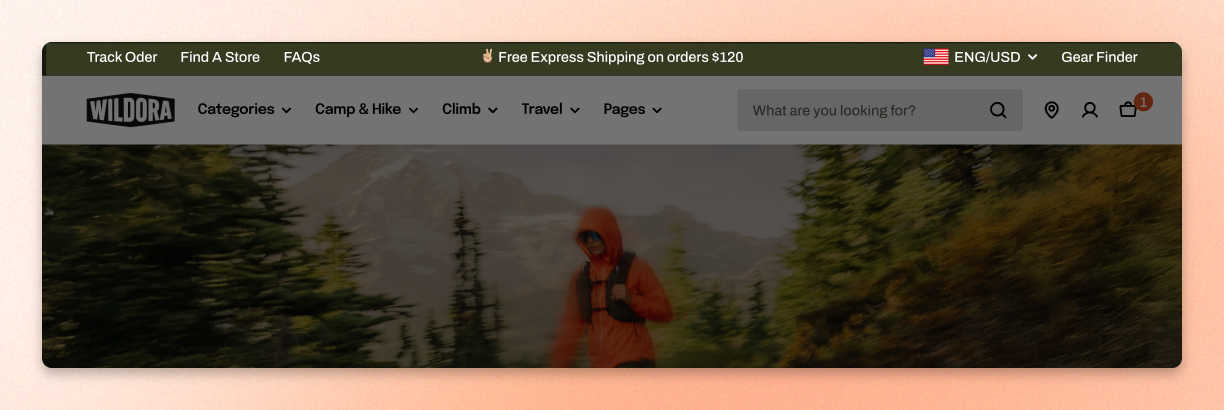
The top bar takes the things that clutter a header — a help link, a shipping promise, a currency picker — and gives them a row of their own above it. Content sits in three columns, so you can put a menu on the left, a message in the middle, and the localization pickers on the right without any of them fighting for the same space.
This section belongs to the Header group, so it appears on every page and cannot be added to an individual template.
## Add the section
1. In the theme editor, find the **Header** group in the sidebar.
2. Click **Add section** and choose **Top bar.**
3. Drag it to the top of the group, above the **Header.**
4. Edit the content it ships with, then click **Save.**
## Section settings
### Layout
| Setting | Description | Option |
| ------------- | ------------------------------------------- | ------------------------------------------------------------------------------------------------------------------------------------------ |
| **Container** | Choose how wide the top bar content can be. | Select **Fixed** to keep the content within your store's page width.
Select **Full** to let the bar span the full screen width. |
**Tip:** match Container to your [header](https://docs.foxecom.com/motrix-theme/global-sections/header). A full-width top bar above a fixed-width header leaves the two rows misaligned at the edges, which is the kind of detail people notice without knowing why.
### Appearance
| Setting | Description | Option |
| ---------------------- | ---------------------------------------- | --------------------- |
| **Color scheme** | Choose the color scheme for the top bar. | Select a color scheme |
| **Show bottom border** | Add a separator line below the top bar. | On / Off |
Use a color scheme that keeps secondary information visible without competing with your main header.
Turn on the **Show bottom border** to separate the top bar from the header visually. Turn it off for a cleaner transition between the two.
### Padding
| Setting | Description | Option |
| ----------- | ----------------------------------------------------------------------- | ---------------- |
| **Devices** | Select device to adjust the space around the top bar content separately | Desktop / Mobile |
| **Top** | Adds space above the topbar content. | 0px - 100px |
| **Bottom** | Adds space below the top bar content. | 0px - 100px |
The left and right sliders only appear when Container is set to Full. On Fixed the page width already sets the side margins.
## Block settings
The bar is built from three column blocks: left, center and right. They are part of the section, so you cannot remove, reorder, or add to them — you fill them instead.
The left and right columns are desktop only. Anything you put in them is hidden once the screen narrows, so keep content mobile shoppers need in the center column or the menu drawer.

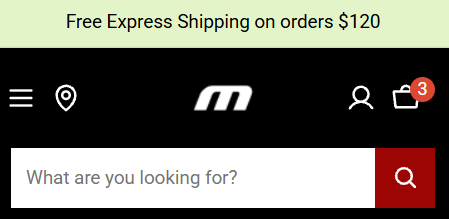
Each column takes the same three blocks. Add as many as fit, and drag them to reorder within the column.
* **Menu**: A row of links from a menu you build in Shopify admin. For utility destinations such as a help center, store locator, or order tracking. See [how to add and edit menu items](https://help.shopify.com/en/manual/online-store/menus-and-links/editing-menus).
* **Localization**: The [language](https://docs.foxecom.com/motrix-theme/global-sections/header/language-selector) and [country](https://docs.foxecom.com/motrix-theme/global-sections/header/currency-selector) pickers, so shoppers can switch currency and shipping region.
* **Simple text**: A short line of text, for a shipping promise, a returns window, or a running promotion.
## FAQs
#### Why can't I delete one of the columns?
The three columns are part of the section rather than blocks you added, so they are always there. Empty one out instead — a column with nothing in it takes no space.
#### Can I show different content on some pages?
No. The top bar lives in the Header group, so it is the same on every page.
#### What is the difference between this and the Announcement bar?
The top bar holds fixed content in three columns and is aimed at utility links and pickers. The [announcement bar](https://docs.foxecom.com/motrix-theme/global-sections/announcement-bar) holds one or more messages that rotate, and is aimed at promotions. Plenty of stores use both.