# Header
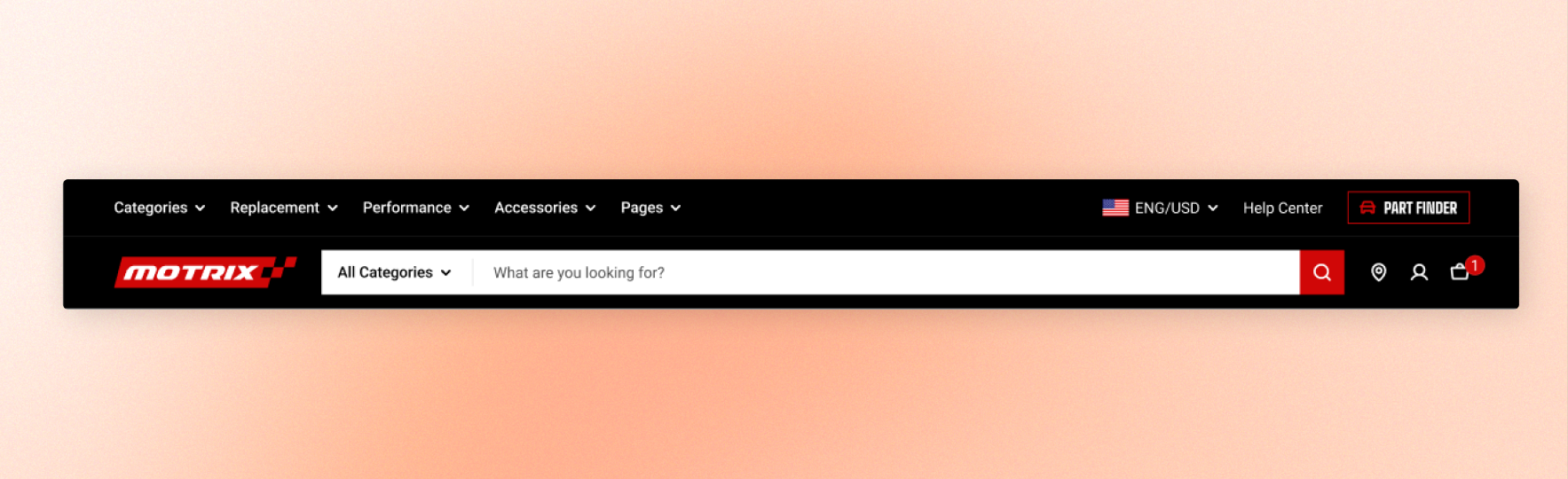
The header appears on every page and is the one piece of your store customers see constantly, so what you put in it decides how people move around. It is set up once and applies everywhere.
Your logo and favicon are not set here. Upload them in **Theme settings** > [Logo](https://docs.foxecom.com/motrix-theme/theme-settings/logo), where you also set the logo width for desktop and mobile.
## Section settings
### Layout
Header layout decides how the pieces are arranged on desktop. On mobile all three collapse to the same shape: menu button on the left, logo in the middle, icons on the right.
| Setting | Description | Option |
| ----------------- | --------------------------------- | ---------------------------------------------------------------------------------------------------------------------------------------------- |
| **Header layout** | Choose how the header is arranged | **Logo left:** Logo on the left, menu beside it, icons on the right. The most familiar arrangement and the safest for stores with a long menu. |



### General
| Setting | Description | Option |
| --------------- | ------------------------------------------------------------------------------------------------------ | ------------------------ |
| **Menu** | The navigation shown on desktop. | Select an available menu |
| **Mobile menu** | The navigation shown in the slide-out menu on mobile. Leave it empty and mobile uses the desktop menu. | Select an available menu |
To add, remove, or edit menus in your Shopify Admin. Learn more [Editing menus](https://help.shopify.com/en/manual/online-store/menus-and-links/editing-menus).
### Dropdown menu trigger
| Setting | Description | Option |
| ------------------------- | ------------------------------------------------------------------------------------- | ------------------------------------------------------------------------------------------------------------------------------ |
| **Dropdown menu trigger** | Choose whether desktop dropdown menus open on click or when shoppers hover over them. | **Click**: Dropdowns open when clicked.
**Hover**: Dropdowns open when the mouse pointer hovers over the menu item. |
### Header sticky
| Setting | Description | Option |
| ------------- | ---------------------------------------------------- | ------------------------------------------------------------------------------------------------------------------------------------------------------------------------------------------------------------------- |
| Header sticky | Whether the header follows customers down the page. | **None:** Leaves the header at the top of the page.
**Always:** Keeps the header visible at all times.
**On scroll up:** Hides the header going down and brings it back when they scroll up |
On scroll up is worth choosing on content-heavy stores: customers get the full screen while reading, and the header returns the moment they look for it.
### Language & Currency selector
| Setting | Description | Option |
| ---------------------------------- | ------------------------------------------------------ | -------- |
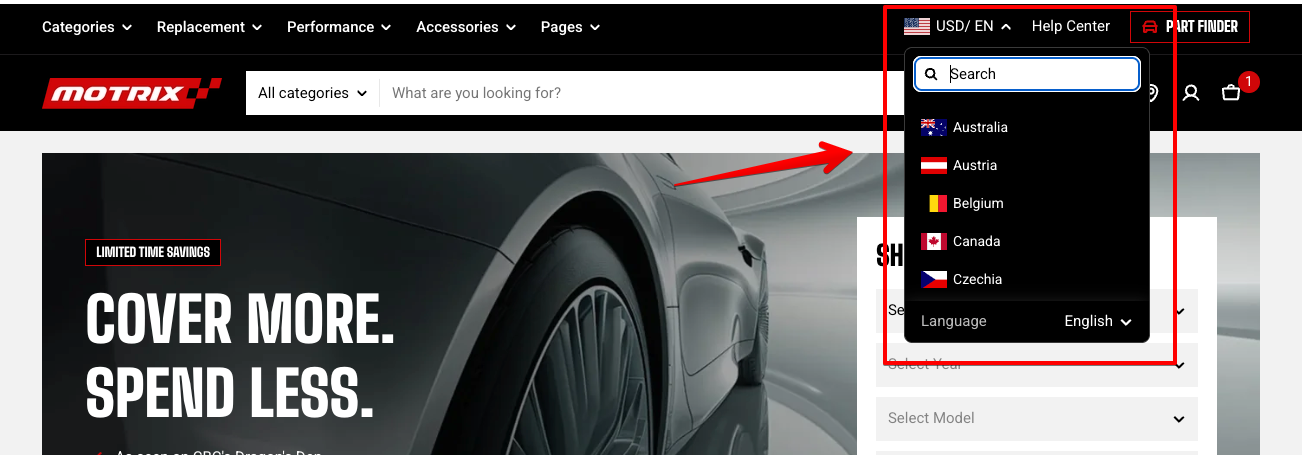
| **Enable language selector** | Shows a language selector in the desktop header. | On / Off |
| **Enable country/region selector** | Shows a country/region selector in the desktop header. | On / Off |
* Add languages from your [language settings](https://admin.shopify.com/settings/languages) in Shopify admin. Learn more: [Language Selector](https://docs.foxecom.com/motrix-theme/global-sections/header/language-selector)
* Add countries or regions from your [market settings](https://admin.shopify.com/markets) in Shopify admin. Learn more: [Currency Selector](https://docs.foxecom.com/motrix-theme/global-sections/header/currency-selector)
### Search form
Control how shoppers access search from the desktop header.
| Setting | Description | Option |
| -------------------------- | ------------------------------------------------------------------------------------------------------------------------------------------------------------------------------- | -------- |
| **Enable search form** | Shows a full search field in the header on desktop. Turn it off and the header shows a search icon instead. | On / Off |
| **Show search form below** | Moves the search field to its own row under the header instead of sitting among the icons. Available on the Logo left and Logo center layouts when the search form is on. | On / Off |
A visible field invites searching and suits large catalogues where search is how people navigate. The icon hands that space back to your menu and branding, and works well when a strong menu already covers most journeys.




Desktop and mobile are separate toggles — the mobile one is under **Mobile layout**. Wherever the form is off, customers get a search icon that opens the Search drawer instead.
### Customer account
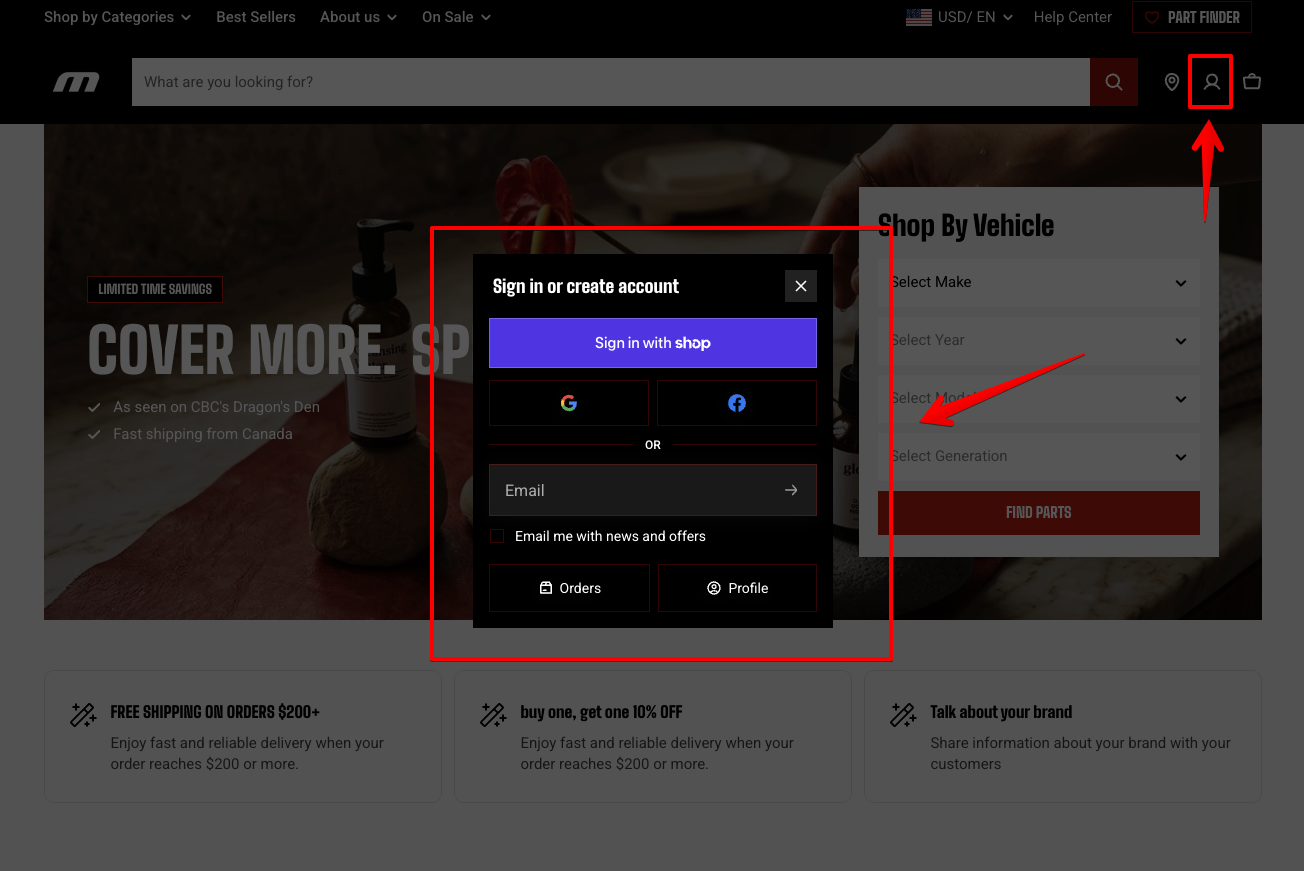
Customer accounts are managed through [Shopify's customer account](https://help.shopify.com/en/manual/customers/customer-accounts) settings.
### Mobile layout
These control what appears on phones only, independently of the desktop settings above.
| Setting | Description | Option |
| ---------------------------------- | ----------------------------------------------------------------------------------------------------------------------------------------------------------- | -------- |
| **Enable search form** | Adds a search field in its own row under the header on mobile. | On / Off |
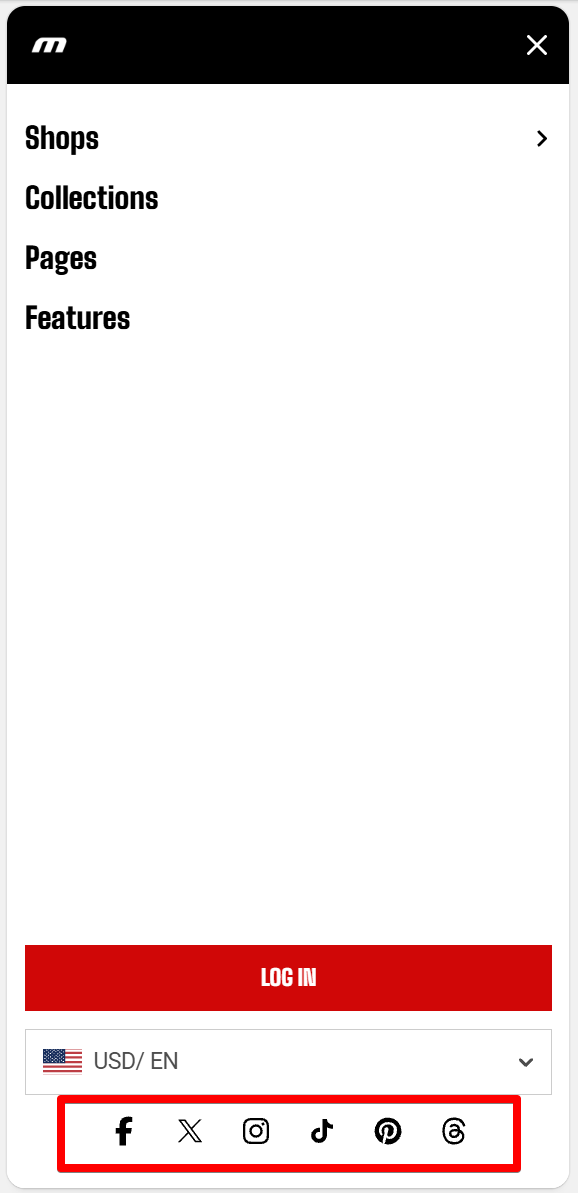
| **Enable media social icons** | Shows your social links in the slide-out menu. The links themselves come from Theme settings > [Social media](https://docs.foxecom.com/motrix-theme/theme-settings/social-media). | On / Off |
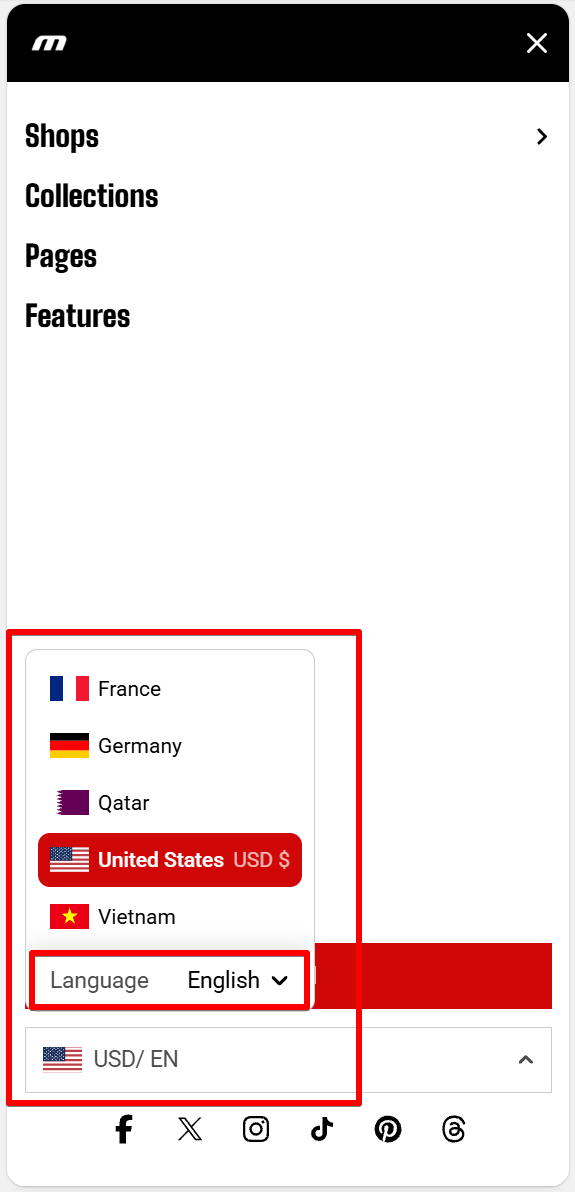
| **Enable language selector** | Shows the language selector in the slide-out mobile menu. | On / Off |
| **Enable country/region selector** | Shows the country/region selector in the slide-out mobile menu. | On / Off |
**Menu top** is available on desktop only. On mobile, all layouts use the **slide-out menu**.
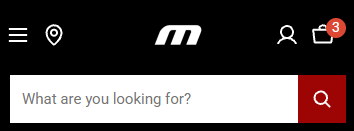

If both desktop and mobile search bars make the header feel crowded, keep the mobile search form off. Shoppers can still access search through the search icon and search panel.
An example of media social icons on mobile menu
An example of language selector and country/region selector on mobile menu
### Appearance
Customize the header's colors and bottom border.
| Setting | Description | Option |
| --------------------------------------------- | -------------------------------------------------------------------------------------------------------------------------------------------------------------------------------------------------------- | --------------------- |
| **Color scheme** | Applies [a theme color scheme](https://docs.foxecom.com/motrix-theme/theme-settings/colors) to the header. | Select a color scheme |
| **Menu link hover color** | The colour a menu item turns when a customer hovers it. Leave blank to use the color scheme. | |
| **Show bottom border** | Adds a separator line along the bottom of the header. | On / Off |
| **Hide bottom border for specific templates** | This option appears when **Show bottom border** is **on**. Hides the border on selected page templates. Enter one template name per line, such as `index` for the home page or `page.contact`. | On / Off |
Write one template name per line, using Shopify's template names: `index`, `product`, `collection`, `page`, and so on.
For an alternate template, add the suffix after a dot — `page.about` for a page using the about template. This is how you keep the line off a home page whose hero runs edge to edge, while keeping it everywhere else.
### Padding
Space above and below the header's contents. Increase them to give a tall logo room to breathe; reduce them to keep a sticky header out of the way.
## Blocks
The header's extra content is managed through blocks.
* [Mega menu](https://docs.foxecom.com/motrix-theme/global-sections/header/mega-menu): Turns chosen items of the desktop menu into full-width dropdown panels. Each panel names the menu item it belongs to and can hold banners, collection links, and sidebar links.
* [**Custom links**](https://docs.foxecom.com/motrix-theme/global-sections/header/custom-links): Extra text links or buttons near the header icons. In the Menu top layout they sit at the right of the top navigation bar.
* [**Custom icons**](https://docs.foxecom.com/motrix-theme/global-sections/header/custom-icons): Extra icon links next to the search, account, and cart icons. On mobile they appear on the left, next to the menu button.
* [**Menu drawer**](https://docs.foxecom.com/motrix-theme/global-sections/header/menu-drawer): Extra links and a button at the end of the slide-out mobile menu.
## Tips
* Set a separate Mobile menu when your desktop menu is deep. Phone customers do better with a short list of destinations than with the full tree collapsed into a drawer.
* Turn on the language and country selectors only after adding languages and markets in Shopify admin. Until then they have nothing to switch between.
* Check the header on a phone after adding custom icons. Each one competes with the menu button and cart for a narrow row, and three is usually the limit before things feel crowded.
* Keep a sticky header short. Whatever height you set here is taken off every screen for the whole visit.