# Footer
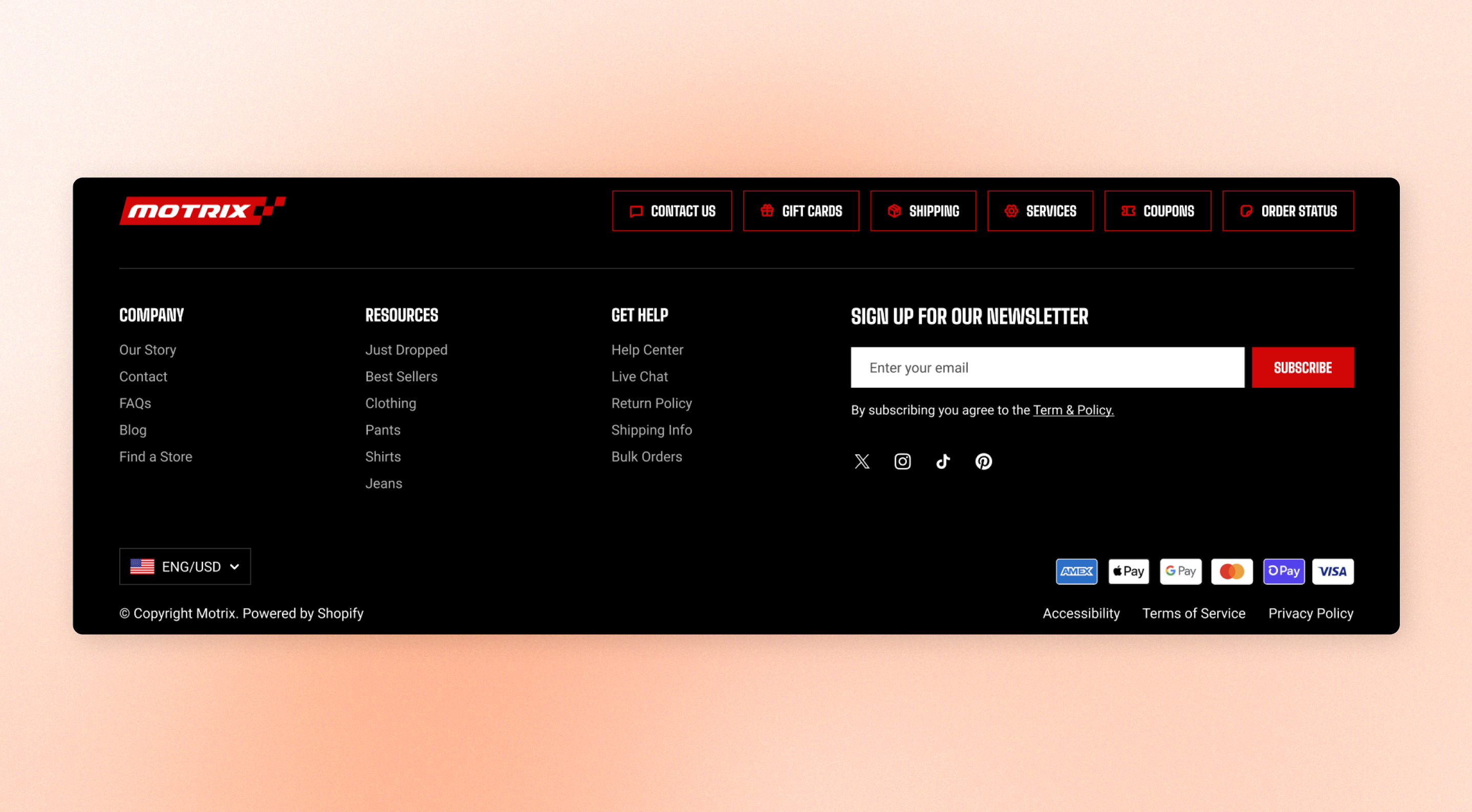
Customers reach the footer when they are looking for something the page did not answer: shipping terms, returns, how to get in touch. It is also where the reassurance lives — payment methods, policies, a newsletter signup. The footer appears on every page and is set up once.
## How the footer is built
* **The top area**: Your content, built from Footer column blocks. Add as many columns as you need and fill each one.
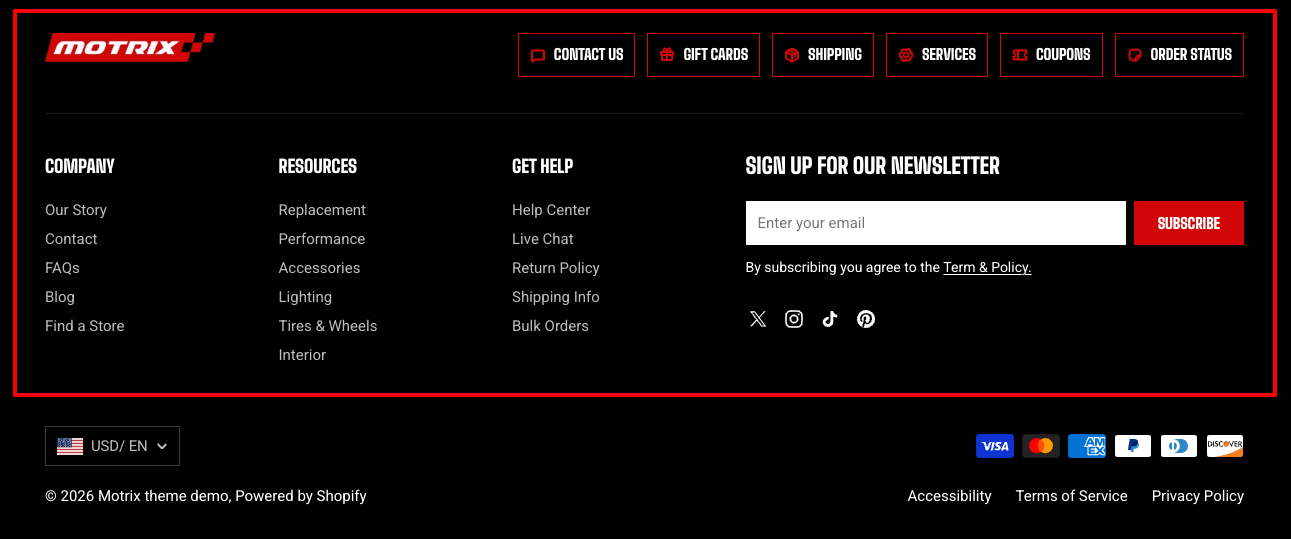
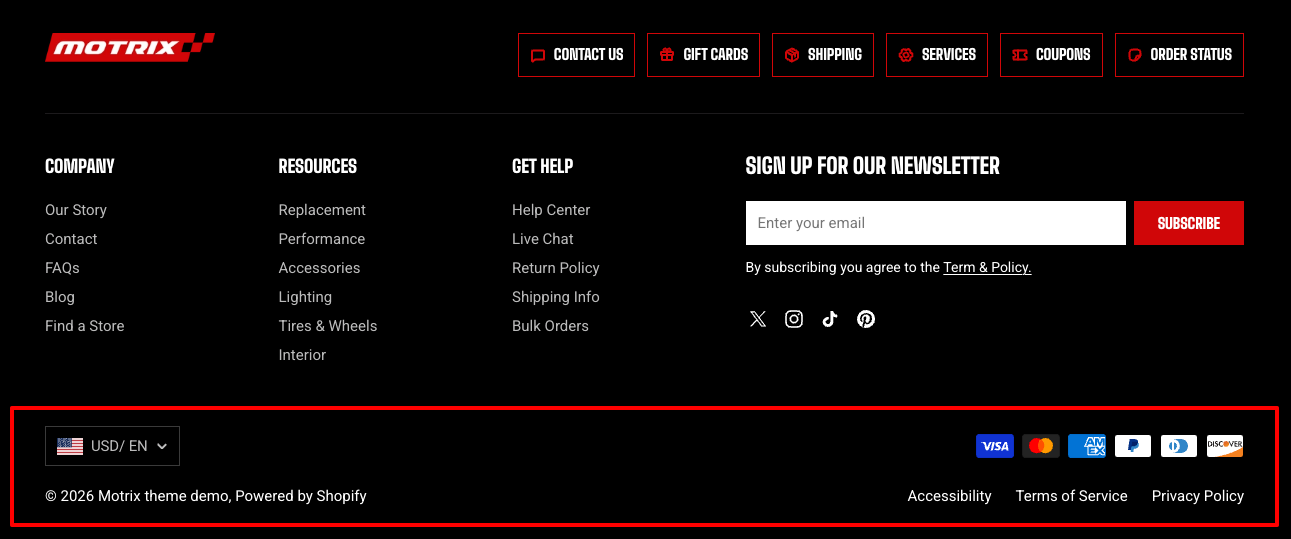
* **The bottom row**: A fixed strip underneath: localization pickers, a short menu, payment icons, and the copyright. Its parts are built into the section rather than blocks you add.
## Section settings
### General
| Setting | Description | Option |
| ------------------------- | --------------------------------------------------------------------------- | -------- |
| **Enable Follow on Shop** | Show a **Follow** button so shoppers can follow your store in the Shop app. | On / Off |
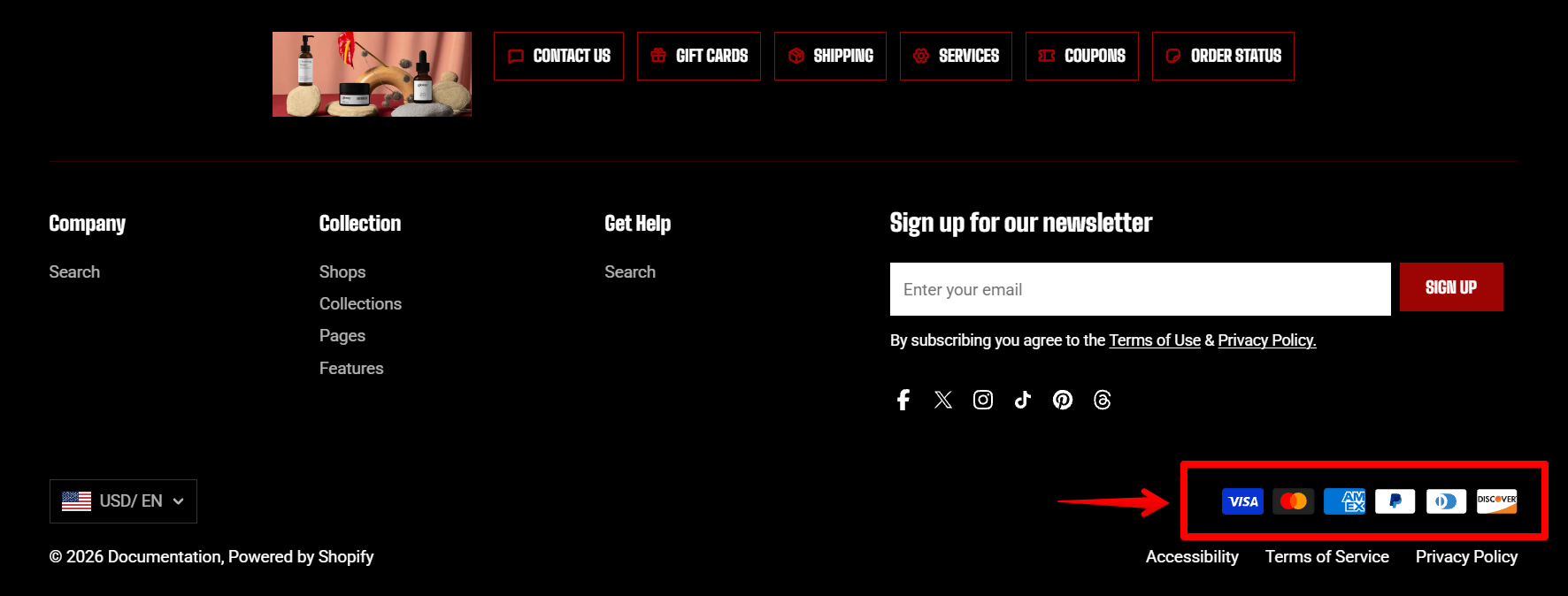
| **Enable payment icons** | Shows the payment methods your store accepts in the bottom row. | On / Off |
Both of these depend on your Shopify setup. The follow button only appears on stores eligible for it, and the payment icons are drawn from the Shopify payment methods you have activated.
Learn more: [Requirements to add Shop sign-in buttons to your store](https://help.shopify.com/en/manual/online-store/themes/customizing-themes/common-customizations/add-shop-buttons#requirements-to-add-shop-sign-in-buttons-to-your-store).
Learn more about [Shopify Payments](https://help.shopify.com/en/manual/payments/shopify-payments).
An example of payment icons on Footer
### Appearance
| Setting | Description | Option |
| ------------------ | ------------------------------------------------------------------------------------------------------------------------------------------------------ | --------------------- |
| **Color scheme** | Apply a color scheme to the entire footer. | Select a color scheme |
| **Border** | Use a border to visually separate the footer from the rest of the page. | None / Solid |
| **Border width** | Set the thickness of the footer border. This setting appears when **Border** is enabled. | 0px - 10px |
| **Border opacity** | Set how visible the footer border appears. This setting appears when **Border** is enabled. | 0% - 100% |
| **Corner radius** | Round the corners of the footer. Keep the default **0 px** for square corners or increase the value to match rounded elements elsewhere in your store. | 0px - 32px |
| Setting | Description | Option |
| ----------- | ----------------------------------------------------------------------- | ---------------- |
| **Devices** | Select device to adjust the space around the top bar content separately | Desktop / Mobile |
| **Top** | Adds space above the topbar content. | 0px - 100px |
Top spacing only. The bottom of the footer is spaced by the bottom row, so there is nothing to set there.
## Blocks
The top area takes one kind of block: **Footer column**. Each one is a column of the footer, and you fill it with whatever that column should hold — a menu, a logo, contact details, a newsletter signup, social links.
Columns sit side by side on desktop and stack on smaller screens. Add a column, drag it into position, then add content inside it.
### Columns
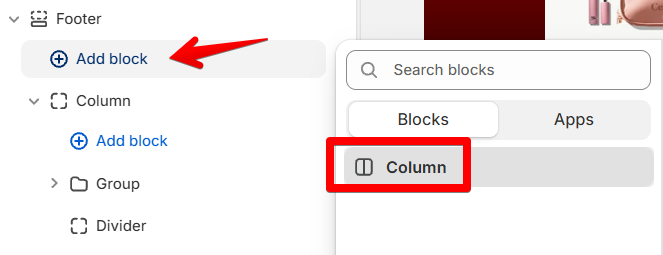
Use **Column** blocks to organize the main footer content. Add other content blocks inside each column based on what you want shoppers to find there.
Add block content such as:
* [**Menu**](https://docs.foxecom.com/motrix-theme/global-sections/footer#menu) for navigation or policy links
* [**Text** ](https://docs.foxecom.com/motrix-theme/theme-blocks/text)for store information or supporting content
* [**Button** ](https://docs.foxecom.com/motrix-theme/theme-blocks/button)for an important action
* [**Image** ](https://docs.foxecom.com/motrix-theme/theme-blocks/image)for logos or other visual content
* [**Video** ](https://docs.foxecom.com/motrix-theme/theme-blocks/video)for video content
* [**Icon** ](https://docs.foxecom.com/motrix-theme/theme-blocks/icon)for supporting visual elements
* [**Newsletter** ](https://docs.foxecom.com/motrix-theme/theme-blocks/newsletter)for email signup
* [**Social links**](https://docs.foxecom.com/motrix-theme/theme-blocks/social-media) for your social profiles
* [**Divider** ](https://docs.foxecom.com/motrix-theme/theme-blocks/divider)to separate content
* [**Group** ](https://docs.foxecom.com/motrix-theme/theme-blocks/group)to organize related content
* [**Grid** ](https://docs.foxecom.com/motrix-theme/theme-blocks/grid)to arrange content in a grid
#### General settings
| Setting | Description | Option |
| ---------------- | ------------------------------------------------------ | --------------------------------- |
| **Width** | Set how much space the column takes within the footer. | 0% - 100% |
| **Heading** | Add a heading for the column. | Enter Text |
| **Heading size** | Choose the heading size. | Heading 6 / Heading 5 / Heading 4 |
Set column widths so they add up to around **100%** per row. If the total exceeds 100%, the remaining columns wrap to a new row.
#### Mobile layout
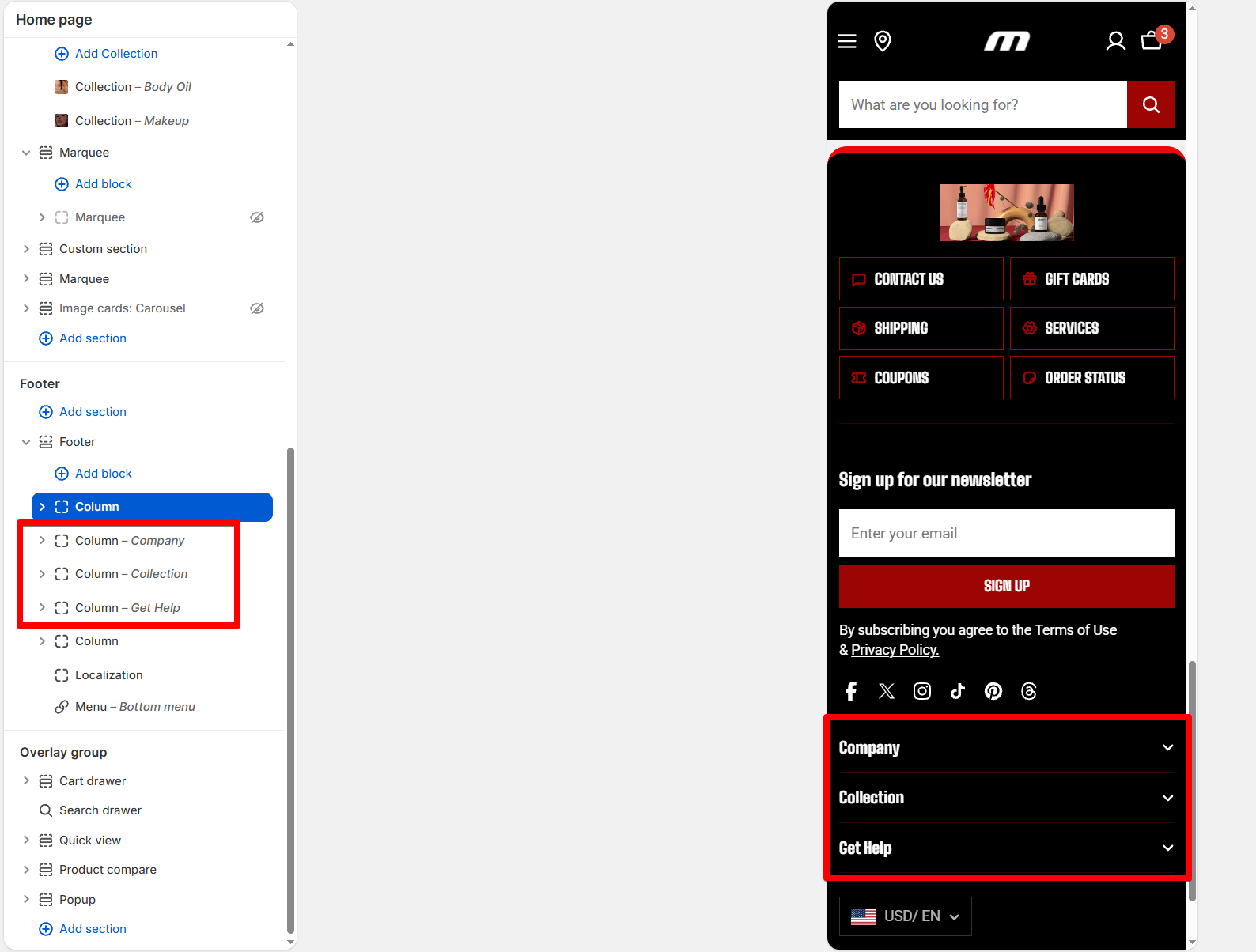
On mobile, a column with a heading becomes a tap-to-open accordion. Configure its mobile options to control whether it stays open by default, shows a divider, or changes its order.
A column without a heading stays expanded automatically on mobile.
| Setting | Description | Option |
| ------------------- | ------------------------------------------------------------------ | ---------------- |
| **Open by default** | Keep the column expanded when customers open the footer on mobile. | On / Off |
| **Show divider** | Add a divider between footer columns on mobile. | On / Off |
| **Column order** | Set the order in which footer columns appear on mobile. | Set number order |
Columns on mobile view
### The bottom row
Underneath your columns sits a fixed strip. You can edit what is in it, but not remove or reorder the parts.
| Part | What is it |
| ------------------ | -------------------------------------------------------------------------------------- |
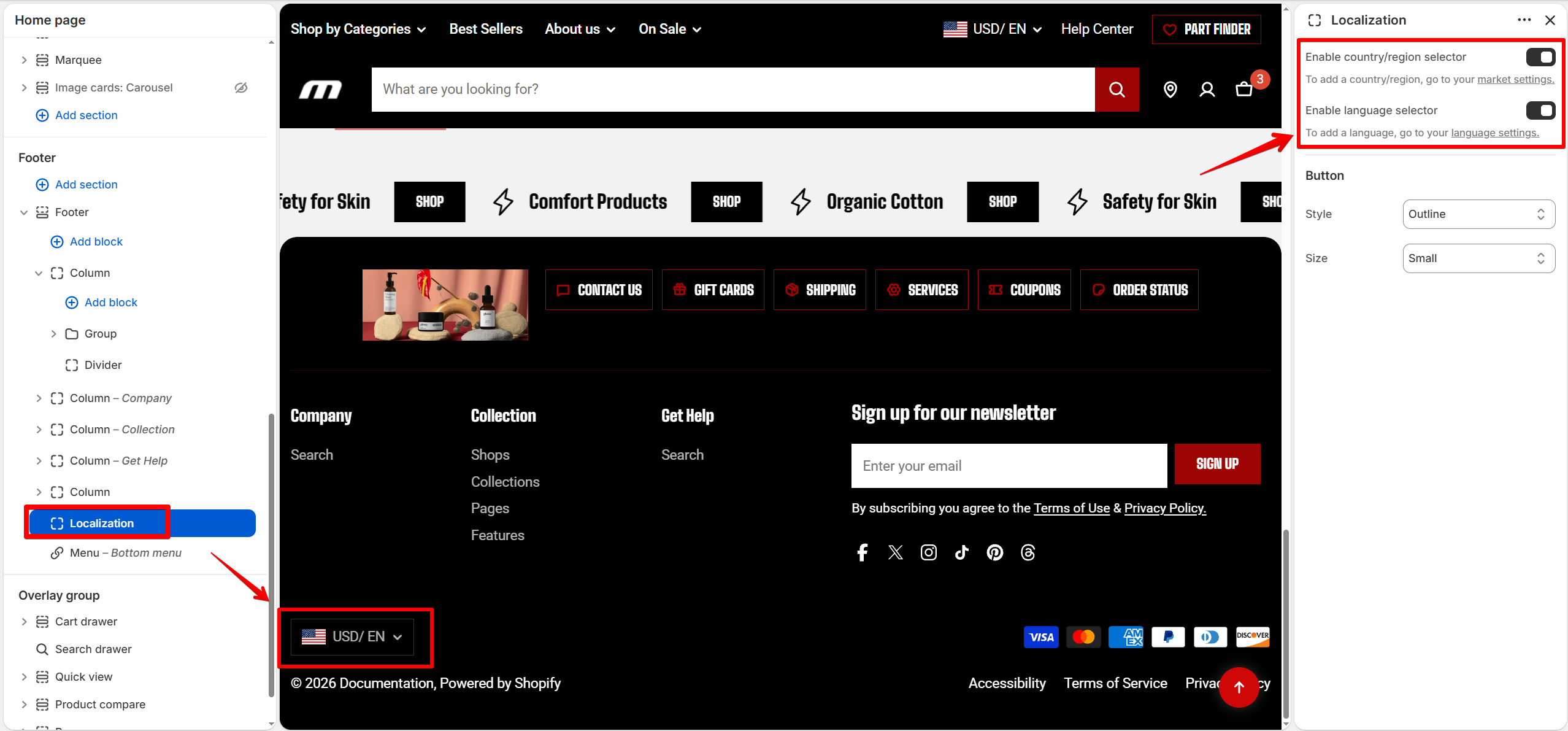
| **Localization** | The language and country pickers. Select the block to configure them. |
| **Follow on Shop** | The follow button, when the setting above is on and your store supports it. |
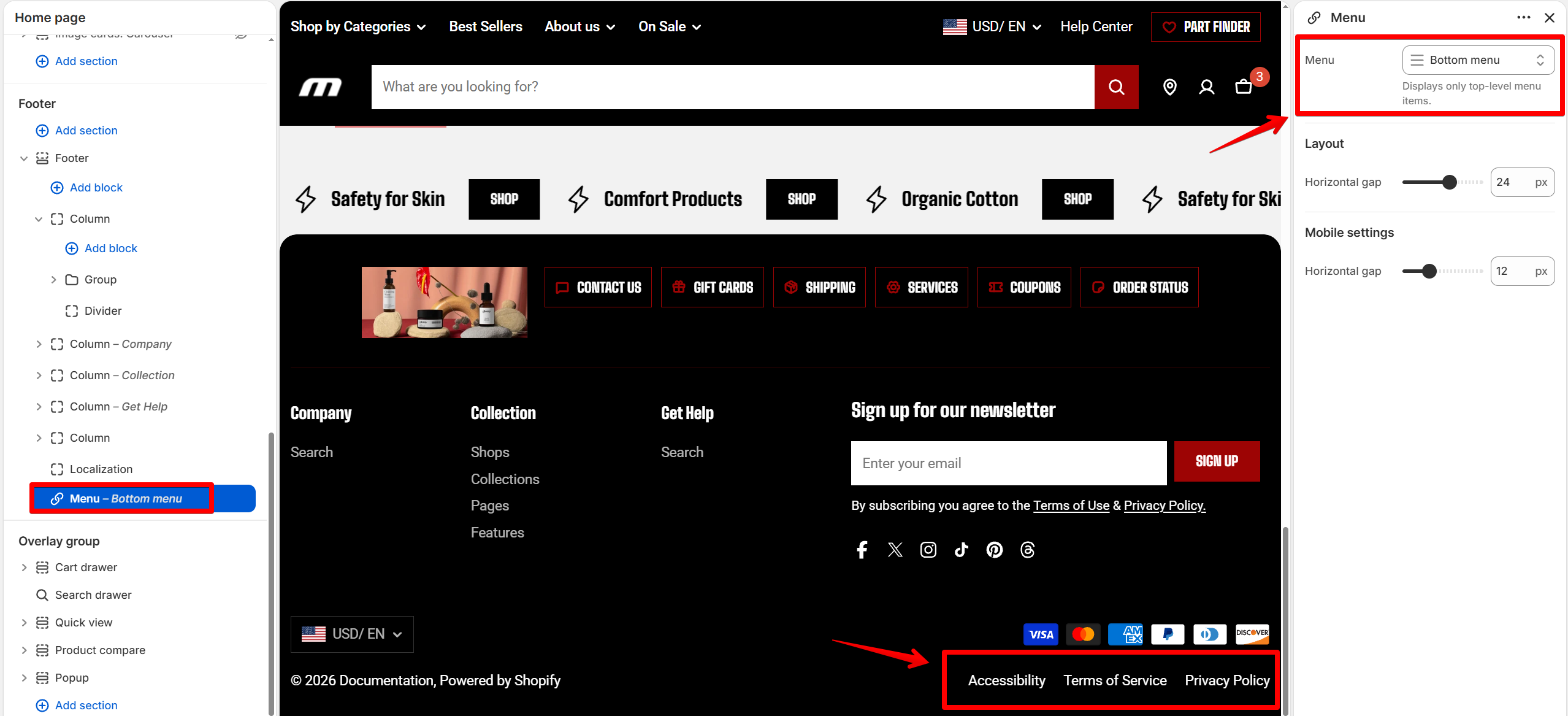
| **Menu** | A short row of links, usually policies. Select the block to choose which menu it uses. |
| **Payment icons** | The methods your store accepts, when the setting above is on. |
| **Copyright** | The current year and your store name, generated automatically. |
The copyright year and store name update automatically, so you don't need to edit them manually in the theme editor.
Learn more: [How to remove 'Powered by Shopify'](https://docs.foxecom.com/hyper-theme/guides/design-and-theme-customization/remove-powered-by-shopify-in-copyright)