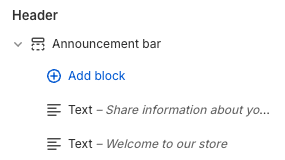
# Announcement bar
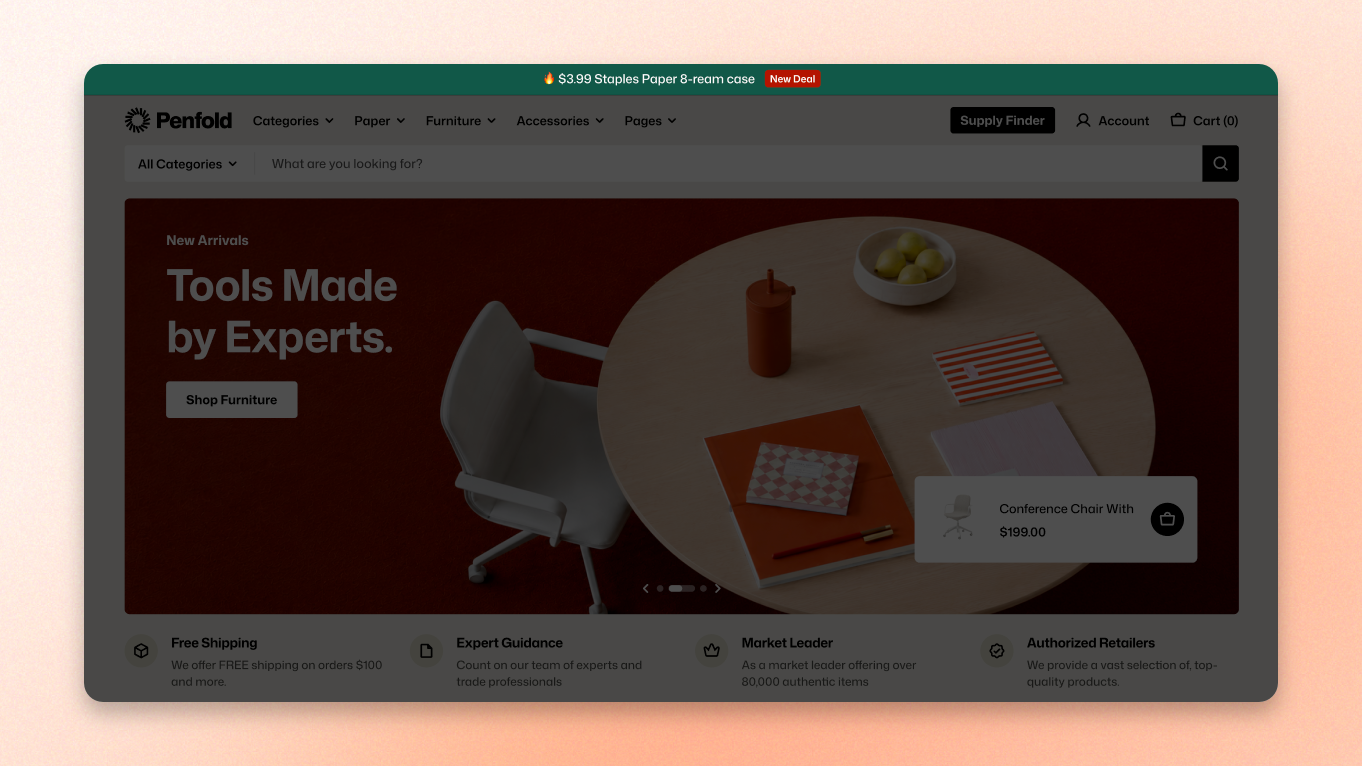
A slim bar above the header for shipping offers, promotions, and anything else every visitor should see. Add one message and it stays put. Add several and they rotate as a carousel, with arrows shoppers can use to step through them.
This section belongs to the Header group, so it appears on every page. It cannot be added to an individual template.
## Add the section
1. In the theme editor, find the **Header** group in the sidebar.
2. Click **Add section** and choose **Announcement bar**.
3. Drag it above or below the Header, depending on where you want it.
4. Edit the message it ships with, then click **Save**.
## Section settings
### General
| Setting | Description | Option |
| ------------------------- | ------------------------------------------------------------------------- | ---------- |
| **Desktop content width** | Control how much horizontal space the message can use on desktop. | 20% - 100% |
| **Auto-rotate content** | Automatically switch between multiple announcement messages. | On / Off |
| **Change slides every** | Set how long each message stays visible before switching to the next one. | 3s - 10s |
Rotation pauses while the cursor is over the bar, so a shopper reading a message is not interrupted mid-sentence.
* Increase the value of **Desktop content width** for longer messages to give them more room. Decrease it if you want the message area to stay compact.
* Turn **Auto-rotate content** on when you have two or more messages you want shoppers to see without requiring them to click through each one. Rotation pauses when the pointer is over the announcement bar.
* Use a shorter time for **Change slides every** for brief messages and a longer time when shoppers need more time to read.
### Appearance
| Setting | Description | Option |
| ---------------- | ---------------------------------------------------------------------------------------------------- | --------------------- |
| **Color scheme** | Choose a [theme color scheme](https://docs.foxecom.com/motrix-theme/theme-settings/colors) for the announcement bar. | Choose a color scheme |
Give the bar a different scheme from the header. A strip that matches the header exactly reads as part of it and gets ignored; a contrasting one registers as a separate message.
### Padding
Adjust the space above and below the message to control the announcement bar's height. Keep it tight — the bar takes height from every page on the store, and anything taller than a line of text starts competing with the header.
| Setting | Description | Option |
| ---------- | -------------------------------- | ----------- |
| **Top** | Set the space above the message. | 1px - 100px |
| **Bottom** | Set the space below the message. | 1px - 100px |
## Blocks
Each message is a [Text](https://docs.foxecom.com/motrix-theme/theme-blocks/text) block. Add one block per announcement, and drag them to change the order they rotate in.
Text blocks accept links, so you can point a message at the collection or page it is promoting. A message that mentions free shipping over $50 is more useful when the words are clickable.
With a single block the bar is static and no arrows appear. The carousel, the arrows, and the autoplay settings only come into play from two messages up.