# How to get a Google Maps API key
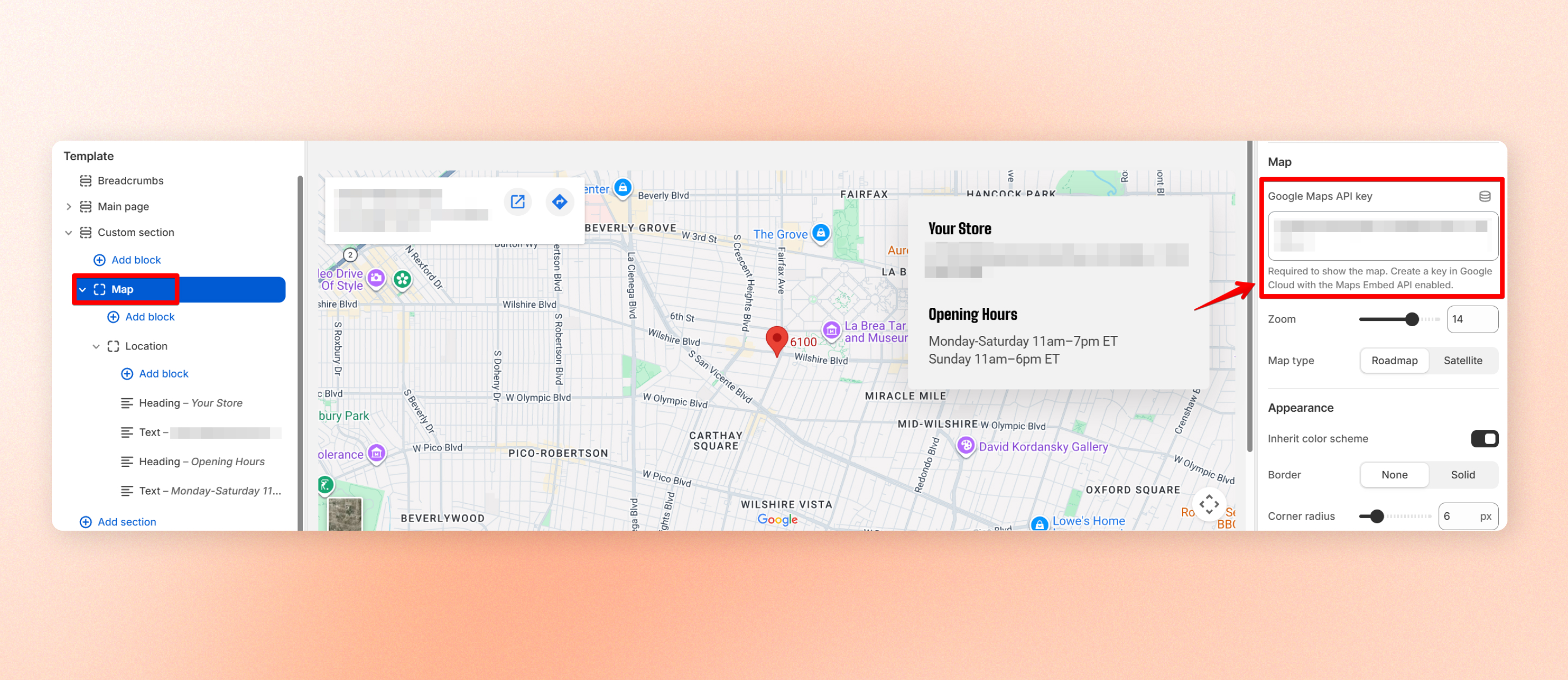
The [**Map** ](https://docs.foxecom.com/motrix-theme/theme-blocks/map)block needs a **Google Maps API key** to display a map on your store. The key itself is free, but **Google requires a billing account** to be linked to your Google Cloud project before you can create one.
## What you'll actually be charged
**Nothing for the Map block in Motrix.** The block uses the [**Maps Embed API**](https://developers.google.com/maps/documentation/embed/get-api-key), which Google provides free with unlimited use.
Google still requires a billing account to be linked to your project before you can create a Maps API key. Your payment method stays on file, but the maps used by this block aren't billed.
**Don't want to add a payment method?** Google doesn't issue a Maps API key without a billing account. This is a Google requirement, not a theme limitation
Learn more: [Set up the Maps JavaScript API in Google](https://developers.google.com/maps/documentation/javascript/get-api-key)
## Set up your Google Maps API key
1. Go to [**Google Cloud Console**](https://console.cloud.google.com/) and sign in with your Google account.
2. Open the project dropdown at the top of the page and click **New project**.
3. Enter a recognisable name, such as your store name, then click **Create**.
4. Select the new project from the project dropdown before continuing.
Make sure the correct project is selected before completing the remaining steps. Your API key and enabled API must belong to the same project.
If you already have a Google Cloud billing account:
1. Go to **Billing** in the left-hand menu.
2. Select **Link a billing account**.
3. Choose your existing billing account and confirm.
Avoid **Set up billing** or **Add billing account** if you already have one. These options can start a new billing setup instead of linking your existing account.
If this is [your first Google Cloud project](https://developers.google.com/maps/get-started), follow Google's billing setup wizard to create your billing account. For future projects, use **Link a billing account** to connect the existing account.
1. Go to **APIs & Services → Library**.
2. Search for **Maps Embed API**.
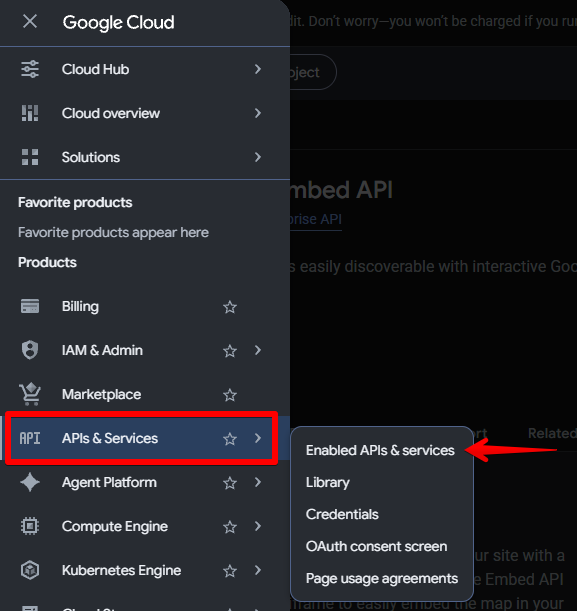 3. Open it and click **Enable**.
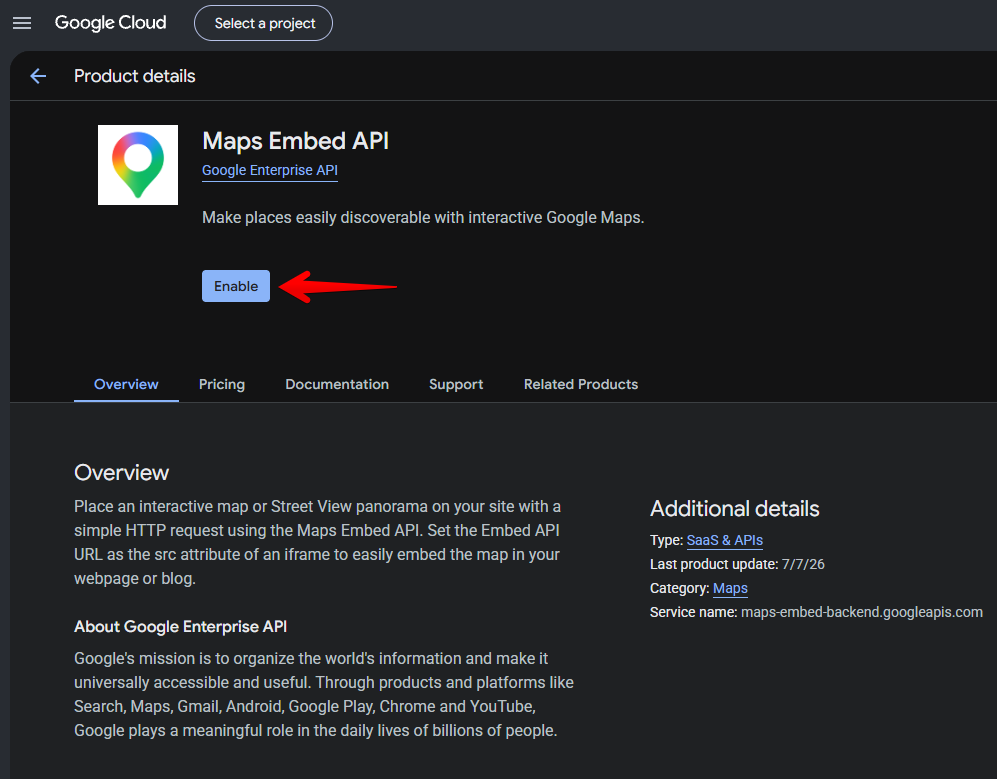 Enable only **Maps Embed API** for this block. The Map block doesn't use Maps JavaScript API, Geocoding API, or Places API.
1. Go to **APIs & Services → Credentials**.
2. Click **Create credentials → API key**.
3. Copy the generated key.
Restrict the key to your store domains to prevent others from using it on their websites.
1. On the **Credentials** page, click the new API key.
2. Under **Application restrictions**, select **Websites**.
3. Add both store domains:
* `https://yourstore.com/*`
* `https://yourstore.myshopify.com/*`
4. Under **API restrictions**, select **Restrict key**.
5. Select **Maps Embed API** only.
6. Click **Save**.
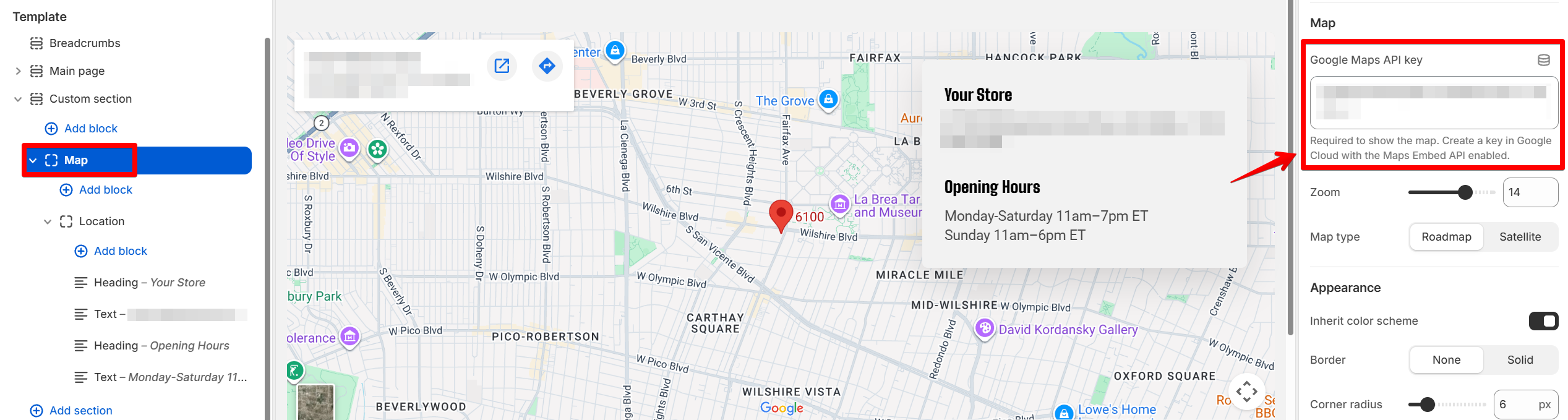
1. Open the theme editor and select the **Map** block.
2. Open the **Map** group.
3. Paste the key into **Google Maps API key**.
## If the map doesn't show
Enable only **Maps Embed API** for this block. The Map block doesn't use Maps JavaScript API, Geocoding API, or Places API.
1. Go to **APIs & Services → Credentials**.
2. Click **Create credentials → API key**.
3. Copy the generated key.
Restrict the key to your store domains to prevent others from using it on their websites.
1. On the **Credentials** page, click the new API key.
2. Under **Application restrictions**, select **Websites**.
3. Add both store domains:
* `https://yourstore.com/*`
* `https://yourstore.myshopify.com/*`
4. Under **API restrictions**, select **Restrict key**.
5. Select **Maps Embed API** only.
6. Click **Save**.
1. Open the theme editor and select the **Map** block.
2. Open the **Map** group.
3. Paste the key into **Google Maps API key**.

## If the map doesn't show
| What you see | What it usually means | What to do |
| --------------------------------------------------------- | ------------------------------------------------------------------- | ---------------------------------------------------------------------------------- |
| **A grey placeholder image** | The API key is empty or hasn't been saved. | Check Google Maps API key in theme editor to ensure you have entered it correctly. |
| **"This page can't load Google Maps correctly"** | **Maps Embed API isn't enabled** for the project linked to the key. | Check the selected project and enable Maps Embed API. |
| **The map works in the editor but not on the live store** | The live domain isn't included in the key's restrictions. | Add both your `.com` |
| **A map of the wrong place** | The **Location** uses an incorrect or unclear address. | Enter the address as you would search for it on Google Maps. |
| **A map with no pin** | **Coordinates** were entered instead of an a ddress. | Use a street address if you want a location pin. Coordinates only centre the map. |
## Changing or replacing a key
If your API key is exposed, create a replacement before deleting the old one:
1. Go to **APIs & Services > Credentials**.
2. Create a new API key and apply the same restrictions.
3. Paste the new key into the [**Map** ](https://docs.foxecom.com/motrix-theme/theme-blocks/map)block.
4. Delete the old key.
This keeps the map working while you replace the exposed key.