# Collections list page
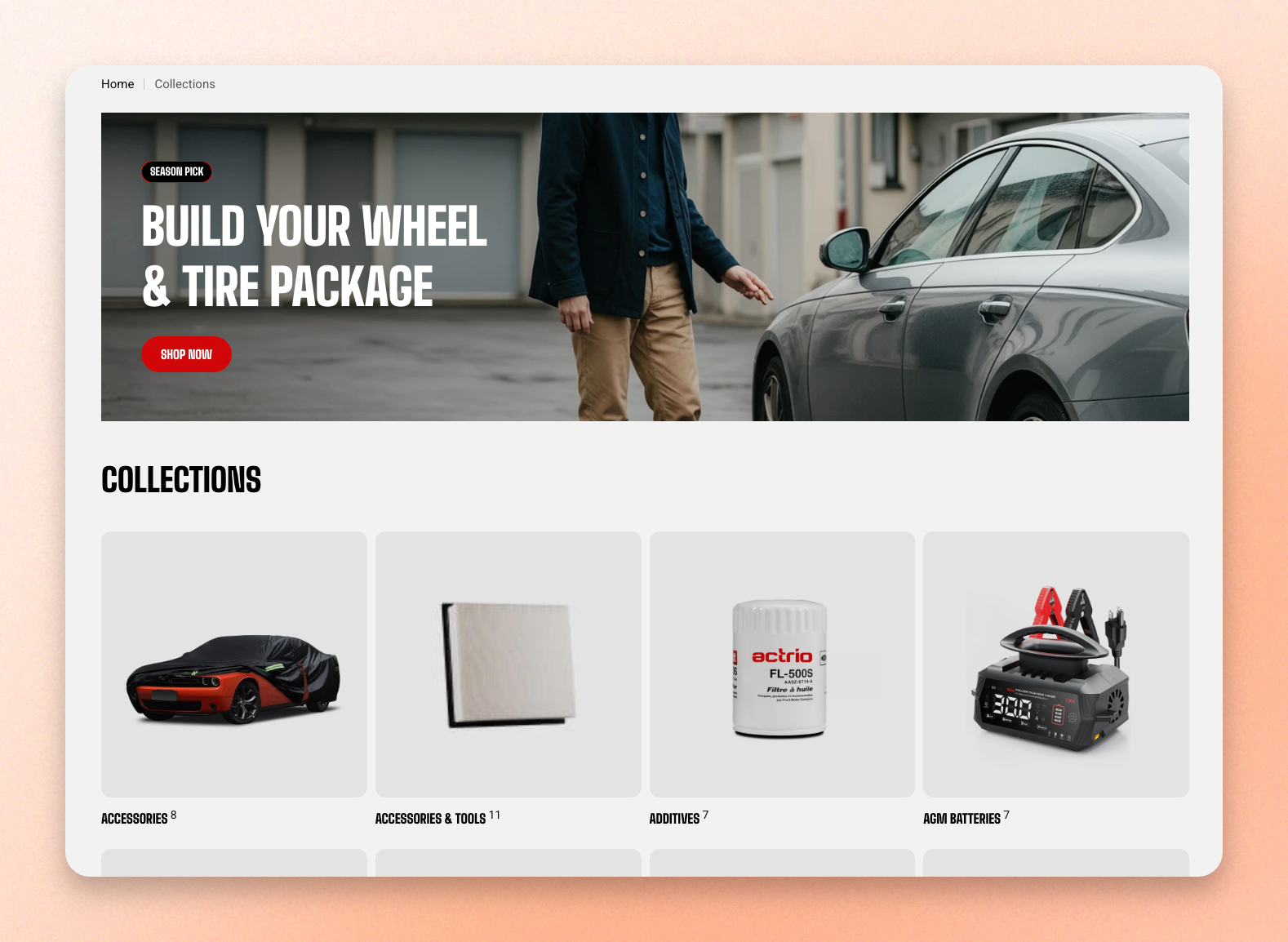
This is the page a shopper lands on at `/collections` — a grid of every collection you sell, usually reached from a "Shop all" or "Categories" link in your navigation.
On a large catalog it does real work. A shopper who doesn't know your product names still knows roughly what they want, and this page is where they pick the aisle before browsing the shelf.
## How the page is built
The page has one main section, **Collection list**, which draws the grid. It lists every collection published to your online store — there's no setting here for choosing or reordering them.
You can add other sections to this template as normal, above or below the grid. Learn more about [available theme sections](https://docs.foxecom.com/motrix-theme/theme-sections/overview).
## Open the page
1. In the theme editor, click the page selector at the top of the screen.
2. Select **Collections**, then **Collections list**.
3. Click **Collection list** in the **Template** area of the sidebar.
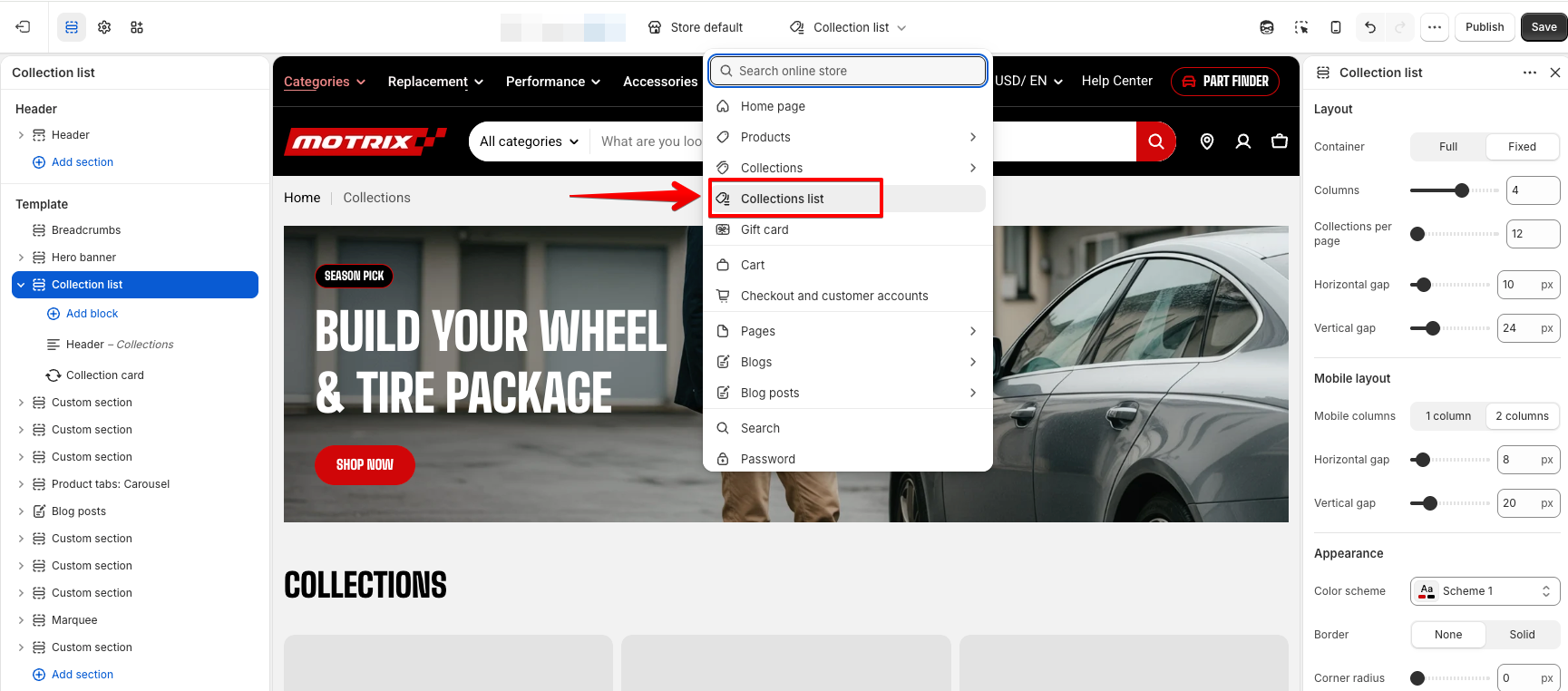
## Collection list settings
### Layout
| Setting | What it does |
| ------------------------ | ----------------------------------------------------------------------------- |
| **Container** | Keeps the content within the page width, or lets it span the available width. |
| **Columns** | How many collection cards appear across on large screens, from 1 to 6. |
| **Collections per page** | How many collections load before pagination, from 12 to 48. |
| **Horizontal gap** | Space between cards, 0–100 px. |
| **Vertical gap** | Space between rows, 0–100 px. |
**Columns** applies to large screens only. On smaller desktop and tablet widths the theme shows fewer automatically, so setting 6 doesn't give six columns everywhere.
### Mobile layout
| Setting | What it does |
| ------------------ | ------------------------------------- |
| **Columns** | A one- or two-column grid on phones. |
| **Horizontal gap** | Space between mobile cards, 0–100 px. |
| **Vertical gap** | Space between mobile rows, 0–100 px. |
**Two columns** is right for most stores — it lets shoppers scan more of the list at once. Switch to **one column** if your collection images carry text or fine detail that gets lost at half width.
## Blocks
The premade-preset includes:
* A [Text](https://docs.foxecom.com/motrix-theme/theme-blocks/text) block as section heading
* Collection card: use the theme's standard collection cards, which you style in **Theme settings >** [Collection cards](https://docs.foxecom.com/motrix-theme/theme-settings/collection-cards).
## FAQs
#### How do I choose which collections appear here?
You can't from the theme. The page lists every collection published to your online store. To remove one, unpublish it from the Online Store sales channel in Shopify.
#### Can I change how the collection cards look?
Not in this section. Card design — image shape, corners, caption — is set in **Theme settings > Collection cards**, so collections look the same wherever they appear.
#### Can I use infinite scroll or a Load more button instead of page numbers?
No. This page uses numbered pagination only. Raising **Collections per page** to 48 is the way to reduce how often shoppers page through.
#### Can I add other sections to this page?
Yes. Add sections above or below the grid as you would on any template — a banner at the top and featured products underneath are common additions.