# Collection page
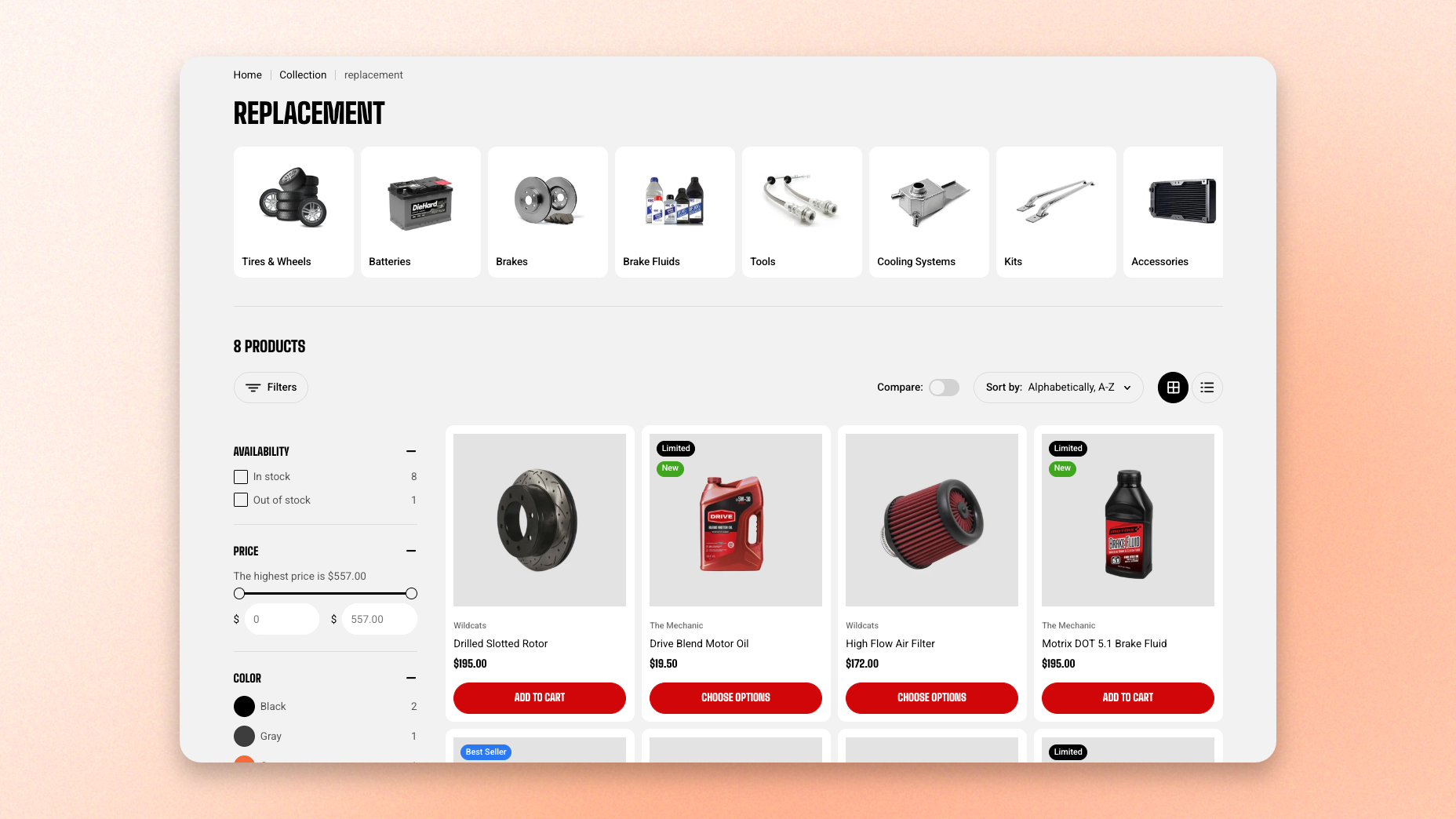
Every collection in your store uses a collection template, and by default they all use the same one. Edit that template and all of your collection pages change together. When one group of collections needs something the others don't — a wider banner, a different filter layout, an intro block explaining the category — create a second template and assign it to just those collections.
You build and edit templates in the **theme editor**, but you assign them to collections in your **Shopify admin**. Both halves are needed: a template no collection is assigned to never appears on your storefront.
## Open the collection page template
1. In the theme editor, click the page selector at the top of the screen — it says **Home page** when you first open the editor.
2. Select **Collections**.
3. Choose **Default collection**, or another collection template if you've already made one.
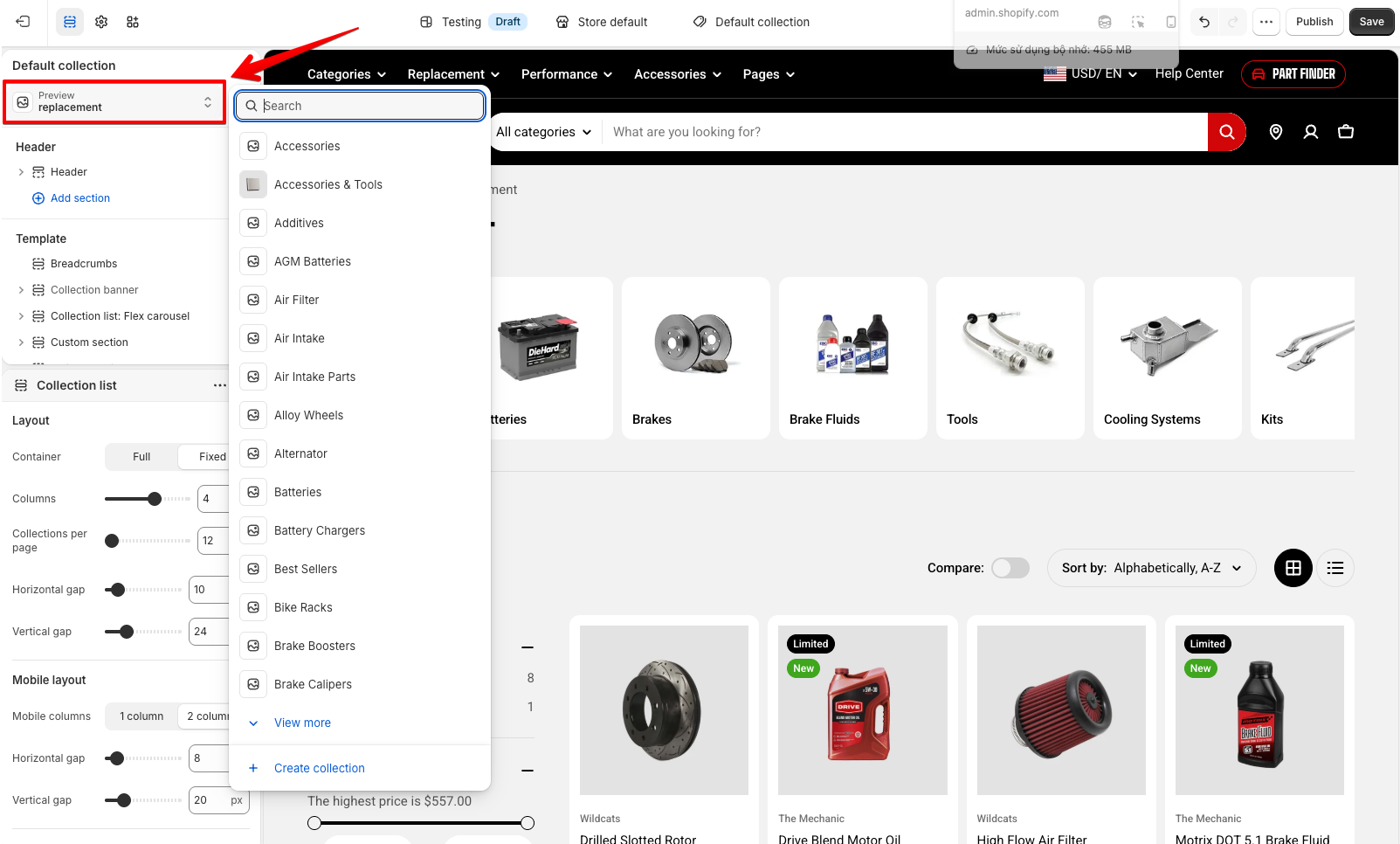
The editor loads a real collection from your store so you can see your changes against actual content. To check the template against a different collection, click the **Preview** section in the sidebar and pick one.
## Sections in this template
Collection banner
Main collection
You can add any other section to this template as well, above or below these.
## Should you edit the default template or create a new one?
Different sections → new template. Same sections everywhere → edit the default.
| | Edit the default template | Create a new template |
| -------- | ----------------------------------------- | :--------------------------------------------------- |
| Use when | Every collection shares the same sections | Some collections need different sections |
| Cost | Changes all collections at once | Assign per collection, one more template to maintain |
## Create a new collection template
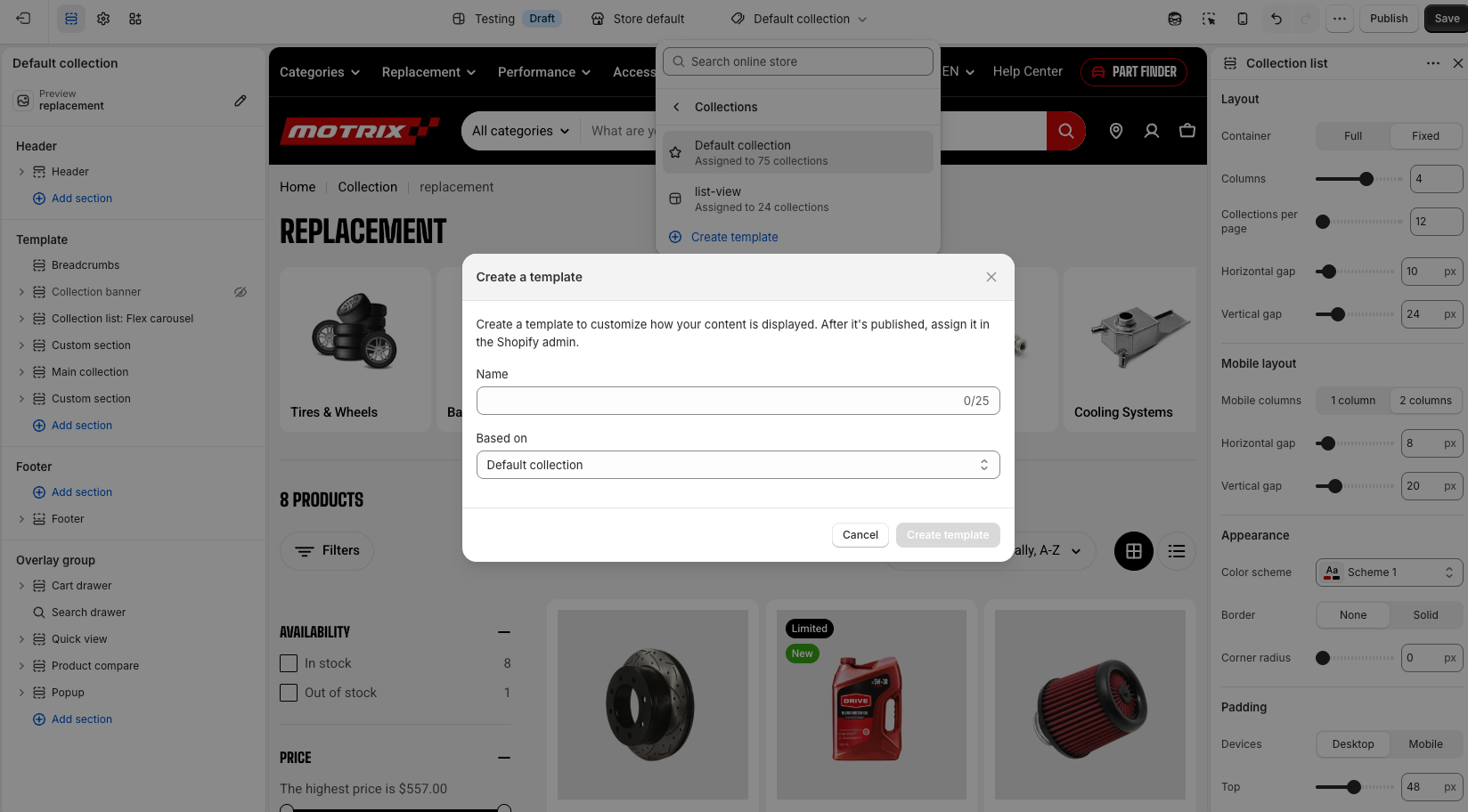
1. In the theme editor, click the page selector and select **Collections**.
2. Click **Create template**.
3. Enter a **Name** that describes the group of collections. Use letters, numbers, and hyphens.
4. Under **Based on**, choose the template to copy. **Default collection** is the usual starting point.
5. Click **Create template**.
6. Add, remove, hide, or reorder sections, then click **Save**.
## Apply a template to a collection
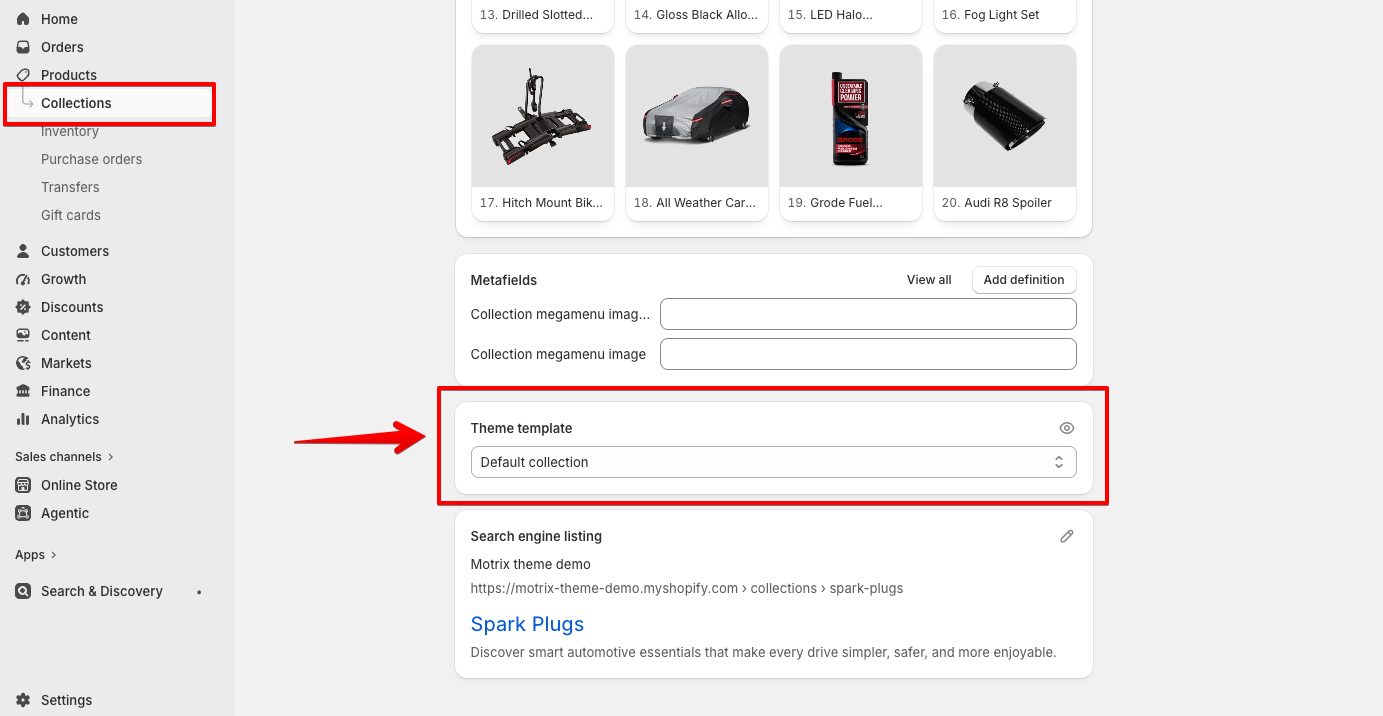
1. From your Shopify admin, go to **Products > Collections**.
2. Click the collection you want to change.
3. Find the **Theme template** section and select your template from the drop-down.
4. Click **Save**.
5. View the collection on your live store to confirm.
the **Theme template** drop-down only lists templates from your **live** theme. If you built the template in a draft or unpublished copy of Motrix, it won't appear here. Publish that theme first, or build the template in the live one.
## Rename a collection template
Renaming needs the code editor — there's no way to do it from the theme editor.
1. From your Shopify admin, go to **Online Store**.
2. Next to Motrix, click the **⋯** menu and select **Edit code**.
3. Open the **templates** folder.
4. Right-click the template file you want to rename — collection templates are named `collection.[name].json` — and select **Rename**.
5. Enter the new name, keeping the `collection.` prefix and `.json` ending.
6. Press **Enter**.
## Delete a collection template
When you delete a collection template, any collections that had it assigned are displayed with the default collection template until you assign a different one.
1. From your Shopify admin, go to **Online Store**.
2. Next to Motrix, click the **⋯** menu and select **Edit code**.
3. Open the **templates** folder.
4. Right-click the template file and select **Delete permanently**.
5. Click **Delete**.
## FAQs
#### Why I created a template but it isn't in the drop-down in my collection settings?
The drop-down only shows templates from your live theme. If you created it in a draft or duplicate of Motrix, publish that theme, or recreate the template in the live one.
#### Why I changed one collection page and now all of them look different?
You edited the default collection template, which every collection uses unless assigned otherwise. Undo the changes there, create a new template based on the default, redo the changes in the new template, and assign it to the one collection.
#### Do my templates carry over when I update Motrix to a new version?
Yes. When you update through Add to draft themes, your theme editor customizations come with it — theme settings, section changes, and any templates you created.