# Custom CSS
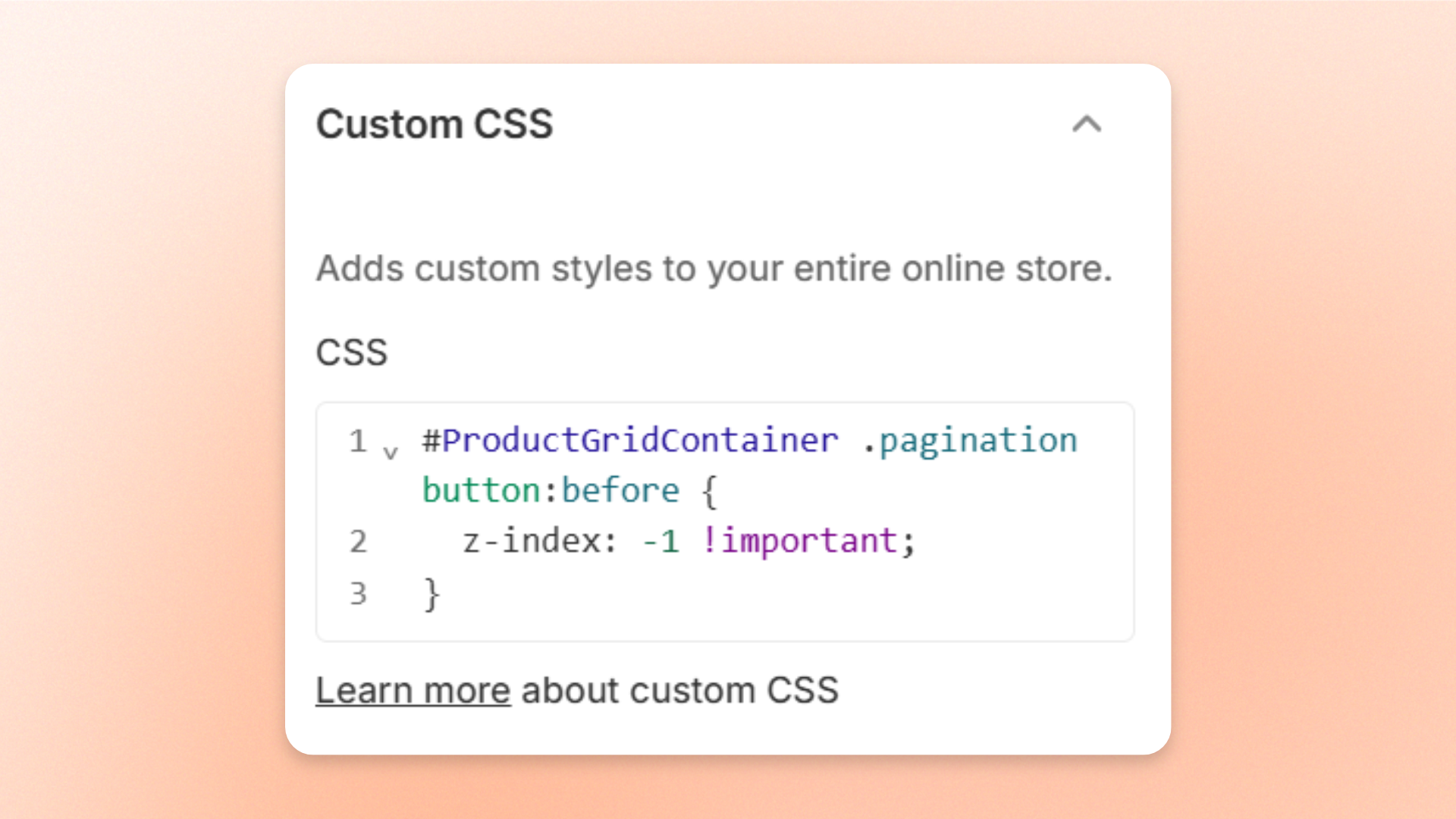
Change how your store looks when a built-in theme setting doesn't give you the exact layout you want. The **Custom CSS** setting adds your own styles to your entire online store.
## How to edit Custom CSS
1. Open the theme editor (**Edit theme**) and go to **Theme settings**.
2. Open **Custom CSS**.
3. Enter your code in the **CSS** field.
4. Click **Save**.
## Settings
| Setting | Description | Options |
| ------- | ------------------------------------------------------- | --------------- |
| **CSS** | Your own CSS styles, added to your entire online store. | Enter CSS code. |
Custom CSS applies to your entire online store. Check several pages in the theme editor preview to make sure a style only changes what you meant it to.
## Tips and best practices
To learn how custom CSS works in Shopify themes, see [Shopify's guide to adding custom CSS](https://help.shopify.com/en/manual/online-store/themes/customizing-themes/edit-code/add-css).