# Overview
For general guidance on editing sections, see the Shopify Help Center article [Sections and blocks](https://help.shopify.com/manual/online-store/themes/theme-structure/sections-and-blocks).
## What are theme sections?
Theme sections are customizable components you use to build the layout and content of your storefront. Each section has a specific purpose, such as showcasing products, displaying images and videos, highlighting benefits, or adding a newsletter signup.
Sections can include **section blocks**. These let you add and organize individual pieces of content within a section.
For example, the **Slideshow** section uses **Image Slide** and **Video Slide** blocks, and the **Collection list** section uses **Collection** and **Banner** blocks.
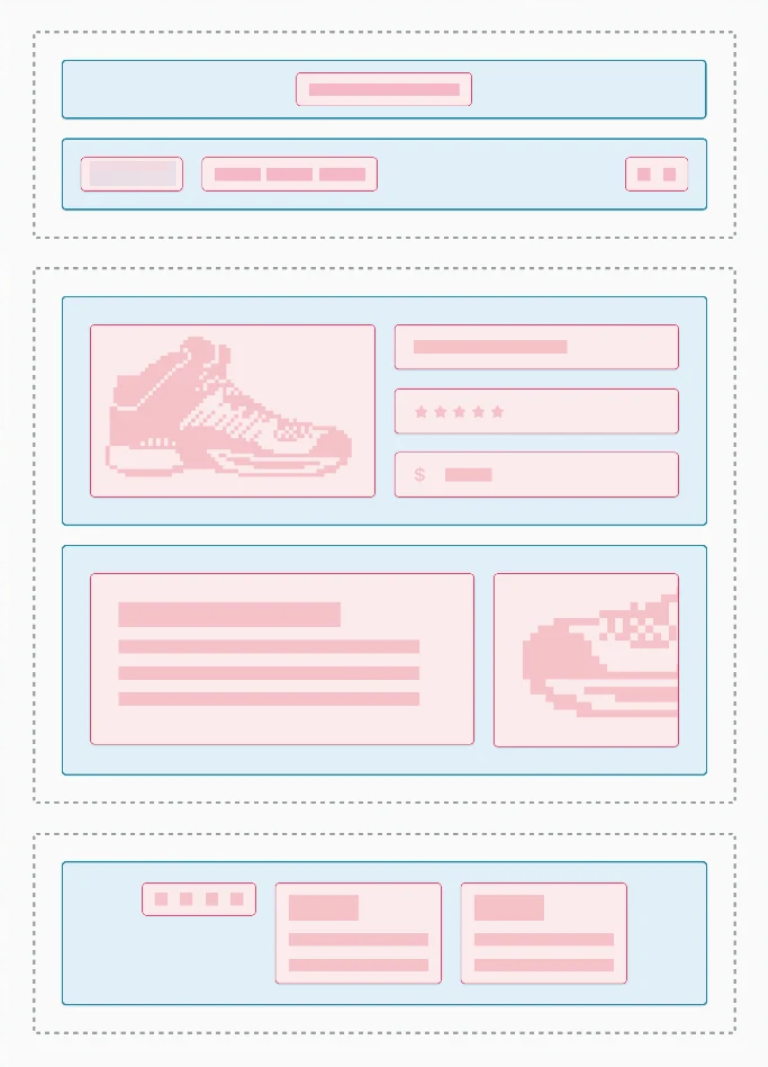
You customize sections and their blocks in the Shopify theme editor. Add, remove, rearrange, and adjust available settings without editing code.
Which sections and section blocks you can use depends on the Minimog theme and its version.
Use **template sections** to build the main content of a specific page.
Use **section groups** for shared areas, such as the **Header** and **Footer**, that appear across multiple pages.
| | Sections in templates | Sections in section groups |
| --------------------- | ---------------------------------------------------------------------------------------- | ------------------------------------------------------------------------ |
| **Where they appear** | Inside a specific page or template, such as a product, collection, or homepage template. | In shared areas of the storefront, such as the Header and Footer. |
| **What they control** | The main content and layout of an individual page or template. | Content that appears across multiple pages using the same section group. |
| **Examples** | Slideshow, Featured collection, Testimonials, Gallery images | Announcement bar, Header, Footer |
| **How changes work** | Changes affect the pages that use that template. | Changes usually apply across all pages that use the section group. |
| **Maximum sections** | Up to **25 sections** per JSON template. | Up to **25 sections** per section group. |
| **Typical use** | Build the content structure of individual storefront pages. | Build reusable areas that appear across the storefront. |
## Types of sections
| | Static sections | Dynamic sections |
| ------------------------- | ------------------------------------------------------------------------------------- | --------------------------------------------------------------------------------------------- |
| **What they are** | Sections fixed in a specific location of a template or section group. | Sections you can add, remove, and reorder in the theme editor. |
| **Where they appear** | In a predefined location within the theme layout. | In the main content area of a template, or in a section group that supports dynamic sections. |
| **Can you add more?** | Usually no. The theme controls where they appear and how many instances you can have. | Yes, as long as the theme and Shopify limits allow it. |
| **Can you reorder them?** | No. The theme controls their position. | Yes. You can usually drag and drop them to change their order. |
| **Can you remove them?** | Not from the theme editor when the theme requires them. | Yes. You can remove them from the theme editor. |
| **Examples** | A fixed Header or Footer section included by the theme. | Slideshow, Featured collection, Testimonials, and other sections added from the theme editor. |
| **Typical use** | Essential or structural content that the theme needs in a specific location. | Flexible page content you want to arrange to suit your store. |
## How sections work in the theme editor
In the theme editor, you can:
* **Add a section**: choose one from Minimog's section library.
* **Reorder sections**: drag and drop sections to change the page structure.
* **Customize settings**: adjust layout, appearance, spacing, and other section settings. For the settings most sections share, see [Common section settings](https://docs.foxecom.com/minimog-theme/theme-sections/common-section-settings).
* **Add available section blocks**: add and customize content inside a section, if the section supports blocks.
* **Duplicate or remove sections**: reuse a layout or remove sections you no longer need.
Your changes show up in the theme editor preview while you work. Click **Save** to publish them.
## Explore Minimog sections
### 1. Products & Collections
Showcase products and collections so customers can discover what to buy.
### 2. Images & Galleries
Use images to tell your brand story, show products in context, and create visual experiences.
### 3. Content & Storytelling
Share information, articles, and brand stories so customers can learn more about your business.
### 4. Promotions & Campaigns
Highlight offers, create urgency, and draw attention to seasonal campaigns or special deals.
### 5. Engagement & Lead Generation
Encourage customers to subscribe, stay connected, or take the next step.
### 6. Store Information & Navigation
Help customers find your physical locations and plan a visit.