# Common section settings
Most Minimog sections share the same five groups of settings: **Section header**, **General**, **Section Padding**, **Custom Attributes**, and **Animations**. They work the same way in every section, so they're explained once on this page. Each section's own page covers only the settings that belong to that section.
Not every section has all five groups. For example, the [Slideshow](https://docs.foxecom.com/minimog-theme/theme-sections/slideshow) section has no **Section header**.
## How to find these settings
1. Open the theme editor (**Edit theme**).
2. Click a section in the sidebar.
3. Scroll the section's settings to the group you want to change.
4. Click **Save**.
## Section header
The heading and short text shown above the section's content.
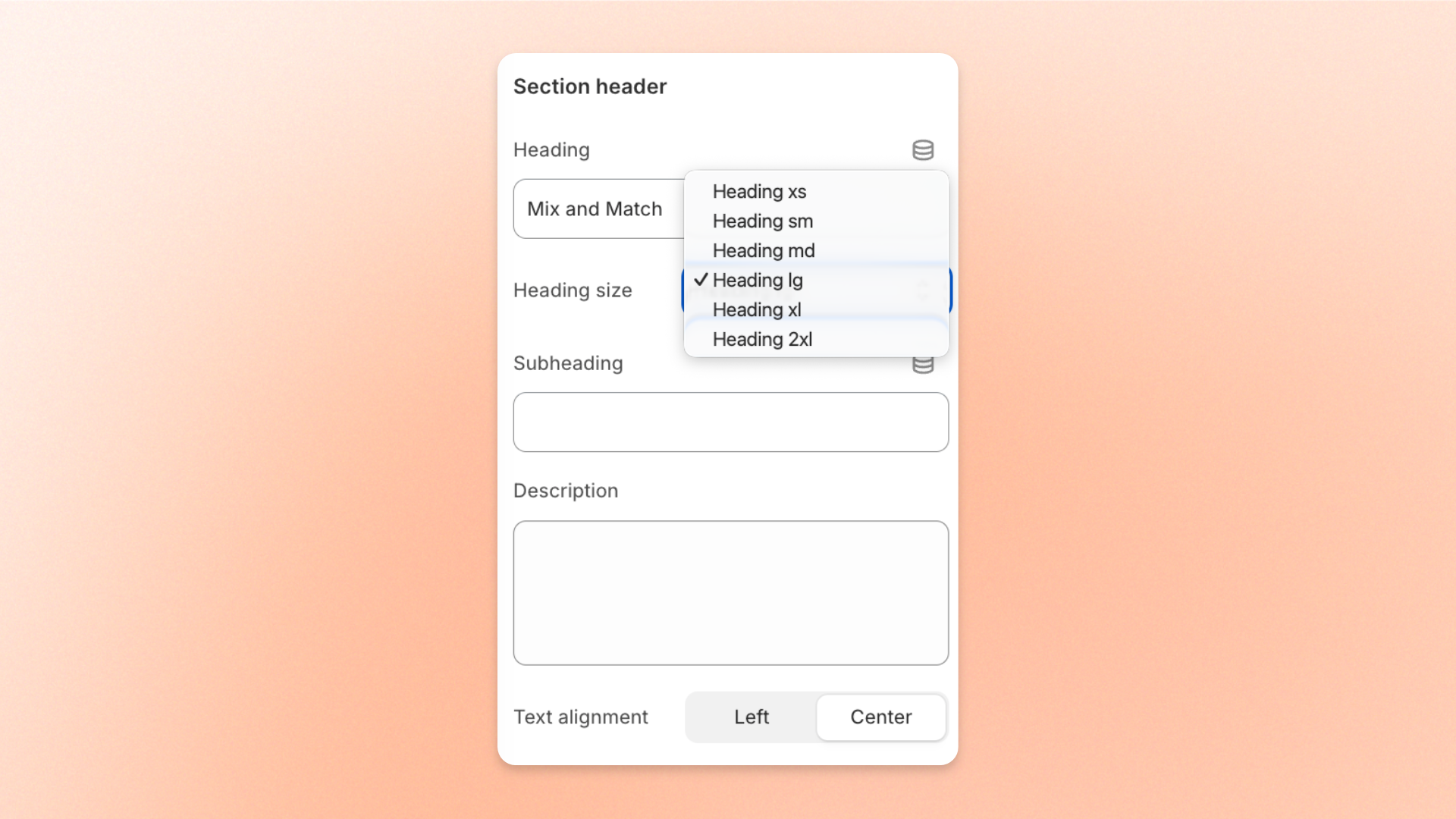
| Setting | Description | Options |
| ------------------ | --------------------------------------------------- | --------------------------------------------------------------------------------------------------- |
| **Heading** | The main heading above the section's content. | Enter text.
*Leave blank to hide it.* |
| **Heading size** | The size of the heading. | **Heading xs**, **Heading sm**, **Heading md**, **Heading lg**, **Heading xl**, or **Heading 2xl**. |
| **Subheading** | A short line of text above the heading. | Enter text.
*Leave blank to hide it.* |
| **Description** | Introductory text below the heading. | Enter text.
*Leave blank to hide it.* |
| **Text alignment** | Where the heading, subheading, and description sit. | **Left** or **Center**. |
## General
The width and colors of the section.
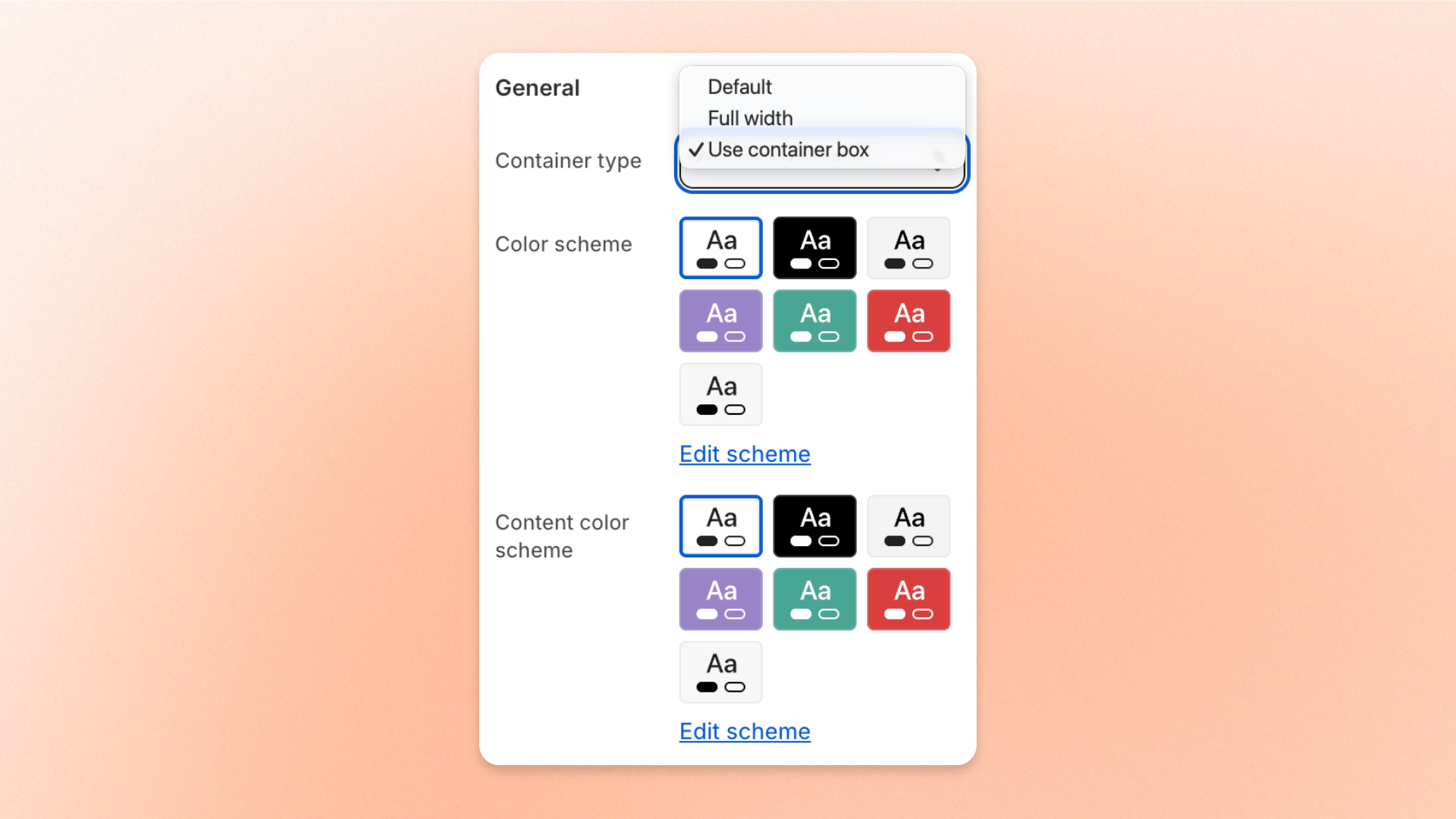
| Setting | Description | Options |
| ------------------------ | --------------------------------------------------------------------------------------------------------------------------------------- | ------------------------------------------------------------------------------------------------------------------------------------- |
| **Container type** | The width of the section's content. See [Layout settings](https://docs.foxecom.com/minimog-theme/theme-settings/layout-settings) for the widths each option uses. | **Default**, **Full width**, or **Use container box**. |
| **Color scheme** | The background and text colors of the whole section. | Select a scheme. Click **Edit scheme** to change its colors, or set schemes in [Colors](https://docs.foxecom.com/minimog-theme/theme-settings/colors-and-color-schemes). |
| **Content color scheme** | The background and text colors of the content area inside the section, separate from the section's **Color scheme**. | Select a scheme. Click **Edit scheme** to change its colors. |
For example, set **Color scheme** to red and **Content color scheme** to black to show a black content area on a red section.
## Section Padding
The space above and below the section's content.
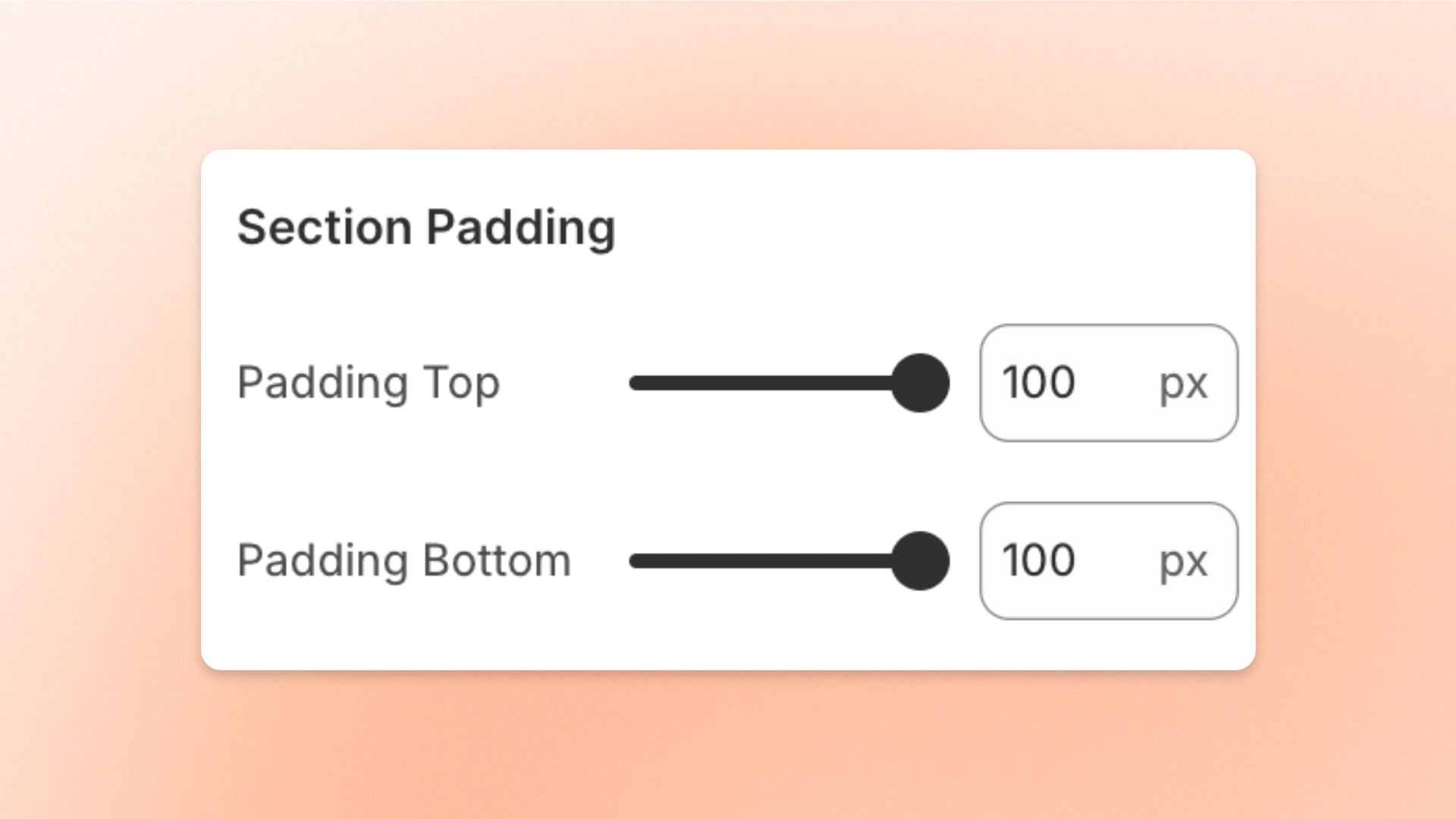
| Setting | Description | Options |
| ------------------ | -------------------------------------- | ------------ |
| **Padding Top** | The space above the section's content. | 0 to 100 px. |
| **Padding Bottom** | The space below the section's content. | 0 to 100 px. |
To set the gap between every section in your store at once, use **Space between sections** in **Theme settings** > [Section](https://docs.foxecom.com/minimog-theme/theme-settings/section).
## Custom Attributes
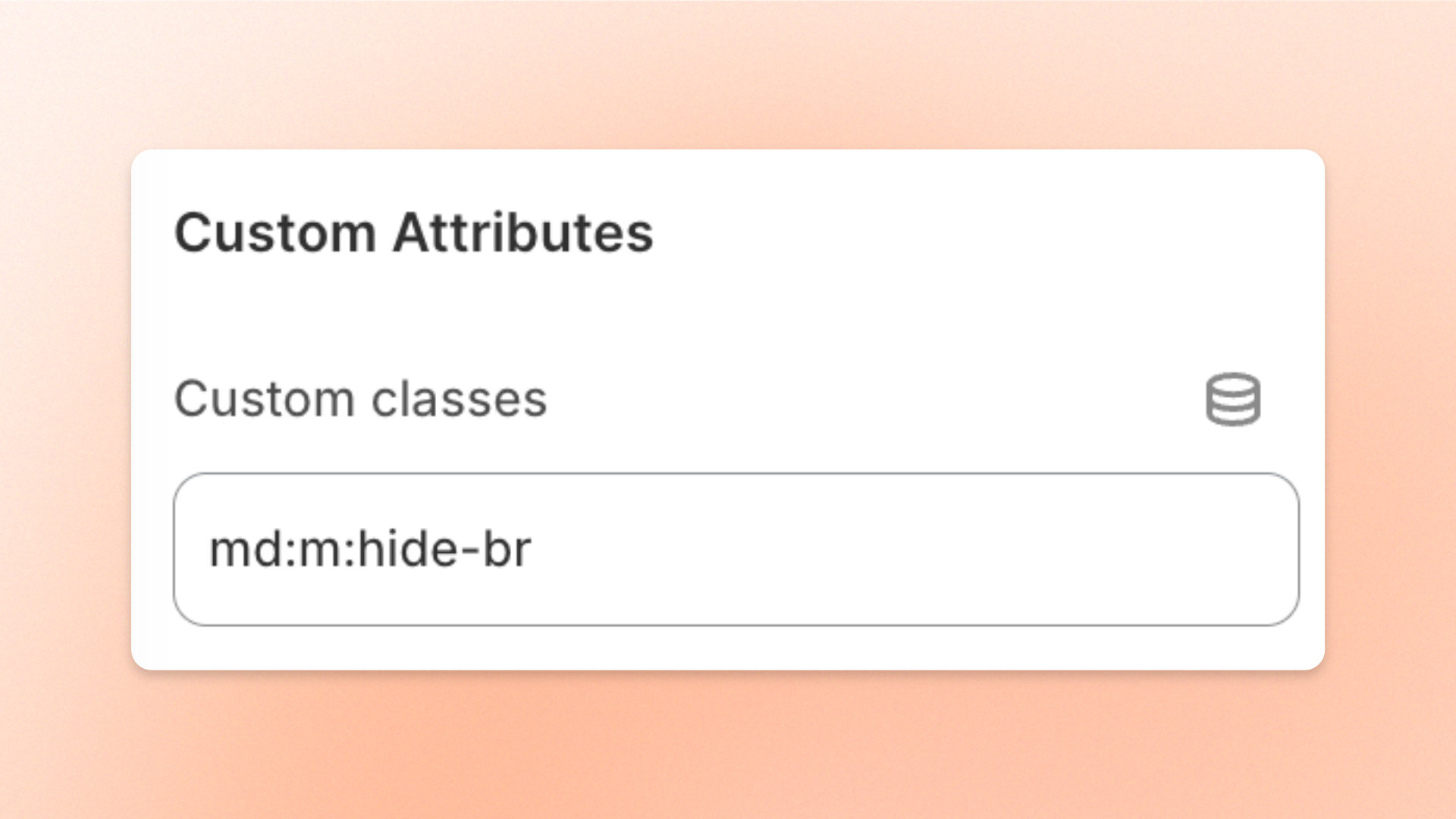
| Setting | Description | Options |
| ------------------ | ------------------------------------------------------------------------------- | -------------------------- |
| **Custom classes** | Your own CSS classes, added to the section for styling or other customizations. | Enter one or more classes. |
To show a section only on mobile or only on desktop with **Custom classes**, see [Hide sections on mobile/desktop view using custom attributes](https://docs.foxecom.com/minimog-theme/guides/design-and-theme-customization/hide-sections-on-mobiledesktop-view-using-custom-attributes).
## Animations
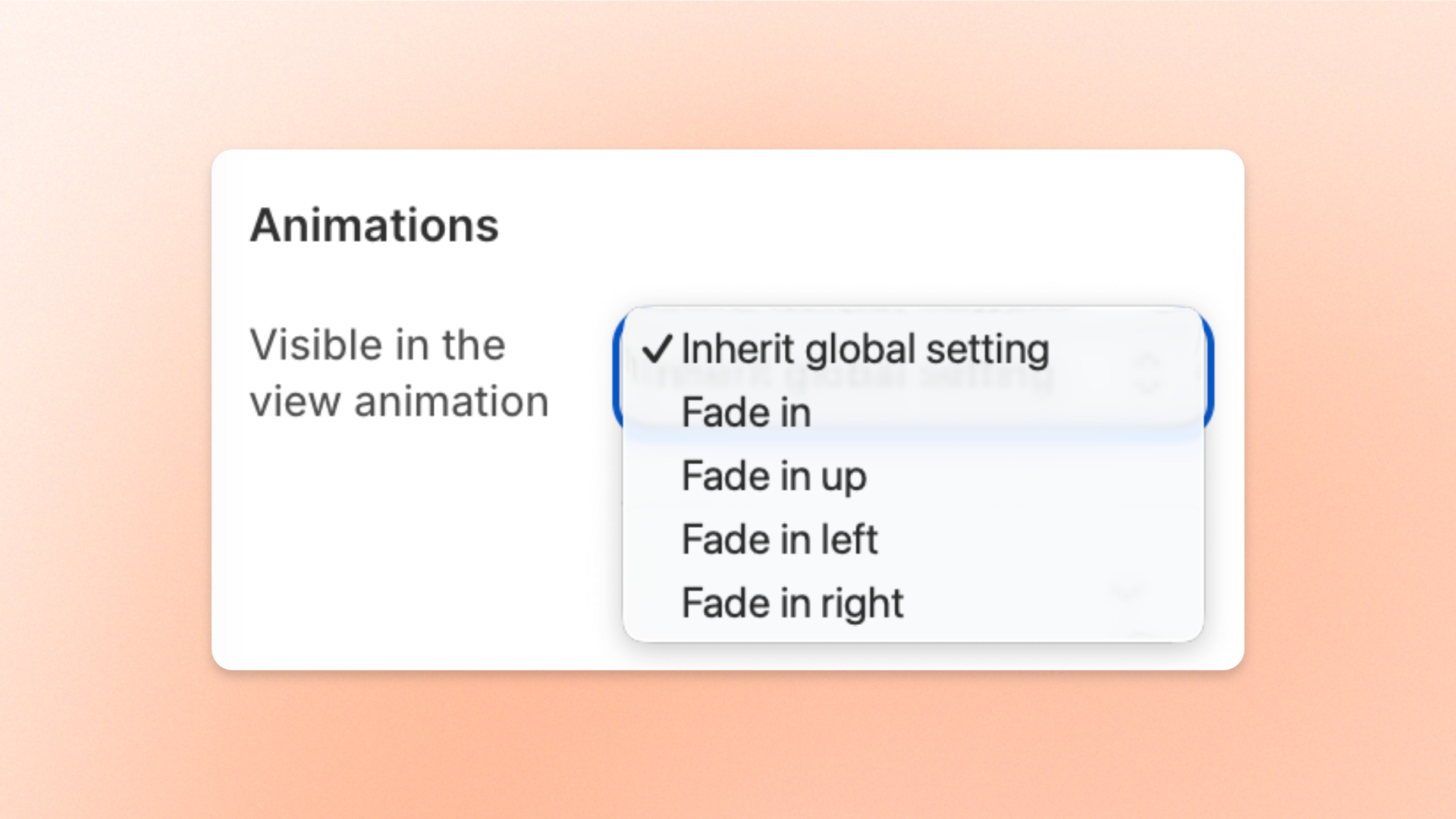
How the section appears as customers scroll down to it.
| Setting | Description | Options |
| --------------------------------- | ----------------------------------------------------- | --------------------------------------------------------------------------------------------------------------------------------------------------------------------------------------------------------------------- |
| **Visible in the view animation** | The effect played when the section scrolls into view. | **Inherit global setting:** uses the animation set in **Theme settings** > [Animations](https://docs.foxecom.com/minimog-theme/theme-settings/animations).
**Fade in**, **Fade in up**, **Fade in left**, or **Fade in right**. |
Keep **Inherit global setting** on most sections, so your whole store animates the same way.
## Related articles
Theme sections overview
Section
Animations