# Search page
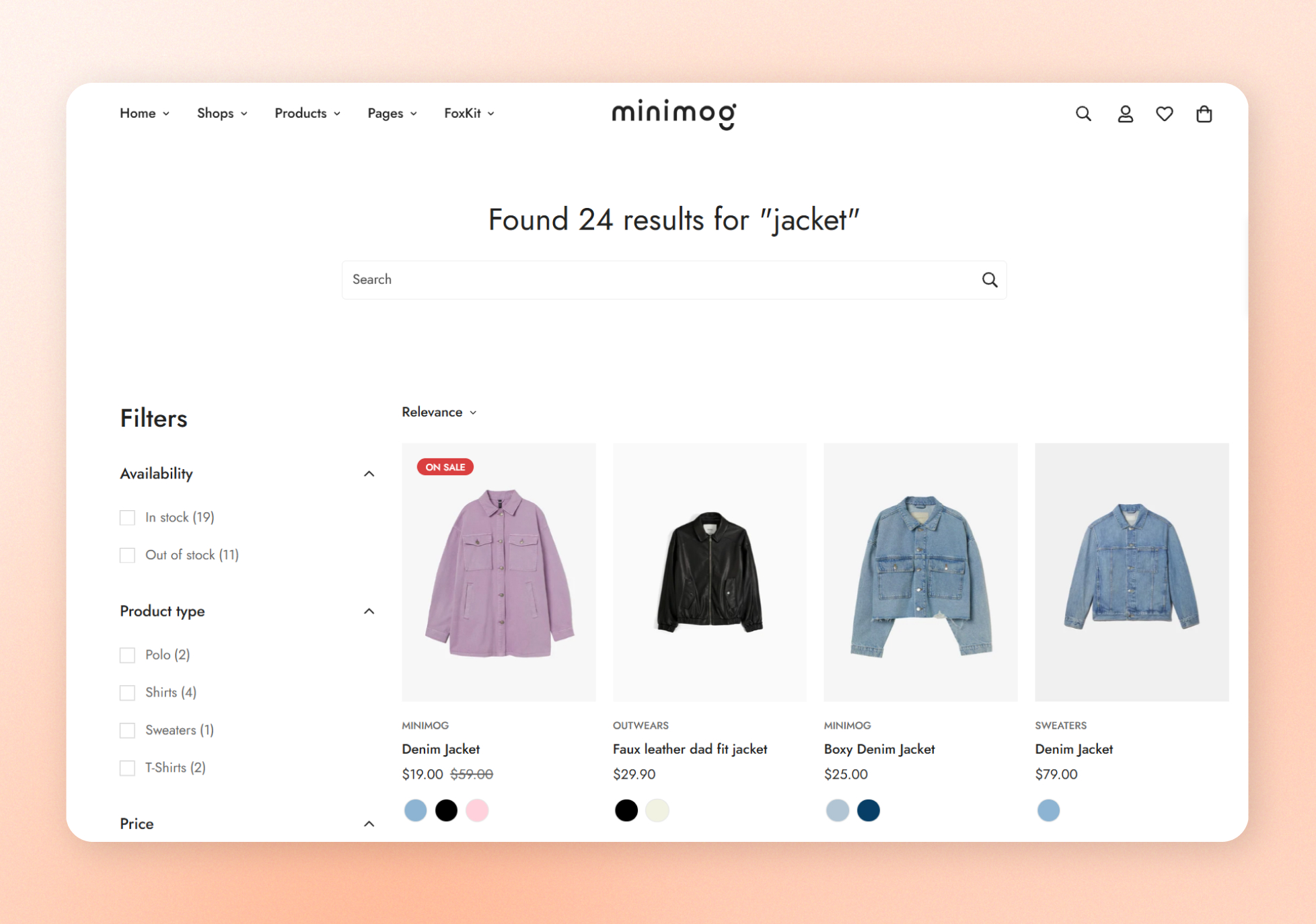
The Search page shows a search bar and the products and other content that match what customers search for. Use it to set how many results show and how customers sort and filter them.
The heading shows **Search our store** when customers first open the page, and **Search results** after they search.
## How to customize the Search page
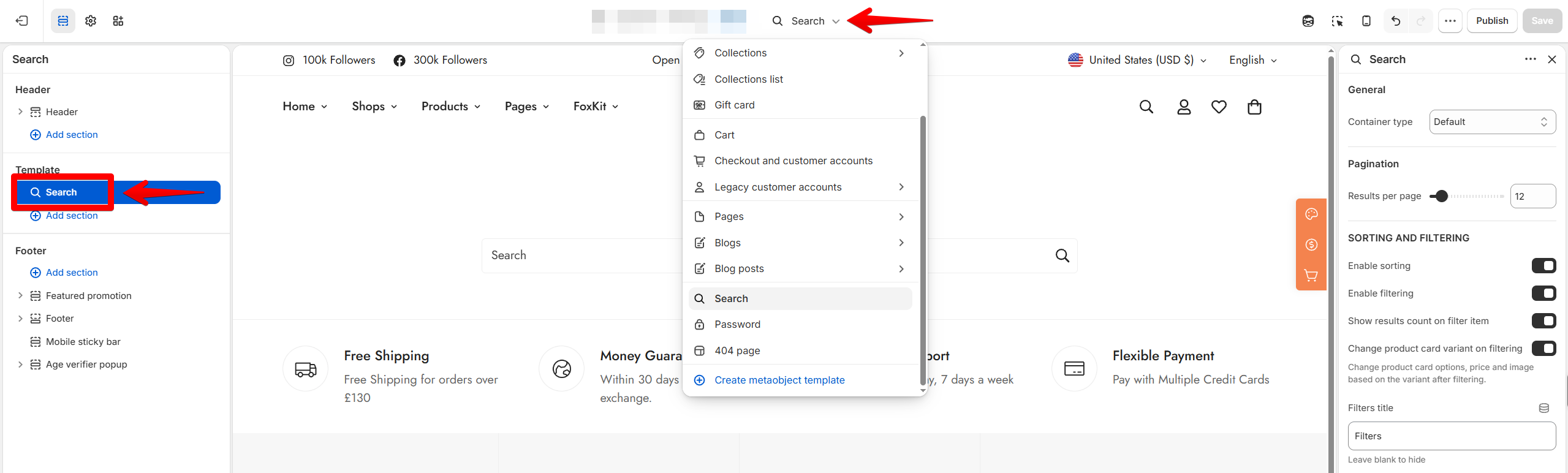
1. Open the theme editor (**Edit theme**).
2. Open the page selector at the top of the theme editor.
3. Select **Search**.
4. Click the **Search** section in the sidebar.
5. Click **Save**.
To show more content, add other [theme sections](https://docs.foxecom.com/minimog-theme/theme-sections/overview) to the page.
## Section settings
**Container type** under **General** works the same as in every section. See [Common section settings](https://docs.foxecom.com/minimog-theme/theme-sections/common-section-settings).
### Pagination
| Setting | Description | Options |
| -------------------- | ------------------------------------ | ------------- |
| **Results per page** | How many results show on each page. | **8 to 48.** |
### Sorting and filtering
| Setting | Description | Options |
| -------------------------------------------- | ----------------------------------------------------------------- | --------------------------------------------------------------- |
| **Enable sorting** | Lets customers sort the results. | **On** or **Off**. |
| **Enable filtering** | Lets customers filter the results. | **On** or **Off**. |
| **Show results count on filter item** | Shows how many results match each filter option. | **On** or **Off**. |
| **Change product card variant on filtering** | Changes the product card's options, price, and image to match the variant customers filter by. | **On** or **Off**. |
| **Filters title** | The title above the filters. | Enter text.
*Leave blank to hide it.* |
| **Collapsed filter groups** | The filter groups that start closed. | Enter filter names separated by commas, such as `Brand, Vendor, Size`. |
| **Color swatches group** | The option names to show as color swatches. | Enter option names separated by commas, such as `color, colour, couleur, farbe`. |
| **Limit filter widget's height** | Limits the height of the filter area, so long lists don't take up too much space. | **On** or **Off**. |
| **Max height** | The tallest the filter area can be. | **200 to 600 px.**
*Works when **Limit filter widget's height** is on.* |
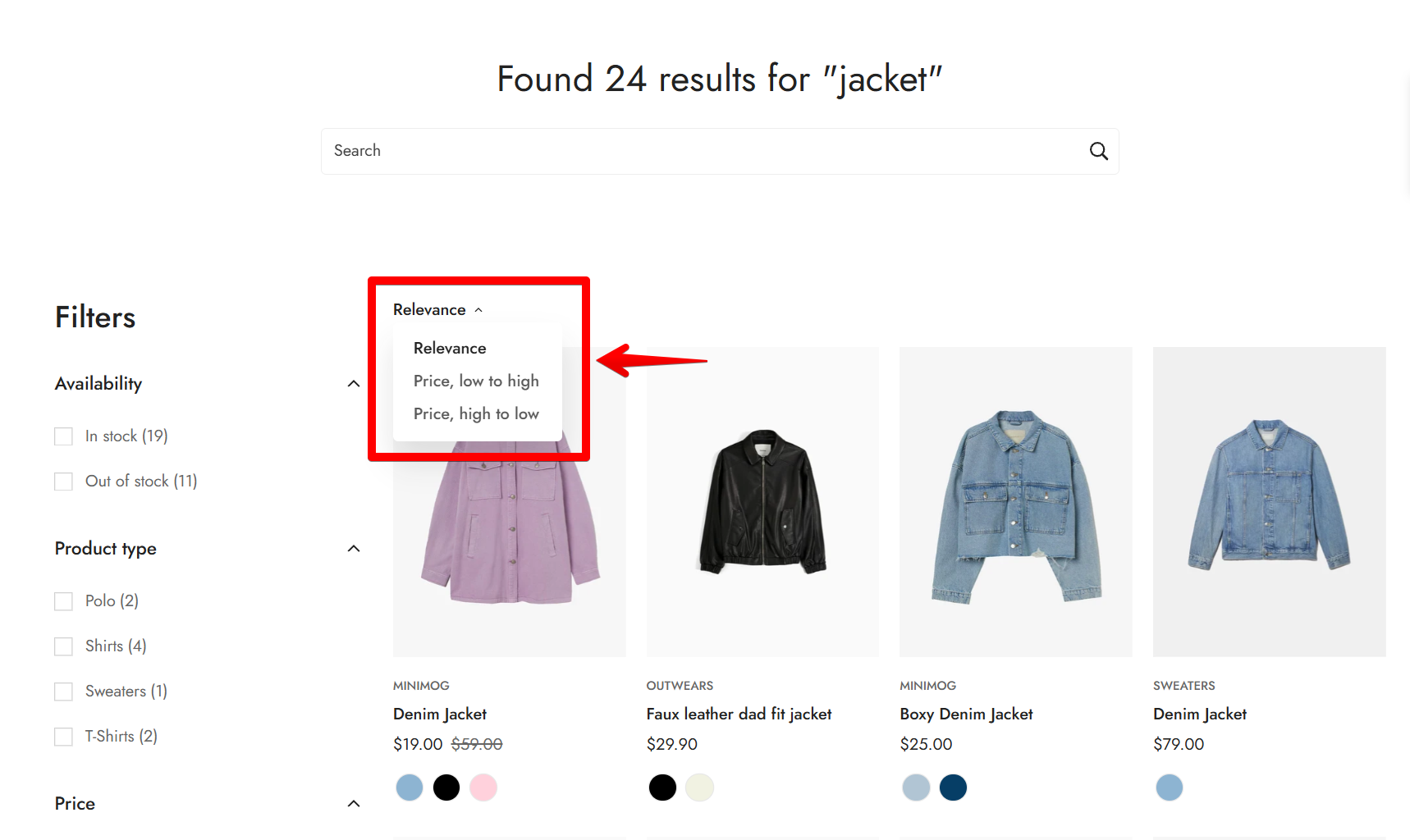
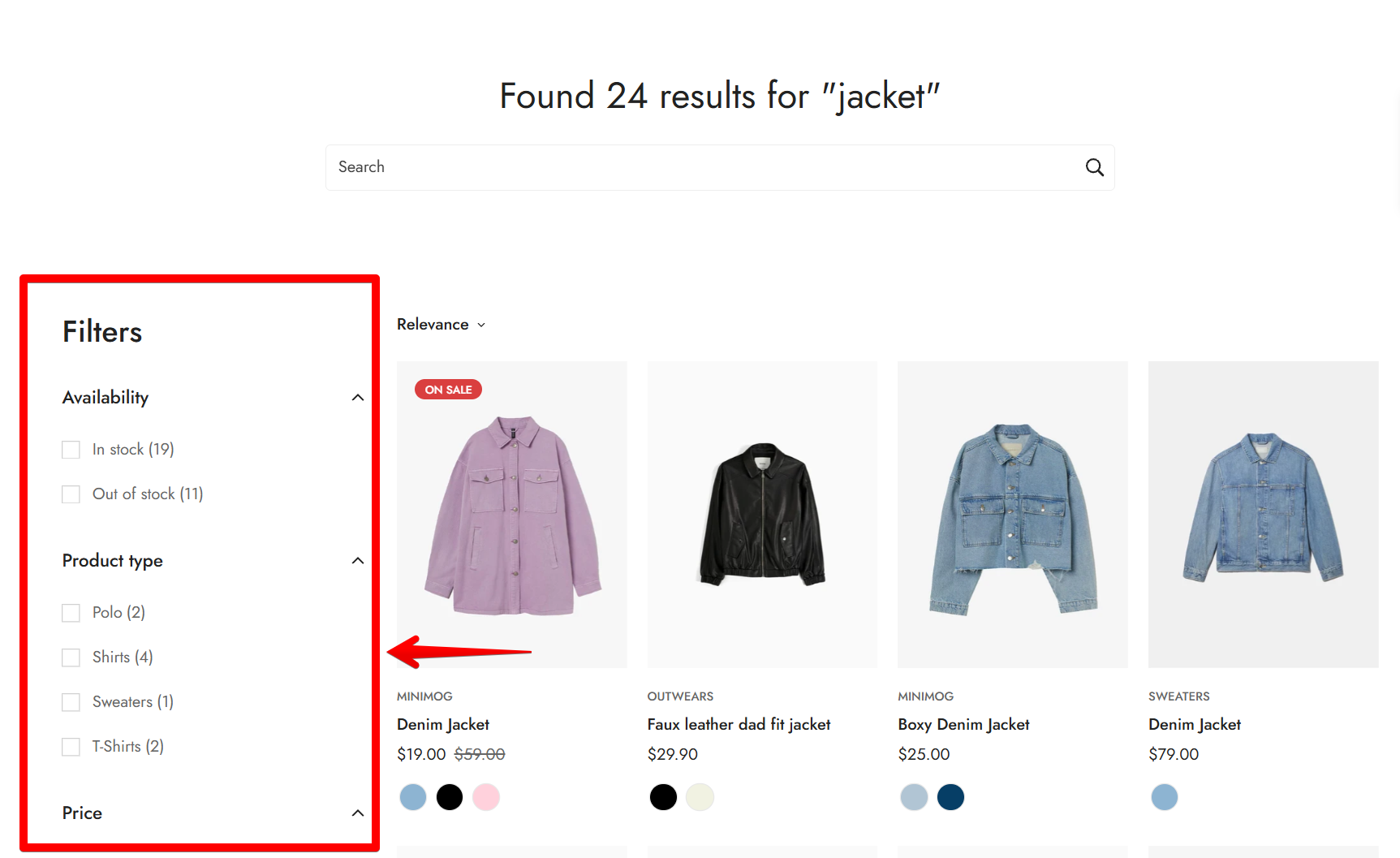
To choose which filters show, set up storefront filters with Shopify's [Search & Discovery](https://apps.shopify.com/search-and-discovery) app. Learn more about [storefront filters](https://help.shopify.com/en/manual/online-store/themes/customizing-themes/common-customizations/storefront-filters).
A search on your store shows results with the sorting and filters you turned on.
## Related articles
Common section settings