# Cart page
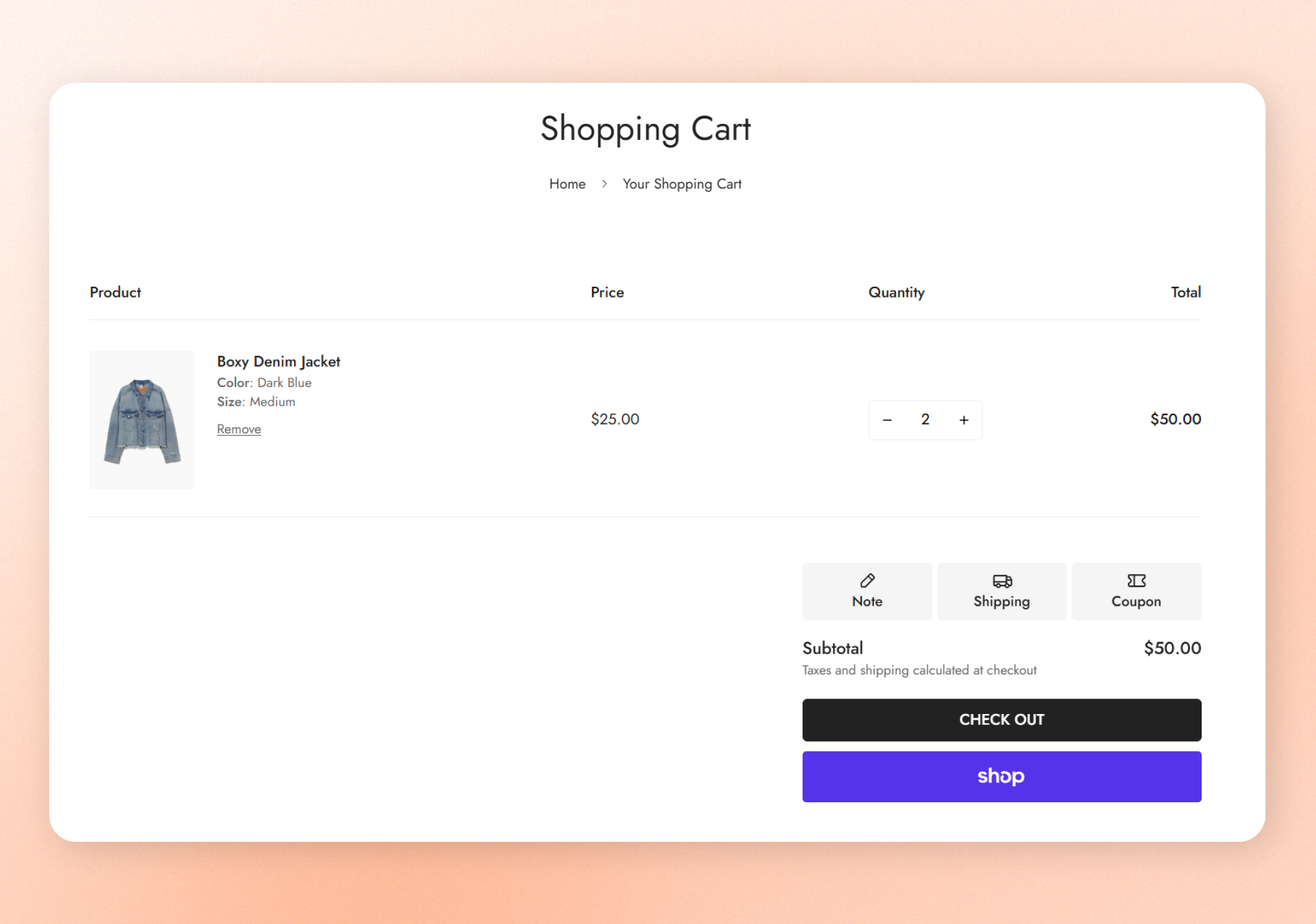
The cart page shows the products customers have added, with quantity controls and an order summary that leads to checkout. When the cart is empty, customers see a message and a **Back to shopping** button. Depending on your theme settings, the empty cart can also show recommended products and a customer account sign-in prompt.
## How to customize the Cart page
1. Open the theme editor (**Edit theme**).
2. Open the page selector at the top of the theme editor.
3. Select **Cart**.
4. Add the [theme sections](https://docs.foxecom.com/minimog-theme/theme-sections/overview) you want above or below the cart.
5. Click **Save**.
## Cart template section
The cart page always includes the **Cart template** section, which has no settings in the theme editor. To change the built-in cart features, go to **Theme settings** > [Cart settings](https://docs.foxecom.com/minimog-theme/theme-settings/cart-settings).
The cart page shows your added sections in the theme editor preview.
## Related articles
Cart settings