---
description: >-
A guide to enable recipient name, email, and message fields on your gift card
product pages
---
# Add recipient fields to my gift card product
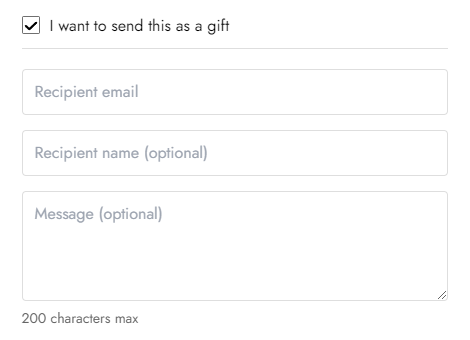
Customers buying a gift card for someone else have the option of completing extra fields for recipient name, email, and message fields.
After purchase, a personalized email containing the message and gift card code is sent to the recipient.
The customer receives a notification containing the gift card code to confirm that the gift card was sent to the recipient.
## Selling gift cards
A gift card is a special type of product. Its value can be used as payment toward future orders from your online store.
You can add a new gift card product or update an existing one from the [Gift cards](https://www.shopify.com/admin/gift_cards) page of your Shopify admin.
For more information, refer to [Shopify Manuals](https://help.shopify.com/manual/products/gift-card-products) and Shopify's [Frequently asked questions about gift cards](https://help.shopify.com/manual/products/gift-card-products/faq).
## Enable the recipient information form
After [adding gift card products to your store](https://help.shopify.com/manual/products/gift-card-products/add-update-gift-card-products), you can enable the recipient fields on your storefront.
{% hint style="success" %}
**Steps:**
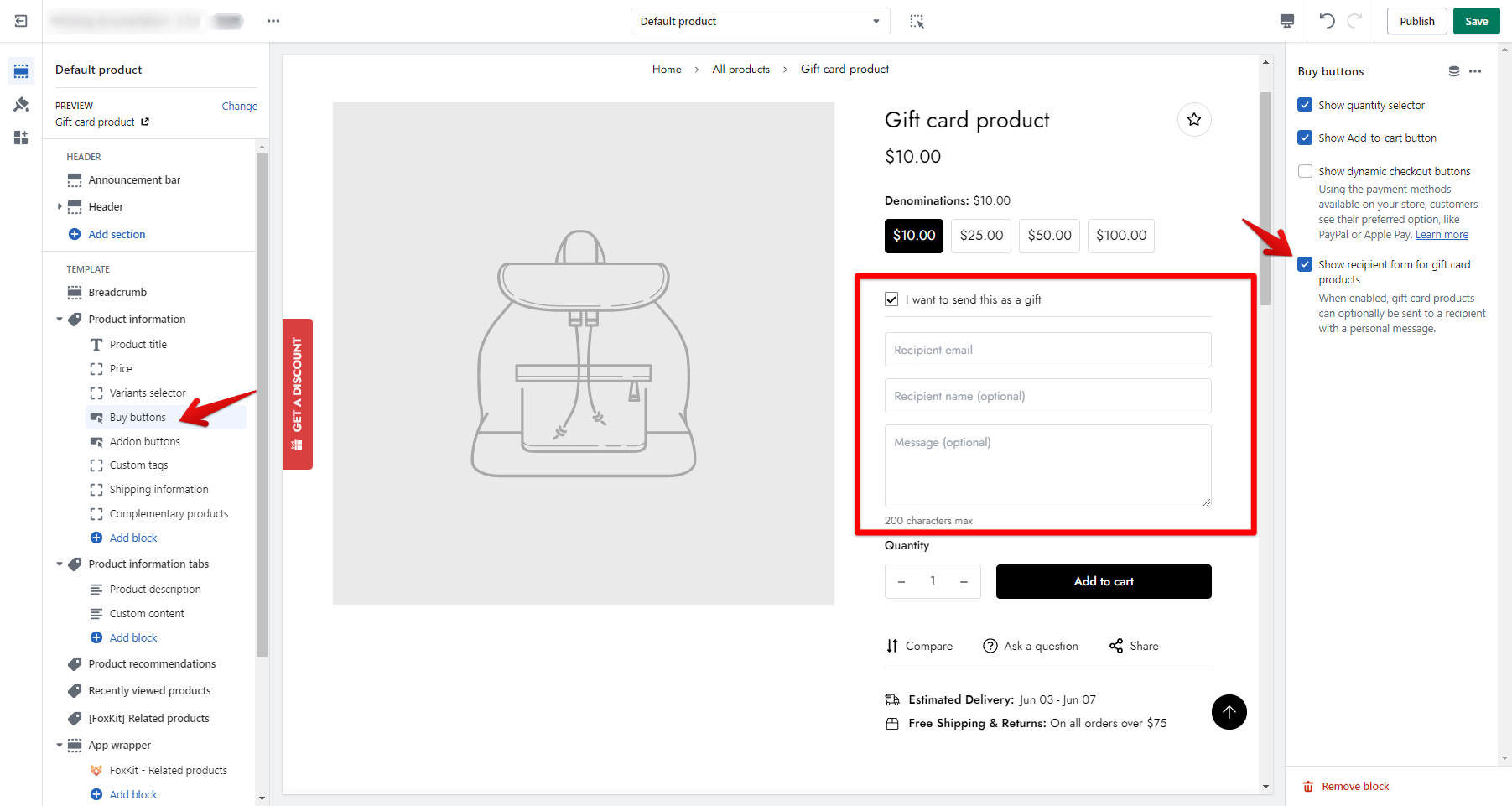
1. From your Shopify admin, go to **Online Store** > **Themes**.
2. On the **Themes** page, navigate to the theme that you want to customize, and click **Customize**.
3. Navigate to the **Default product** template using the top navigation.
4. Select a gift card product in the **Preview**.
5. In the **Product information** section, click the **Buy Buttons** block.
6. Click the checkbox **Show recipient information form for gift card products**.
7. Click **Save**.
{% endhint %}