# Logo
{% hint style="success" %}
Steps:
1. In the theme editor (**Customize**), click **Theme settings**
2. Locate **Logo**
3. Make necessary changes
4. **Save**
{% endhint %}
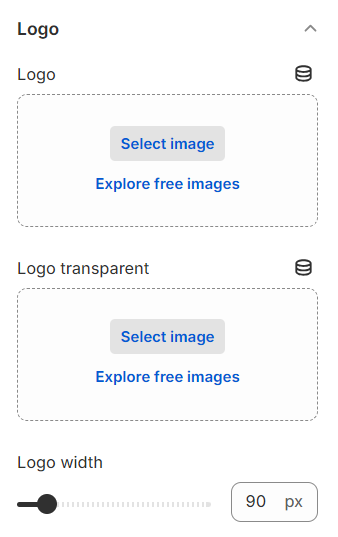
You can upload both a **Logo** and **Logo transparent** for your store, and adjust the Logo's width in this setting.
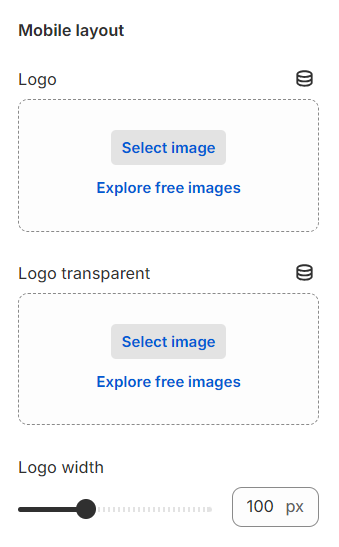
Do the same to upload **Logo** and **Logo transparent,** and adjust and adjust the Logo's width in mobile view.
### Favicon (Favorite icon)
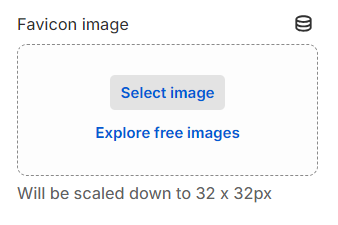
A favicon is a small image that serves as branding for your website to help visitors identify your page easier, especially when they have multiple tabs open.
A favicon increases brand awareness and improves user experience.
A favicon can be displayed in the following places:
* Brower tabs
* Search results
* History archives
* Bookmark lists
You can enable/ disable it based on the requirement.
* The recommended image size is 32 x 32px