# Color swatches
## How to enable Color swatches for your Shopify store
{% tabs %}
{% tab title="Product page - Product information section" %}
{% hint style="success" %}
1. Go to **Product page > Product information**.
2. In the **Variant picker**, set the **Style** to **Color swatches**.
{% endhint %}
{% endtab %}
{% tab title="Product cards" %}
{% hint style="success" %}
Go to **Theme settings > Product cards** to enable Color swatches.
{% endhint %}
See more on how to customize Product cards:
{% content-ref url="product-cards" %}
[product-cards](product-cards)
{% endcontent-ref %}
{% endtab %}
{% endtabs %}
## How to set up Color swatches
{% hint style="success" %}
Steps
1. In the theme editor (**Customize**), click **Theme settings**
2. Locate **Color swatches**
3. Make necessary changes
4. **Save**
{% endhint %}
### Color swatch trigger
Define which is the color option and separate them by a comma.
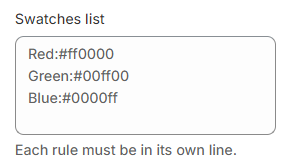
### Color swatches
Choose the suitable **HEX color** codes and add them to the provided box.
{% hint style="success" %}
Good practice :star:
* List the colors by separate lines.
* Write the product variant names and give it a color HEX value.
{% endhint %}