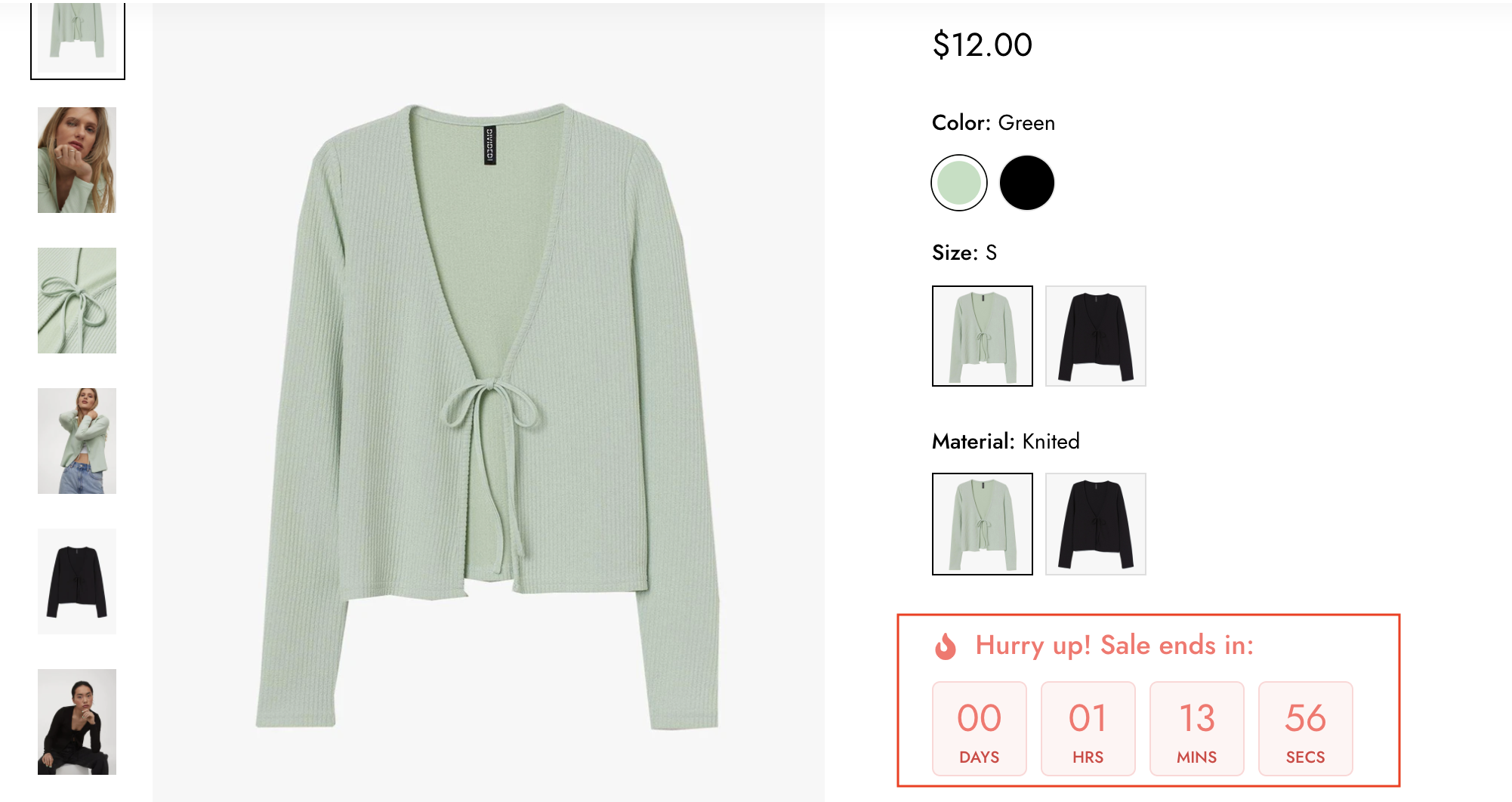
# Countdown timer

![](https://files.gitbook.com/v0/b/gitbook-x-prod.appspot.com/o/spaces%2F-MlL6sK9D7unq8F2VPPp%2Fuploads%2FlViRmvVN1mVBOL2l6ArO%2FScreen%20Shot%202021-10-28%20at%2021.16.05.png?alt=media\&token=528376b0-94ba-4bd1-8659-20a74a13bc59)

{% embed url="<https://www.youtube.com/watch?v=6-bc-WE1SDU>" %}

### Steps

1\. Go to **FoxKit** > **FoxKit power** > Choose **Countdown timer.**

2\. Click **Create countdown** to start.
<figure><img src="/files/6D0hLekgmrnPztsxIxt0" alt=""><figcaption></figcaption></figure>

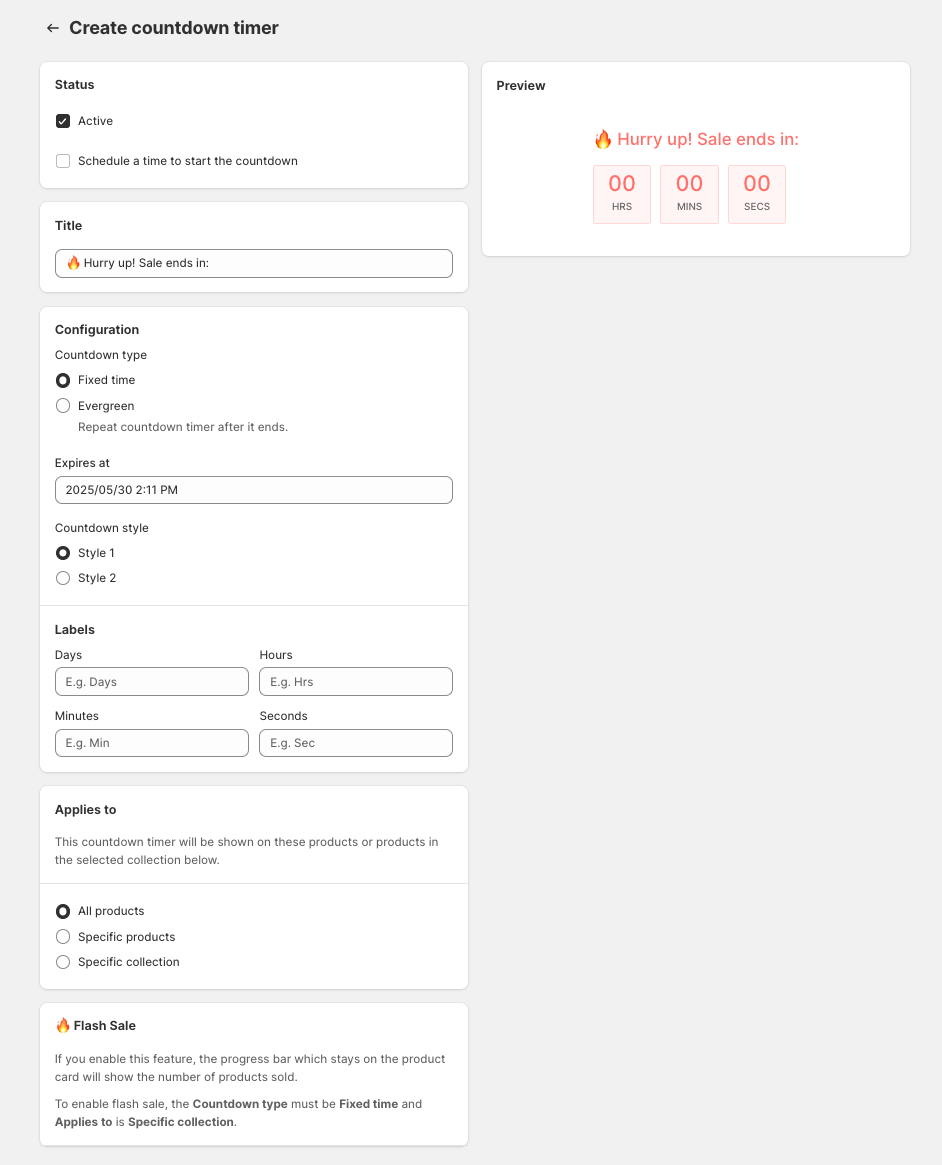
3\. Set the countdown as **Active**, and choose the date and time to start the sale. Add the countdown title to inform the customer.

4\. Select the **countdown type**:

* Fixed time: a specific time the countdown ends.
* Evergreen: repeat the countdown timer after it ends.

In addition, merchants can **where apply the countdown**:

* All products: apply to all the products that the store has.
* Specific products: need to select the products manually.
* Specific collection: manually add the collection.

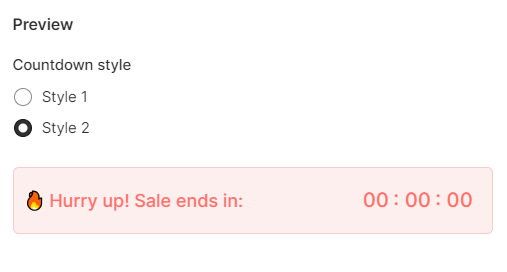
5. Set the **Countdown style**.\
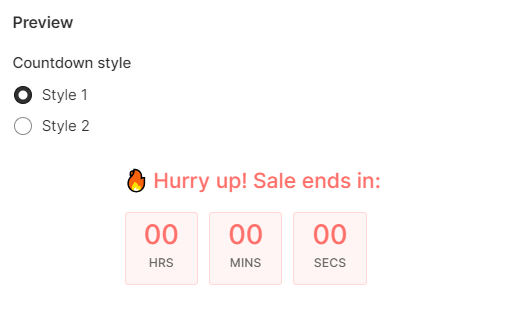
   ![](/files/xEpni043CmMqPXv7TL6B)![](/files/Lt6l1NF6mJuAy2SeY1y7)
6. **Save** the settings.

{% hint style="info" %}
If your **Minimog theme version is 3.5.0 onwards**, follow these [extra steps](https://docs.foxecom.com/foxkit-app/how-to-set-up-foxkit-features) to display the feature on the storefront.
{% endhint %}

{% hint style="success" %}
🔥  **Flash Sale**

![](/files/IiTeffRskWUkYfOVwCRd)

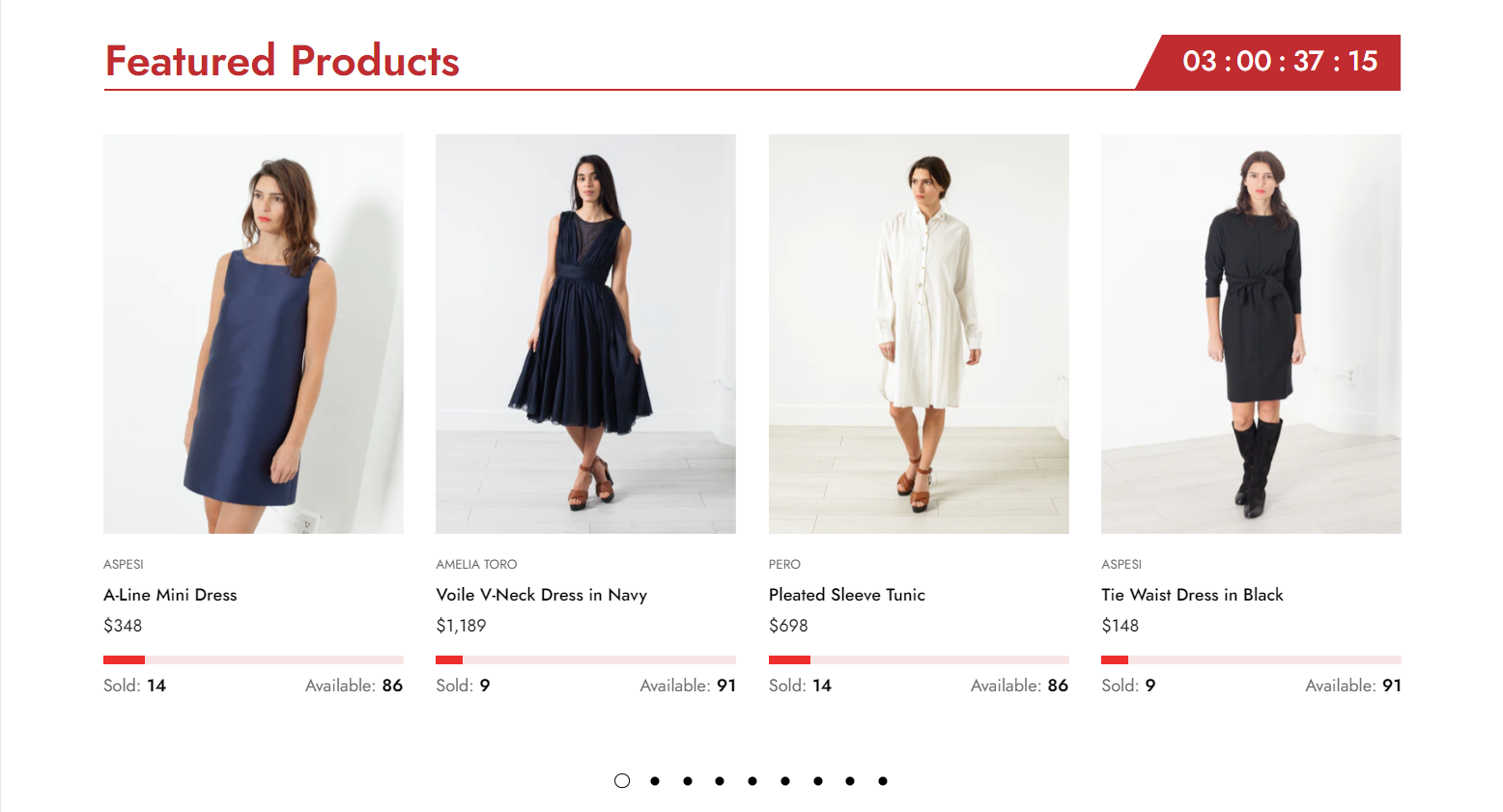
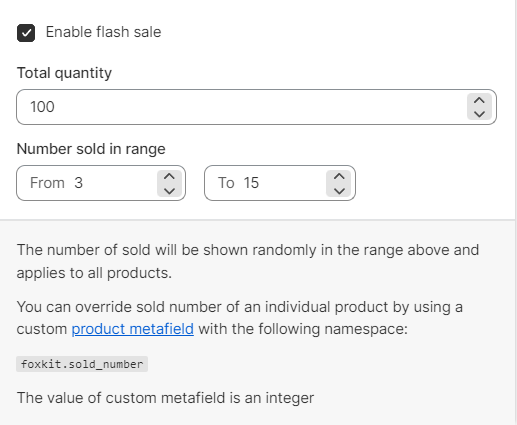
If you enable this feature, the progress bar which stays on the product card will show the number of products sold (section **Featured collection** for **Minimog theme**).

To enable flash sale, the **Countdown type** must be **Fixed time** and **Applies to** is **Specific collection**.
![](/files/toFIT1rTuZ1GAPyY44wr)
{% endhint %}

<figure><img src="/files/FWbzBePW6CWTNRAQqEf2" alt=""><figcaption><p><a href="https://apps.shopify.com/xflow?utm_source=foxecom&#x26;utm_medium=help_center_foxkit_countdown_timer&#x26;utm_campaign=anchor-text&#x26;utm_term=install_xflow_back_in_stock_automation_free">Install XFlow Back In Stock Automation FREE</a></p></figcaption></figure>

<div data-full-width="false"><figure><img src="/files/jkhSO8a1h10VtA30rWGx" alt=""><figcaption><p><a href="https://foxecom.com/pages/affiliate?utm_source=foxecom&#x26;utm_medium=help_center_foxkit_countdown_timer&#x26;utm_campaign=anchor_text&#x26;utm_term=explore_foxecom_affiliate_program_perks_now">Explore FoxEcom Affiliate Program perks now</a> <span data-gb-custom-inline data-tag="emoji" data-code="2728">✨</span></p></figcaption></figure></div>


---

# Agent Instructions: Querying This Documentation

If you need additional information that is not directly available in this page, you can query the documentation dynamically by asking a question.

Perform an HTTP GET request on the current page URL with the `ask` query parameter:

```
GET https://docs.foxecom.com/foxkit-app/sales-boosting/countdown-timer.md?ask=<question>
```

The question should be specific, self-contained, and written in natural language.
The response will contain a direct answer to the question and relevant excerpts and sources from the documentation.

Use this mechanism when the answer is not explicitly present in the current page, you need clarification or additional context, or you want to retrieve related documentation sections.