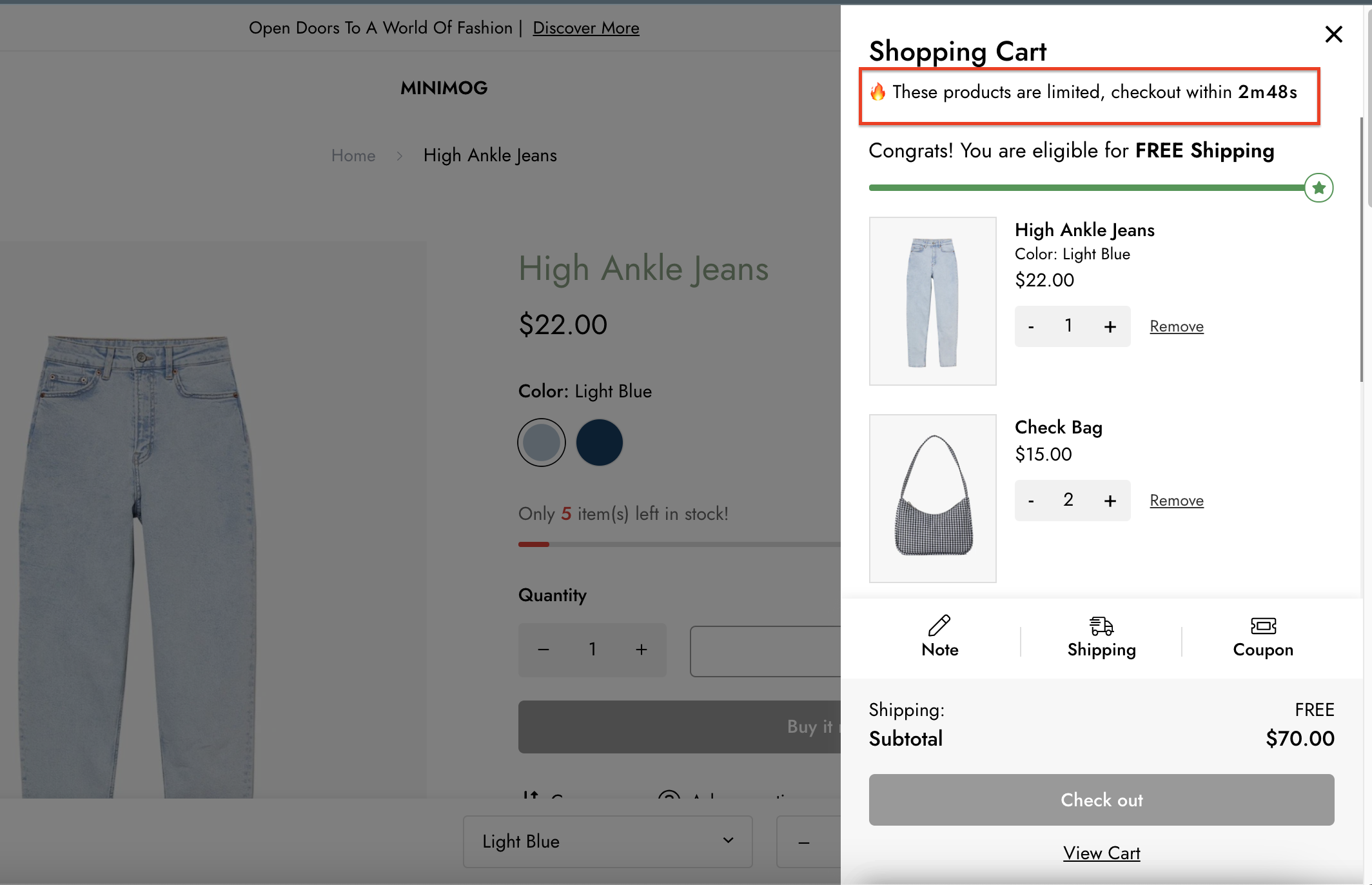
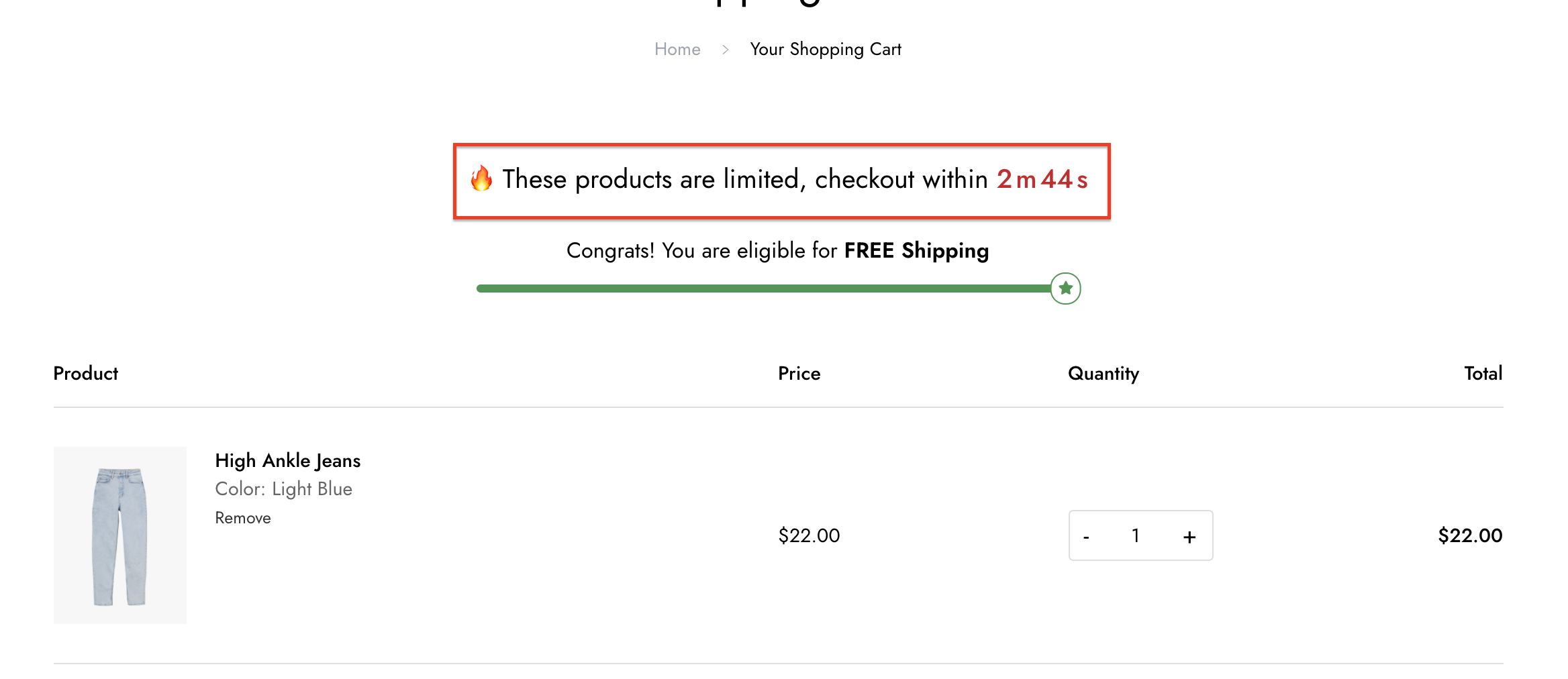
# Cart countdown

{% embed url="<https://www.youtube.com/watch?v=cAmisG2EBqI>" %}

{% tabs %}
{% tab title="Cart drawer" %}
![](https://files.gitbook.com/v0/b/gitbook-x-prod.appspot.com/o/spaces%2F-MlL6sK9D7unq8F2VPPp%2Fuploads%2FJTv5kKllRrw08uMefnaW%2FScreen%20Shot%202021-10-28%20at%2021.48.10.png?alt=media\&token=601f4001-1d99-41f6-a115-6005b0ebdcab)
{% endtab %}

{% tab title="Cart page" %}
![](https://files.gitbook.com/v0/b/gitbook-x-prod.appspot.com/o/spaces%2F-MlL6sK9D7unq8F2VPPp%2Fuploads%2FSelgs1qHpL0R0OAzdP3j%2FScreen%20Shot%202021-10-28%20at%2021.46.20.png?alt=media\&token=883ae356-afab-427d-9c11-6160d80189c5)
{% endtab %}
{% endtabs %}

### Steps

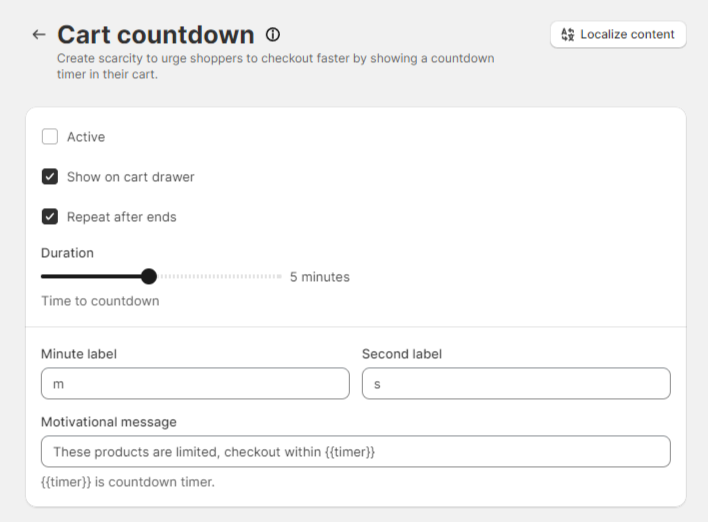
1. Go to **FoxKit** > **FoxKit power** > Choose **Cart countdown.**
2. Set the countdown as **Active.**&#x20;
3. Choose whether or not:&#x20;
   1. To show the countdown on the cart drawer&#x20;
   2. To repeat after it ends
4. Adjust the countdown duration if needed
5. Add a motivational message to urge customers to check out.&#x20;

   The timeout message is shown when the "Repeat after ends" box is unchecked.
6. **Save** the settings.
<figure><img src="/files/OUIFNxGkvh8XBzqO4zQv" alt=""><figcaption></figcaption></figure>

### Custom placement

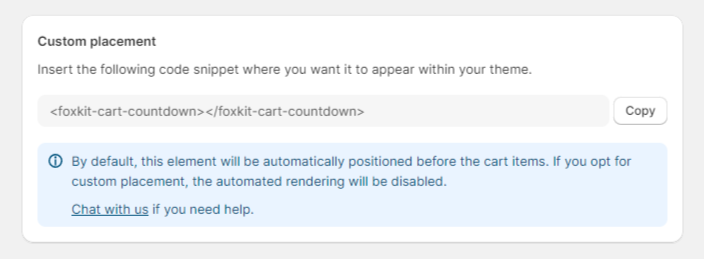
You can customize where you want the **Cart countdown** to appear within your theme by inserting the following code snippet:

```html
<foxkit-cart-countdown></foxkit-cart-countdown>
```

{% hint style="info" %}
By default, this element will be automatically positioned before the cart items.&#x20;

If you opt for custom placement, the automated rendering will be disabled.
{% endhint %}

<figure><img src="/files/j6E2R217pN4FoZLrRFqN" alt=""><figcaption></figcaption></figure>

<figure><img src="/files/FWbzBePW6CWTNRAQqEf2" alt=""><figcaption><p><a href="https://apps.shopify.com/xflow?utm_source=foxecom&#x26;utm_medium=help_center_foxkit_cart_countdown&#x26;utm_campaign=anchor-text&#x26;utm_term=install_xflow_back_in_stock_automation_free">Install XFlow Back In Stock Automation FREE</a></p></figcaption></figure>

<div data-full-width="false"><figure><img src="/files/jkhSO8a1h10VtA30rWGx" alt=""><figcaption><p><a href="https://foxecom.com/pages/affiliate?utm_source=foxecom&#x26;utm_medium=help_center_foxkit_cart_countdown&#x26;utm_campaign=anchor_text&#x26;utm_term=explore_foxecom_affiliate_program_perks_now">Explore FoxEcom Affiliate Program perks now</a> <span data-gb-custom-inline data-tag="emoji" data-code="2728">✨</span></p></figcaption></figure></div>


---

# Agent Instructions: Querying This Documentation

If you need additional information that is not directly available in this page, you can query the documentation dynamically by asking a question.

Perform an HTTP GET request on the current page URL with the `ask` query parameter:

```
GET https://docs.foxecom.com/foxkit-app/sales-boosting/cart-countdown.md?ask=<question>
```

The question should be specific, self-contained, and written in natural language.
The response will contain a direct answer to the question and relevant excerpts and sources from the documentation.

Use this mechanism when the answer is not explicitly present in the current page, you need clarification or additional context, or you want to retrieve related documentation sections.
