# Infinite Options
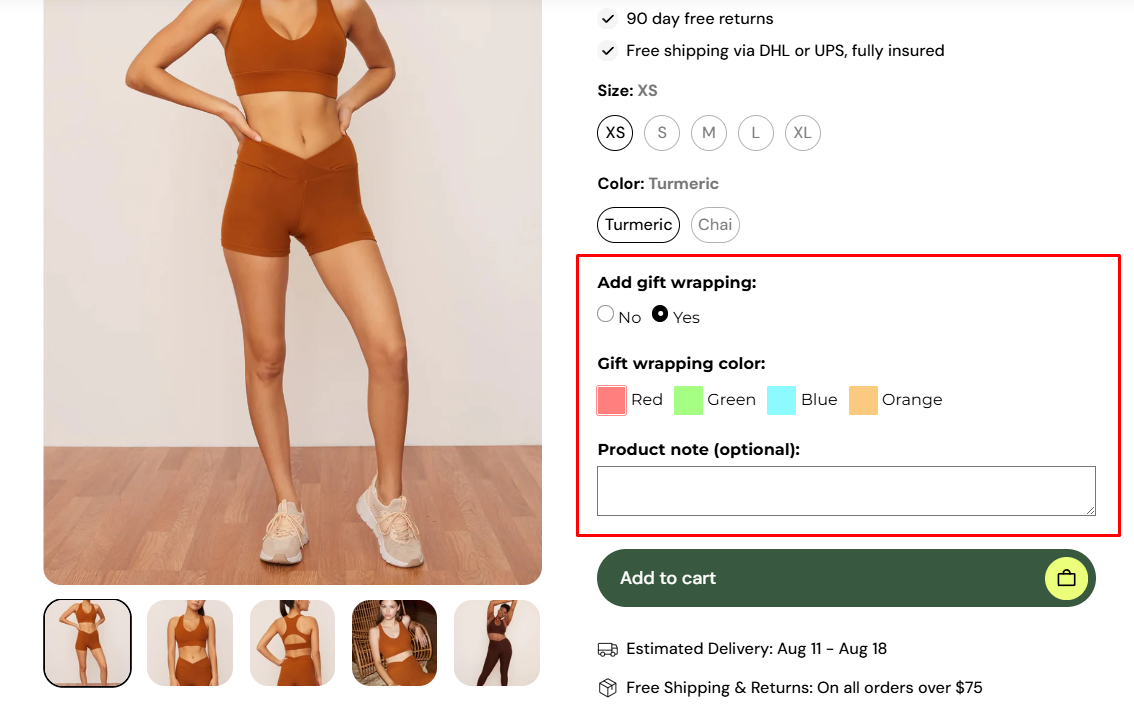
**Infinite Options** is one of the most trusted product options apps on Shopify, helping merchants add unlimited custom fields to their product pages. This article will show you how to integrate and display Infinite Options on your Foxify-built pages.
## What is Infinite Options?
Infinite Options is a Shopify app that allows you to create unlimited custom product options beyond the standard variants. You can add text boxes, dropdowns, checkboxes, swatches, radio buttons, and more, giving customers the flexibility to personalize products and add extra details before checkout.
**What you can do with Infinite Options:**
* Add text inputs, radio buttons, checkboxes, dropdown menus, color swatches, and more to your product pages
* Create add-on bundles with options to increase average order values
* Personalize products with swatches, engraving, monogramming, and custom printing
* Use conditional logic to show or hide relevant options based on customer selections
* Rely on a friendly USA-based support team ready to assist you every step of the way
## How to use Infinite Options with Foxify Smart Page Builder
### Install Infinite Options from the Shopify App Store
Before using the app widget in Foxify, you have to install it in your Shopify store and configure the app settings. If you’re new to this app, check [its documentation](https://infinite-options.docs.theshoppad.com/) to understand how it works.
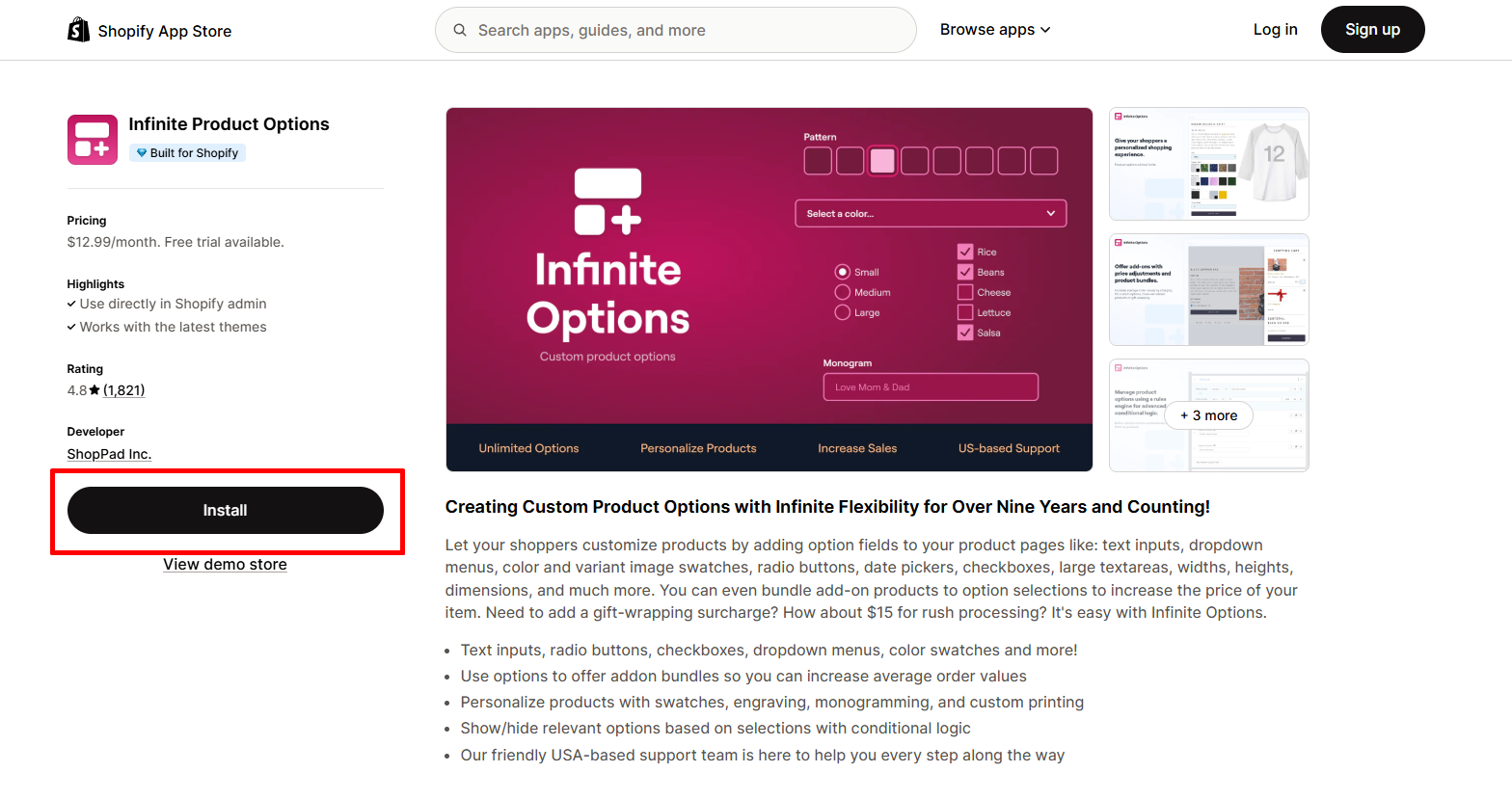
Steps:
1. Log in to the Shopify App Store.
2. Find the **Infinite Product Options** app and click **Install**.
3. In your Shopify admin, to authorize the use of the app, click **Install.**
After the app is installed, you can view and use it from the **Apps** page in your Shopify admin.
### Set up Infinite Options with Foxify
Infinite Options has been integrated as a built-in extension in Foxify Page Builder, so all you need to do is:
1. In your **Foxify dashboard**, select **App extensions.**
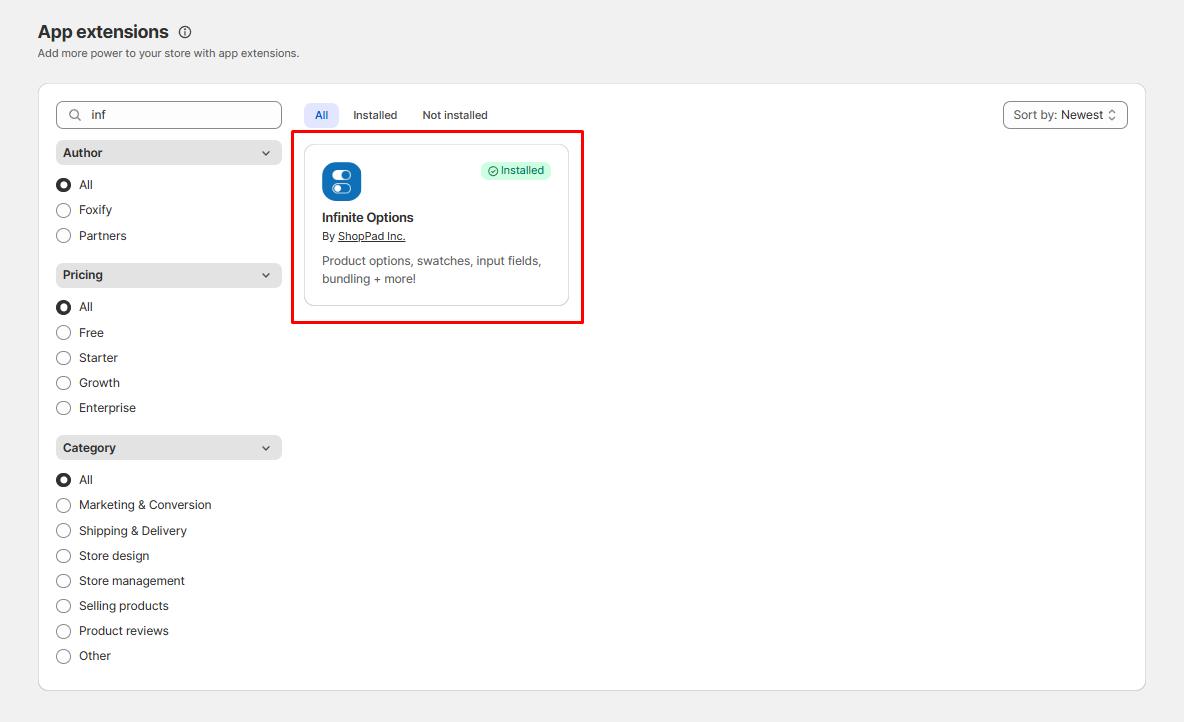
2. Look for **Infinite Options** and Choose **Install extension.**
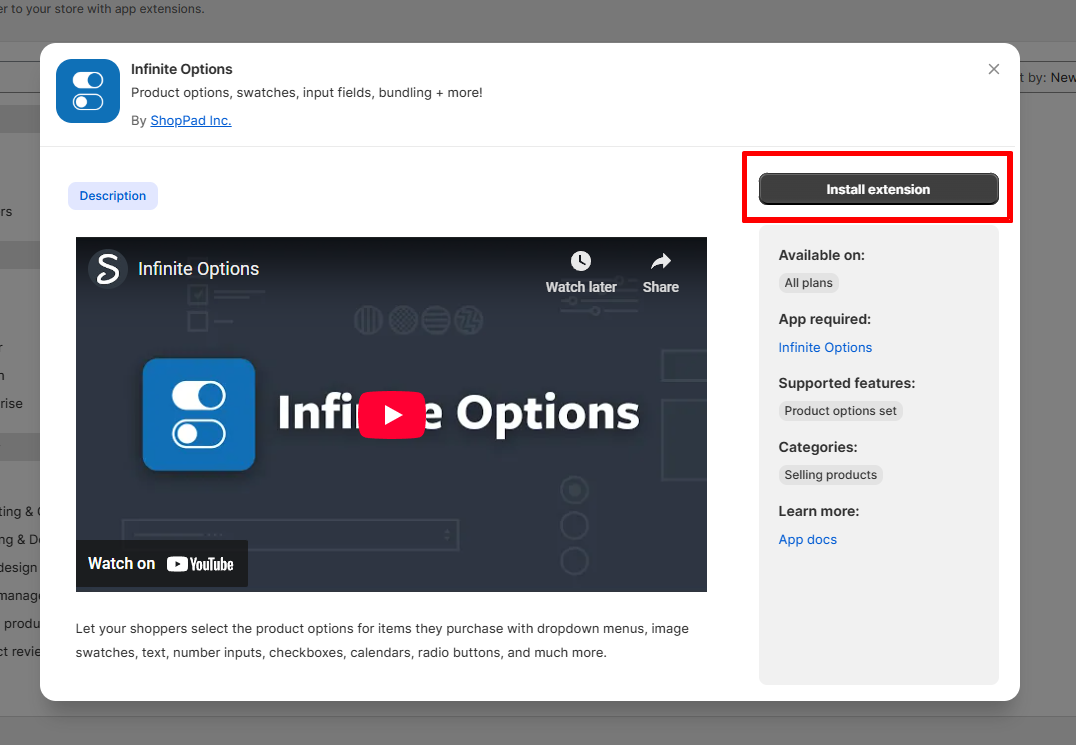
Once you see a green checkmark next to **Infinite Options** ✅**,** it means the app has been activated and is now ready to be featured.
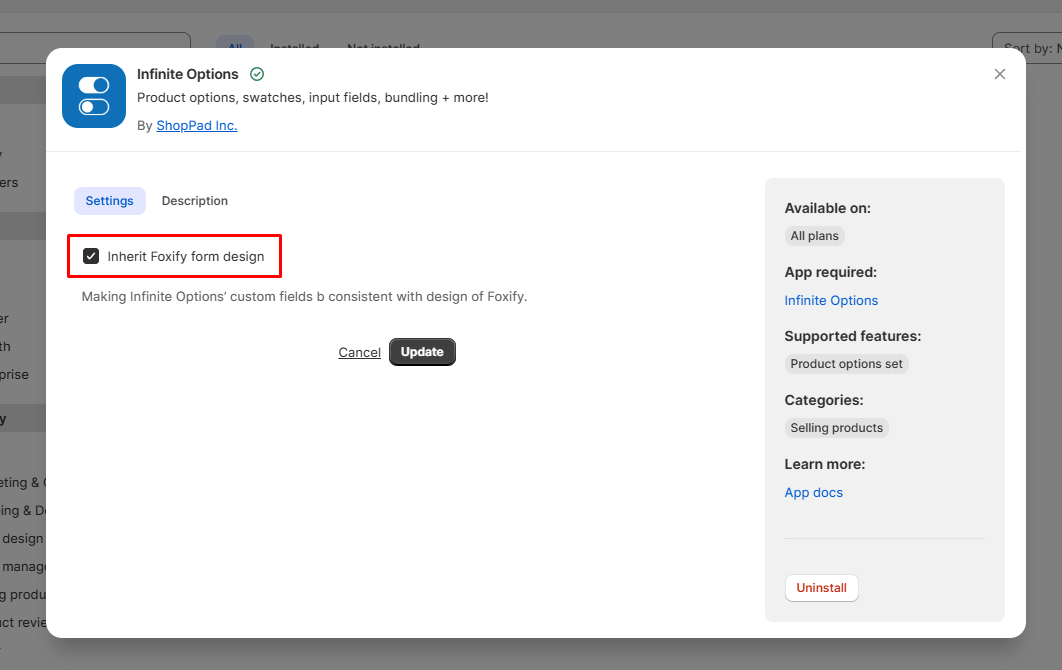
3. Open **Infinite Options settings** and check the box **Inherit Foxify form design** to ensure the custom fields match Foxify’s design.
4. In **Pages manager**, open the page you want to add the app features to. Select **Add element > App blocks.**
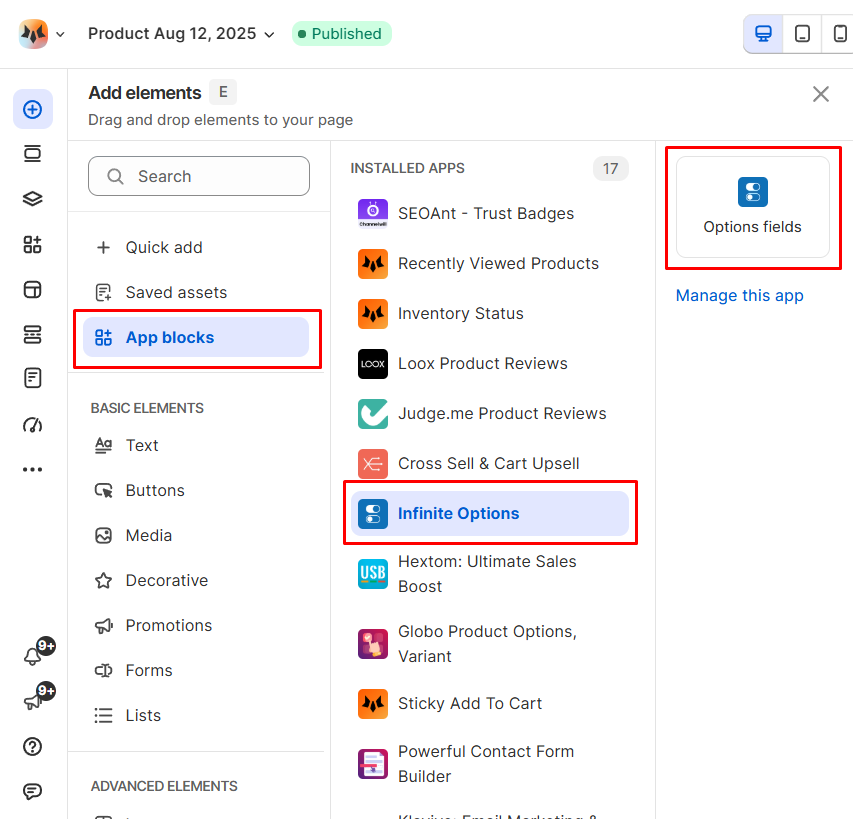
Select **Infinite Options** from the **Installed apps** list, and drag the app widget you want to feature on your page.
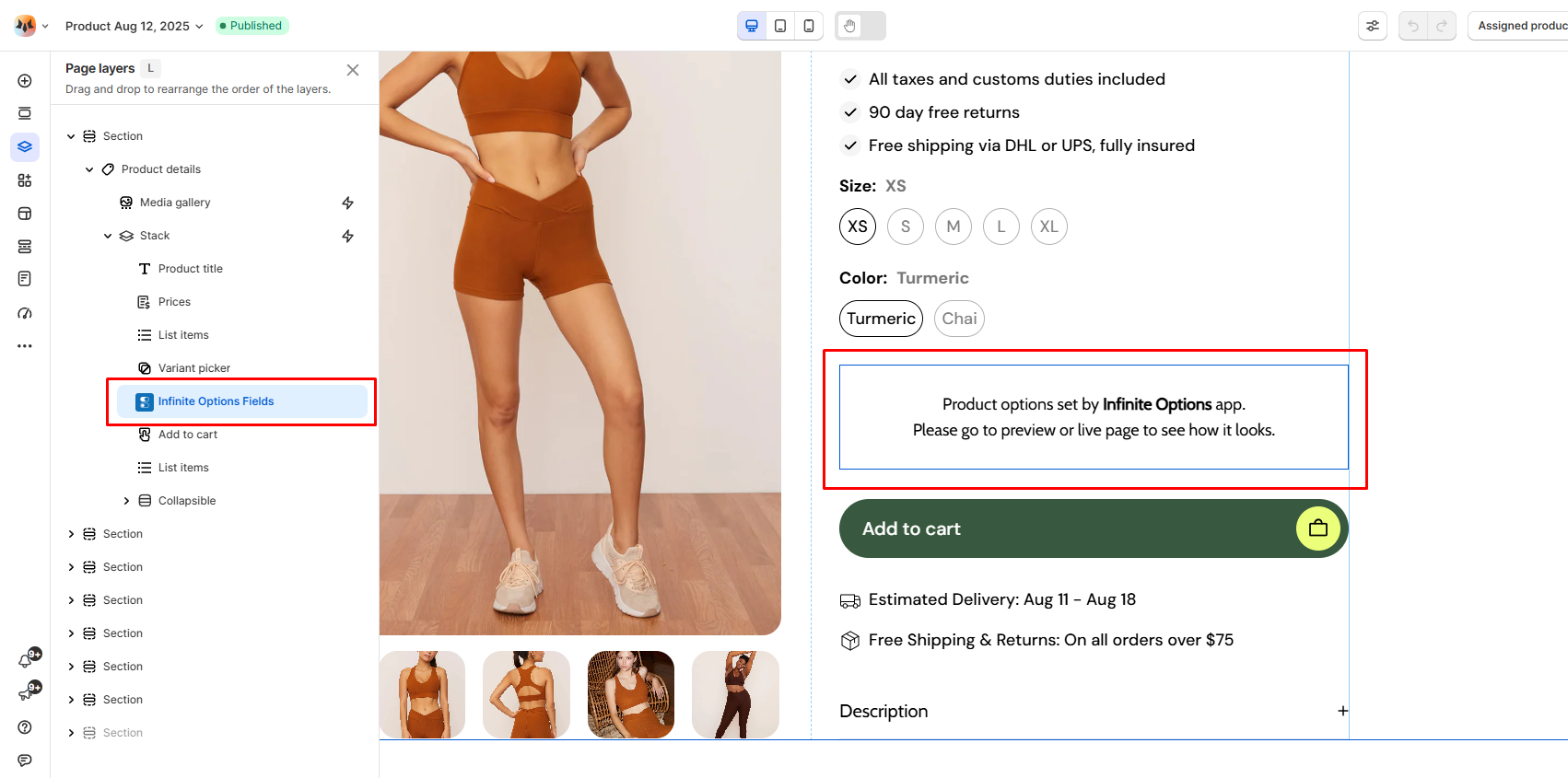
5. Adjust the element's sizing if needed.
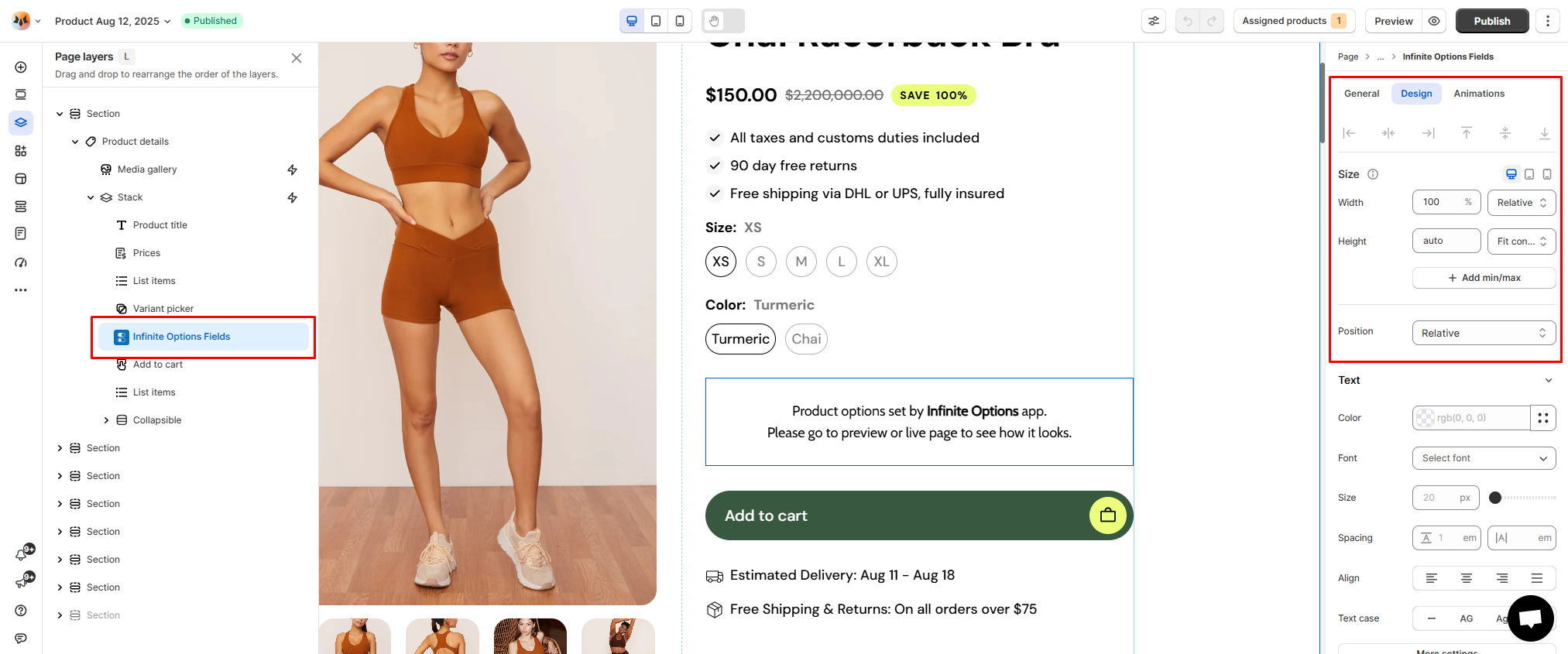
6. **Save** the changes and go to the preview page or live page to see the app widget.
### App widgets available in Foxify
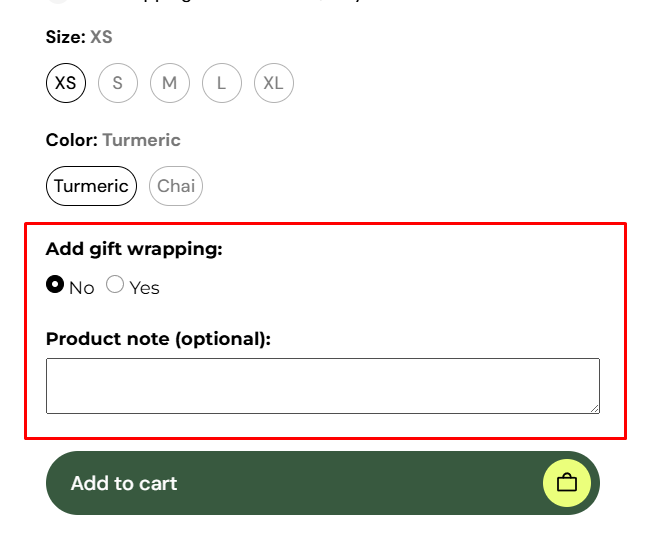
* **Options fields**: Add custom product option fields (text inputs, dropdown menus, radio buttons, checkboxes, swatches, and more) directly to your Foxify-built product pages. These fields integrate seamlessly with Shopify and respect the design settings you’ve enabled in Infinite Options.
## FAQs
### Is Infinite Options free to use?
No. Infinite Options is a paid app with a free trial. The current App Store listing shows **$12.99/month** (check the listing for the latest price).
### Do I need a separate Infinite Options account to use it in Foxify?
No. You just need the Infinite Options app installed in your Shopify store, no separate external account.
### Does Infinite Options support conditional logic?
Yes. You can show/hide fields based on customer choices.
### Can I style the fields inside Foxify?
Field types and layout are managed in Infinite Options. In Foxify, place the **Options fields** block and enable **Inherit Foxify form design** in the Infinite Options settings to match Foxify’s styling.
### Do I need to paste any embed code?
No. Just drag the **Options fields** app block onto your page in Foxify, no embed code required.