# Mintt - Instafeed ‑ Instagram Feed
## What is Instafeed ‑ Instagram Feed app?
Instafeed – Instagram Feed is a Shopify app built by Mintt Studio that helps you showcase **shoppable Instagram content, Reels, videos, and user-generated content (UGC)** directly on your store. Built for merchants who want to boost social proof and engagement, Instafeed turns your Instagram content into an interactive shopping experience that inspires customers and drives conversions.

**What you can do with Instafeed ‑ Instagram Feed:**
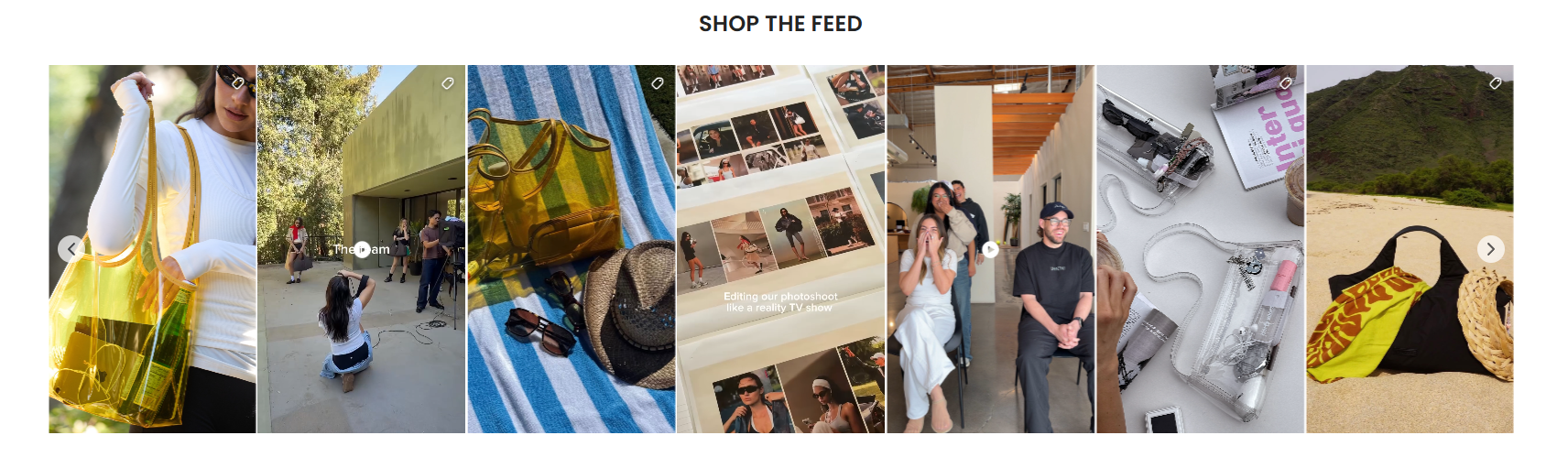
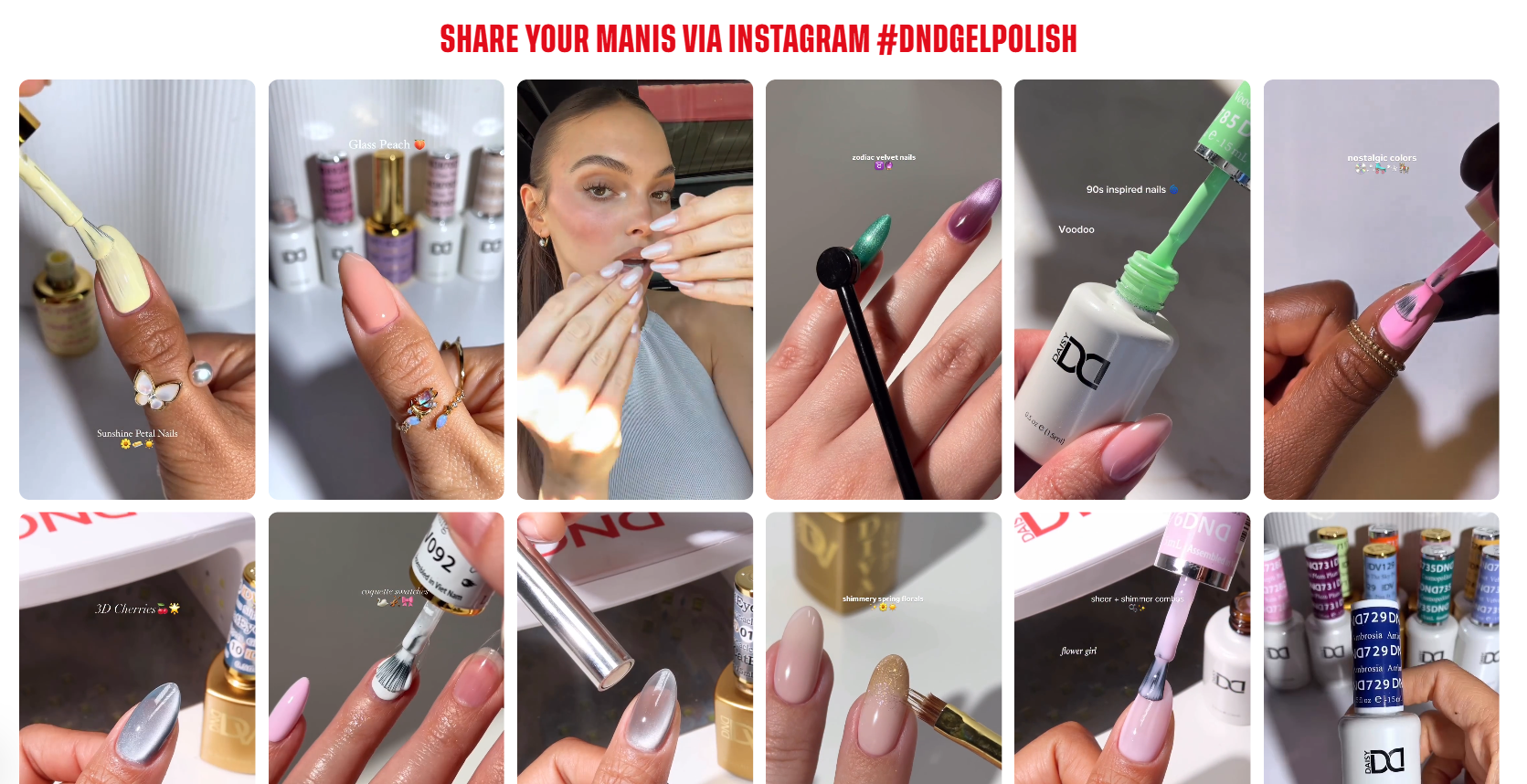
* Display Instagram content: Show posts, Reels, and videos in grid or slider layouts.
* Shoppable feeds: Tag products directly in posts so customers can shop seamlessly.
* User-generated content (UGC): Leverage real customer content to build trust.
* Flexible layouts: Customize how feeds appear to match your store design.
* Manual or auto content updates: Keep your store fresh with the latest Instagram posts.
* Mobile-optimized design: Ensure smooth performance across all devices.
* Content filtering: Organize feeds by hashtags or selected posts.
## How to use Instafeed ‑ Instagram Feed in Foxify Smart Page Builder
### Install Instafeed ‑ Instagram Feed from the Shopify App Store
Before using the app widget in Foxify, you need to install the app in your Shopify store and configure its settings. If you’re new to this app, check [its documentation](https://docs.minttstudio.com/instafeed/docs/) to understand how it works.
**Steps:**
1. Log in to the Shopify App Store.
2. Find the [Instafeed ‑ Instagram Feed](https://apps.shopify.com/instafeed?utm_source=foxify\&utm_medium=knowledge-base) and click **Install**.
3. In your Shopify admin, to authorize the use of the app, click **Install.**
After the app is installed, you can view and use it from the **Apps** page in your Shopify admin.
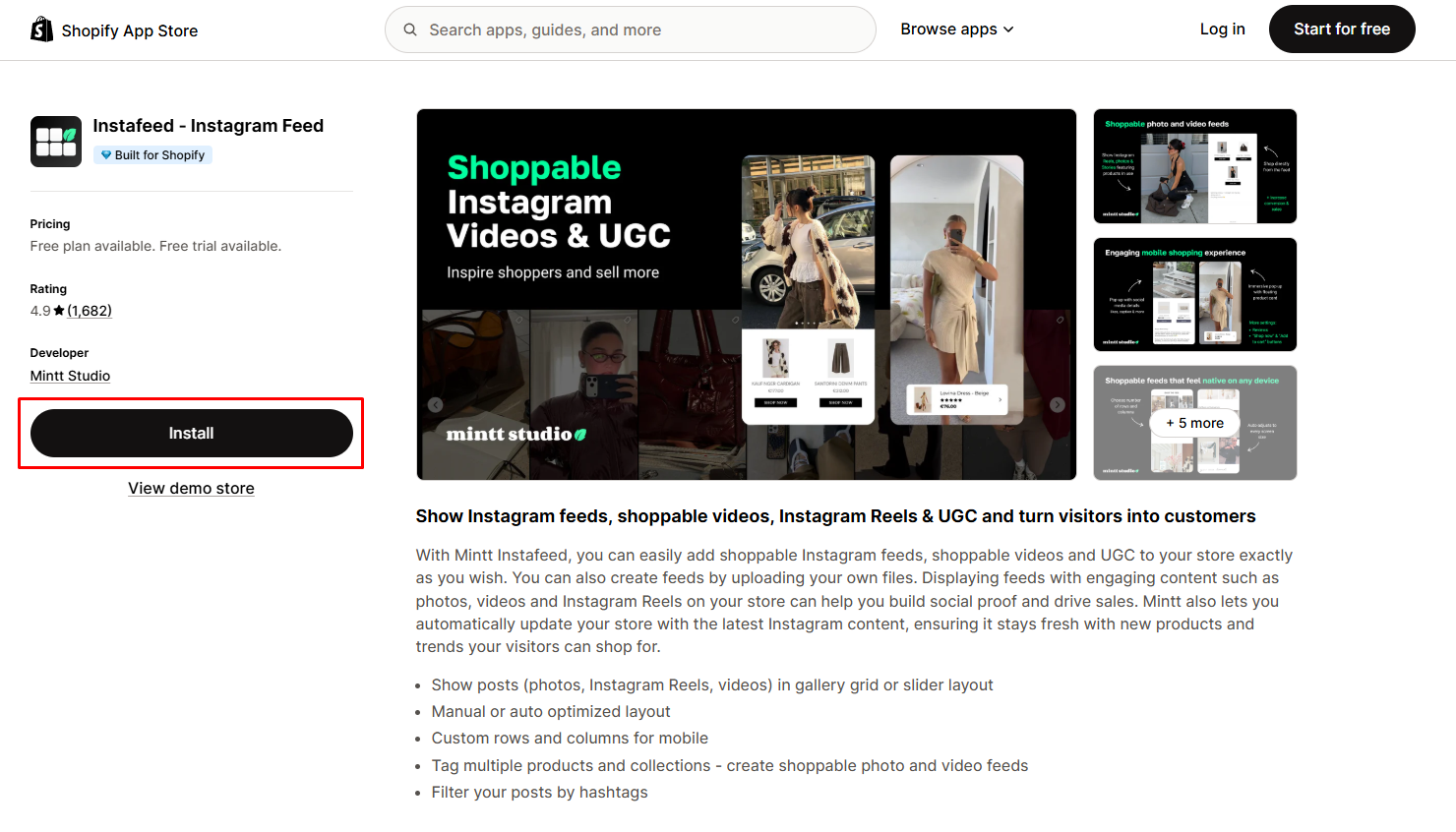
Here’s how you can insert **Instafeed ‑ Instagram Feed** inside your templates.
### Set up Instafeed ‑ Instagram Feed with Foxify
Instafeed ‑ Instagram Feed has been integrated as a built-in extension in Foxify, so all you need to do is:
**Steps:**
1. In your **Foxify dashboard**, open a page (or create a new one) in which you want to embed **Instafeed ‑ Instagram Feed** feature.
2. On the left sidebar, select **Apps Market**, or press \[A].
3. **Filter for Author: Partner**, look for **Instafeed ‑ Instagram Feed.**
4. Choose **Install extension.**
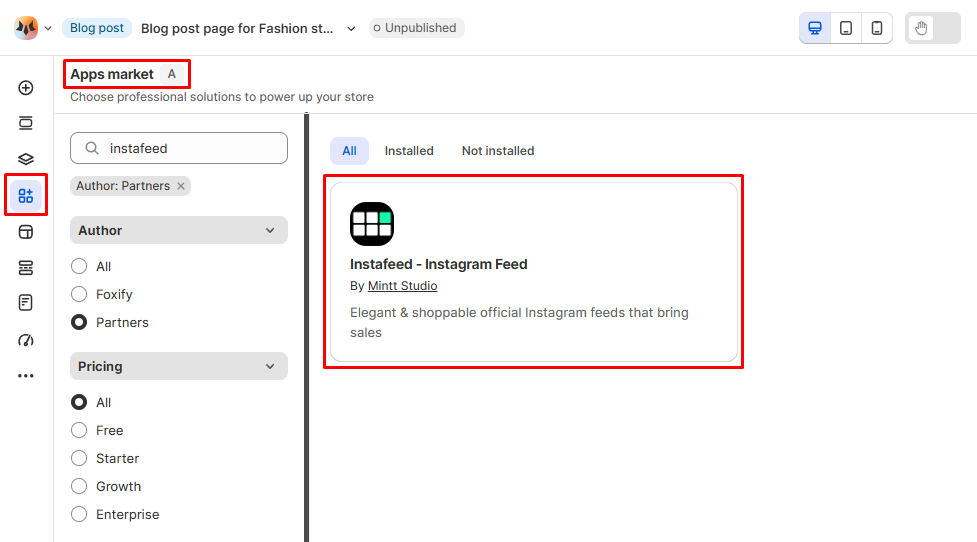
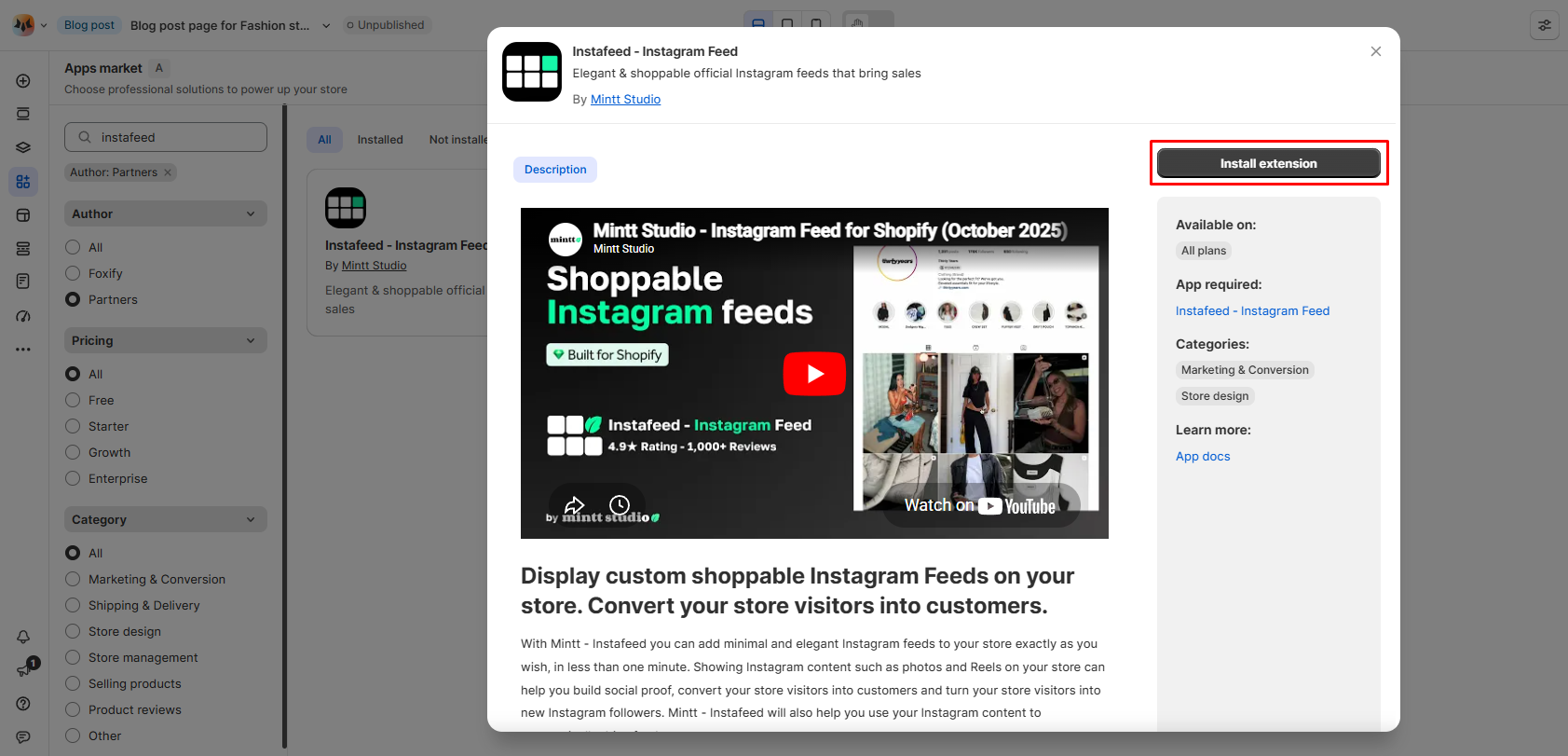
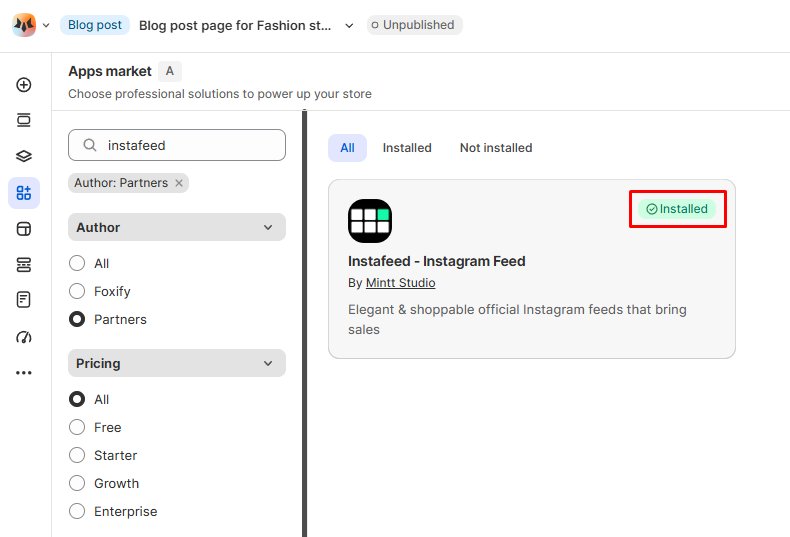
Once you see a green **checkmark** next to Instafeed ‑ Instagram Feed, it means Instafeed ‑ Instagram Feed has been activated and is now ready to be featured.
### Set up Instafeed ‑ Instagram Feed's widget
**Steps:**
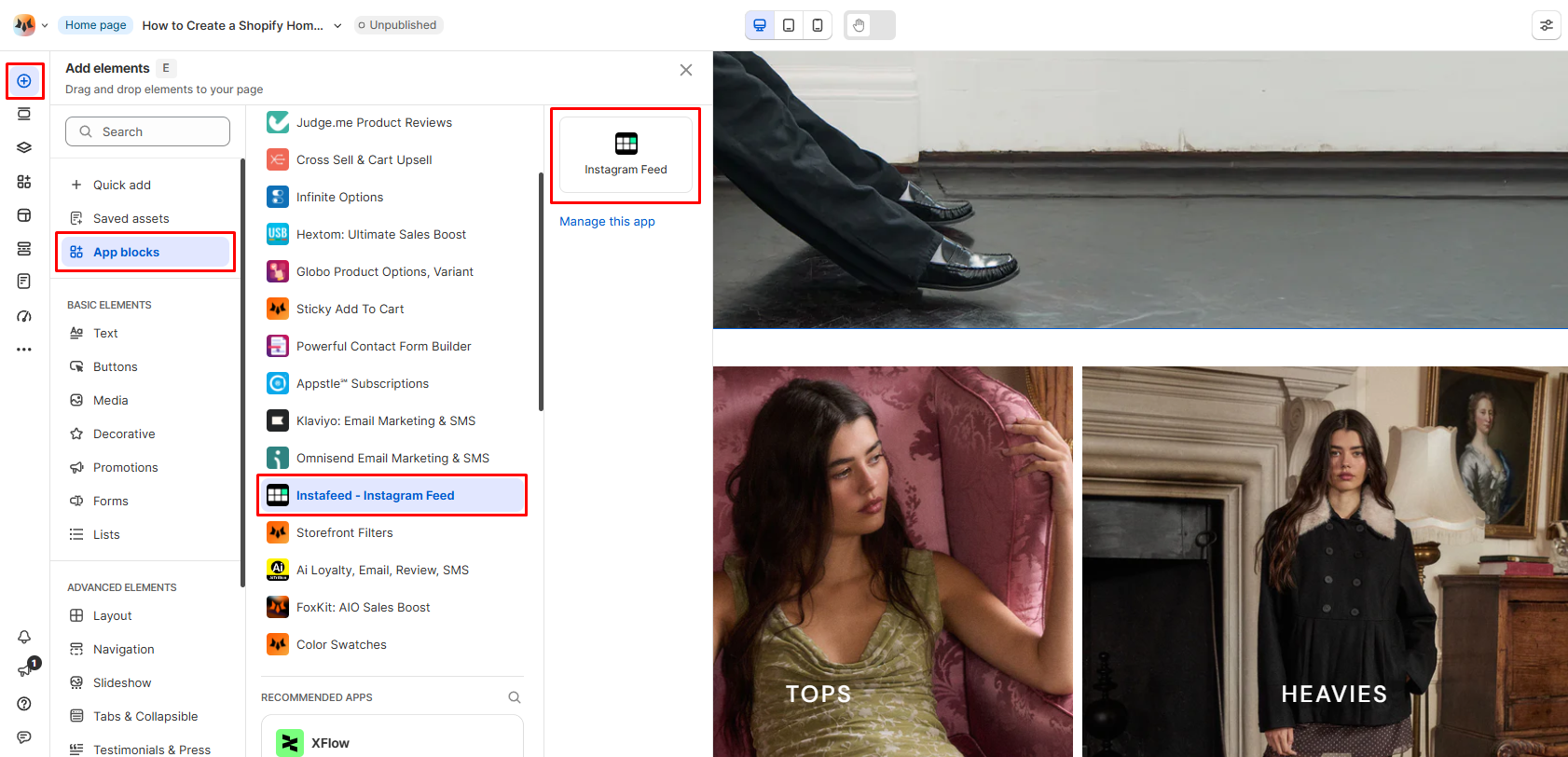
1. In **Pages manager**, open the page you want to add the app features to. Select **Add element > App blocks.**
2. Select the Instafeed ‑ Instagram Feed's widget from the **Installed apps** list, and drag the app widget you want to feature on your page.
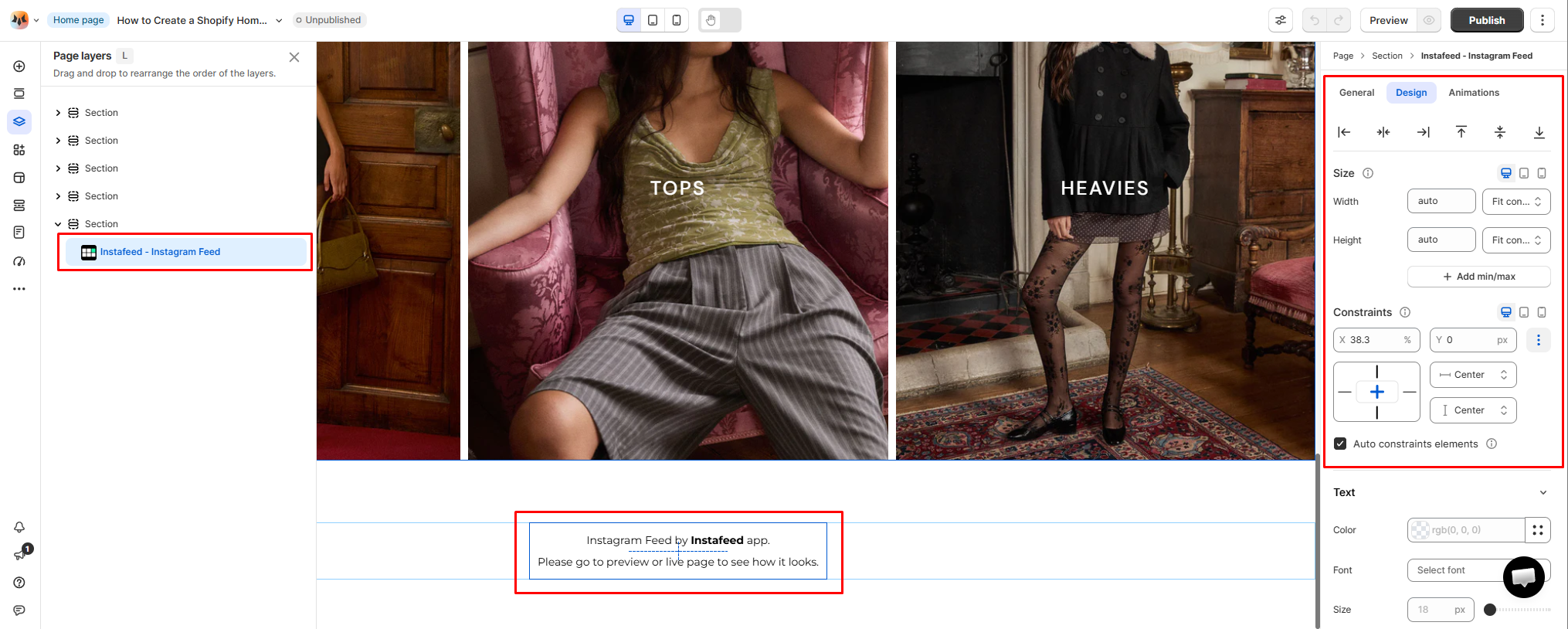
3. Adjust the element's sizing if needed.
4. **Save** the changes and go to the preview page or live page to see the app widget.
Learn more: **How to use margins, padding, and constraints**: [Constraints](https://docs.foxecom.com/foxify-app/foxstudio/layout-and-styling/constraints)
## FAQs
### Is Instafeed ‑ Instagram Feed free to use?
Yes. Instafeed offers a **free plan** that includes essential features like responsive layouts, Instagram photo & Reel display, auto-sync, and customizable pop-ups.
For more advanced features such as product tagging, UGC, and multiple feeds, you can upgrade to paid plans (with a 7-day free trial available).
### Do I need to paste any embed code?
No. Just drag the **Instafeed ‑ Instagram Feed** app block onto your page in Foxify, no embed code required.
### How do I add an Instagram feed to my Shopify store?
Install the [Instafeed app from the Shopify App Store](https://apps.shopify.com/instafeed?utm_source=foxify\&utm_medium=knowledge-base), connect your Instagram account, and configure your feed. Once set up, you can easily display it on your store using the Foxify app block.
### Will Instafeed slow down my store?
No. Instafeed is optimized for performance. It is lightweight and designed to have minimal impact on your store’s loading speed.