# Essential Grid Gallery
## What is Essential Grid Gallery app?
Elevate your Shopify store’s visual experience with Essential Grid — built for merchants who value perfection and flexibility. From stunning product portfolios and lifestyle lookbooks to engaging video showcases, Essential Grid helps you present your content seamlessly while staying true to your brand identity.
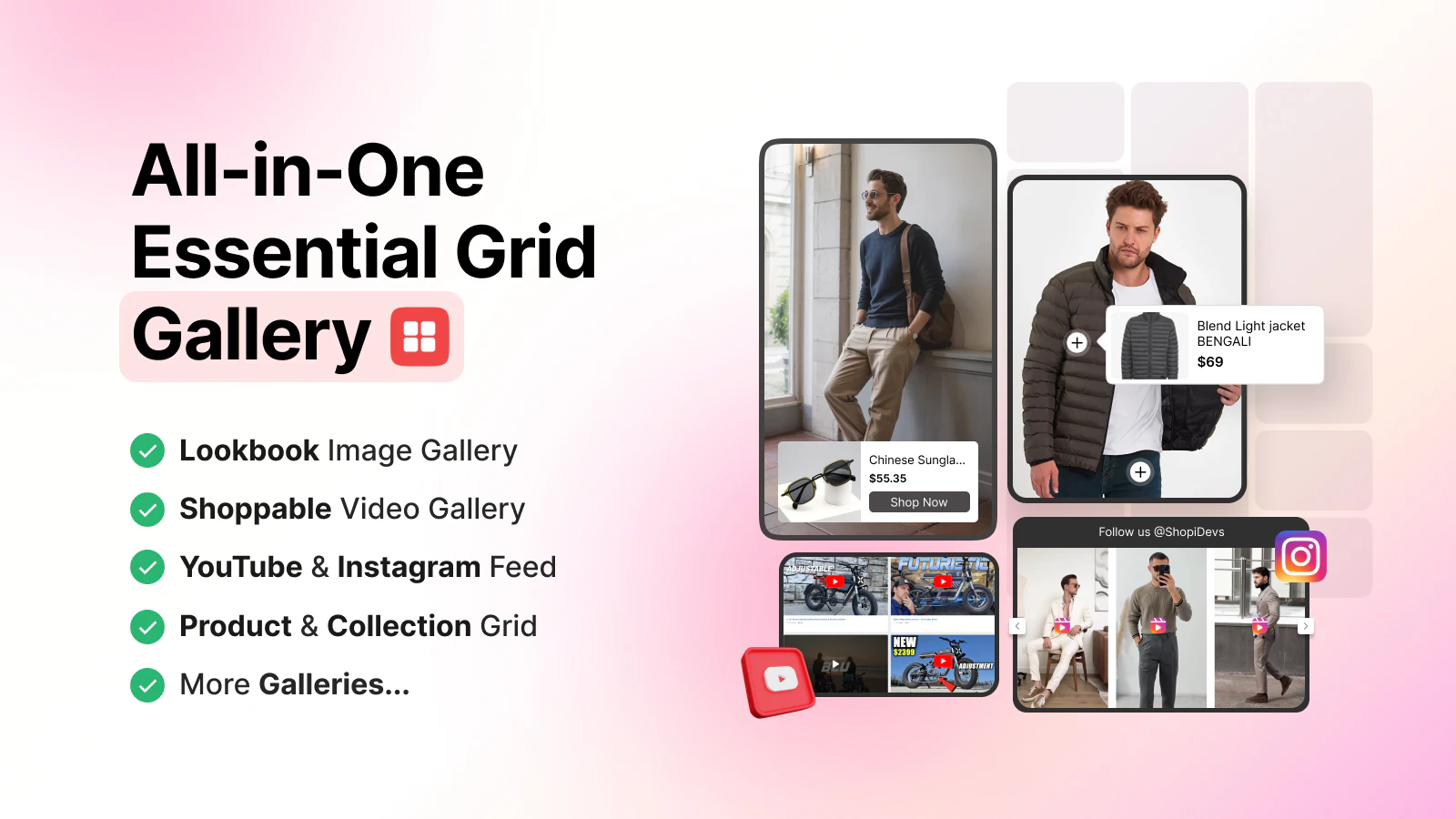
**What you can do with Essential Grid Gallery:**
* Multi-Source Content: Pull content directly from Shopify Products, Collections, Instagram, YouTube, Vimeo, or manual uploads.
* 50+ Premium Templates: Access a massive library of pre-made templates to launch professional galleries in minutes.
* Visual Drag-and-Drop Editor: Customize every detail—from hover effects and Masonry layouts to skin colors—without writing a single line of code.
* Mobile-First Optimization: Fully responsive designs that ensure your gallery looks stunning on smartphones, tablets, and desktops.
* Powerful Animations: Dozens of entrance and transition animations to capture customer attention instantly.
## How to use Essential Grid Gallery in Foxify Smart Page Builder
### Install Essential Grid Gallery from the Shopify App Store
Before using the app widget in Foxify, you need to install the app in your Shopify store and configure its settings. If you’re new to this app, check [its documentation](https://www.essential-grid.com/help-center/) to understand how it works.
Steps:
1. Log in to the Shopify App Store.
2. Find the [Essential Grid Gallery app](https://apps.shopify.com/essential-grid-gallery) and click **Install**.
3. In your Shopify admin, to authorize the use of the app, click **Install.**
After the app is installed, you can view and use it from the **Apps** page in your Shopify admin.
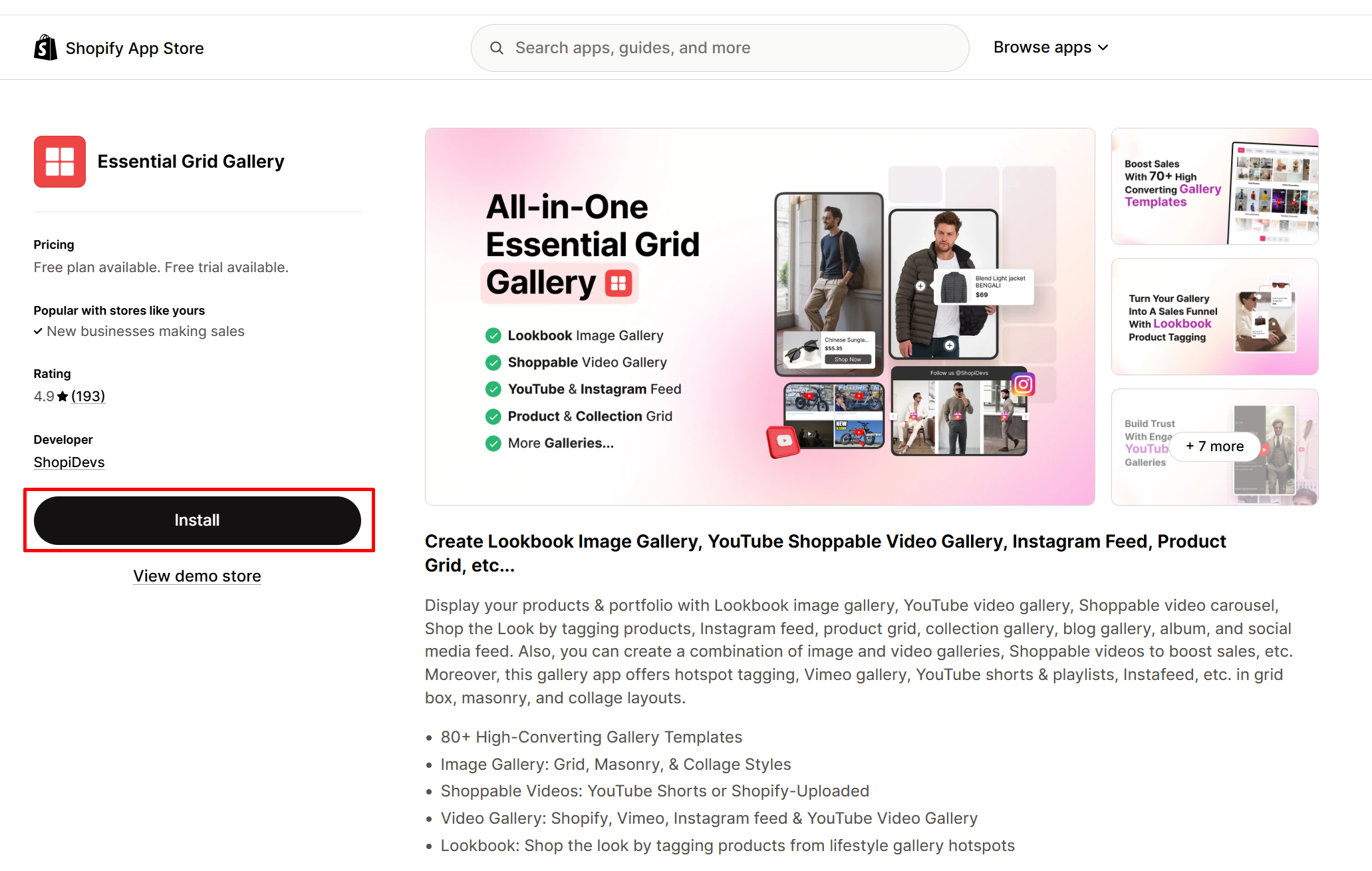
Here’s how you can insert **Essential Grid Gallery** inside your templates.
### Set up Essential Grid Gallery with Foxify
Essential Grid Gallery has been integrated as a built-in extension in Foxify Smart Pagebuilder, so all you need to do is:
Steps:
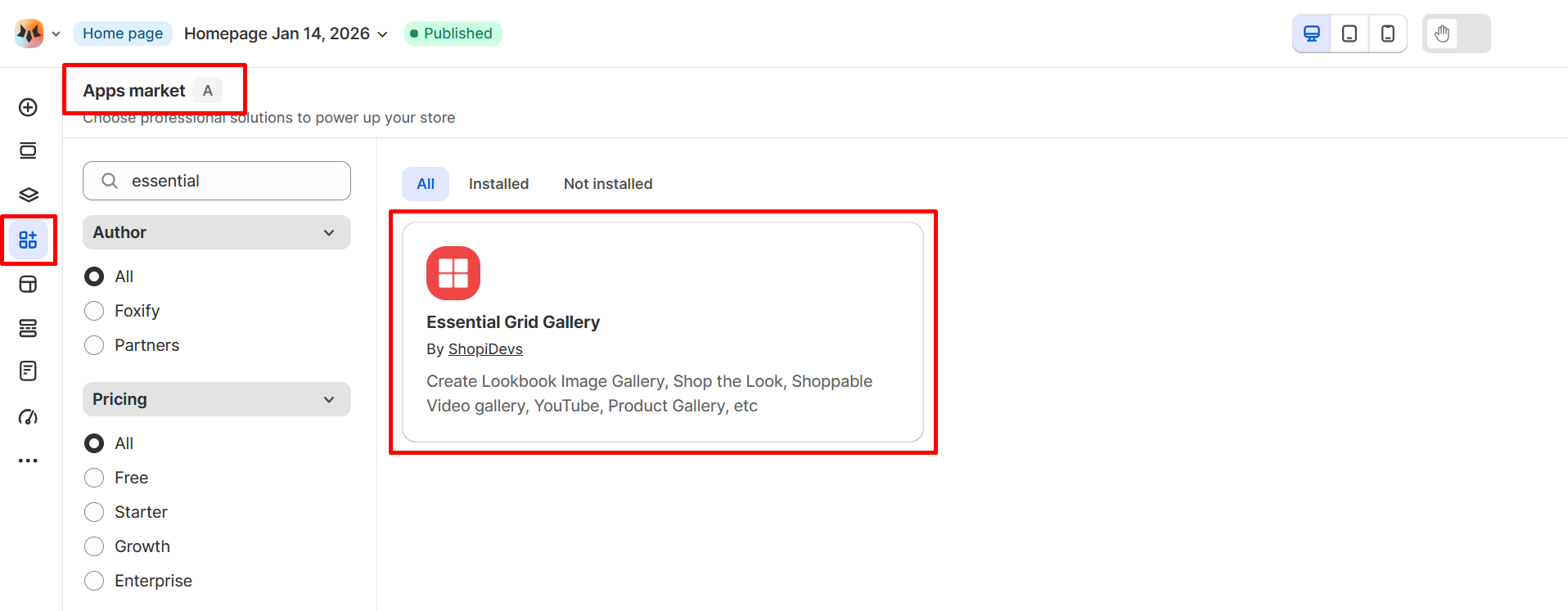
1. In your **Foxify dashboard**, open a page (or create a new one) in which you want to embed **Essential Grid Gallery** feature.
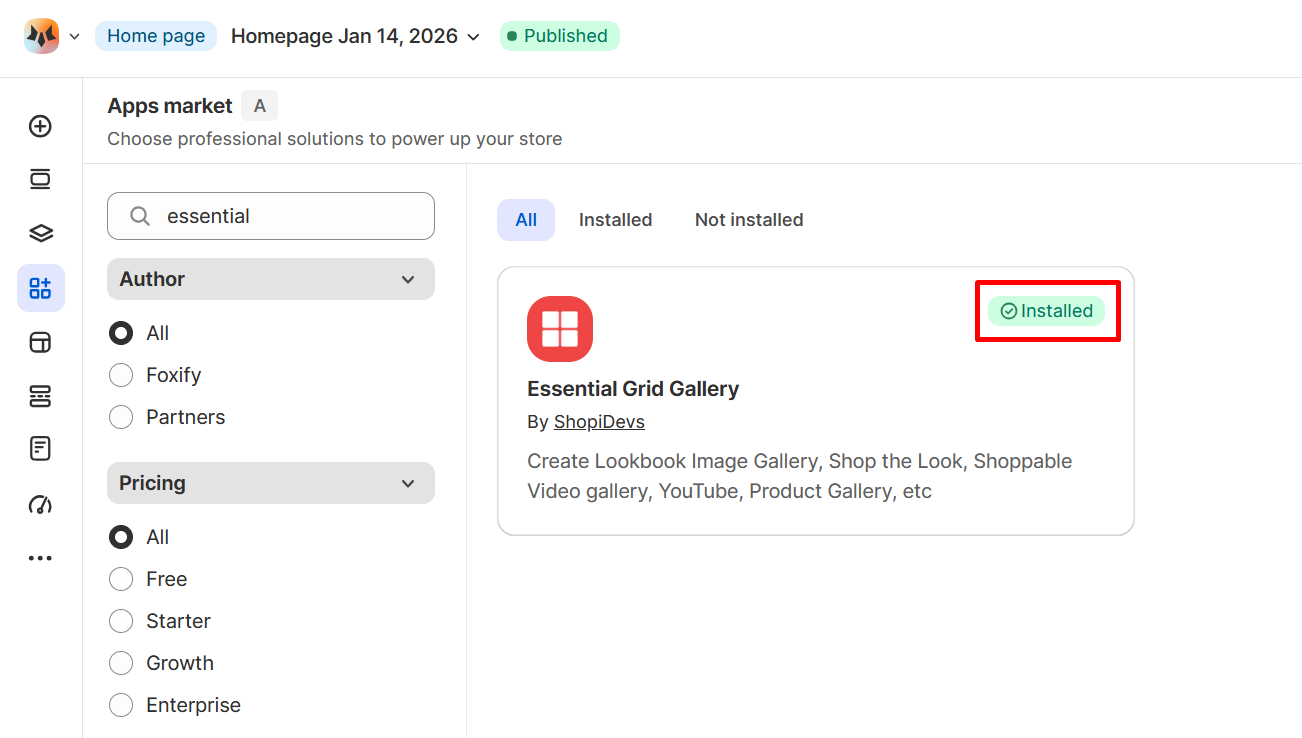
2. On the left sidebar, select **Apps Market**, or press \[A].
3. **Filter for Author: Partner**, look for **Essential Grid Gallery.**
4. Choose **Install extension.**
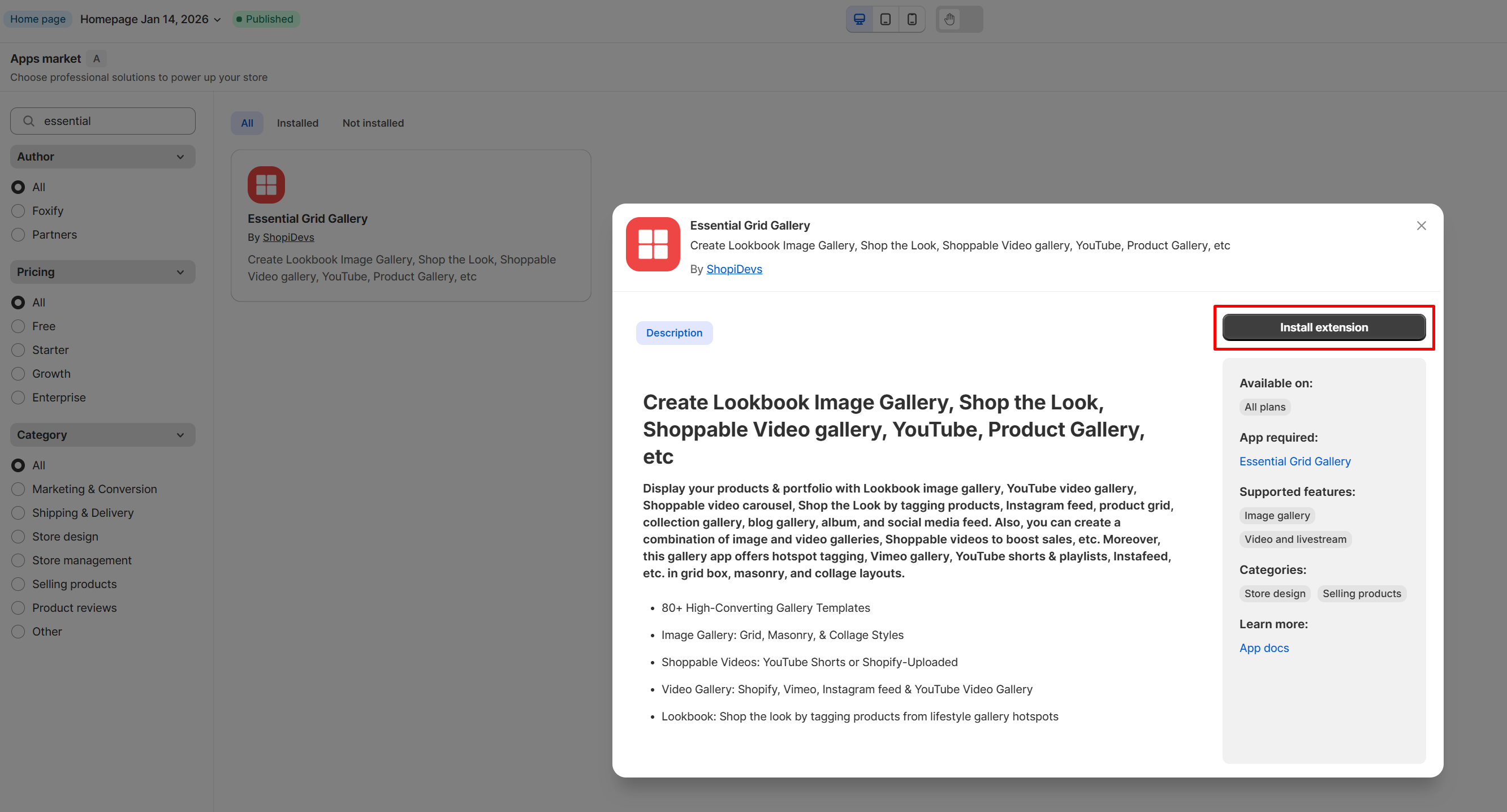
Once you see a green **checkmark** next to Essential Grid Gallery, it means Essential Grid Gallery has been activated and is now ready to be featured.
### Set up Essential Grid Gallery's widget
Steps:
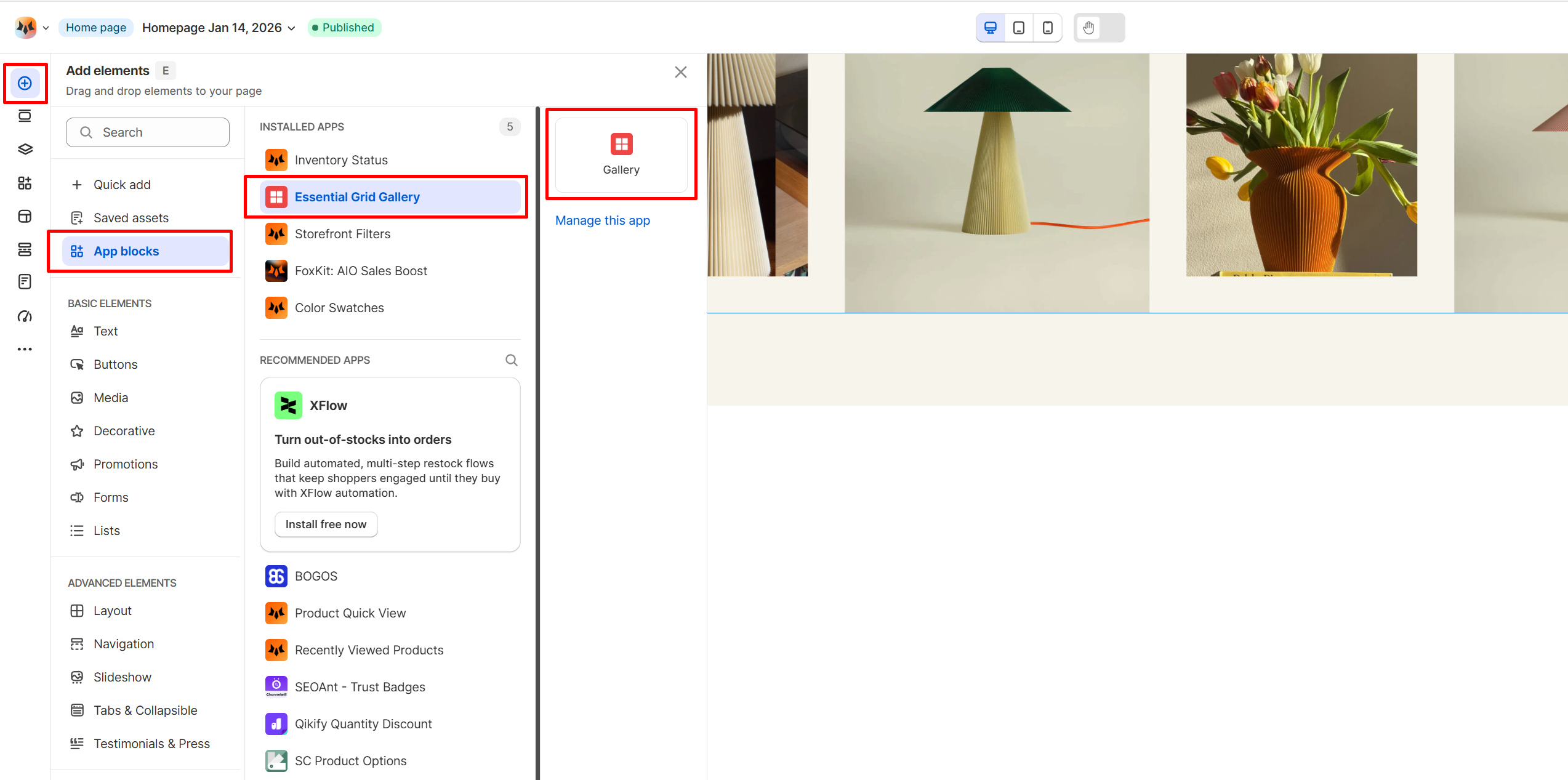
1. In **Pages manager**, open the page you want to add the app features to. Select **Add element > App blocks.**
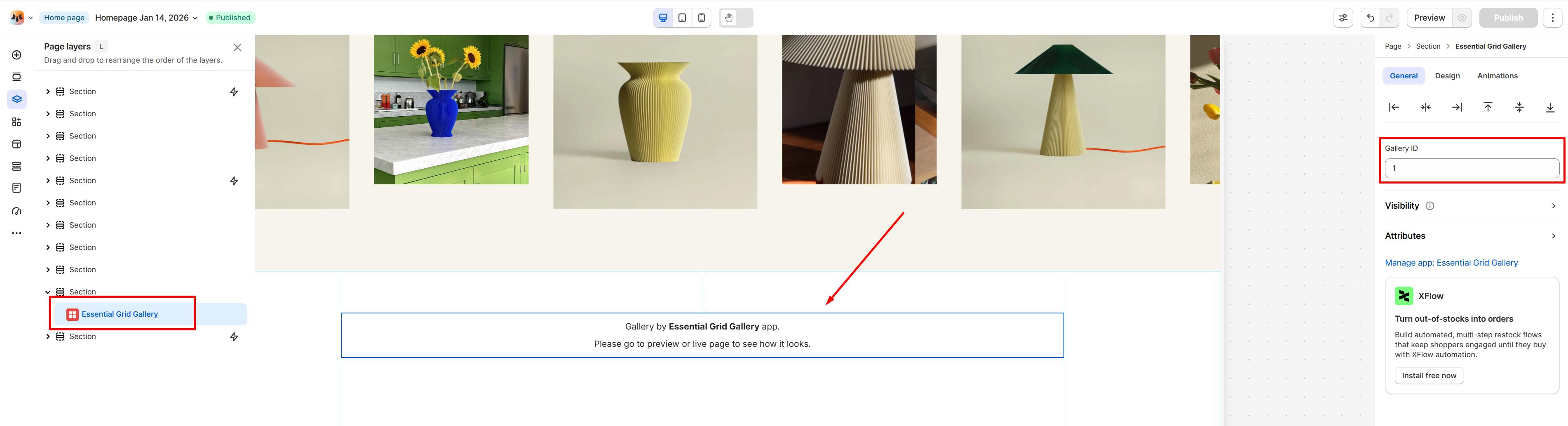
2. Select the Essential Grid Gallery's widget from the **Installed apps** list, and drag the app widget you want to feature on your page.
3. Enter the Gallery ID.
4. Adjust the element's sizing if needed.
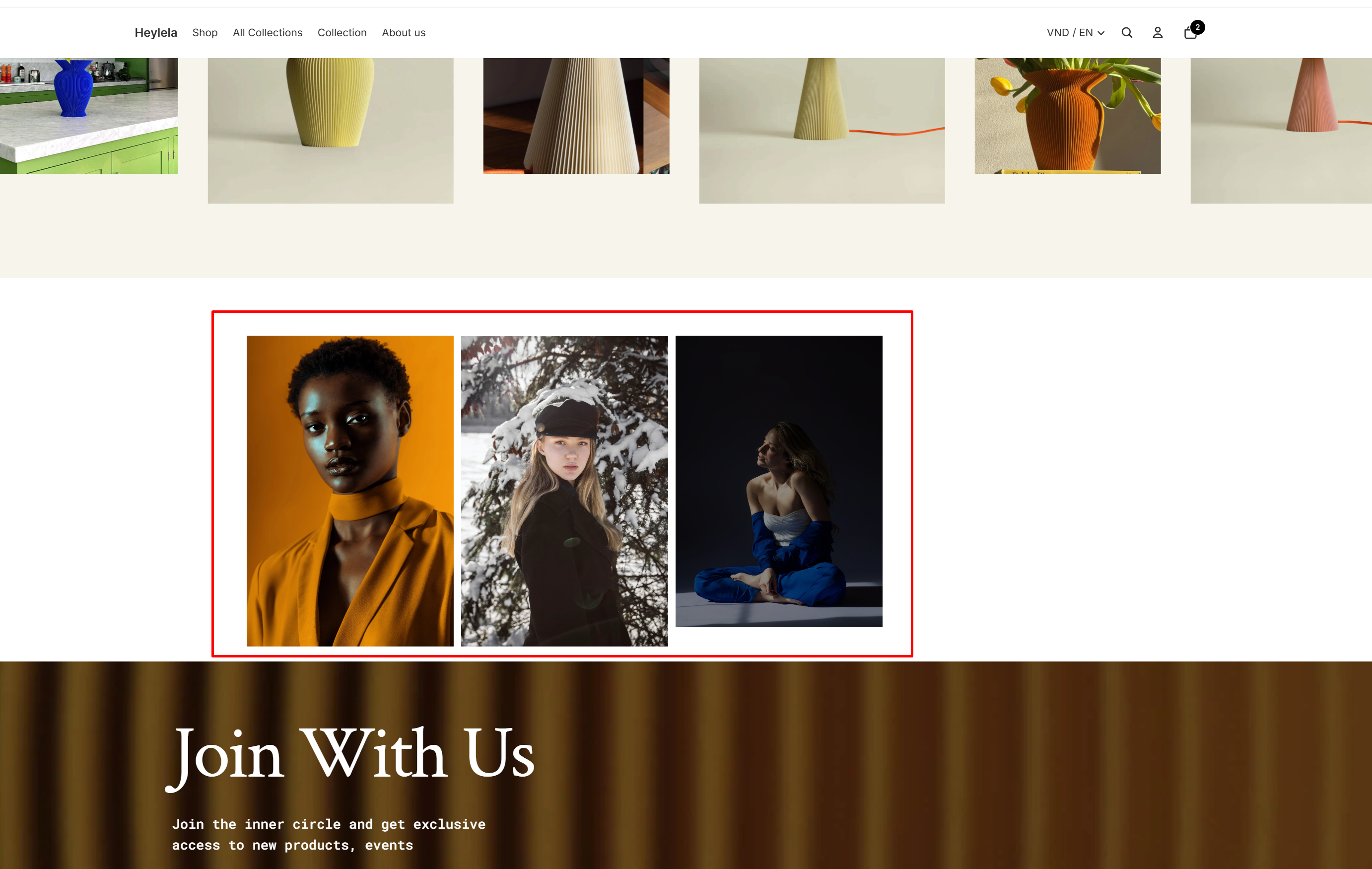
5. **Save** the changes and go to the preview page or live page to see the app widget.
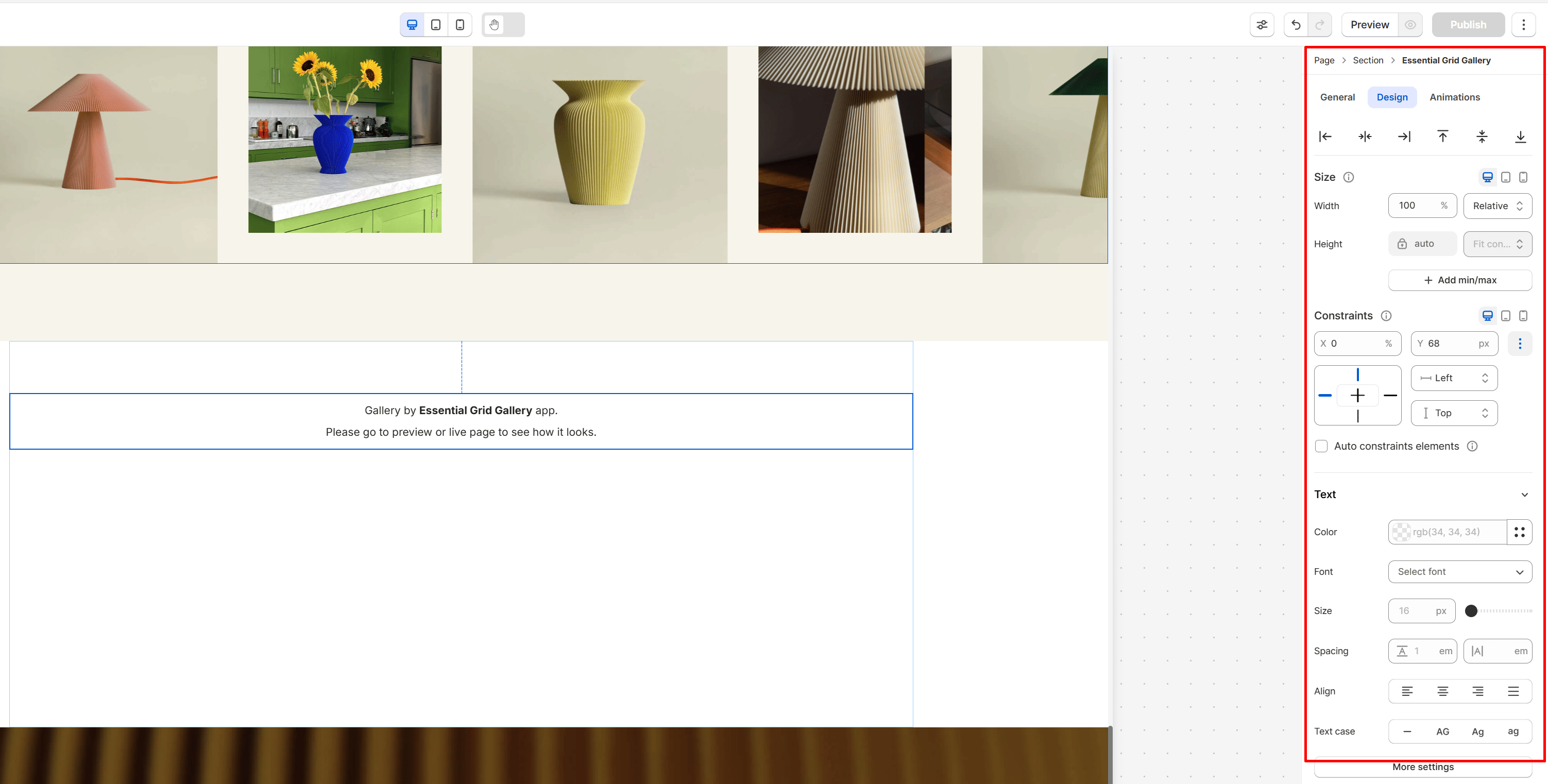
Click here to learn **How to use margins, padding, and constraints**: [Constraints](https://docs.foxecom.com/foxify-app/foxstudio/layout-and-styling/constraints)