{% embed url="https://youtu.be/_ktWlSTn80U?si=kins5Y04O86zeatZ" %}
{% tabs %}
{% tab title="Layout 1" %}
{% endtab %}
{% tab title="Layout 2" %}
{% endtab %}
{% tab title="Layout 3" %}
{% endtab %}
{% tab title="Layout 4" %}
{% endtab %}
{% tab title="Layout 5" %}
{% endtab %}
{% tab title="Layout 6" %}
{% endtab %}
{% endtabs %}
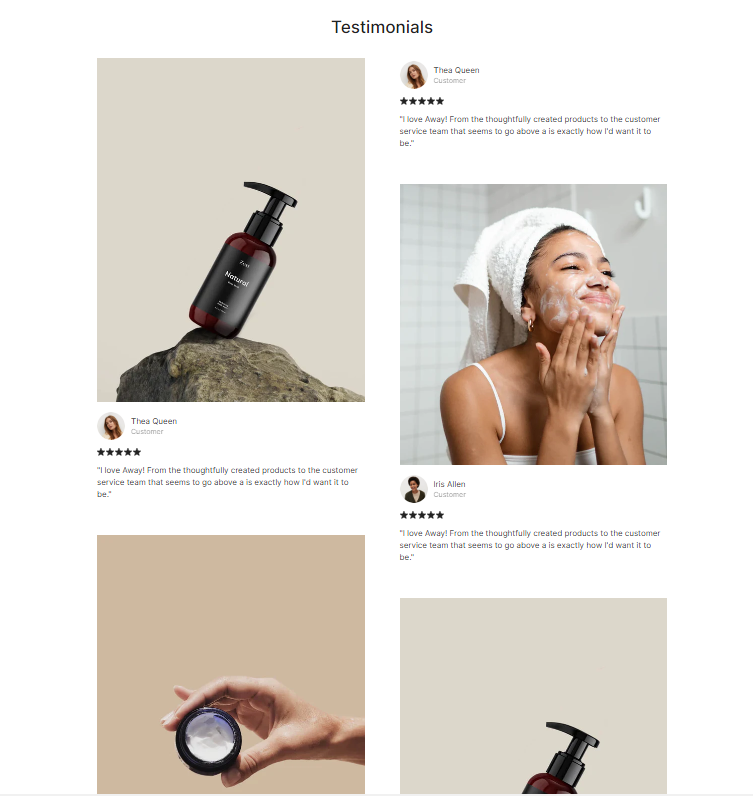
The **Testimonials** section lets you quote customers' reviews and public recognition.
It's a simple but effective way to showcase positive feedback from customers.
Testimonials help build credibility and trust with potential customers by providing social proof, enhancing credibility, and building trust.
## Customize a Testimonials section
A **Testimonials** section has 2 blocks:
* **Section header** and
* **Testimonial content**
### **Section header**
Use this block to give your section a Heading, Text, Button, Image, Icon, or Custom code if needed.
### Testimonial content
#### General
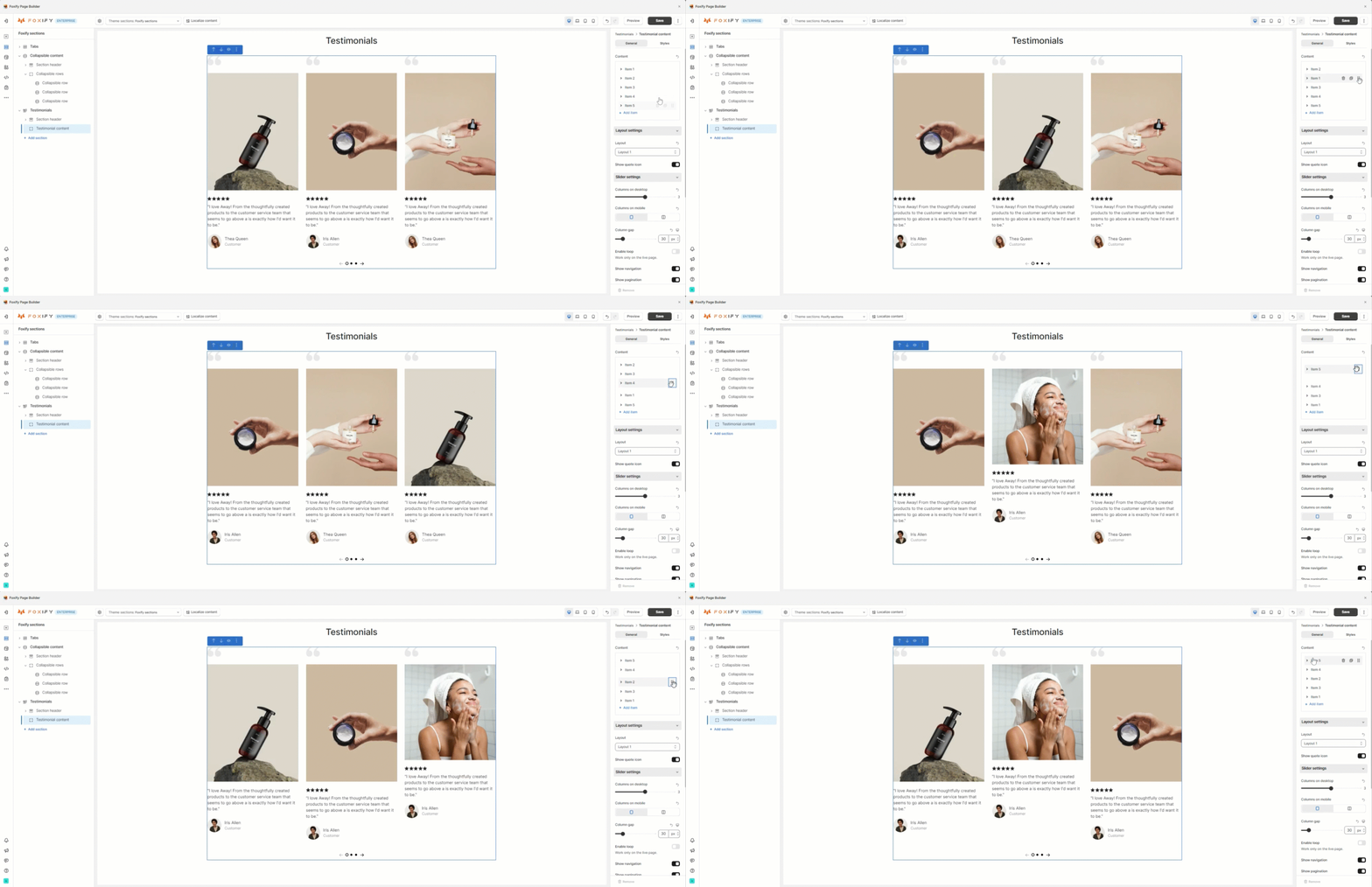
Add testimonial items you want to display in the section.
Adjust suitable **Rating** stars for each Testimonial item (0-5) to enhance the credibility and the customer's trust.
You can also increase the credibility of the testimonial by adding an image of your client sharing their success or feedback in the **Large image** field.
Insert the description to the **Text** field which fully describes the benefit the client received as well as objectively showcases the tangible value.
This testimonial is more compelling and credible when you use your client’s name, business, title, and picture by adding relevant information to the **Author**, **Bio**, and **Avatar** fields.
You can also re-order them by dragging and dropping the drag handle icon next to the item name.
#### Layout settings
Determine which testimonial layout best fits your website's aesthetic by selecting an option in the **Layout** field. (Layout 1 -6)
Enable the **Show quote icon** toggle to display the large quote icon for each testimonial item. (Note: This setting is not available for **Layout 6**)
In **Layout 4**, you are allowed to swap the position of the large image and testimonial content by using the **Reverse order** option.
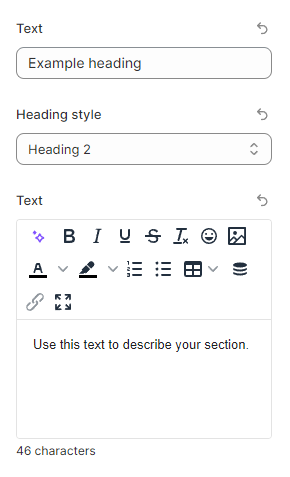
In **Layout 5**, you have a chance to insert more suitable **Text** (heading and description) to describe your testimonial item and draw the customer's attention. Also, feel free to change the **Heading style** to your liking.
#### Slider settings
{% hint style="info" %}
This setting is only available for **Layout 1 - 5**, not **Layout 6**
{% endhint %}
Select your number of **Columns on desktop** between 1 and 5 and the **Column gap** (0 - 200px) by tweaking the toggles.
Especially, you are allowed to adjust the number of **Columns on mobile** with 2 options (1 or 2 columns) for **Layout 1** only.
If you prefer the infinite slider, the **Enable loop** option will work in this case (Note: It works only on the live page).
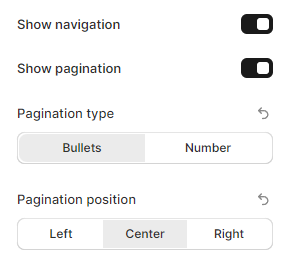
Check the corresponding boxes (**Show navigation** and **Show pagination**) if you want to enable navigation and/or pagination on your Testimonial section.
Note: Navigation and/or pagination show when you have the number of testimonial items **larger** than the number of **Columns on desktop.**
Moreover, you can adjust the **Pagination type** and **Pagination position** to **Left**/ **Center**/ **Right**.
There are 2 types of pagination (**Bullets** and **Numbers**):
{% tabs %}
{% tab title="Pagination type as Bullets" %}
{% endtab %}
{% tab title="Pagination type as Numbers" %}
{% endtab %}
{% endtabs %}
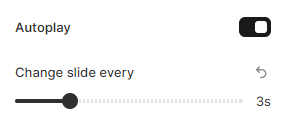
If you want your Testimonial items to change automatically after a certain interval without needing to manually slide you can seamlessly turn on the **Autoplay** toggle.
Then, adjust the duration in the **Change slide every** field from 1s to 10s.