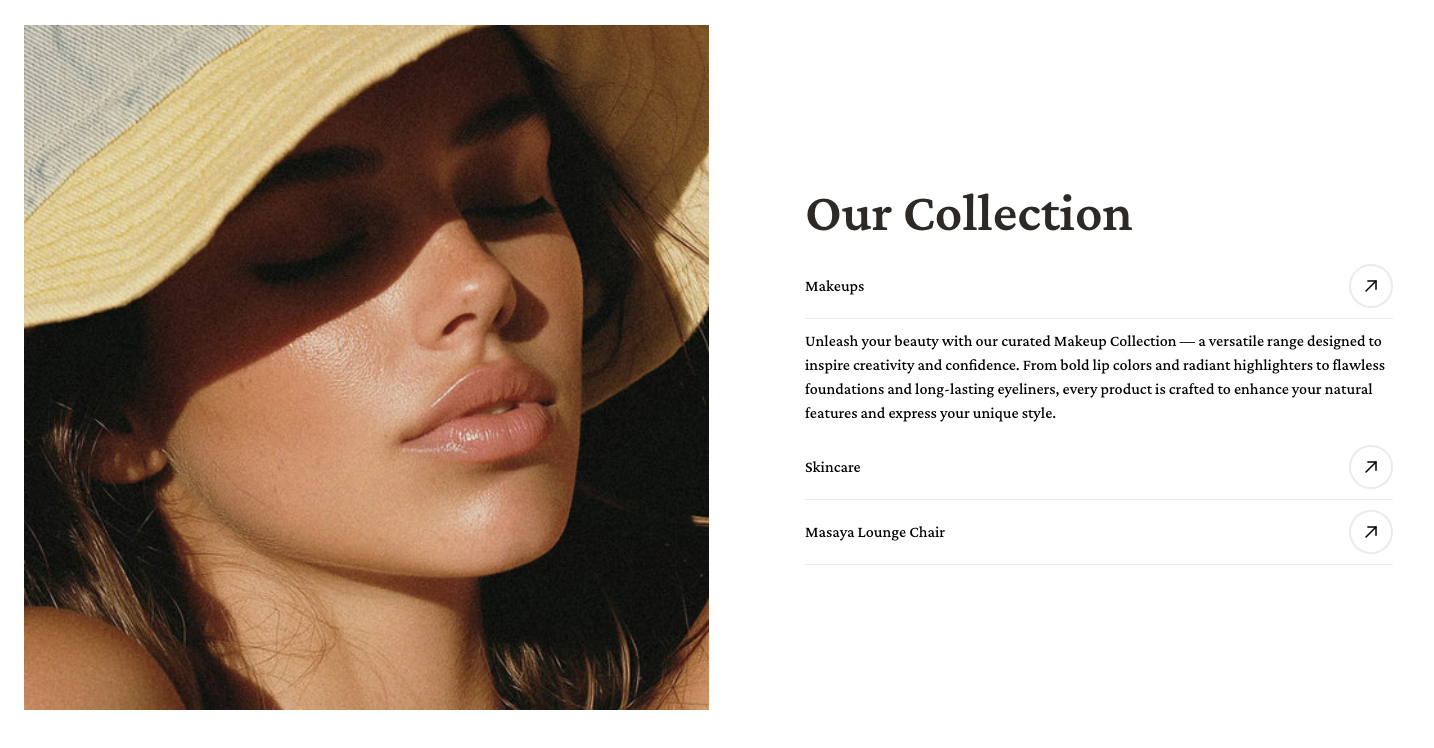
**Collection tabs** can be a great new way to showcase your highlighted collections and the information with an attractive design in one section.
Moreover, it can help you reduce page length and ensure mobile-friendliness for visitors.
## Customize a Collection tabs section
A **Collection tabs** section has 2 blocks:
* **Section header** and
* **Collection list**
### **Section header**
Use this block to give your section a Heading, Text, Button, Image, Icon, or Custom code if needed.
### **Collection list**
#### **General**
Change the tab behavior when opening by selecting the suitable behavior in the **Open tab behavior** field with two options: **Click** and **Hover**.
{% hint style="info" %}
:sparkles: **Tip**: **Mobile** always uses **Click** behavior.
{% endhint %}
{% hint style="info" %}
:sparkles: Tip: If you want your Collection list tabs to change automatically after a certain interval, or pause on hovering without manually clicking/ hovering, turn on the **Autoplay** toggle.
{% endhint %}
{% hint style="info" %}
:eyes: Note: It only works on the live page :white\_check\_mark:
{% endhint %}
Then, adjust the duration in the **Change slide every** field from 1s to 10s.
You can also provide the image with different aspect ratios in the **Image aspect ratio** field:
* Square (1:1)
* Portrait (3:4)
* Landscape (4:3)
You can **show title action** to link to the collection page.
Then **show ordered number** to display the sequence number of each collection tab.
If you don't want to open the link in the current tab, enable the **Open link in new tab** toggle to open the link to a new tab :white\_check\_mark:
#### **Content**
In the section, add the collections you want to display.
By default, it will show the collection's featured image and name, select a new image, and/ or add a new collection title.
You can also add the description under the collection tab by inserting it in the Text field.
Give the button a new label if the **Link** type in the **General** settings is the **Bottom button.**
You can also reorder them by dragging and dropping the collection name.
#### **Desktop layout**
Change the **Desktop image position** to the **Left** or **Right.**
* The position will be automatically optimized for mobile
You can also change the following:
* **Desktop image width** from 40% to 70%
* **Desktop content alignment** with 3 options: **Top**, **Middle**, and **Bottom**
### Customize your Collection list block
You can add and edit a maximum of **10** types of child blocks to the **Collection list** block in the **Collection tabs** section:
* Block
* Heading
* Text
* Button
* Icon
* Image
* Add to cart button
* Buy now button
* Countdown
* Custom code