# Resize an element
## Resize an element
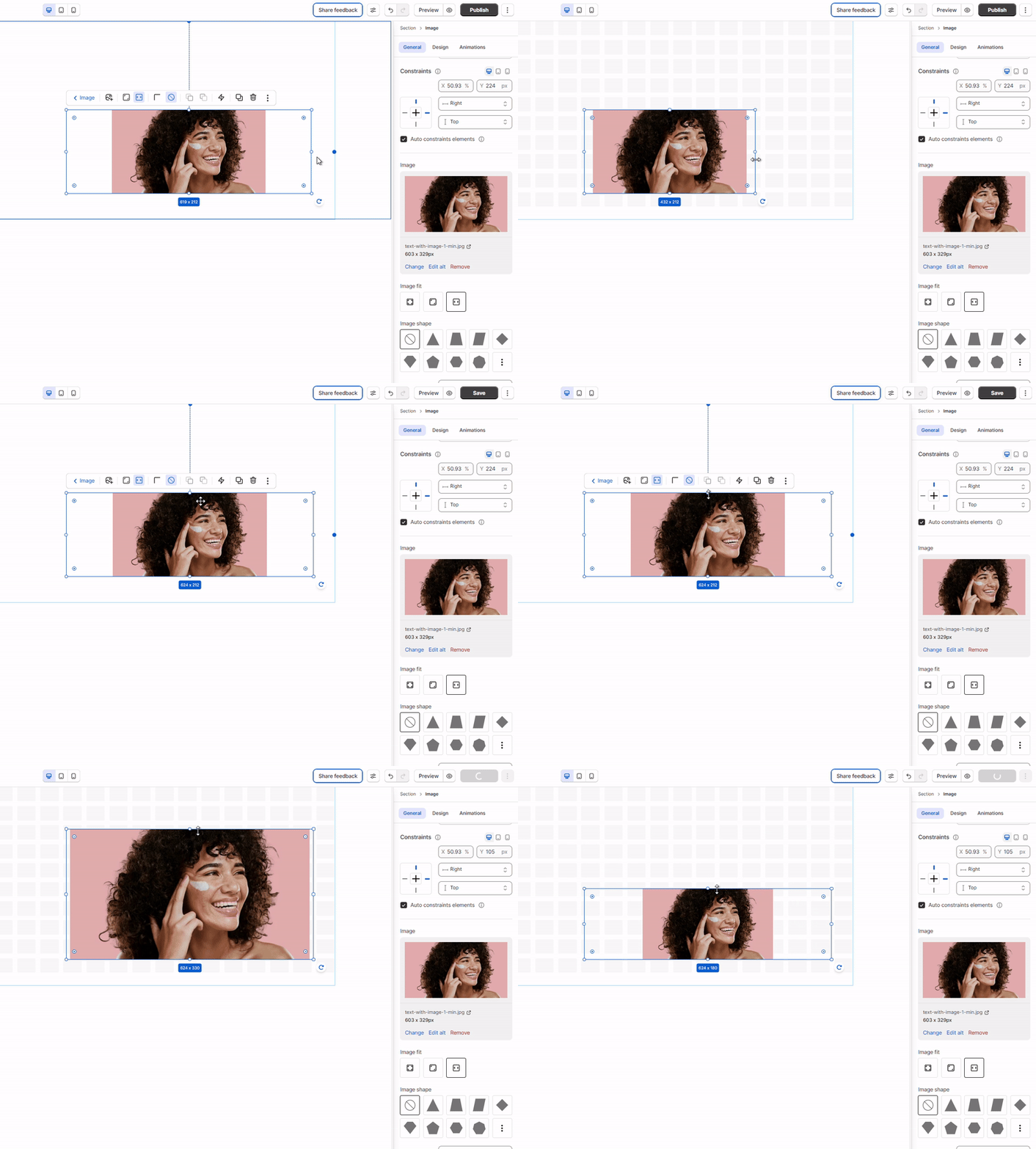
Select an element and resize it either by:
* Dragging the size handles on the canvas.
* Entering the width/height value in the Inspector panel.
You can set the element's size per screen size.
_BVcRaMBE.gif)
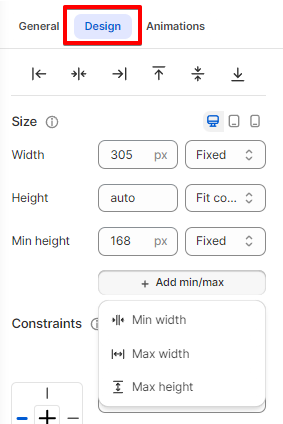
You may want to set values that **never** let an element's width or height **go above or below a certain value**:
* The `max-width` and `max-height` properties will ensure that an element is never wider or taller than the value you set, even if there's enough room on the page for it to take up more space.
* The `min-width` and `min-height` properties will ensure that an element is never narrower or shorter than the value you set, even if the browser window is too small to display the whole element.
## Size measurements
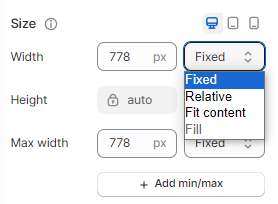
* **Pixels (px)** in **Fixed** sizing: If you want your element to stay the same when resizing.
* **Percentage (%)** in **Relative** sizing: The width/height value of the element depends on its parent's dimensions. This ensures the element resizes in proportion to its parent.
For example, you can [add a text element to a stack](https://docs.foxecom.com/foxify-app/foxstudio/layout-and-styling/stack-elements) and set its width to 50%. Your text then always takes up 50% of the stack container's width.
For some elements, the height is already set to **Auto**. This means the element automatically adjusts its height based on its content, allowing you to add or remove content without manually resizing the element.
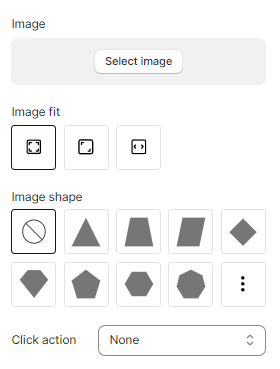
## Resize Image elements
When resizing an Image element, you can decide how the image is resized to fit its bounding box. Make the image either has the width and height stay proportional to each other, or stretch to fill the bounding box.
Specify how an image should be resized to fit its container (bounding box) using the **Image fit** setting:
* **Keep image ratio**: The image height is scaled proportionally when resizing the image width to keep its ratio.
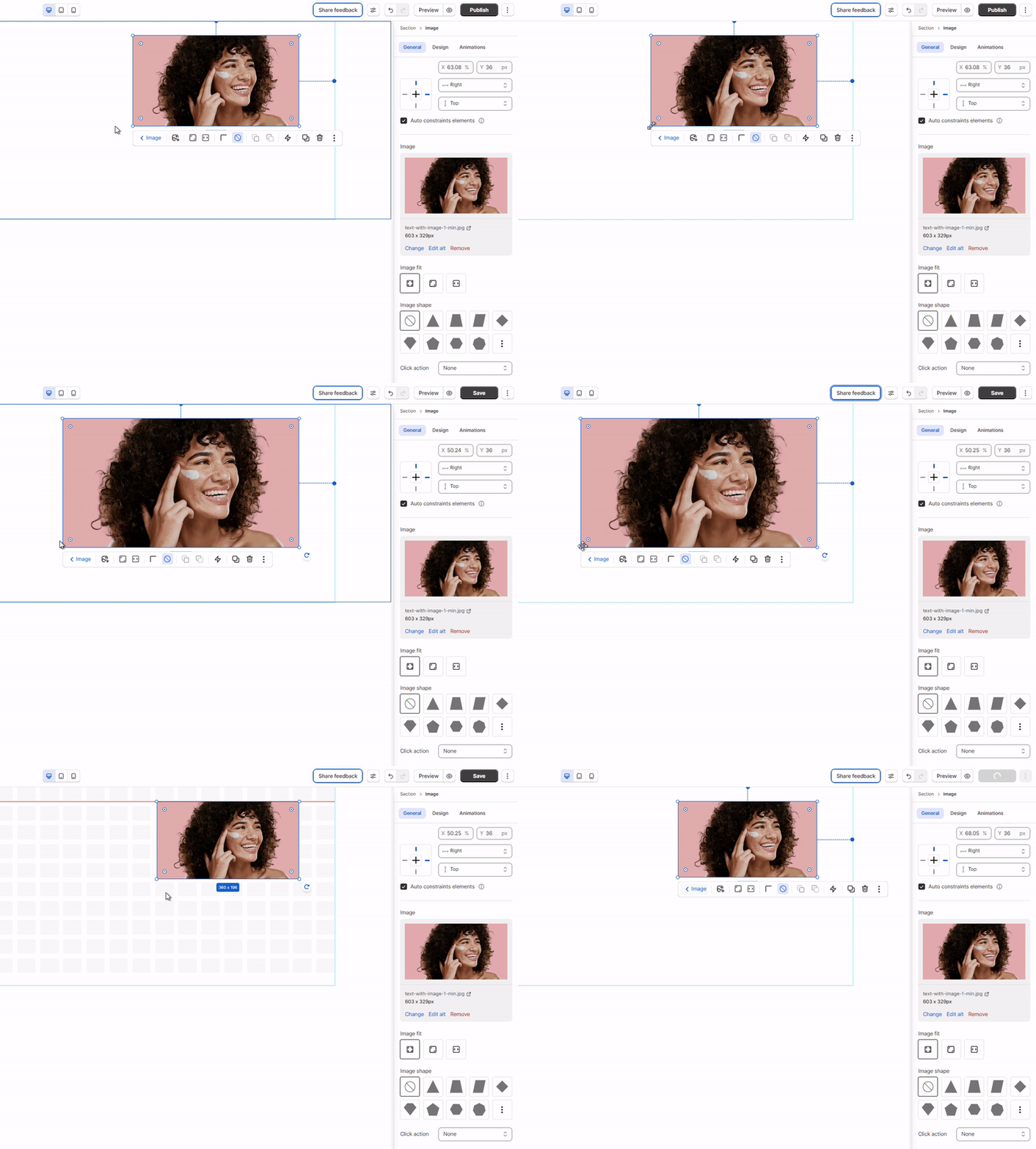
* **Fill bounding box**: The image is resized to fill the given dimension. If necessary, the image will be stretched or squished to fit.
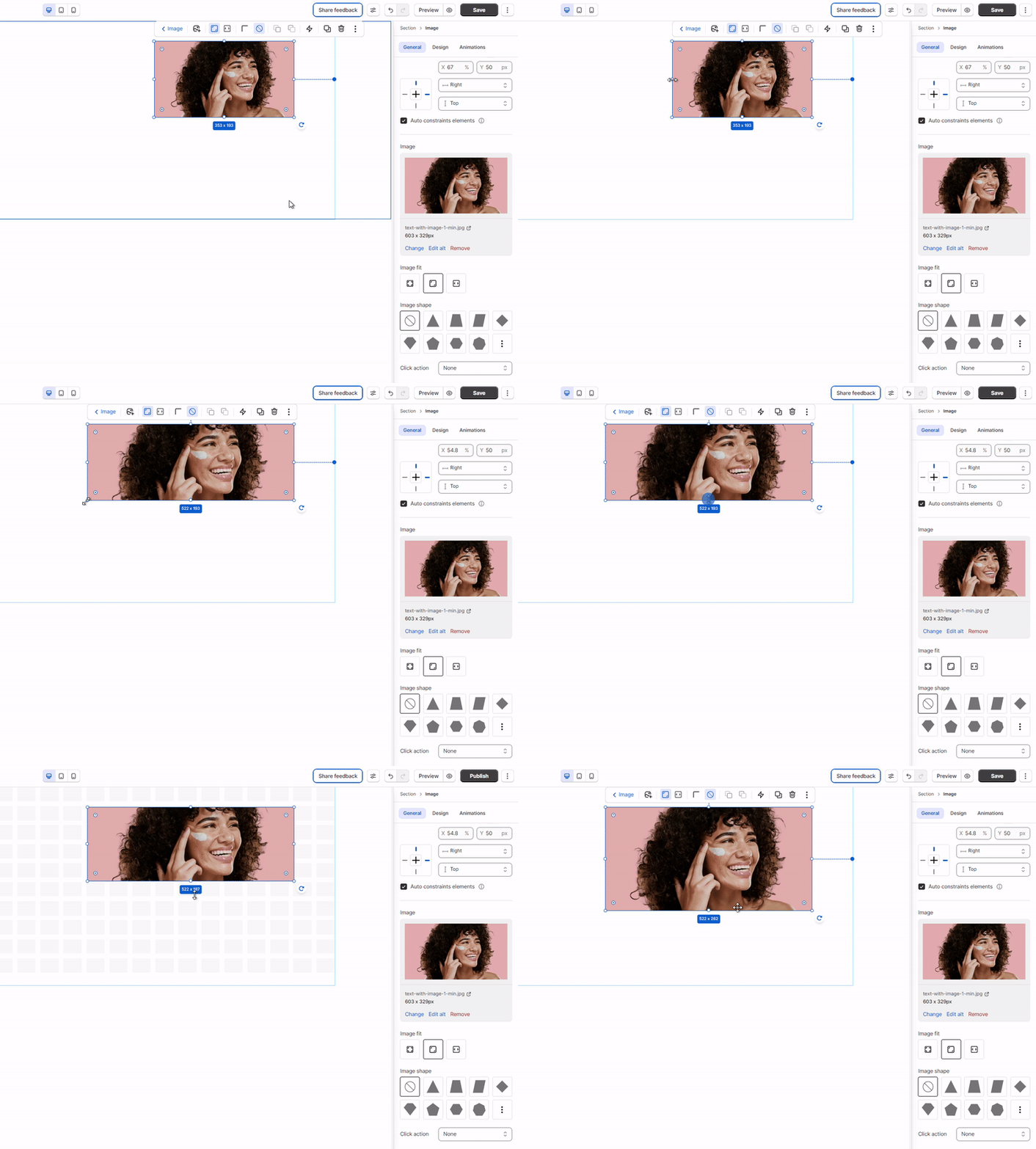
* **Fit to bounding box**: The image keeps its aspect ratio, but is resized to fit within the given dimension.